
A keyboard is one of the most important input devices used with a computer. If you are wondering what is keyboard, it is a device that allows users to enter text, numbers, and commands into a computer or other electronic devices. It contains different keys that help users interact with systems quickly and efficiently.
Keyboards are commonly used for typing documents, searching online, playing games, entering data, and navigating software applications. From students and office workers to gamers and programmers, almost everyone uses a keyboard in daily computer activities. Along with typing, keyboards also provide shortcut keys and command functions that improve productivity and make tasks easier.
There are different types of keyboards available today, including mechanical keyboards, membrane keyboards, wireless keyboards, and gaming keyboards. Keyboards also come in various layouts such as QWERTY, AZERTY, and DVORAK, designed to suit different languages and user preferences. Understanding keyboard types and layouts helps users choose the right keyboard for their needs.
What Is a Keyboard?
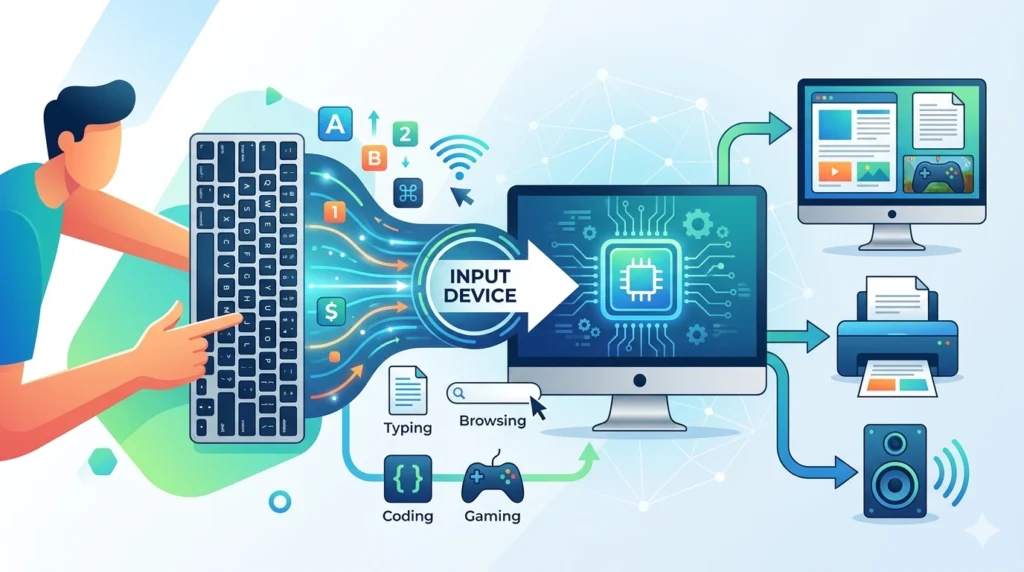
A keyboard is a computer hardware device used to enter text, numbers, symbols, and commands into a computer or other digital devices. It consists of multiple keys arranged in a specific layout that allows users to type and control different computer functions easily. In simple words, a keyboard acts as a communication tool between the user and the computer.
Keyboards are considered one of the most important parts of a computer because they help users perform a wide range of tasks efficiently. Whether writing documents, browsing the internet, coding programs, sending emails, or playing games, almost every computer activity requires keyboard input. Without a keyboard, interacting with a computer would be slower and less convenient.
A keyboard helps users interact with devices by sending signals to the computer whenever a key is pressed. These signals are processed by the system to perform actions such as typing letters, opening applications, using shortcuts, or controlling games. Modern keyboards also include special keys for multimedia controls, brightness adjustment, and quick navigation.
In computers, devices are mainly divided into input devices and output devices. A keyboard is an input device because it sends data and instructions to the computer. Other examples of input devices include a mouse, scanner, and microphone. On the other hand, output devices display or present information from the computer to the user. Examples of output devices include monitors, printers, and speakers.
History of Keyboard
The history of keyboards dates back to the invention of typewriters in the 19th century. Over time, keyboards evolved from simple typing machines into advanced computer input devices used worldwide. Today, keyboards are available in many styles and technologies, making them an essential part of modern computing.
1. Typewriter Origins
The early concept of the keyboard came from mechanical typewriters. In the 1860s and 1870s, inventors developed typewriters that allowed people to type letters on paper faster than handwriting. The popular QWERTY layout was introduced during this period and later became the standard keyboard layout used in modern computers. Typewriters laid the foundation for the design and arrangement of keys that we still use today.
2. Evolution of Computer Keyboards
As computers became popular in the mid-20th century, keyboards were adapted for digital systems. Early computer keyboards were large and basic, mainly designed for entering commands and data into computers. Over the years, manufacturers improved keyboard technology by adding function keys, numeric keypads, shortcut keys, and better typing mechanisms.
In the 1980s and 1990s, personal computers increased the demand for user-friendly keyboards. Companies started developing ergonomic designs and multimedia keyboards to improve comfort and functionality. USB connectivity also replaced older connection methods, making keyboards faster and easier to use.
3. Modern Wireless and Mechanical Keyboards
Modern keyboards are more advanced and customizable than ever before. Wireless keyboards use Bluetooth or USB receivers to connect without cables, providing better portability and convenience. Mechanical keyboards have also become highly popular because of their durability, fast response time, and satisfying typing experience.
Today, keyboards are designed for different purposes such as office work, gaming, programming, and mobile devices. Features like RGB lighting, programmable keys, touch controls, and ergonomic layouts continue to improve the user experience.
From traditional typewriters to modern wireless and mechanical keyboards, the keyboard has evolved significantly while remaining one of the most important tools for computer users.
How Does a Keyboard Work?
A keyboard works by detecting when a key is pressed and sending that information to the computer. Every key on the keyboard is connected to an internal circuit that helps the computer understand which button the user pressed. The computer then processes the input and performs the required action, such as typing a letter, opening a program, or executing a command.
Key Press Mechanism
When a user presses a key, a switch or membrane under the key gets activated. In membrane keyboards, pressing a key pushes down a rubber layer that completes an electrical connection. In mechanical keyboards, individual mechanical switches are used for each key, providing faster response and better durability.
As soon as the key is pressed, the keyboard identifies the exact location of that key. Each key has a unique code assigned to it, which helps the computer recognize the input correctly.
Electrical Signals and Input
After detecting a key press, the keyboard converts the action into electrical signals. These signals travel through the keyboard’s internal circuit and are sent to the computer through a wired USB connection or wireless technology like Bluetooth.
The computer’s processor receives these signals and translates them into readable characters or commands. For example, pressing the “A” key sends a signal that the computer converts into the letter “A” displayed on the screen.
Communication with the Computer
The keyboard constantly communicates with the computer using built-in software called keyboard drivers. These drivers help the operating system understand the signals coming from the keyboard and ensure that every key performs the correct function.
Modern keyboards can also send special commands for multimedia controls, brightness adjustment, gaming shortcuts, and navigation. Whether typing text, playing games, or using shortcut keys, the keyboard quickly exchanges information with the computer to provide a smooth user experience.
In simple terms, a keyboard works by detecting key presses, converting them into electrical signals, and sending those signals to the computer so users can interact with digital devices efficiently.
Parts of a Keyboard
A keyboard is divided into different sections, and each section has a specific purpose. These parts help users type text, perform commands, navigate screens, and control computer functions efficiently. Understanding the different parts of a keyboard makes it easier to use a computer effectively.
Alphanumeric Keys
Alphanumeric keys are the main typing keys found in the center of the keyboard. These keys include letters from A to Z, numbers from 0 to 9, and various symbols such as @, #, $, and %. They are mainly used for typing text, entering passwords, writing emails, and creating documents.
The alphanumeric section also contains important keys like Spacebar, Enter, Backspace, and Shift, which help in formatting and editing text.
Function Keys
Function keys are located at the top row of the keyboard and are labeled from F1 to F12. These keys perform special tasks depending on the software or operating system being used.
For example:
- F1 is commonly used to open help menus
- F2 is often used for renaming files
- F5 refreshes a webpage or screen
Function keys help users perform tasks quickly without navigating through menus.
Control Keys
Control keys are used to execute commands and keyboard shortcuts. Common control keys include:
- Ctrl
- Alt
- Shift
- Esc
- Windows key
These keys are usually combined with other keys to perform actions such as copying, pasting, saving files, or switching between applications. For example, pressing Ctrl + C copies selected text, while Ctrl + V pastes it.
Navigation Keys
Navigation keys help users move around documents, webpages, and applications easily. These keys include:
- Arrow keys
- Home
- End
- Page Up
- Page Down
- Insert
- Delete
They allow users to scroll, move the cursor, and edit content efficiently without using a mouse.
Numeric Keypad
The numeric keypad is usually located on the right side of a standard keyboard. It contains numbers and mathematical symbols such as +, -, *, and /. This section is useful for fast data entry and calculations, especially in accounting and office work.
Some compact keyboards may not include a separate numeric keypad to save space.
Multimedia Keys
Modern keyboards often include multimedia keys that provide quick access to audio and video controls. These keys can be used to:
- Increase or decrease volume
- Play or pause music
- Skip tracks
- Mute sound
- Adjust screen brightness
Multimedia keys improve convenience and allow users to control media functions quickly while working or gaming.
Types of Keyboards
There are different types of keyboards available for various purposes such as office work, gaming, programming, and everyday computer use. Each keyboard type has unique features and benefits that suit different user needs and preferences.
Mechanical Keyboard
A mechanical keyboard uses individual mechanical switches under each key. These switches provide better tactile feedback, faster response time, and improved durability compared to regular keyboards.
Features:
- Durable and long-lasting keys
- Fast and accurate typing experience
- Tactile and clicky key feedback
- Customizable switches and RGB lighting
Uses:
Mechanical keyboards are widely used by gamers, programmers, and professional typists because they offer high performance and comfort during long typing sessions.
Membrane Keyboard
A membrane keyboard uses a soft rubber membrane layer beneath the keys. When a key is pressed, the membrane completes an electrical connection to register the input.
Features:
- Quiet typing experience
- Lightweight design
- Affordable price
- Slim and compact structure
Uses:
Membrane keyboards are commonly used in homes, schools, and offices for general computer tasks such as typing documents and browsing the internet.
Wireless Keyboard
Wireless keyboards connect to computers without cables using Bluetooth or USB receivers. They provide flexibility and reduce desk clutter.
Features:
- Cable-free connectivity
- Portable and lightweight
- Easy to connect with multiple devices
- Clean and organized setup
Uses:
Wireless keyboards are ideal for remote work, presentations, smart TVs, tablets, and users who prefer a clutter-free workspace.
Ergonomic Keyboard
Ergonomic keyboards are specially designed to reduce strain on the hands, wrists, and fingers. They often have curved or split layouts for more comfortable typing positions.
Features:
- Comfortable typing design
- Reduces wrist and hand fatigue
- Improves posture during typing
- Suitable for long working hours
Uses:
Ergonomic keyboards are mainly used by office workers, writers, and professionals who spend long hours typing on computers.
Gaming Keyboard
Gaming keyboards are built specifically for gamers and include advanced features for better gaming performance.
Features:
- Fast response time
- RGB lighting effects
- Programmable keys and macros
- Anti-ghosting and N-key rollover support
Uses:
Gaming keyboards are used for competitive gaming and high-speed gameplay where quick reactions and precise key inputs are important.
Virtual Keyboard
A virtual keyboard is a software-based keyboard displayed on a touchscreen device or computer screen. Users type by touching the screen instead of pressing physical keys.
Features:
- No physical hardware required
- Works on smartphones, tablets, and touch devices
- Supports multiple languages and layouts
- Easy accessibility options
Uses:
Virtual keyboards are commonly used on smartphones, tablets, kiosks, and touchscreen laptops for typing and communication.
Different types of keyboards are designed to meet different user needs. Choosing the right keyboard depends on factors such as comfort, typing style, portability, and intended use.
Different Keyboard Layouts
Keyboard layouts refer to the arrangement of letters, numbers, and symbols on a keyboard. Different layouts were created to support various languages, typing styles, and regional preferences. Some layouts focus on typing speed and comfort, while others are designed for specific countries and languages.
QWERTY Keyboard
The QWERTY keyboard is the most widely used keyboard layout in the world. Its name comes from the first six letters on the top row of the keyboard: Q, W, E, R, T, and Y.
This layout was originally designed for typewriters to reduce key jamming by spacing commonly used letters apart. Today, QWERTY is the standard layout used in most computers, laptops, and smartphones.
Common Uses:
- English typing
- Office work
- General computer use
- Gaming and programming
AZERTY Keyboard
The AZERTY keyboard layout is mainly used in France and some other French-speaking countries. It is similar to the QWERTY layout but has different positions for certain letters and symbols.
For example, the letters A and Q are swapped, and Z and W are also exchanged. This arrangement better supports typing in the French language.
Common Uses:
- French language typing
- Regional computer systems in Europe
- Educational and office environments in French-speaking countries
DVORAK Keyboard
The DVORAK keyboard layout was designed to improve typing efficiency and speed. Unlike QWERTY, DVORAK places the most commonly used letters in easier-to-reach positions to reduce finger movement.
This layout is known for offering a more comfortable typing experience, especially for professional typists.
Common Uses:
- Fast typing
- Ergonomic typing setups
- Professional typing and productivity tasks
QWERTZ Keyboard
The QWERTZ keyboard layout is commonly used in Germany, Austria, and several Central European countries. It is similar to QWERTY but swaps the positions of the Y and Z keys.
The layout also includes additional characters and symbols required for European languages.
Common Uses:
- German language typing
- European computer systems
- Regional office and educational use
Different keyboard layouts exist because languages, typing habits, and regional requirements vary around the world. Some layouts are designed for faster typing, while others are optimized for specific alphabets and special characters. Choosing the right keyboard layout helps users type more comfortably and efficiently based on their language and preferences.
Advantages of Keyboard
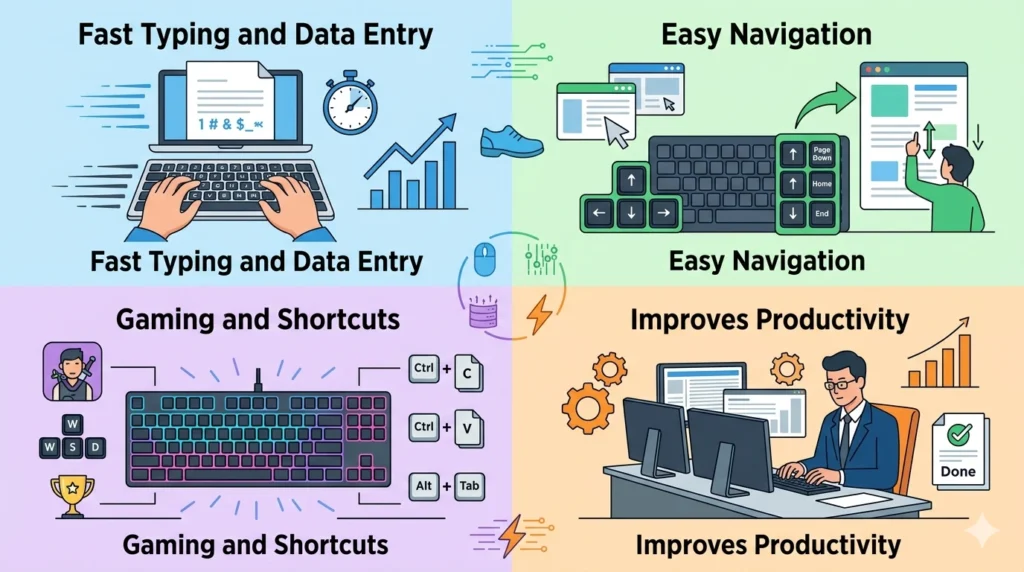
A keyboard is one of the most useful input devices for computers and digital systems. It offers several advantages that make typing, navigation, and computer operations faster and more convenient.
Fast Typing and Data Entry
Keyboards allow users to type text, numbers, and symbols quickly and accurately. This makes them highly useful for writing documents, entering data, coding, and online communication. Professional typists and office workers can significantly improve their speed and efficiency using a keyboard.
Easy Navigation
Keyboards provide shortcut keys and navigation buttons that help users move through documents, webpages, and applications easily. Keys such as Arrow keys, Page Up, Page Down, Home, and End make navigation faster without relying completely on a mouse.
Useful for Gaming and Shortcuts
Modern keyboards are widely used for gaming because they offer quick response times and customizable controls. Keyboard shortcuts such as Ctrl + C, Ctrl + V, and Alt + Tab also help users perform tasks quickly and save time while working on computers.
Improves Productivity
Using a keyboard increases productivity by enabling faster typing, multitasking, and quick command execution. Users can complete tasks more efficiently, especially in offices, schools, programming environments, and professional workspaces.
Disadvantages of Keyboard
Although keyboards are highly useful, they also have some disadvantages that users should be aware of.
Can Cause Wrist Strain
Using a keyboard for long hours without proper posture can lead to wrist pain, finger fatigue, and repetitive strain injuries. Continuous typing may also cause discomfort in the hands and shoulders if ergonomic practices are not followed.
Mechanical Issues Over Time
Keyboards can develop problems after long-term use. Keys may become unresponsive, damaged, or stuck due to dust, wear, or liquid spills. Mechanical keyboards may also produce noise, which can disturb some users.
Requires Typing Skills
To use a keyboard efficiently, users need proper typing skills and familiarity with key layouts. Beginners may take time to learn typing speed, keyboard shortcuts, and finger positioning for accurate input.
Common Keyboard Shortcuts
Keyboard shortcuts help users perform tasks quickly without using a mouse. These shortcuts save time, improve productivity, and make computer navigation easier. Most shortcuts use a combination of keys such as Ctrl, Alt, Shift, and other letters or symbols.
Ctrl + C
Ctrl + C is used to copy selected text, files, images, or other items. When users select something and press Ctrl + C, the item is stored temporarily in the computer’s clipboard without removing it from its original location.
Function:
- Copies selected content
Common Uses:
- Copying text in documents
- Duplicating files or folders
- Copying images and links
Ctrl + V
Ctrl + V is used to paste copied or cut content from the clipboard into a new location. This shortcut works after using Ctrl + C or Ctrl + X.
Function:
- Pastes copied or cut content
Common Uses:
- Pasting text into documents
- Moving files between folders
- Inserting copied images or links
Ctrl + Z
Ctrl + Z is an undo shortcut that reverses the last action performed by the user. It is one of the most useful shortcuts for correcting mistakes quickly.
Function:
- Undoes the previous action
Common Uses:
- Recovering deleted text
- Reversing accidental edits
- Undoing formatting changes
Ctrl + A
Ctrl + A is used to select all content within a document, webpage, or folder. This shortcut helps users manage large amounts of content quickly.
Function:
- Selects all items or text
Common Uses:
- Selecting entire documents
- Highlighting all files in a folder
- Copying or deleting large sections of text
Alt + Tab
Alt + Tab allows users to switch between open applications and windows quickly. It is especially useful when multitasking on a computer.
Function:
- Switches between active windows
Common Uses:
- Moving between programs
- Multitasking efficiently
- Quickly accessing open applications
Learning common keyboard shortcuts can make computer use faster, easier, and more efficient for both beginners and advanced users.
Uses of Keyboard
A keyboard is used for many different tasks in computers and digital devices. It helps users enter information, control software, and communicate efficiently. From students and office workers to gamers and programmers, keyboards are essential for everyday computer activities.
Typing Documents
One of the primary uses of a keyboard is typing documents, reports, assignments, and notes. Users can quickly enter text, numbers, and symbols into word processors and other applications. Keyboards make writing and editing content faster and more convenient than handwriting.
Programming and Coding
Programmers and developers use keyboards extensively for writing code and creating software applications. Coding requires frequent use of letters, numbers, symbols, and shortcuts, making a keyboard one of the most important tools for software development. Mechanical and ergonomic keyboards are especially popular among programmers because they improve typing comfort and speed.
Gaming
Keyboards are widely used in computer gaming for controlling characters, movements, and game actions. Gaming keyboards often include advanced features such as customizable keys, RGB lighting, and faster response times. Players use keyboard combinations and shortcut commands to improve gameplay and reaction speed.
Office Work
In offices, keyboards are used for data entry, creating spreadsheets, sending emails, preparing presentations, and managing records. Employees rely on keyboards to complete daily tasks efficiently and improve productivity. Numeric keypads are especially useful for accounting and financial work.
Online Communication
Keyboards play an important role in online communication. They are used for sending emails, chatting on social media, participating in video conferences, and posting content online. Whether using a computer, laptop, tablet, or smartphone, keyboards help users communicate quickly and easily across digital platforms.
Tips to Maintain a Keyboard
Proper keyboard maintenance helps improve performance, extend lifespan, and keep typing comfortable and hygienic. Regular care can also prevent common problems such as stuck keys, dust buildup, and hardware damage.
Cleaning Regularly
Cleaning the keyboard regularly is important to remove dust, dirt, and debris that collect between the keys. Users can gently wipe the surface with a soft cloth and use compressed air or a small brush to clean hard-to-reach areas.
Regular cleaning helps:
- Keep keys functioning properly
- Prevent sticky or unresponsive keys
- Maintain hygiene and cleanliness
Before cleaning, it is recommended to disconnect the keyboard or turn off the device for safety.
Avoiding Food and Liquids
Eating or drinking near a keyboard can lead to accidental spills and crumbs getting trapped under the keys. Liquids can damage the internal circuits, while food particles may cause keys to stick or stop working.
To protect the keyboard:
- Keep drinks away from the workspace
- Avoid eating directly over the keyboard
- Clean spills immediately if they occur
Taking these precautions can prevent costly repairs or replacements.
Using Keyboard Covers
Keyboard covers provide an extra layer of protection against dust, moisture, and dirt. Silicone or plastic covers are commonly used on laptops and desktop keyboards to keep the keys clean and safe from accidental spills.
Benefits of keyboard covers include:
- Reduced dust accumulation
- Protection from liquid damage
- Easier cleaning and maintenance
Keyboard covers are especially useful in offices, schools, and shared workspaces.
Proper Handling
Handling the keyboard carefully helps prevent physical damage and improves durability. Users should avoid pressing keys too hard, dropping the keyboard, or pulling cables forcefully.
Good handling practices include:
- Typing gently and correctly
- Storing the keyboard safely when not in use
- Keeping cables untangled and secure
- Using ergonomic positioning for comfort
Proper care and maintenance can help a keyboard last longer and provide a better typing experience over time.
FAQs About Keyboard
1. What is keyboard in computer?
A keyboard in a computer is an input device used to enter text, numbers, symbols, and commands into a computer or digital device. It allows users to interact with the system by pressing different keys for typing and controlling functions.
2. What are the main parts of a keyboard?
The main parts of a keyboard include:
- Alphanumeric keys
- Function keys
- Control keys
- Navigation keys
- Numeric keypad
- Multimedia keys
Each section performs specific tasks such as typing, navigation, shortcuts, and media control.
3. What is the function of a keyboard?
The main function of a keyboard is to provide input to a computer. It helps users type documents, execute commands, use shortcuts, play games, browse the internet, and communicate online.
4. What are the different types of keyboards?
Some common types of keyboards are:
- Mechanical keyboard
- Membrane keyboard
- Wireless keyboard
- Ergonomic keyboard
- Gaming keyboard
- Virtual keyboard
Each type is designed for different purposes and user preferences.
5. Why is QWERTY keyboard commonly used?
The QWERTY keyboard is commonly used because it became the standard layout during the typewriter era. Its design helped reduce key jamming in early typewriters, and over time it became widely adopted for computers, laptops, and mobile devices worldwide.
Conclusion
A keyboard is one of the most essential input devices used in computers and digital systems. It allows users to enter text, numbers, and commands quickly and efficiently. From typing documents and browsing the internet to gaming and programming, keyboards play a major role in everyday computer activities.
Understanding what is keyboard, its parts, functions, layouts, and types helps users make better use of technology in daily life. Keyboards improve productivity, simplify navigation, and make communication faster across different digital platforms.
Today, various types of keyboards are available to meet different user needs. Mechanical keyboards are popular among gamers and programmers, ergonomic keyboards provide comfort for long working hours, while wireless and virtual keyboards offer flexibility and portability. Choosing the right keyboard depends on personal preferences, work requirements, and comfort.