
If you found ShotScribus software on your computer, or saw it in a download link, you’re probably wondering what it does. That’s a fair question. The name sounds like a real app, but you won’t find a trusted publisher, a known release history, or an official product page behind it.
This guide explains what ShotScribus software appears to be, how to check whether it’s safe, and how to remove it from a Mac or Windows PC. It also covers the real tools the name resembles and how to stay safe when you download software.
What Is ShotScribus Software?
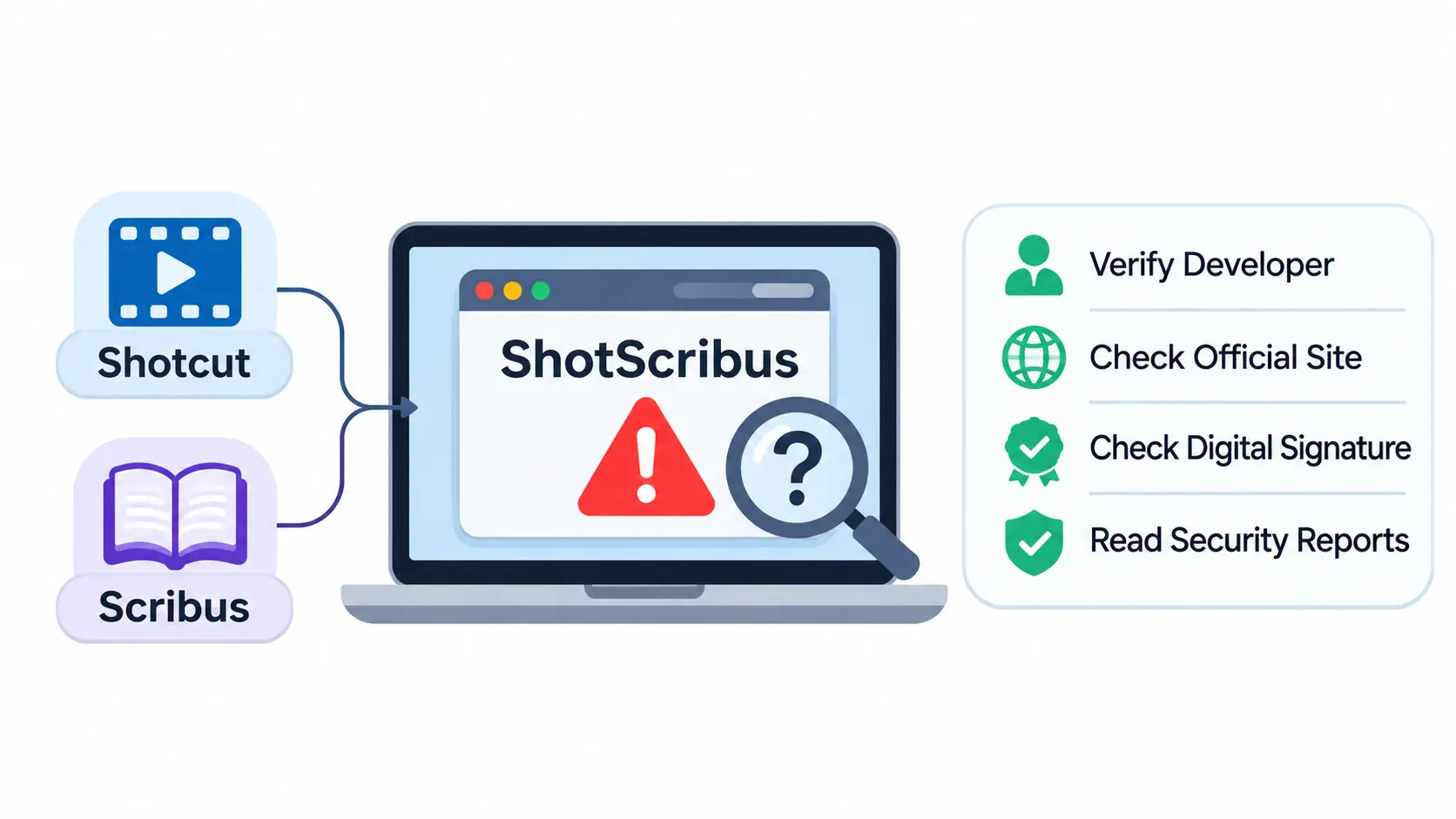
ShotScribus software is an unverified program with no confirmed developer. Its name looks like a blend of two real tools, Shotcut and Scribus. Security-focused guides treat it as suspicious or potentially unwanted software.
It is important to verify its source before downloading or installing it. Check the developer’s identity, official website, digital signature, and independent security reports to understand whether the application is trustworthy. Avoid sharing personal information or granting unnecessary permissions until its legitimacy is established.
Overview of ShotScribus
ShotScribus is not a known product from a recognized software company. It doesn’t appear in the usual places where legitimate apps show up, such as established review platforms, the Mac App Store, or the Microsoft Store.
Instead, it turns up on blog posts, low-quality download pages, and cleanup guides. Those sources disagree sharply about what it is. That disagreement is a warning sign in itself.
What Does the ShotScribus Website Claim?
Pages that promote ShotScribus software make a mix of claims. Some describe it as a free layout tool for books and flyers. Others hint at video editing. Some say it works on Windows and runs on Mac through helper software.
Here’s the catch. Several of these pages describe features that belong to Scribus, a well-known open-source publishing tool. They even tell you to install Scribus. That suggests the “ShotScribus” name is being used as a label, not as a distinct product.
What Is the Supposed Purpose of ShotScribus?
The supposed purpose depends on who you ask:
- Page design: Some pages say it makes flyers, magazines, and books.
- Video or screen editing: A few pages blur it with screenshot or video tools.
- Adware or tracking: Security guides say it may push ads or monitor browsing activity.
A real application has one clear purpose. ShotScribus has three conflicting ones.
Who Developed ShotScribus?
No one has been publicly identified as the developer. There’s no company name, no named team, no source code repository, and no support contact I could verify.
That matters. Legitimate software, even free software, has a traceable origin.
What Is Actually Verified About ShotScribus?
Here’s what we can say with confidence:
- The name resembles two real programs, Shotcut and Scribus.
- No trusted publisher or official site could be confirmed.
- Independent security guides advise removing it if it’s on your device. For example, MacPaw’s guide says it appears to be malicious software that borrows the popularity of Shotcut and Scribus to trick people into installing it.
- Promotional pages describing it as a safe design tool are mostly built on Scribus information.
What’s not verified is any proof that it’s a genuine, standalone application. I couldn’t find one.
Is ShotScribus Software Legitimate or Fake?
Based on what’s publicly available, ShotScribus software is very unlikely to be a legitimate, standalone application. Treat it as untrusted until proven otherwise.
What Information Is Available About Its Developer?
Almost none. A trustworthy publisher usually leaves a trail: a company website, a privacy policy, a support address, release notes, and a history of updates.
ShotScribus has none of these in a form you can check. When a program asks for your trust but won’t say who made it, that’s a problem.
Does ShotScribus Have a Verifiable Software History?
No. Real software has version numbers, changelogs, and a track record. Scribus, for example, has been developed in the open for over two decades, and its history is documented on Wikipedia.
ShotScribus has no comparable history. You can’t trace earlier versions or find an independent community discussing it as a working tool.
Why Are There Concerns About Its Authenticity?
Three things raise red flags:
- A borrowed name. Combining two trusted brands is a classic way to make unknown software feel familiar.
- Conflicting descriptions. Different sites claim it does completely different jobs.
- Security warnings. Cleanup and security guides call it a risk, while the “safe” claims come from pages that seem designed to rank in search results.
None of this alone proves malice. Together, it’s enough to be cautious.
How to Verify Whether a Software Application Is Legitimate
You can use this four-step check on any program, not just this one.
Check the Official Developer Website
Look for a real site with a named company or team, a privacy policy, contact details, and clear documentation. Be wary if the “official” page is just a download button.
Verify the Digital Signature
A digital signature shows who published a file and whether it was altered after signing. Digital signatures are one part of broader secure software development practices that help establish software integrity and protect users from unauthorized modifications.
- Windows: Right-click the installer, choose Properties, then open the Digital Signatures tab. An unsigned file or an unfamiliar signer is a warning sign.
- Mac: Open Terminal and run codesign -dv –verbose=4 /Applications/AppName.app to see the signing details.
Check Independent Reviews
Search for the software name plus “review” or “malware.” Look for discussions on Reddit or in security forums from real users, not just pages that repeat the same description.
Examine Software Permissions
Does the app ask for access it doesn’t need? A page-layout tool has no reason to request your keyboard input, browsing history, or full-disk access. Excessive permissions suggest the software wants more than it should.
Is ShotScribus Software Safe or Does It Contain Malware?
Short answer: It isn’t confirmed safe. Because its source is unknown, you should assume it carries risk. Whether a specific file contains malware depends on what you downloaded, so scan it before opening anything.
Think of it like an unmarked package at your door. It might be harmless. But you wouldn’t open it without checking where it came from.
Potential Security Risks of Unverified Software
Software from unknown publishers can do several things:
- Show intrusive ads or pop-ups
- Change your browser’s homepage or search engine
- Install extra programs you didn’t ask for
- Track your browsing habits
- Slow down your computer
- In worse cases, capture passwords or personal data
Understanding common security threats and using the right cybersecurity tools and protection strategies can help reduce the risks associated with unfamiliar applications. Not every unverified program does all of this. But you can’t tell which ones do until you check.
Can ShotScribus Access Personal Information?
Any program running on your computer can potentially see what your user account can see. That includes files in your Documents folder, browser data, and clipboard contents, unless the operating system blocks it.
So the honest answer is that it could, depending on what it is and what permissions you’ve granted. There’s no verified evidence of exactly what ShotScribus does with your data, which is part of the concern. Protecting personal information requires proper data security and privacy practices, including access controls, data protection measures, and regular security monitoring.
Warning Signs of Suspicious Software
Watch for these on your device:
- Pop-ups appearing when you’re not using a browser
- Browser settings that changed on their own
- Unknown apps in your Applications folder or installed programs list
- A sudden slowdown or high fan activity
- Programs that start automatically at login
- A “ShotScribus software upgrade” prompt
That last one deserves a note. Fake update prompts are a common trick for installing more unwanted software. If you see one, close it and don’t click the button. Legitimate programs update through their own official channels.
How to Scan ShotScribus for Malware
Use more than one tool. No single scanner catches everything.
Scan Files Using VirusTotal
VirusTotal is a free service that checks a file against dozens of antivirus engines.
- Go to virustotal.com.
- Upload the installer or file. Don’t open it first.
- Read the results. Several detections is a bad sign, but a clean result doesn’t guarantee safety.
Run Microsoft Defender
On Windows:
- Open Windows Security.
- Go to Virus & threat protection.
- Choose Scan options, then Full scan, then Scan now.
For a deeper check, run Microsoft Defender Offline scan from the same menu.
Check Applications Using macOS Security Tools
macOS has built-in protection through Gatekeeper and XProtect. To review what’s on your Mac:
- Open System Settings and go to General > Login Items & Extensions.
- Look for anything unfamiliar that launches at startup.
- Open Privacy & Security and check which apps have permissions like Full Disk Access.
If you want an extra layer, a reputable Mac security scanner can look for adware and leftover files.
What to Do If You Have Already Installed ShotScribus
Don’t panic. Most unwanted software is annoying, not catastrophic. Follow the steps in the uninstall section and the “already installed” section below. Acting quickly limits any damage.
ShotScribus vs Shotcut vs Scribus: What Is the Difference?
Shotcut and Scribus are real, separate, open-source programs. ShotScribus is an unverified name that sounds like a mix of the two. It is not known to be connected to either project.
What Is Shotcut?
Shotcut is a free, open-source video editor for Windows, Mac, and Linux. You use it to cut clips, add effects, and export finished videos. Its official site is shotcut.org.
It supports a wide range of video formats and offers features such as filters, transitions, audio editing, and timeline-based editing. It is a reliable option for beginners and experienced creators who need a capable video editor without paying for a subscription.
What Is Scribus?
Scribus is a free, open-source desktop publishing program. People use it to lay out magazines, brochures, newsletters, and books, and it supports professional print features such as CMYK color and PDF export.
Scribus also provides tools for managing typography, page layouts, images, and document formatting. It is particularly useful for designers, publishers, and businesses that need to create print-ready documents without investing in expensive desktop publishing software.
Are ShotScribus, Shotcut, and Scribus Connected?
There’s no evidence that they are. Neither project has announced anything called ShotScribus. The similarity in name appears to be borrowed, not official.
This matters because it explains why people trust the name. They assume a combination of two respected tools must be safe.
Comparison of Their Purpose and Features
| ShotScribus | Shotcut | Scribus | |
| Main purpose | Unclear, claims vary | Video editing | Page layout and publishing |
| Verified developer | No | Yes | Yes |
| Official website | Not confirmed | shotcut.org | scribus.net |
| Open source | Not verified | Yes | Yes |
| Safety status | Unverified, treat with caution | Widely used | Widely used |
Is ShotScribus used for editing? There’s no verified proof that it edits anything. If you want to edit video, use Shotcut. If you want to design page layouts, use Scribus.
How to Uninstall ShotScribus Software
Short answer: Quit the app, delete it, remove leftover files, check startup items, then scan your computer. On Mac, dragging it to the Trash is often not enough.
How to Remove ShotScribus from Mac
If you’re searching for how to uninstall ShotScribus software on a Mac, follow these five steps.
Step 1: Quit the Application
Open Activity Monitor (press Command + Space, then type its name). Search for “ShotScribus,” select any matching process, and click the stop button (the X).
Step 2: Open Finder and Locate the Application
Open Finder and click Applications in the sidebar. Look for ShotScribus. If you don’t see it, check your Downloads folder for installer files.
Step 3: Move the Application to Trash
Drag the app to the Trash, or right-click it and choose Move to Trash.
Step 4: Check for Associated Leftover Files
Hidden files often remain. In Finder, click Go > Go to Folder and check these locations for anything named ShotScribus or from an unfamiliar publisher:
- ~/Library/Application Support/
- ~/Library/LaunchAgents/
- ~/Library/Caches/
- ~/Library/Preferences/
- /Library/LaunchDaemons/
Also check System Settings > General > Login Items & Extensions and turn off anything related to it. Only delete items you’re confident belong to ShotScribus.
Step 5: Empty Trash and Run a Security Scan
Empty the Trash, then restart your Mac. After that, run a scan with a trusted security tool. Check Safari, Chrome, or Firefox for unfamiliar extensions, too.
How to Remove ShotScribus from Windows
Step 1: Open Installed Apps
Click Start, then open Settings > Apps > Installed apps.
Step 2: Find and Uninstall the Application
Search for ShotScribus. Click the three dots beside it and choose Uninstall. Follow the prompts.
Step 3: Check Startup Applications
Press Ctrl + Shift + Esc to open Task Manager, then click the Startup apps tab. Disable anything suspicious. You can also check Task Scheduler for unfamiliar scheduled tasks.
Step 4: Scan Your Computer
Run a full scan with Microsoft Defender, as described earlier. Then reset your browser settings if your homepage or search engine changed.
What to Do If ShotScribus Cannot Be Uninstalled
If it won’t delete, try these fixes:
- Quit its processes first. Use Activity Monitor on Mac or Task Manager on Windows.
- Restart in Safe Mode. On Windows, hold Shift while clicking Restart, then choose Troubleshoot > Startup Settings. On Mac, use Safe Mode through the startup options for your chip type.
- Check administrator rights. Make sure you’re signed in as an admin.
- Run an anti-malware scan. A dedicated scanner can remove stubborn components.
If nothing works, a trusted cleanup tool or a professional technician can help.
What Should You Do If You Have Already Installed ShotScribus?
If you installed it, work through these steps in order.
Disconnect from the Internet if You Suspect Active Malicious Activity
If you see strange pop-ups, unknown logins, or a very slow system, disconnect from Wi-Fi or unplug the network cable. This can stop data from leaving your device while you work.
Run a Full Malware Scan
Scan with your operating system’s built-in tool, then follow up with a second opinion scanner. Don’t skip the second scan. Different tools catch different threats.
Check Browser Extensions and Startup Programs
Review every extension in your browser. Remove any you don’t recognize. Then check your startup items, as shown in the uninstall steps above.
Review Your Account Activity
Check recent sign-in activity on your email, banking, and social media accounts. Look for logins from places or devices you don’t recognize.
Change Potentially Exposed Passwords
Use a clean device if you can. Change passwords for email first, since it controls password resets for everything else. Then update banking and important accounts. Turn on two-factor authentication wherever it’s offered.
Restore Your Computer if Necessary
If problems continue after cleanup, consider restoring from a backup made before you installed the software. As a last resort, reset the system to factory settings. Back up your personal files first, and scan them before restoring.
Best Alternatives to Consider Instead of ShotScribus
If you installed ShotScribus because you needed a creative tool, here are real options.
Best Alternatives for Video Editing
- Shotcut: Free and open-source. A good fit for beginners and hobby projects.
- DaVinci Resolve: Made by Blackmagic Design. It has a free version with professional-grade color and editing tools, though it needs a stronger computer.
Best Alternatives for Desktop Publishing
- Scribus: Free and open-source. It has a learning curve, but it’s strong for print layouts.
- Adobe InDesign: The industry standard. It’s paid, but it has polish and wide support.
How to Choose Software Based on Your Requirements
Ask yourself three questions:
- What am I making? Video needs an editor. Brochures and books need a layout tool.
- What’s my budget? Free tools like Shotcut and Scribus cover most basic needs.
- How much time can I spend learning? Pro tools offer more, but they take longer to learn.
Then download only from the creator’s official website.
Can ShotScribus help the environment? There’s no verified evidence for this. Some pages claim that digital layout tools reduce paper waste, which is a general argument about going paperless. It isn’t a proven feature of ShotScribus. Choosing digital proofs over printed ones can cut waste with any legitimate publishing tool.
How to Stay Safe When Downloading Unknown Software
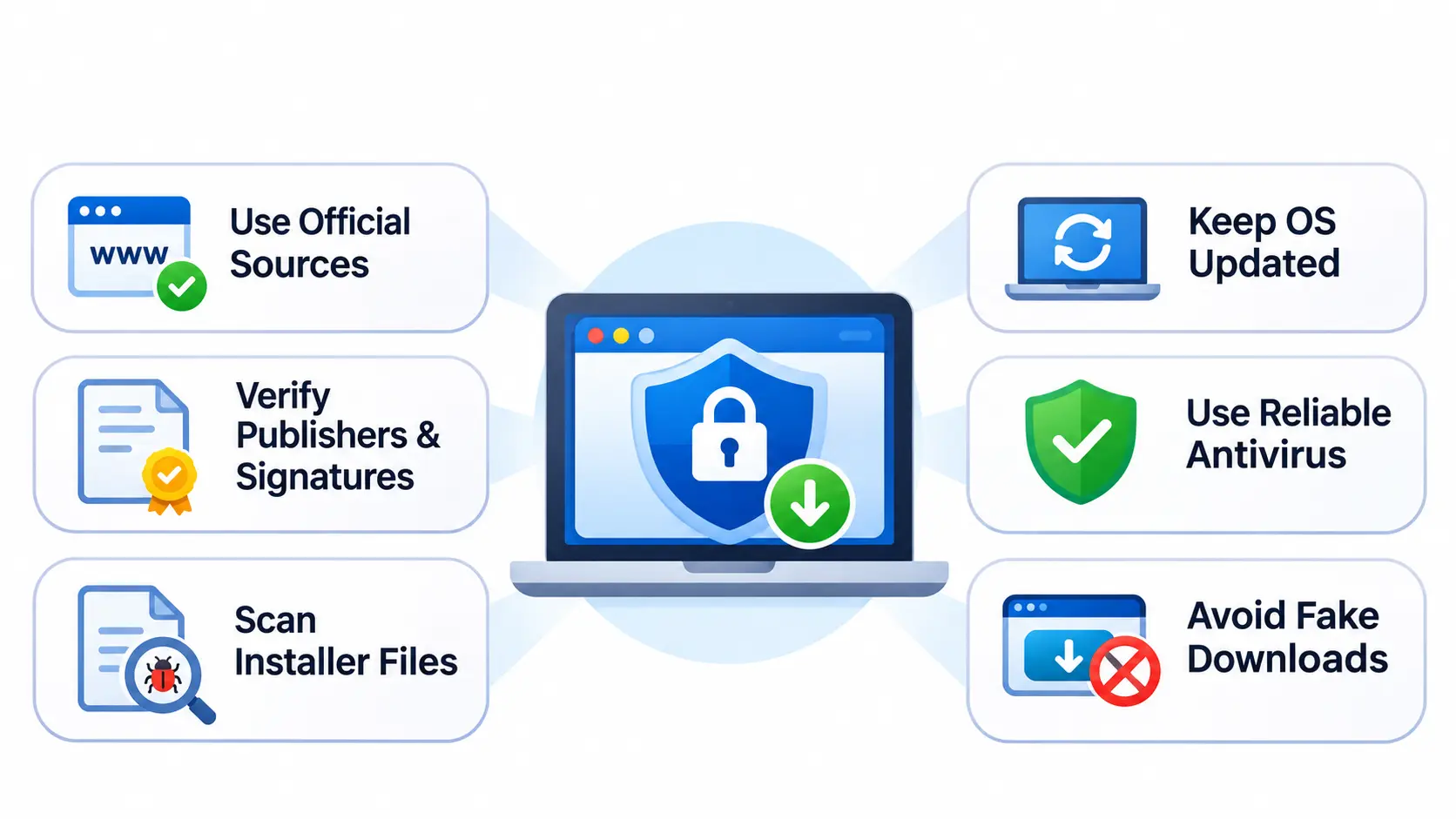
Download Applications from Official Sources
Use the developer’s own website, the Mac App Store, or the Microsoft Store. Type the address yourself instead of clicking a search ad.
Verify Software Publishers and Digital Signatures
Check who published the file before you run it. An unknown or missing publisher is a reason to stop. This is also how you protect software you rely on: keep it signed, updated, and sourced from the official vendor.
Check Installer Files Before Opening Them
Scan every installer on VirusTotal first. Be suspicious of installers that are tiny, have double file extensions (like .pdf.exe), or ask you to turn off security features.
Keep Your Operating System Updated
Updates patch security holes that malware uses. Turn on automatic updates for your OS and your browser.
Use Reliable Antivirus Protection
Microsoft Defender is a solid baseline on Windows. macOS has built-in protections, and you can add a reputable security app if you want more coverage.
Avoid Suspicious Download Buttons and Third-Party Installers
Many download pages are crowded with fake buttons. The real link is often small and plain. Avoid “download managers” and bundled installers, which often add extra software. For the same reason, skip any “ShotScribus software download for computer” link. Since no official source exists, no safe download does either.
Frequently Asked Questions About ShotScribus Software
1. What is ShotScribus software used for?
Nothing verified. Some sites describe it as a layout or editing tool, but those claims mostly borrow from Scribus and Shotcut. Security guides describe it as unwanted or suspicious software.
2. Is ShotScribus software safe to download?
It isn’t confirmed safe. With no verified developer or official source, the safest choice is not to download it.
3. Is ShotScribus a virus?
Not confirmed as a specific virus. But it’s widely flagged as potentially unwanted or malicious, so treat it as a threat until a scan says otherwise.
4. Who created ShotScribus?
No creator has been publicly or credibly identified.
5. Is ShotScribus related to Shotcut?
There’s no evidence of a connection. Shotcut is a separate, legitimate video editor.
6. Is ShotScribus related to Scribus?
There’s no evidence of this either. Scribus is a separate, legitimate publishing program.
7. Can I uninstall ShotScribus from my Mac?
Yes. Quit the app, move it to the Trash, delete leftover files in your Library folders, remove login items, empty the Trash, and run a security scan.
8. How do I remove ShotScribus from Windows?
Open Settings > Apps > Installed apps, uninstall it, check Startup apps in Task Manager, and run a full Microsoft Defender scan.
9. What should I do if I accidentally installed ShotScribus?
Uninstall it, scan your device, check your browser extensions, review your account activity, and change important passwords.
10. What are the best alternatives to ShotScribus?
For video, try Shotcut or DaVinci Resolve. For publishing, try Scribus or Adobe InDesign.
Conclusion
ShotScribus software is a name you should be careful with. There’s no confirmed developer, no verifiable history, and no official source. Its name leans on two trusted tools, Shotcut and Scribus, but nothing shows it’s linked to either.
If you haven’t downloaded it, don’t. If you have, uninstall it, scan your device, and secure your accounts. If you were looking for a real tool, go straight to the official sites for Shotcut or Scribus.
Also, stay alert for unfamiliar applications that appear on your device without your knowledge. Regularly update your operating system, use reliable security software, and download programs only from trusted sources. These simple precautions can help protect your device and personal information from potential security threats.
A quick habit helps most: before you install anything, ask who made it and where it came from. If you can’t answer, don’t install it.