
To add footnotes in Google Docs, place your cursor where the note should go, click Insert > Footnote, and type your note at the bottom of the page. Google Docs adds the superscript number and numbers every note for you.
A footnote is not the same as a footer. A footnote is tied to one spot in your text and sits at the bottom of that page. A footer is a block of repeating text at the bottom of every page, like a page number or a document title. People mix them up all the time, and this guide will help you keep them straight.
Below you’ll find the exact steps, the keyboard shortcuts, citation tips, and fixes for the problems people hit most often.
How to Add a Footnote in Google Docs
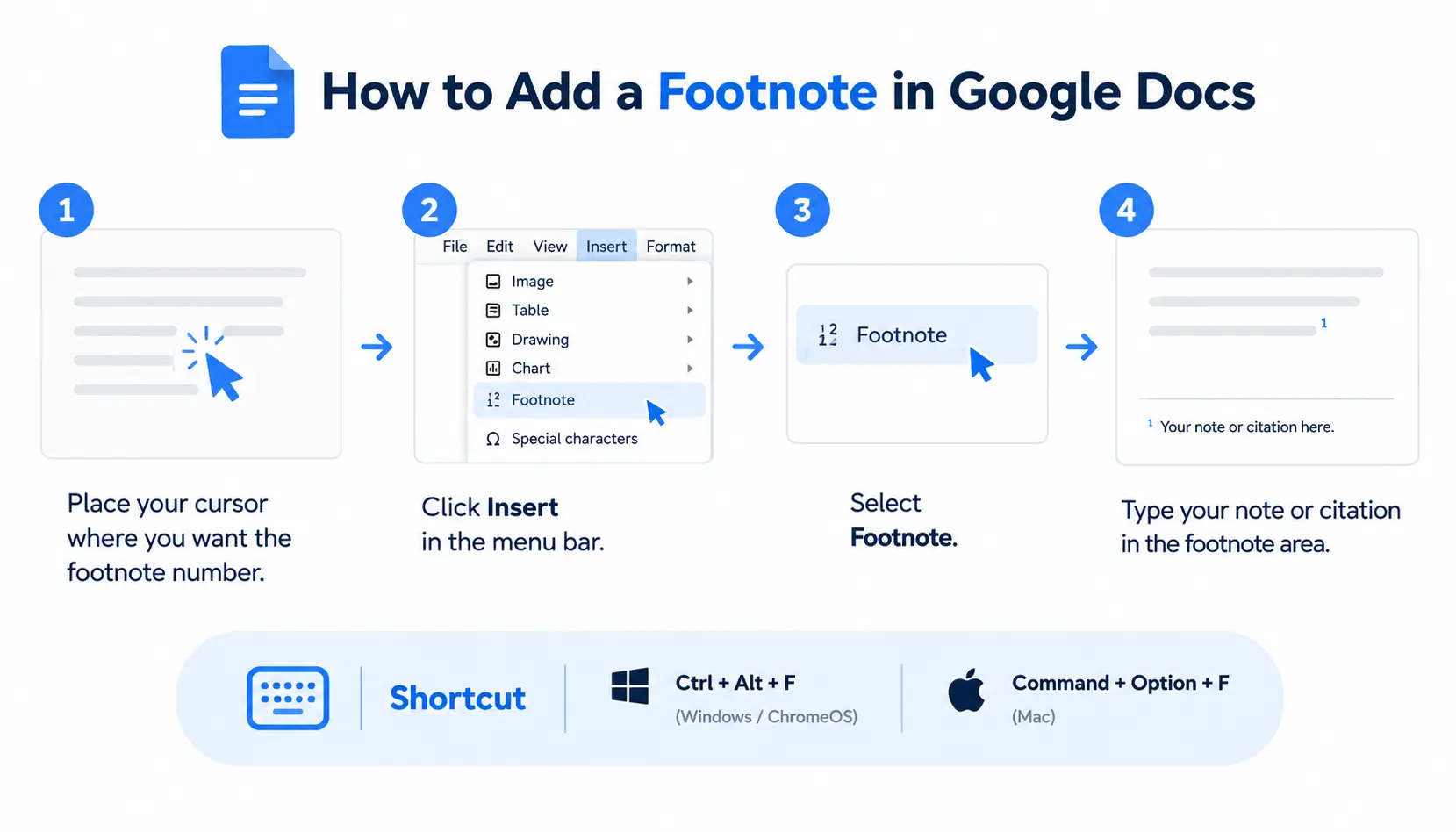
Here is the fastest way to add a footnote:
- Place your cursor in the text where you want the footnote number to appear.
- Click Insert in the menu bar.
- Select Footnote.
- Type your note or citation in the footnote area at the bottom of the page.
Shortcut: Press Ctrl + Alt + F on Windows or ChromeOS, or Command + Option + F on Mac. The cursor jumps straight to the new footnote.
What Is a Footnote in Google Docs?
A footnote is a short note that adds detail, a definition, or a source to a specific point in your writing. A small superscript number appears in your text. The matching note shows up at the bottom of the same page, marked with the same number.
The idea is much older than word processors. Writers have used notes like this for centuries, and Wikipedia’s article on notes in typography gives a good overview of footnotes and endnotes.
In Google Docs, the footnote and its number are linked. If you move the number, the note moves with it. If you add a new footnote earlier in the document, every later number updates on its own.
Footnote vs. Footer
These two features have similar names and sit in a similar place on the page, but they do different jobs.
| Feature | Footnote | Footer |
| Purpose | Explains or cites one specific point | Repeats information on every page |
| Linked to your text | Yes, through a numbered marker | No |
| Content changes per page | Yes | Usually no |
| Typical content | Sources, definitions, side comments | Page numbers, titles, dates |
| Where to find it | Insert > Footnote | Insert > Headers & footers > Footer |
If you wanted a source note and ended up with text repeated on every page, you probably created a footer by mistake. We cover that fix further down.
When Should You Use a Footnote?
Footnotes work best when the information is useful but would interrupt the flow of your main text. Common uses include:
- Academic papers: Many styles, such as Chicago, rely on footnotes for citations.
- Research documents: Add methods, data notes, or caveats without cluttering the main argument.
- Source citations: Point readers to where a fact or quote came from.
- Definitions: Explain a technical term the first time it appears.
- Additional explanations: Offer a short side detail for curious readers.
- Supporting information: Add context, such as a date, a figure, or a related example.
A good rule: if a reader could skip the note and still understand your point, it belongs in a footnote.
How to Add a Footnote in Google Docs
The steps are the same on a Windows PC, a Mac, and a Chromebook, since Google Docs runs in your browser.
Step 1: Open Your Google Docs Document
Open the document in your browser at docs.google.com. Make sure you have edit access. If you only have view or comment access, the Footnote option won’t work.
Step 2: Place Your Cursor
Click in your text exactly where you want the footnote marker to appear. Most writers place it at the end of a sentence, right after the punctuation.
The marker will show up wherever your cursor sits. If you click in the wrong spot, you can fix it later.
Step 3: Select Insert > Footnote
Click Insert in the top menu, then choose Footnote from the list. You’ll see a small superscript number appear in your text.
Step 4: Type Your Footnote
Google Docs moves your cursor to the bottom of the page and creates the footnote area for you. You don’t need to build it yourself.
Type your note there. When you’re done, click back into your main text to keep writing.
How to Add a Footnote Using a Keyboard Shortcut
If you add many footnotes, the shortcut saves real time. It does the same thing as Insert > Footnote.
On Windows and ChromeOS
Press Ctrl + Alt + F.
On Mac
Press Command + Option + F.
Here is what you’ll see. Say you type this sentence and use the shortcut right after the period:
The study followed 200 students over two semesters.¹
A superscript “1” appears after the sentence. At the bottom of the page, a matching “1” appears next to your cursor, ready for your note.
How to Add a Citation as a Footnote
There are two ways to put a source in a footnote: type it yourself, or let Google Docs help.
Add the footnote manually
Insert a footnote as shown above, then type the source details in the note. For a book, that usually means the author, title, publisher, year, and page number. For a web page, include the author, page title, site name, date, and URL. If your source is a PDF, you may also want to learn how to insert a PDF directly into Google Docs for easier reference and editing.
Use the built-in citations tool
Google Docs also has a citations tool under Tools > Citations. You choose a style, add a source, and the sidebar lets you insert the citation in your text. For footnote-based styles, each source has an option to insert the citation as a footnote.
This tool is handy for quick papers. Always check the output against your style guide, because auto-generated citations can miss details.
Format the citation correctly
Google Docs doesn’t decide how a citation should look. Your instructor, publisher, or style guide does. Copy the required format exactly, including punctuation, italics, and order of details.
MLA, APA, and Chicago
The three styles most students meet work differently:
- Chicago: The style most closely tied to footnotes. Its notes-and-bibliography system puts the citation in a footnote. See Wikipedia’s overview of The Chicago Manual of Style.
- MLA: Usually uses short in-text citations in parentheses plus a Works Cited page. Footnotes are mainly for extra comments. Read more on MLA style.
- APA: Also relies on in-text citations and a reference list. Footnotes are used for brief extra information, not for sources. Read more on APA style.
When in doubt, check your assignment instructions before you start adding notes.
How to Edit a Footnote in Google Docs
Editing a footnote is simple. You work on the note, its formatting, or the text around the marker.
Edit the footnote text
Click into the footnote at the bottom of the page and edit it like any other text. You can also click the superscript number in the main text, which takes you to the note.
Change its formatting
Select the footnote text and use the toolbar as usual:
- Font: Pick a different font from the font menu.
- Size: Footnotes are smaller than body text by default. Change the size if your style guide asks for something specific.
- Bold and italic: Use the toolbar buttons or Ctrl/Command + B and Ctrl/Command + I. Italics are common for book and journal titles.
- Alignment: Left alignment is standard. Some styles ask for a different alignment or spacing, so check the guide.
Edit the text containing the footnote marker
You can freely rewrite the sentence around the marker. The footnote stays linked to the number, not to the exact words. Just be careful not to delete the superscript number itself, because that removes the footnote.
How to Delete a Footnote in Google Docs
To delete a footnote, remove the superscript number in your main text. Place your cursor right after the number and press Backspace. The number and its note disappear together.
Don’t just erase the note text at the bottom. That leaves an empty footnote and a stray number in your document.
What happens to the other footnote numbers?
Google Docs renumbers them automatically. If you delete footnote 2 out of five, the old 3, 4, and 5 become 2, 3, and 4. You don’t need to fix anything by hand.
How to Add Multiple Footnotes in Google Docs
Repeat the same steps each time: place your cursor, use Insert > Footnote or the shortcut, and type the note. There is no limit you’ll hit in normal use.
Numbering is automatic and follows the order of the markers in your text, from the start of the document to the end. If you insert a new footnote between notes 1 and 2, the new one becomes 2 and the old 2 becomes 3.
Can you reorder footnotes?
Not directly. You can’t drag a footnote to a new position in the list. The order always matches where the markers sit in your text.
To change the order, move the text that contains the marker. Add, delete, or move text, and Google Docs updates the numbers to match.
How to Move Text That Contains a Footnote
This is where footnotes save the most hassle, because they travel with their text.
Cutting and pasting text
When you cut a passage that includes a footnote marker and paste it elsewhere, the footnote usually comes along with it. The number updates to fit its new position.
Make sure your selection includes the superscript number. If you cut only the words before it, the marker stays behind.
Moving text between pages
Google Docs always shows a footnote on the same page as its marker. If the text moves to a new page, the note moves too. If a page gets crowded, a long note can continue onto the next page.
After a big move, scroll through the document and check that every note still makes sense.
Footnote vs. Footer vs. Endnote
People often ask about endnotes too. An endnote works like a footnote, except the notes are gathered at the end of the document or a section instead of the bottom of each page.
| Feature | Footnote | Footer | Endnote |
| Linked to text | Yes | No | Yes |
| Location | Bottom of the relevant page | Bottom of every page | End of document or section |
| Common use | Citations and notes | Page information | Citations and notes |
| Built into Google Docs | Yes | Yes | No |
The last row matters. Google Docs doesn’t have a built-in endnote feature. If you need endnotes, you can use footnotes instead, build a “Notes” section at the end by hand, or write in Microsoft Word, which supports them natively.
Common Footnote Problems in Google Docs
The Footnote option isn’t where I expect
It lives under Insert > Footnote, not in the Format menu. If it’s greyed out, check that you can edit the document and that your cursor is in the main body, not in a header, footer, or an existing footnote.
I accidentally created a footer
If text now repeats on every page, you opened the footer. Delete the text, close the footer by clicking in the main body, and use Insert > Footnote instead.
My footnote numbers changed
This is normal. Numbers follow the order of the markers, so adding, deleting, or moving text changes them. Nothing is broken.
My footnote moved to another page
The footnote follows its marker. If the marker’s text moved to a new page, the note moved with it. Scroll to the new page to find it.
My formatting looks different
Footnotes start with their own default style, usually smaller than body text. Select the note and adjust the font, size, or spacing. If the problem repeats, check whether you pasted text with formatting from another source, and use Ctrl/Command + Shift + V to paste without formatting.
Best Practices for Using Footnotes
- Keep notes concise. One or two sentences is plenty. Long notes distract readers.
- Use a consistent citation style. Pick one style and stick to it for the whole document.
- Don’t put essential information only in footnotes. If readers must see it to follow your argument, put it in the main text. For other document and productivity tasks, you may also find our guide on how to freeze a row in Excel useful when working with large spreadsheets.
- Check footnotes after moving or deleting text. A quick scroll-through catches stray or empty notes.
- Follow your institution’s citation requirements. Your instructor or publisher has the final say on format.
If you get stuck, the r/googledocs community on Reddit is a useful place to see how other people solve formatting problems.

Frequently Asked Questions
1. How do I add a footnote in Google Docs?
Place your cursor in the text, click Insert > Footnote, and type your note at the bottom of the page. Google Docs inserts the superscript number automatically.
2. What is the keyboard shortcut for a footnote?
On Windows and ChromeOS, press Ctrl + Alt + F. On Mac, press Command + Option + F.
3. Can I add footnotes on Mac?
Yes. Use Insert > Footnote or press Command + Option + F. The steps are the same as on Windows because Google Docs works in the browser.
4. How do I delete a footnote?
Delete the superscript number in your main text. This removes the footnote and renumbers the others. Deleting only the note text leaves an empty footnote behind.
5. Do Google Docs automatically number footnotes?
Yes. Numbers run in order through the document and update whenever you add, delete, or move footnotes.
6. What’s the difference between a footnote and a footer?
A footnote is linked to a specific spot in your text and holds a note or source. A footer repeats the same content, such as a page number, at the bottom of every page.
7. Can I use footnotes for citations?
Yes. Footnotes are a standard way to cite sources, especially in Chicago style. Follow the exact format your style guide requires.
8. Can I format footnotes in Google Docs?
Yes. Select the footnote text and change the font, size, bold, italics, or alignment with the toolbar, just like regular text.
9. Can I add footnotes on mobile?
Yes. In the Google Docs app, open your document, tap the pencil icon to edit, place your cursor, tap the + (Insert) button, and choose Footnote. Then type your note.
Conclusion
Learning how to add footnotes in Google Docs takes less than a minute. Click where you want the note, choose Insert > Footnote (or press the shortcut), and type. Google Docs handles the numbering, placement, and page layout.
Remember the key difference: footnotes are linked to your text, and footers are not. Keep your notes short, follow your required citation style, and check them after you move or delete text. Do that, and your footnotes will stay clean and accurate.