
Computers are powerful machines, but without a way to communicate with them, they would be entirely useless to us. That bridge between human intent and machine execution is built by input devices. Whether you are typing an email, clicking a link, speaking a command, or scanning a barcode, you are using an input device to tell the computer what to do.
An input device is one of the most fundamental components of any computer hardware system. It allows users to enter data, give instructions, and interact with the computer in a meaningful way. From the humble keyboard to sophisticated biometric scanners, input devices come in many forms, each designed to serve a specific purpose.
In this guide, we will explore the complete definition of input devices, how they work, their different types, functions, examples, advantages, and disadvantages. Whether you are a student, educator, or tech enthusiast, this comprehensive overview will help you understand the critical role input devices play in modern computing.
What Is an Input Device?
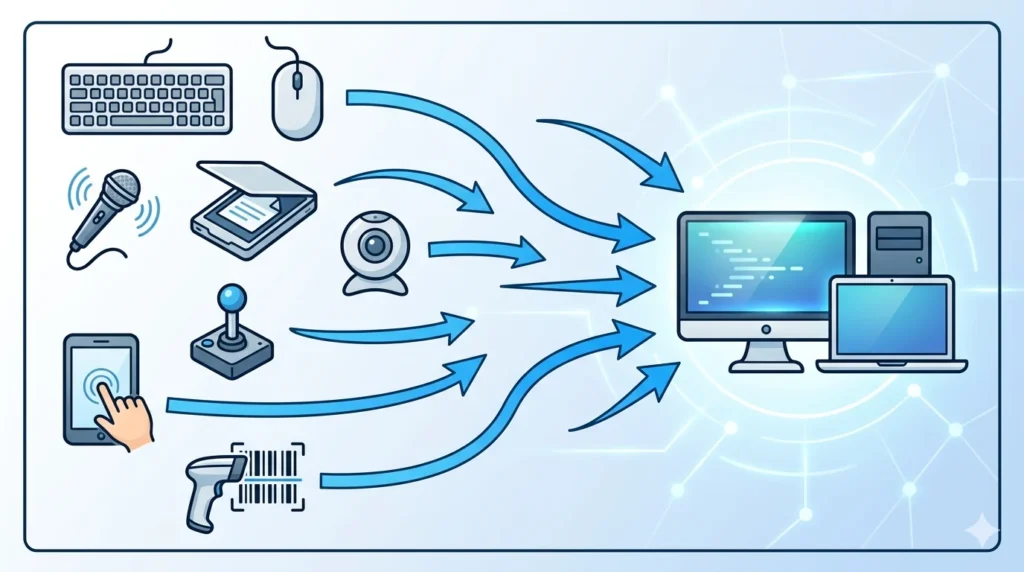
An input device is any hardware component that allows a user to send data, signals, or instructions to a computer or other information processing system. In simple terms, it is a tool that lets you communicate with a computer.
Without input devices, computers would have no way of receiving commands or data from the outside world. They are the starting point of every interaction you have with a computer system, whether that interaction involves typing text, moving a cursor, capturing an image, or recording a voice.
Input devices are the opposite of output devices. While input devices send data into the computer, output devices such as monitors and printers send data out to the user. Together, input and output devices form the complete human-computer interface.
Examples of common input devices include keyboards, mice, scanners, microphones, webcams, joysticks, touchscreens, and barcode readers. Each of these devices serves a unique purpose in helping users interact with digital systems.
How Do Input Devices Work?
Understanding how input devices work helps you appreciate the complexity behind even the simplest actions, like pressing a key or clicking a mouse button. The process typically involves four key stages.
Capturing User Input
The first step is capturing what the user does. When you press a key on a keyboard, move a mouse, or speak into a microphone, the input device detects that action. Each device is designed with sensors or detection mechanisms suited to the type of input it captures. A keyboard uses physical switches under each key, a mouse uses optical sensors or a ball, and a microphone uses a diaphragm that vibrates in response to sound waves.
Converting Input into Digital Signals
Once the input is captured, the device converts it into a digital signal that the computer can understand. This conversion is crucial because computers process everything in binary form, meaning sequences of 0s and 1s. For example, when you press the letter “A” on your keyboard, the keyboard converts that keypress into a specific binary code called an ASCII or Unicode value that represents the letter A.
Sending Data to the Computer
After conversion, the digital signal is transmitted to the computer through a connection. This connection can be wired, such as USB or PS/2, or wireless, such as Bluetooth or Wi-Fi. The data travels from the input device to the computer’s motherboard and then to the processor for handling.
Processing User Commands
Once the computer receives the data from the input device, the operating system and relevant applications interpret it and respond accordingly. If you pressed the letter “A”, the operating system tells the active application to display that letter on screen. If you moved the mouse to the left, the cursor on the display moves in the same direction. This seamless process happens in milliseconds, creating the smooth, responsive experience we expect from modern computers.
Why Are Input Devices Important?
Input devices are not just accessories, they are essential hardware components that make computers functional. Without them, a computer would be an isolated machine with no way to receive new information or respond to human needs.
1. User Interaction
Input devices are the primary means through which humans interact with computers. They translate human actions into computer-readable signals, making it possible for anyone, regardless of technical expertise, to use a computer effectively. The intuitive design of devices like keyboards and mice has made computing accessible to billions of people worldwide.
2. Data Entry
One of the most fundamental functions of input devices is enabling data entry. Businesses rely on keyboards and scanners to input large volumes of data into computer systems daily. From entering customer information to scanning product barcodes, data entry through input devices drives the operations of countless industries.
3. Computer Control
Input devices give users control over their computer systems. The mouse lets you navigate graphical interfaces, select files, and launch applications. The keyboard lets you type commands and navigate menus. Without these control mechanisms, using a computer would be an incredibly complex and slow process.
4. Communication and Productivity
Modern work and communication depend heavily on input devices. Microphones enable voice calls and dictation. Webcams make video conferencing possible. Keyboards allow us to write emails, reports, and code at high speed. Together, these devices make computers powerful tools for productivity and communication.
Types of Input Devices
There are many different types of input devices, each designed to capture a specific kind of input. Here is a detailed look at the most common types.
1. Keyboard
The keyboard is the most widely used input device in the world. It consists of a set of keys arranged in a standardized layout that allows users to enter text, numbers, and commands.
- Features: Typically has 101 to 104 keys including alphanumeric keys, function keys, arrow keys, and special keys like Ctrl, Alt, and Delete. Available in wired and wireless versions.
- Functions: Entering text and numbers, executing commands, navigating menus, and triggering shortcuts.
- Uses: Writing documents, sending emails, coding, data entry, browsing the web, and gaming.
2. Mouse
The mouse is a pointing device that allows users to interact with graphical user interfaces by controlling a cursor on the screen.
- Features: Has two or more buttons and a scroll wheel. Available in optical, laser, and mechanical variants, both wired and wireless.
- Functions: Moving the cursor, selecting items, clicking buttons, scrolling through content, and dragging and dropping files.
- Uses: Navigating operating systems and applications, graphic design, gaming, and web browsing.
3. Scanner
A scanner is an input device that captures physical documents or images and converts them into digital files that can be stored or edited on a computer.
- Features: Uses light sensors (CCD or CIS technology) to capture images. Available as flatbed, handheld, or sheet-fed models.
- Functions: Digitizing printed text, photographs, drawings, and other physical media.
- Uses: Archiving documents, sharing physical content digitally, optical character recognition (OCR), and digitizing artwork.
4. Microphone
A microphone is an audio input device that captures sound and converts it into a digital signal that can be recorded or processed by a computer.
- Features: Uses a diaphragm or condenser to detect sound waves. Available in different types including dynamic, condenser, and ribbon microphones.
- Functions: Recording audio, enabling voice communication, voice recognition, and live sound capture.
- Uses: Video conferencing, podcasting, music recording, voice search, and dictation software.
5. Webcam
A webcam is a video input device that captures live video and transmits it to a computer, making it available for recording or streaming.
- Features: Built-in or external camera with varying resolutions from standard definition to 4K. Many include built-in microphones.
- Functions: Capturing video, enabling video calls, live streaming, and video recording.
- Uses: Video conferencing, online meetings, content creation, surveillance, and biometric authentication.
6. Joystick
A joystick is a control input device used primarily for gaming and industrial applications. It consists of a lever that can be moved in multiple directions to control movement on screen.
- Features: Central stick that pivots in multiple directions, often with buttons and triggers. Can include force feedback technology.
- Functions: Controlling movement in games, flight simulations, and industrial machinery.
- Uses: Gaming, flight simulators, robotics, medical equipment, and industrial control systems.
7. Touchscreen
A touchscreen is a display that doubles as an input device, allowing users to interact with the computer by touching the screen directly with their fingers or a stylus.
- Features: Combines display and input in a single surface. Uses capacitive, resistive, or infrared touch detection technology.
- Functions: Detecting touch, swipe, pinch, and other gestures as user commands.
- Uses: Smartphones, tablets, ATMs, kiosks, point-of-sale systems, and interactive displays.
8. Barcode Reader
A barcode reader, also known as a barcode scanner, is a device that reads and decodes barcodes printed on products or labels.
- Features: Uses laser or imaging technology to scan and decode linear or 2D barcodes.
- Functions: Reading product codes, inventory tracking, and data collection.
- Uses: Retail checkout counters, warehouses, healthcare, libraries, and logistics.
9. Light Pen
A light pen is a pointing input device shaped like a pen that can interact directly with a computer screen to select items or draw on the display.
- Features: Contains a photocell and optical system that detects light emitted by the monitor.
- Functions: Selecting on-screen elements, drawing, and interacting with graphical interfaces.
- Uses: Early CAD systems, engineering drawing, retail point-of-sale systems, and accessibility tools for users who cannot use a mouse.
Examples of Input Devices
The table below summarizes the most commonly used input devices, their main functions, and typical use cases.
| Input Device | Main Function | Common Uses |
| Keyboard | Text input | Typing documents, data entry, coding |
| Mouse | Cursor control | Navigation, selecting, clicking |
| Scanner | Image capture | Digitizing documents and photos |
| Microphone | Audio input | Voice recording, conferencing |
| Webcam | Video input | Video conferencing, streaming |
| Joystick | Direction control | Gaming, flight simulators |
| Touchscreen | Touch input | Smartphones, kiosks, ATMs |
| Barcode Reader | Code scanning | Retail, warehousing, logistics |
| Light Pen | On-screen selection | Drawing, CAD, accessibility |
Functions of Input Devices
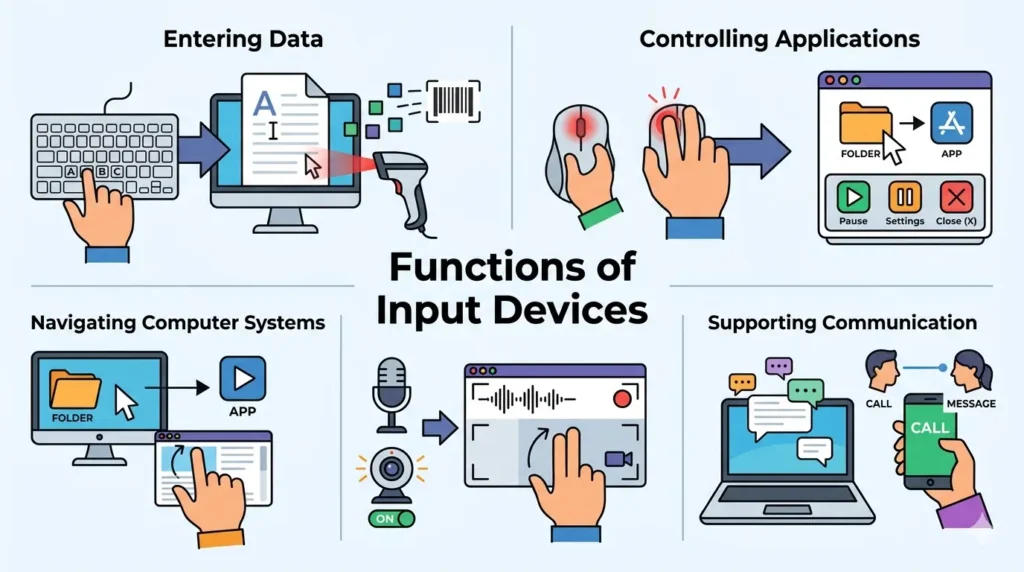
Input devices serve a variety of critical functions in a computing environment. Here is a detailed breakdown of the key functions they perform.
1. Entering Data
The most basic and essential function of any input device is allowing users to enter data into a computer system. Whether it is text typed on a keyboard, a barcode scanned at a checkout counter, or a voice command captured by a microphone, input devices are how raw information gets into a computer. This data entry function is the foundation of almost every digital workflow, from writing a word processing document to filling out an online form.
2. Controlling Applications
Input devices give users the ability to control software applications. A mouse lets you click buttons, select menu options, and activate features within programs. A keyboard lets you trigger shortcuts that execute complex commands instantly. Without these control mechanisms, navigating modern software would be nearly impossible. Even touchscreen gestures like swiping and pinching serve as application control inputs.
3. Navigating Computer Systems
Input devices are critical for navigating the operating system and file structure of a computer. The mouse and keyboard work together to let users open folders, launch programs, move files, and browse the web. In touchscreen devices, your fingers serve this navigation role directly. Navigation is the basic interaction layer that makes a computer usable.
4. Recording Audio and Video
Microphones and webcams expand the input capabilities of computers to include audio and video. These devices allow computers to capture the real world in digital form. Recording audio through a microphone or video through a webcam enables a range of applications from content creation and communication to security and biometric authentication.
5. Supporting Communication
Modern communication relies heavily on input devices. Email requires a keyboard. Video calls require a webcam and microphone. Voice assistants require microphones. Even sending a text message from a smartphone relies on a touchscreen as the input device. Input devices are the tools through which humans express themselves digitally, making them central to all forms of digital communication.
Input Devices and Computer Hardware
Input devices do not operate in isolation. They are deeply integrated with the other components of a computer hardware system. Understanding these relationships helps explain how input actually translates into action.
Relationship with CPU
The Central Processing Unit (CPU) is the brain of the computer. When an input device sends a signal to the computer, that signal eventually reaches the CPU for processing. The CPU interprets the input and determines what action to take. For example, when you press a key, the CPU processes the corresponding keystroke signal and instructs the operating system to display the character. The speed of the CPU determines how quickly it can respond to input.
Interaction with RAM
Random Access Memory (RAM) temporarily stores data and instructions that are currently being used. When input data arrives, it is often stored in RAM before being processed. For instance, when you type a document, the text is held in RAM as you work. RAM enables fast access to this data, ensuring smooth and responsive input handling. More RAM allows the system to handle more simultaneous input data without slowing down.
Communication Through Motherboard
The motherboard is the main circuit board of the computer that connects all hardware components. Input devices communicate with the rest of the system through ports and interfaces on the motherboard, such as USB, PS/2, Bluetooth controllers, and audio jacks. The motherboard routes signals from input devices to the CPU and RAM, acting as the central hub of communication within the computer.
Role in the Computer Hardware System
In the broader context of computer hardware, input devices represent the entry point for all user interaction. The hardware system works in a cycle: input devices provide data, the CPU processes it, RAM stores it temporarily, and output devices display the results. Every component depends on the others, but input devices are where every cycle begins. Without functional input devices, the entire hardware system has no way to receive new instructions or data from users.
Input Devices vs Output Devices
It is important to understand the difference between input and output devices, as they represent opposite ends of the human-computer interaction spectrum.
| Feature | Input Devices | Output Devices |
| Purpose | Send data to the computer | Display results to users |
| Data Flow | User to Computer | Computer to User |
| Examples | Keyboard, Mouse, Scanner, Microphone | Monitor, Printer, Speakers, Projector |
| Function | Provide input for processing | Provide output after processing |
| User Role | Active (user initiates) | Passive (user receives) |
Advantages of Input Devices
Input devices offer numerous benefits that make computers practical, efficient, and accessible tools for everyday use.
1. Easy Data Entry
Input devices simplify the process of entering data into a computer. A keyboard allows users to type hundreds of words per minute, while a barcode scanner can capture product information in a fraction of a second. This ease of data entry is critical for productivity in both personal and professional settings. Modern input devices are designed with ergonomics and efficiency in mind, reducing the effort required to input large amounts of information.
2. Improved User Interaction
Input devices make it natural and intuitive for humans to communicate with machines. The graphical user interface (GUI) revolution of the 1980s was made possible by the mouse, which gave users an easy way to interact visually with their computers. Today, touchscreens have made that interaction even more natural, allowing people of all ages to use computers and smartphones without any technical training.
3. Faster Computer Operations
The right input device can dramatically speed up computer operations. Keyboard shortcuts can execute in milliseconds what might take several mouse clicks and menu navigations. A barcode scanner processes product data faster than manual entry. Voice recognition can transcribe speech faster than most people can type. Choosing the appropriate input device for a task can significantly improve operational speed and efficiency.
4. Increased Productivity
By making data entry faster, interaction more intuitive, and control more precise, input devices collectively boost productivity. Office workers, designers, programmers, gamers, and factory workers all rely on specialized input devices to do their jobs more effectively. The wide variety of available input devices means that almost any task can be supported by an appropriate hardware tool.
Disadvantages of Input Devices
Despite their many benefits, input devices also come with some limitations and challenges that users and organizations should be aware of.
1. Hardware Failure Risks
Like all hardware components, input devices are subject to physical failure. Keys on a keyboard can stick or stop working. Mouse buttons can wear out. Scanners can develop sensor problems. When an input device fails, it can disrupt workflow, especially in critical environments like hospitals, warehouses, or financial institutions. Businesses often need to maintain spare devices to minimize downtime caused by hardware failures.
2. Learning Curve for Some Devices
While basic input devices like keyboards and mice are widely understood, more specialized devices can have a significant learning curve. New users working with graphics tablets, MIDI controllers, or industrial input devices may need considerable training before they can use them effectively. The learning curve can slow down the adoption of new technology and increase training costs for organizations.
3. Maintenance Requirements
Input devices require regular maintenance to function properly. Keyboards and mice accumulate dust and debris that can interfere with their performance. Scanners need periodic cleaning of their glass surfaces. Wireless devices require battery replacement or charging. Neglecting maintenance can lead to decreased performance and shorter device lifespans, adding to the overall cost of computing.
4. Additional Costs
Quality input devices can be expensive. High-performance keyboards, precision mice, professional-grade microphones, and advanced scanners represent significant investments, especially when purchased in bulk for a large organization. Additionally, when input devices become outdated or incompatible with new systems, replacement costs can add up. Wireless devices also carry ongoing costs for batteries or charging accessories.
Modern Input Devices
Technology continues to evolve, and so do input devices. The latest generation of input devices goes far beyond keyboards and mice, enabling entirely new ways of interacting with computers.
Voice Recognition Devices
Voice recognition technology has transformed how people interact with computers and smart devices. Modern voice input systems, powered by artificial intelligence, can understand natural language with remarkable accuracy. Virtual assistants like Siri, Alexa, and Google Assistant use voice recognition to allow users to search the web, set reminders, control smart home devices, and much more, all without touching a keyboard or screen. Voice input is also becoming an important accessibility tool for people with mobility impairments.
Biometric Scanners
Biometric input devices capture unique biological characteristics to identify or authenticate users. Fingerprint scanners, retinal scanners, facial recognition cameras, and voice recognition systems are all forms of biometric input. These devices are widely used in smartphones for unlocking, in security systems for access control, and in banking for identity verification. Biometric input devices offer a higher level of security than traditional passwords because biological characteristics are much harder to duplicate or steal.
Motion Sensors
Motion sensor input devices detect physical movement and translate it into computer input. These are widely used in gaming consoles like the Nintendo Switch and in virtual reality systems. Devices like the Microsoft Kinect, VR hand controllers, and motion capture suits allow users to interact with digital environments using full body movement. Motion sensors are also used in smart home systems, automotive safety features, and industrial automation.
Touch and Gesture Controls
Beyond basic touchscreens, modern systems increasingly support gesture recognition, allowing users to interact with computers through hand movements without touching any surface. Leap Motion controllers and gesture recognition cameras can detect the position and movement of fingers and hands in three dimensions. Smart TVs and kiosks use gesture controls to let users browse content with simple hand waves. As augmented reality (AR) and virtual reality (VR) technologies mature, gesture and touch input will become even more central to human-computer interaction.
Tips for Maintaining Input Devices
Proper maintenance extends the life of your input devices and ensures they perform at their best. Here are some practical tips.
Clean Devices Regularly
Dust, crumbs, and skin oils accumulate on keyboards, mice, and touchscreens over time, leading to sticky keys, erratic cursor movement, and unresponsive screens. Clean keyboards by turning them upside down and gently shaking to dislodge debris, followed by using compressed air and a soft brush. Wipe mouse surfaces and touchscreens with a slightly damp microfiber cloth. For scanners, clean the glass surface regularly with a lint-free cloth and appropriate glass cleaner to ensure sharp scans.
Protect from Dust and Liquids
Dust and liquids are among the biggest enemies of input devices. Use keyboard covers to protect keys from spills and dust. Keep drinks and food away from your workspace. If a liquid spill does occur, disconnect the device immediately and allow it to dry completely before using it again. For devices used in dusty industrial environments, consider ruggedized or sealed input devices designed to withstand harsh conditions.
Update Drivers
Input device drivers are software components that allow the operating system to communicate with the hardware. Outdated drivers can cause performance issues, compatibility problems, and loss of functionality. Regularly check for driver updates through the device manufacturer’s website or your operating system’s update utility. Keeping drivers current ensures your input devices work optimally and remain compatible with software updates.
Handle Devices Carefully
Physical care significantly extends the life of input devices. Avoid dropping or striking devices, as internal components can be damaged by impact. Do not pull cables by the cord itself; always grasp the connector when unplugging. Store portable devices in protective cases when not in use. Coil cables loosely to avoid internal wire damage. For devices with batteries, follow manufacturer recommendations for charging to maximize battery lifespan.
FAQs About Input Devices
What is an input device?
An input device is any hardware component that allows a user to send data or instructions to a computer or information processing system. Common examples include the keyboard, mouse, scanner, and microphone. Input devices are essential for human-computer interaction.
What are the main types of input devices?
The main types of input devices include keyboards (for text and commands), pointing devices (like mice and touchscreens), audio input devices (like microphones), visual input devices (like scanners and webcams), and game controllers (like joysticks). Modern input devices also include biometric scanners and motion sensors.
Is a touchscreen an input device?
Yes, a touchscreen is both an input and an output device. It functions as an output device by displaying visual information to the user, and as an input device by detecting touches, swipes, and gestures that the user makes on the screen. This dual functionality makes touchscreens particularly versatile.
What is the difference between input and output devices?
Input devices allow users to send data and instructions to a computer, with the data flowing from the user to the machine. Output devices allow the computer to communicate results back to the user, with data flowing from the machine to the user. Examples of input devices include keyboards and mice, while examples of output devices include monitors and printers.
Why are input devices important?
Input devices are important because they make computers usable and functional. Without input devices, there would be no way for humans to communicate with computers, enter data, issue commands, or interact with software. They are the foundation of every human-computer interaction and are essential to both personal computing and business operations.
What are five examples of input devices?
Five common examples of input devices are the keyboard, which is used for typing text and commands; the mouse, used for navigating and selecting on screen; the microphone, used for capturing audio; the webcam, used for capturing video; and the barcode scanner, used for reading product codes. Many other input devices exist for specialized applications.
Which input device is used for typing?
The keyboard is the primary input device used for typing. It allows users to enter letters, numbers, symbols, and special commands by pressing individual keys. Modern keyboards come in various layouts and designs, including standard, ergonomic, mechanical, and virtual keyboards on touchscreen devices.
Conclusion
Input devices are the essential interface between humans and computers. Without them, the most powerful computer in the world would be nothing more than a useless box. From the simple keypress on a keyboard to a complex fingerprint scan, every interaction you have with a computer begins with an input device.
In this guide, we explored the definition of input devices and why they are critical to computing. We examined how they work through a four-step process of capture, conversion, transmission, and processing. We covered nine major types of input devices in detail, from keyboards and mice to touchscreens and barcode readers. We also discussed the key functions of input devices, their relationship with core computer hardware components, their advantages and disadvantages, and the exciting modern developments pushing the boundaries of human-computer interaction.
As technology advances, input devices will continue to evolve. Voice commands, gesture controls, biometrics, and neural interfaces represent the frontier of how humans will communicate with machines in the future. But whether you are using a decades-old keyboard or a cutting-edge VR controller, the fundamental role remains the same: getting your intent into the machine.