
Every time you open an application, switch between browser tabs, or launch a video game, your computer relies on one of its most critical hardware components to keep everything running smoothly ,RAM. Short for Random Access Memory, RAM is the high-speed temporary workspace your computer uses to store and access data that is actively being processed. Without enough RAM, even the fastest processor becomes sluggish, and multitasking grinds to a halt.
RAM is often described as the short-term memory of a computer, and the analogy is fitting. Just as the human brain holds information in working memory while actively thinking ,and discards it once the task is done ,RAM holds the data and instructions your computer needs right now, then clears everything when the machine is switched off.
In this comprehensive guide, we will explore everything there is to know about RAM: its definition, history, inner workings, types, components, functions, real-world uses, advantages and disadvantages, how much you need, and how to maintain optimal memory performance. Whether you are a student, a professional, or simply a curious computer user, this guide will give you a deep and practical understanding of RAM and why it matters.
What Is RAM?
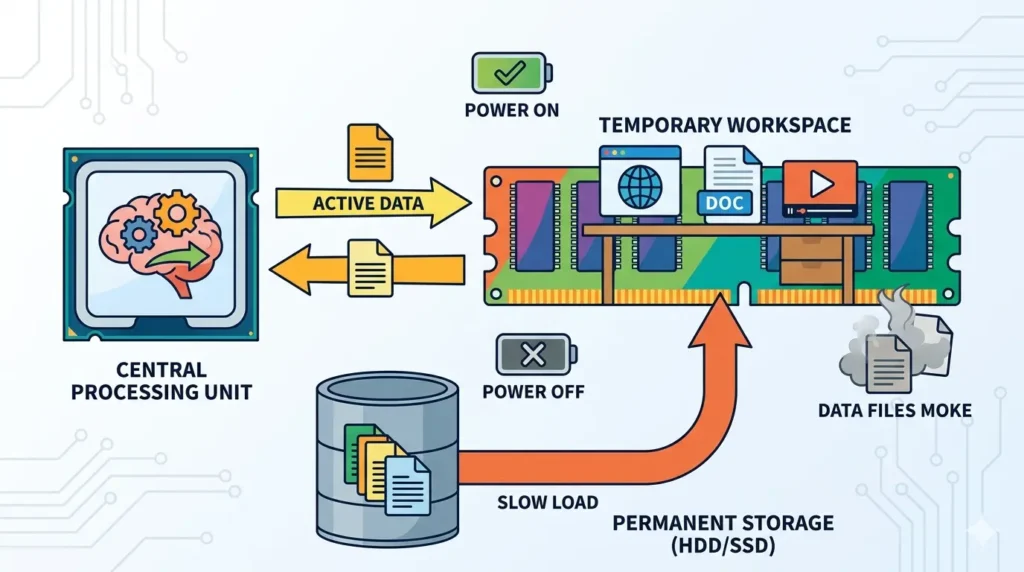
RAM stands for Random Access Memory. It is a type of computer memory that temporarily stores data and machine code currently being used by the processor. The word “random” in the name refers to the fact that any byte of memory can be accessed directly in the same amount of time, regardless of its physical location in the memory module ,as opposed to sequential storage media like tape drives, where data must be read from start to finish.
RAM is classified as volatile memory, meaning it retains data only while the computer is powered on. The moment you shut down or restart your computer, everything stored in RAM is erased. This is what distinguishes RAM from permanent storage devices like hard drives (HDDs) and solid-state drives (SSDs), which retain their data even when power is removed.
When you launch a program ,say, a web browser or a word processor ,the operating system loads the necessary files from your storage drive into RAM, because reading data from RAM is orders of magnitude faster than reading it directly from a drive. The CPU (Central Processing Unit) then reads from and writes to RAM hundreds of millions of times per second as it executes instructions.
In practical terms, RAM determines how much work your computer can handle at once. A computer with more RAM can keep more applications, browser tabs, and background processes active simultaneously without slowing down. RAM is measured in gigabytes (GB) and is one of the most impactful upgrades you can make to improve a computer’s performance.
History of RAM
The story of RAM is the story of how computers evolved from room-sized machines to powerful personal devices. Memory technology has undergone dramatic transformations over seven decades.
Early Memory Technologies
The earliest forms of computer memory bear no resemblance to the sleek memory sticks of today. In the late 1940s and 1950s, computers used technologies such as Williams tubes ,cathode ray tubes that stored data as electrically charged spots on a screen ,and magnetic core memory, which stored bits by magnetising tiny iron rings (cores) in two directions to represent 0 or 1.
Magnetic core memory was the dominant memory technology through the 1950s and 1960s. It was non-volatile (retaining data without power), durable, and reasonably fast for its time, but it was also bulky, expensive, and labour-intensive to manufacture. Each individual core had to be hand-threaded onto a wire grid by skilled technicians ,a remarkable effort that underscores how far memory technology has come.
Development of Modern RAM
The invention of the integrated circuit in the late 1950s and its rapid development through the 1960s paved the way for semiconductor-based memory. In 1966, Dr. Robert Dennard at IBM invented Dynamic RAM (DRAM), which stored each bit of data in a tiny capacitor within an integrated circuit. DRAM was smaller, cheaper, and faster than magnetic core memory, and it quickly became the foundation of computer memory architecture.
Static RAM (SRAM) was also developed during this era, using flip-flop circuits to store each bit. SRAM is faster than DRAM and does not need to be refreshed, but it requires more transistors per bit, making it more expensive and less dense. SRAM found its niche as cache memory ,small, ultra-fast memory located close to the CPU.
The 1970s saw the commercialisation of DRAM, with Intel releasing the first DRAM chip ,the Intel 1103 ,in 1970. This chip stored 1,024 bits (1 kilobit) of data and quickly displaced magnetic core memory in commercial computers.
Evolution from DDR to DDR5
As computers became more powerful through the 1980s and 1990s, memory technology evolved to keep pace with faster processors. Synchronous DRAM (SDRAM) was introduced in the mid-1990s, synchronising memory operations with the CPU clock cycle for improved efficiency. Then came Double Data Rate SDRAM ,DDR ,which transferred data on both the rising and falling edges of each clock cycle, effectively doubling the data transfer rate.
DDR SDRAM debuted around 2000 and launched a lineage of successive improvements: DDR2 (2003), DDR3 (2007), DDR4 (2014), and DDR5 (2020). Each generation brought higher data transfer speeds, greater efficiency, lower operating voltages, and increased capacity. DDR5, the current standard in new high-performance systems, offers data rates exceeding 6,400 MT/s (megatransfers per second) and individual module capacities of up to 128GB.
Future of Computer Memory
The future of RAM is being shaped by several emerging technologies. High Bandwidth Memory (HBM) stacks multiple DRAM layers vertically and connects them with through-silicon vias, dramatically increasing bandwidth while reducing power consumption. HBM is already found in high-end GPUs and AI accelerators.
Phase-Change Memory (PCM) and Magnetoresistive RAM (MRAM) represent non-volatile RAM technologies that could one day bridge the gap between RAM and storage ,offering the speed of RAM with the data persistence of a drive. Meanwhile, DDR6 is already in development, promising even greater speeds and efficiencies for the next generation of computing.
How Does RAM Work?
Understanding how RAM works helps demystify much of what determines a computer’s speed and responsiveness.
Temporary Data Storage
When your computer needs to execute a task ,running an application, rendering a webpage, or processing a document ,it loads the relevant data from the slower, permanent storage drive into RAM. RAM provides a fast, readily accessible workspace where this data can be read and modified rapidly. Think of it as moving ingredients from a pantry (storage drive) onto a kitchen counter (RAM) so they are within easy reach while cooking.
Because RAM operates at speeds measured in nanoseconds while storage drives operate in microseconds or milliseconds, keeping active data in RAM rather than repeatedly reading from a drive dramatically accelerates computing operations. The more RAM is available, the more data can be kept on that metaphorical counter at once.
Communication with the CPU
The CPU and RAM are in constant, rapid communication. The CPU reads data and instructions from RAM, processes them, and writes results back to RAM ,a cycle that repeats billions of times per second. This communication happens over a data pathway called the memory bus, which connects the CPU to the RAM modules through the memory controller (either on the motherboard’s chipset or, in modern systems, integrated directly into the CPU die).
The speed of this communication is described by RAM’s frequency (measured in MHz) and its transfer rate (measured in GB/s). Faster RAM can supply the CPU with data more quickly, reducing wait times and improving overall system responsiveness, particularly in data-intensive workloads.
Loading Programs and Applications
When you double-click an application icon, the operating system reads the application’s executable files and supporting data from the storage drive and loads them into RAM. Once in RAM, the CPU can begin executing the application’s code. Subsequent actions within the application ,opening menus, loading files, rendering graphics ,may require additional data to be loaded from storage into RAM on demand.
This is why computers with more RAM can open applications faster and handle larger files more smoothly. If RAM fills up, the operating system creates a “page file” or “swap space” on the storage drive to temporarily offload data ,but accessing this substitute memory is far slower than accessing actual RAM, which is why running out of RAM causes such a noticeable slowdown.
Data Removal After Shutdown
Because RAM is volatile, all data stored in it is lost the moment the power is removed. When you shut down your computer, the RAM is completely cleared. This is by design ,RAM is intended as a workspace, not an archive. When you restart the computer, the operating system and applications load fresh from the storage drive back into RAM.
This volatility is also a security feature: sensitive data such as encryption keys and passwords that were held in RAM during a session are automatically wiped when the computer is turned off, preventing easy recovery by a subsequent user.
Why Is RAM Important?
RAM is one of the three primary bottlenecks of computer performance ,alongside the CPU and storage ,and it directly influences how fast, smooth, and capable a system feels in daily use.
Faster Application Performance
Applications loaded into RAM launch and respond much faster than applications that must continually read data from a storage drive. Every time you open a file in Photoshop, compile code in an IDE, or load a level in a game, RAM is the crucial intermediary that makes the experience fast and fluid. Insufficient RAM forces the system to rely on the far slower page file, creating the sluggish, unresponsive feel users often describe as a computer “struggling.”
Smooth Multitasking
Multitasking ,running multiple applications simultaneously ,is one of the most RAM-demanding activities. Each open application, browser tab, and background process occupies a portion of RAM. The more RAM available, the more can be kept active simultaneously without the system needing to swap data in and out of the page file. On a system with 4GB of RAM, having a dozen browser tabs open while running a music player, a document editor, and a video conferencing app may cause noticeable slowdowns. The same workload on a system with 16GB of RAM would run effortlessly.
Improved System Speed
Beyond individual applications, RAM affects overall system speed at every level. The operating system itself requires RAM to manage processes, handle system calls, and run background services. Windows 11, for example, uses approximately 2–4 GB of RAM just for its own operation. Leaving adequate RAM headroom for the OS means the system remains responsive even under load.
Better Gaming and Productivity
For gamers, RAM capacity and speed directly affect frame rates, level loading times, and the ability to run games alongside streaming software or voice chat applications. For creative professionals, large RAM capacities enable working with high-resolution video timelines, complex 3D scenes, and large datasets without crashes or slowdowns. For programmers, sufficient RAM allows running development environments, databases, virtual machines, and browsers simultaneously ,a common requirement in modern software development workflows.
Types of RAM
RAM comes in several distinct types, each with different characteristics, performance profiles, and applications. Understanding these types helps in selecting the right memory for a given system.
1. Static RAM (SRAM)
Static RAM stores each bit of data using a circuit called a flip-flop, which consists of four to six transistors. Unlike Dynamic RAM, SRAM does not need to be periodically refreshed to retain its data ,the flip-flop holds the data state as long as power is supplied, hence the name “static.”
SRAM is significantly faster than DRAM, with access times in the range of a few nanoseconds, and it consumes less power in standby mode. However, it requires more transistors per bit, making it physically larger, more expensive, and less dense than DRAM. A chip of the same physical size can hold far less SRAM than DRAM.
Due to its high speed and cost, SRAM is not used as main system memory. Instead, it is the technology behind CPU cache memory ,the L1, L2, and L3 caches that sit between the CPU cores and main RAM. Cache memory stores the most frequently accessed data right next to the processor, further reducing the time the CPU spends waiting for data.
2. Dynamic RAM (DRAM)
Dynamic RAM stores each bit of data using a single transistor and capacitor pair. The capacitor holds a charge to represent a 1 or no charge to represent a 0. Because capacitors leak charge over time, DRAM must be continuously refreshed ,typically thousands of times per second ,to retain its data. This refreshing process is what makes it “dynamic.”
While the refresh requirement adds complexity, DRAM’s simplicity at the cell level means it can pack an enormous number of memory cells into a small chip, making it far cheaper and more dense than SRAM. This combination of high density, acceptable speed, and relatively low cost makes DRAM the basis of all modern main system memory.
DRAM is used as the main RAM in desktop computers, laptops, servers, and smartphones, typically in one of its synchronised or double-data-rate variants described below.
3. SDRAM (Synchronous DRAM)
Synchronous DRAM (SDRAM) was a significant evolution over earlier asynchronous DRAM types. Previous DRAM operated independently of the system clock ,it received a request, retrieved the data, and returned it whenever it was ready, without synchronising to the CPU’s clock signal. SDRAM, introduced in the mid-1990s, synchronised its operations to the system clock, enabling the memory controller to predict exactly when data would be available and pipeline multiple operations simultaneously.
This synchronisation improved efficiency considerably and allowed the memory bus to operate at higher speeds. SDRAM was standard in PCs from the mid-1990s through the early 2000s, before being superseded by DDR SDRAM. However, the term “SDRAM” persists as the umbrella category for all subsequent synchronised RAM variants, including the entire DDR family.
4. DDR RAM
Double Data Rate SDRAM (DDR SDRAM) is the evolution of SDRAM that transfers data on both the rising and falling edges of the clock signal, effectively doubling the data bandwidth without increasing the clock speed. DDR has gone through five generations of development, each offering significant improvements over the last:
a. DDR (DDR1)
The original DDR SDRAM, introduced commercially around 2000, offered data transfer rates of 200–400 MT/s and operated at 2.5V. It used a 184-pin DIMM form factor for desktop computers. DDR marked the beginning of the double-data-rate era and was a substantial improvement over single-data-rate SDRAM.
b. DDR2
DDR2, introduced in 2003, doubled the external data bus speed compared to DDR1, achieving transfer rates of 400–1,066 MT/s while reducing operating voltage to 1.8V. It used a 240-pin DIMM interface. DDR2 became the standard memory for PCs and laptops through the mid-2000s.
c. DDR3
DDR3 arrived in 2007 with data transfer rates of 800–2,133 MT/s and further reduced voltage to 1.5V (with low-voltage variants at 1.35V). It retained the 240-pin interface but with a different notch position from DDR2, preventing accidental insertion in incompatible slots. DDR3 delivered significantly greater bandwidth and efficiency and remained the mainstream standard through the early 2010s.
d. DDR4
DDR4, launched in 2014, pushed data transfer rates to 1,600–5,333 MT/s and lowered operating voltage further to 1.2V. It introduced a 288-pin DIMM interface and added bank grouping to improve efficiency at high speeds. DDR4 became the dominant standard for consumer and enterprise computing through the late 2010s and early 2020s and remains widely used today.
e. DDR5
DDR5, available from 2020 and mainstream from 2022 onward, represents the current frontier of RAM technology. It offers data rates starting at 3,200 MT/s and exceeding 8,000 MT/s in current implementations, with the specification allowing for even higher speeds in future. DDR5 reduces operating voltage to 1.1V, doubles the number of banks per memory rank, and moves the power management IC (PMIC) onto the memory module itself for improved power delivery and stability. It uses a 288-pin interface with a different notch position from DDR4, requiring compatible motherboards and CPUs.
Components of RAM
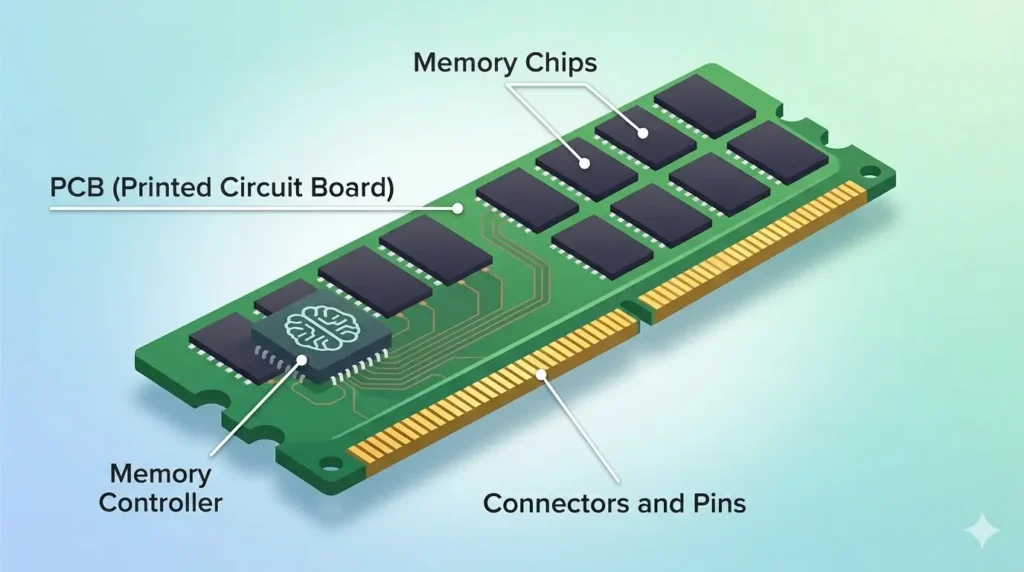
A RAM module is a compact but sophisticated piece of hardware. Its major physical components each play a specific role in the module’s operation:
Memory Chips
The memory chips are the core components of a RAM module ,the actual integrated circuits that store data. Each chip is a tiny package containing billions of microscopic memory cells (transistor-capacitor pairs in DRAM). A typical DDR4 or DDR5 DIMM contains eight or sixteen memory chips arranged along both sides of the module. The total capacity of the module is the sum of the storage capacity of all its memory chips.
PCB (Printed Circuit Board)
The Printed Circuit Board is the green (or black, or red, in gaming modules) substrate on which all components are mounted. The PCB provides the physical structure of the module and contains the intricate network of copper traces that connect all components ,memory chips, the memory controller, capacitors, resistors, and connectors ,to one another and to the system’s memory bus. The quality of the PCB influences signal integrity, particularly at high frequencies, which is why high-performance RAM modules often use premium multi-layer PCBs.
Memory Controller
The memory controller manages all communication between the RAM module and the rest of the computer system ,the CPU in particular. It handles the complex timing signals required to read data from and write data to the memory cells, manages the periodic refresh cycles that keep DRAM data intact, and coordinates multiple operations to maximise throughput. In modern computers, the memory controller is integrated directly into the CPU die (“on-die memory controller”), reducing latency and improving bandwidth compared to the older approach of placing the controller on a separate chipset chip.
Connectors and Pins
The connector edge at the bottom of a RAM module ,the row of gold-plated pins ,is how the module interfaces with the motherboard’s memory slot. The number and arrangement of pins vary by generation: DDR3 uses 240 pins, DDR4 and DDR5 both use 288 pins but with different notch positions to prevent incompatible installation. The gold plating on the connector pins ensures a reliable, low-resistance electrical contact with the motherboard’s memory slot over thousands of insertion and removal cycles.
Functions of RAM
RAM performs several overlapping and interconnected functions that together make modern computing possible:
1. Storing Active Data
RAM’s primary function is to serve as temporary storage for data that is currently in use. This includes the code of running applications, open documents, currently displayed web pages, active game states, and any other data that the CPU needs rapid access to. By holding this data in RAM rather than repeatedly reading it from a slow storage drive, the computer can respond to user inputs and execute instructions with minimal delay.
2. Supporting Multitasking
Each application running on a computer claims a portion of RAM for its own data and code. When multiple applications are open simultaneously ,a web browser, a spreadsheet, an email client, and a music player, for instance ,RAM must be large enough to hold all of their data concurrently. RAM’s role in multitasking is to provide each application with its own fast working space, enabling the operating system to switch between tasks fluidly without the delays that would result from loading each application from storage every time it comes into focus.
3. Enabling Fast Data Access
The defining characteristic of RAM is its speed. Modern DDR4 RAM has a bandwidth of up to 51.2 GB/s, while DDR5 modules can exceed 76.8 GB/s ,many times faster than the fastest NVMe SSDs. This extraordinary speed is what makes RAM the ideal intermediary between the even faster CPU and the relatively slower storage devices. The CPU can retrieve data from RAM in nanoseconds, keeping its processing pipelines fed with data and minimising idle time.
4. Assisting CPU Processing
RAM does not process data ,that is the CPU’s job ,but it is the CPU’s essential partner. Every instruction the CPU executes, every variable it calculates, every result it produces must be read from or written to RAM at some point. The CPU’s registers hold only a tiny amount of data at any instant; cache holds a little more; and RAM holds everything else the CPU might need in the near future. Without fast, capacious RAM, even the most powerful CPU would spend most of its time waiting for data, rendering its processing power largely wasted.
Uses of RAM
RAM is a universal component found in every computing device, but the demands placed on it vary enormously by use case:
Everyday Computing
For everyday tasks ,web browsing, emailing, word processing, video streaming, and light multitasking ,RAM enables the smooth, responsive experience users expect. Having 8GB of RAM is generally considered the comfortable minimum for everyday computing in 2024, with 16GB being increasingly recommended as web browsers (particularly Chrome) and modern operating systems consume more memory than they did a decade ago.
Gaming
Modern PC games load vast amounts of texture data, game world geometry, audio assets, and AI behaviour scripts into RAM. Insufficient RAM causes games to stutter, experience long loading times, or crash entirely. Most current AAA titles recommend 16GB of RAM, with some open-world games benefiting from 32GB when running alongside streaming or recording software. Beyond capacity, RAM speed matters for gaming: faster RAM reduces the time the CPU spends waiting for data from memory, which can meaningfully improve frame rates in CPU-bound scenarios.
Video Editing
Video editing is one of the most RAM-intensive consumer workloads. Video editing applications like Adobe Premiere Pro, DaVinci Resolve, and Final Cut Pro load video frames into RAM for real-time playback and processing. Working with 4K or 8K footage, multiple video streams, and complex effects can consume 32GB or more of RAM. Professional video editors often work with 64GB or even 128GB of RAM to maintain smooth performance with high-resolution, multi-track projects.
Programming and Development
Software developers run a diverse collection of tools simultaneously: code editors, compilers, debuggers, terminal emulators, web servers, databases, and often virtual machines for testing different operating environments. Each of these tools consumes RAM, and the development workflow benefits greatly from having abundant memory. Running a Docker container, a local web server, a database, and an IDE simultaneously is a common scenario in modern web development, and 16–32GB of RAM is increasingly the standard for developer workstations.
Graphic Design
Graphic designers working with high-resolution images in Adobe Photoshop or Illustrator, complex vector illustrations, or multi-page publication layouts in InDesign rely on RAM to hold large files in memory for fast editing. Each layer in a Photoshop document, every node in an Illustrator file, and every page in a large InDesign layout occupies RAM. Designers working on large-scale commercial projects typically need 16–32GB of RAM for a comfortable workflow.
Business Applications
In business and enterprise environments, RAM supports the simultaneous operation of business-critical applications: ERP systems, CRM platforms, financial modelling tools, data analytics dashboards, and virtual meeting software. Servers running virtualised workloads or database management systems may require hundreds of gigabytes of RAM to handle concurrent user requests efficiently. RAM is a critical capacity-planning consideration in enterprise IT infrastructure.
RAM vs ROM
RAM and ROM are both types of computer memory, but they serve fundamentally different purposes:
| Feature | RAM | ROM |
|---|---|---|
| Full Form | Random Access Memory | Read-Only Memory |
| Data Storage | Temporary ,lost on power off | Permanent ,retained without power |
| Speed | Very fast | Slower than RAM |
| Data Retention | Volatile ,erased at shutdown | Non-volatile ,data persists |
| Modifiable | Read and write ,data changes constantly | Read-only (or limited writes) ,fixed data |
| Purpose | Active data processing workspace | Stores firmware and startup instructions |
| Examples | DDR4/DDR5 system memory modules | BIOS/UEFI chips on a motherboard |
| Capacity | Typically 4GB – 256GB in consumer devices | Typically a few megabytes |
RAM vs Storage (HDD & SSD)
RAM and storage devices both hold data, but they operate at vastly different speeds, capacities, and levels of permanence:
| Feature | RAM | HDD / SSD |
|---|---|---|
| Function | Temporary active-use memory | Permanent long-term data storage |
| Speed | Extremely fast (tens of GB/s) | Slower ,HDD ~150 MB/s, SSD ~7 GB/s (NVMe) |
| Data Retention | Volatile ,lost at power off | Non-volatile ,data persists without power |
| Capacity (Typical) | 8 GB – 128 GB in consumer systems | 256 GB – 8 TB or more |
| Cost per GB | Higher | Lower |
| Role in System | CPU’s working memory | File and application storage archive |
| Physical Location | Slots on motherboard (DIMMs) | Internal bay or M.2 slot / external |
Advantages of RAM
Faster Computer Performance
By providing the CPU with a high-speed data workspace, RAM dramatically accelerates all computing tasks. Applications launch faster, files open quicker, and system responses feel immediate. The CPU spends less time waiting for data and more time performing actual computation, which translates directly into faster task completion and a more responsive computing experience across all use cases.
Improved Multitasking
Ample RAM allows a computer to keep many applications loaded and ready simultaneously. Switching between a web browser with multiple tabs, a document editor, a spreadsheet, and a communication app feels instant when all of them are resident in RAM. Without enough RAM, the operating system must continuously swap applications in and out of the slower page file, causing the frustrating delays and pauses that characterise an underpowered system.
Quick Application Loading
Applications that are used frequently may be partially retained in RAM even after they are closed, allowing them to relaunch much faster the next time they are needed. Modern operating systems also use available RAM proactively ,caching frequently accessed files and applications ,so that they load almost instantly when called upon. This intelligent use of idle RAM turns excess memory into a speed resource.
Better User Experience
Ultimately, adequate RAM contributes to a universally better user experience. The absence of lag, stutter, and slowdowns transforms the computer from a source of frustration into a responsive, reliable tool. From casual users who simply want their browser to load pages quickly to power users who demand seamless performance across demanding professional applications, more RAM consistently delivers a smoother, more enjoyable computing experience.
Disadvantages of RAM
Volatile Memory
RAM’s most significant limitation is its volatility. Every piece of data in RAM ,open documents, unsaved work, active application states ,is instantly and permanently lost when power is removed. This means any unsaved work is gone in the event of a crash, power outage, or accidental shutdown. Users must remember to save their work regularly to permanent storage to avoid losing data.
Limited Storage Capacity
Compared to permanent storage devices, RAM modules have relatively small capacities. While consumer systems typically feature 8–64GB of RAM, SSDs commonly store 256GB to 4TB. The physical constraints of high-speed memory cell design, the cost of RAM chips, and motherboard slot limitations all combine to make RAM capacity far more restricted than storage capacity. This is why RAM serves only as a working memory buffer, not as a primary storage solution.
Higher Cost per GB
RAM is significantly more expensive per gigabyte than storage. High-performance DDR5 RAM can cost many times more per gigabyte than a comparable NVMe SSD, and the price gap widens further when comparing to HDDs. This cost premium reflects the complexity of manufacturing high-speed memory cells, the quality requirements of the PCB, and the performance characteristics demanded of modern RAM. Budget constraints mean most users must carefully balance RAM capacity against cost.
Data Loss During Power Failure
Because RAM is volatile, any unexpected power event ,a sudden power outage, a dead laptop battery, a system crash ,can result in the loss of all data currently held in RAM that has not been saved to permanent storage. This risk is particularly consequential in enterprise environments where databases and active transactions are held in server RAM. Solutions such as Uninterruptible Power Supplies (UPS) and battery-backed RAM help mitigate this risk in critical applications.
How Much RAM Do You Need?
The right amount of RAM depends entirely on what you use your computer for. Here is a practical breakdown:
4GB RAM
4GB of RAM is the absolute minimum for running a modern operating system, and it is increasingly insufficient even for light tasks. With Windows 11 or a modern Linux desktop environment consuming 2–3GB on its own, only 1–2GB remains for applications. Users with 4GB will experience slowdowns when running more than a couple of applications simultaneously and will struggle with modern web browsers. 4GB is suitable only for the most basic computing tasks ,simple document editing, light web browsing ,and should be considered a floor, not a target.
8GB RAM
8GB is the current sweet spot for everyday computing. It comfortably handles web browsing with a moderate number of tabs, office productivity applications, email, music streaming, and HD video playback simultaneously. For most home and office users who do not engage in gaming, video editing, or other memory-intensive tasks, 8GB provides a responsive, smooth experience. Many budget to mid-range laptops ship with 8GB of RAM as their standard configuration.
16GB RAM
16GB has become the recommended baseline for enthusiast users, gamers, and professionals. It provides ample headroom for gaming while running background applications, smooth operation of creative software like Photoshop or Lightroom, comfortable programming workflows, and extensive browser tab usage. 16GB allows a system to handle the demands of modern computing without encountering memory limitations in typical usage scenarios.
32GB RAM and Above
32GB and beyond is the territory of demanding professionals and enthusiasts. Video editors working with 4K footage, 3D artists rendering complex scenes, data scientists running large models, software developers managing multiple virtual machines, and competitive gamers who stream while playing will all benefit from 32GB or more. Server workloads, large database operations, and scientific computing applications may require 64GB, 128GB, or even more RAM to function efficiently. As software continues to grow in complexity and data volumes increase, 32GB is becoming an increasingly practical target for power users.
Signs You Need More RAM
If your computer exhibits any of the following symptoms, insufficient RAM may be the cause:
Slow Performance
When a system runs low on RAM, the operating system begins using a page file on the storage drive as a substitute ,a process called paging or swapping. Because even the fastest SSD is many times slower than RAM, heavy paging causes a dramatic drop in system performance. Applications respond slowly, operations take far longer than expected, and the system feels generally sluggish even for simple tasks.
Frequent Freezing
When the system is severely memory-constrained, applications may freeze temporarily as the operating system scrambles to allocate memory, evict data to the page file, and satisfy memory requests from multiple competing processes. These freezes ,sometimes called “hangs” ,can last from a few seconds to several minutes and are a clear sign that RAM capacity is insufficient for the current workload.
Delayed Program Loading
Programs that take an unusually long time to open, or that display a “Not Responding” message shortly after launch before eventually becoming usable, may be struggling with RAM limitations. When RAM is full, the system must write data from other applications out to the page file to make room for the new application ,a slow process that extends launch times considerably.
Poor Multitasking Experience
If switching between open applications causes them to reload or take several seconds to become responsive, your system likely lacks sufficient RAM to keep all open applications in memory simultaneously. The operating system is evicting inactive applications from RAM to make room for the active one, then reloading them from the page file when you switch back. Upgrading RAM is typically the most effective solution for poor multitasking performance.
Tips to Maintain RAM Performance
While RAM requires no physical maintenance like cleaning or lubrication, there are several software and usage practices that help keep your system’s memory performing optimally:
Keep Software Updated
Operating system and application updates often include memory management improvements, bug fixes for memory leaks, and optimisations that reduce RAM usage. Keeping your software up to date ensures you benefit from these improvements. A memory leak ,a bug where an application gradually consumes more and more RAM without releasing it ,can be fixed in an update, immediately improving system stability and memory availability.
Close Unnecessary Applications
Every open application and browser tab consumes RAM. Developing the habit of closing applications you are not actively using frees up memory for the tasks you are working on. Browser extensions, in particular, can consume significant RAM; auditing and removing extensions you do not actively need can recover meaningful amounts of memory in browser-heavy workflows.
Upgrade RAM When Needed
RAM is one of the most impactful and often most cost-effective hardware upgrades available. If your system consistently shows signs of memory pressure ,slow performance, frequent paging, poor multitasking ,adding more RAM is frequently the best solution. Before upgrading, verify how many RAM slots your motherboard has, how many are in use, what the maximum supported capacity is, and what speed and generation of RAM your system supports. Many laptops and some desktops have soldered RAM that cannot be upgraded.
Monitor Memory Usage
Operating systems provide built-in tools to monitor RAM usage in real time. Windows Task Manager (Ctrl+Shift+Esc → Performance → Memory) and Resource Monitor provide detailed views of memory usage by process. macOS Activity Monitor (RAM and Memory Pressure tabs) and Linux tools like htop, free, and vmstat offer equivalent visibility. Regularly monitoring memory usage helps identify which applications are the biggest consumers, detect memory leaks, and make informed decisions about when an upgrade is warranted.
FAQs About RAM
What is RAM in a computer?
RAM (Random Access Memory) is the primary working memory of a computer. It temporarily stores data and program instructions that the CPU is actively using, enabling fast access without reading from the slower storage drive. RAM is volatile, meaning its contents are lost when the computer is powered off.
What does RAM do?
RAM serves as the computer’s short-term memory workspace. It holds the operating system’s active components, running applications, open files, and other data that the CPU needs immediate access to. The more RAM a computer has, the more it can hold in this fast workspace simultaneously, enabling smoother multitasking and faster application performance.
Is RAM temporary or permanent memory?
RAM is temporary (volatile) memory. It retains data only while the computer is powered on. All contents of RAM are erased when the computer is shut down, restarted, or loses power. Permanent data must be saved to a non-volatile storage device ,such as an HDD, SSD, or USB drive ,to survive a power-off event.
What is the difference between RAM and ROM?
RAM (Random Access Memory) is volatile, read-write memory used as a working workspace for active data and running applications. ROM (Read-Only Memory) is non-volatile, typically read-only memory used to store permanent firmware such as the system BIOS/UEFI. RAM contents change constantly during operation; ROM contents remain fixed (or change rarely). RAM is much larger and faster; ROM is small and slower but persistent.
How much RAM do I need?
The right amount depends on your use case. 8GB is the minimum recommended for everyday computing tasks. 16GB is the recommended standard for gamers, students, and general professionals. 32GB suits demanding creative workflows, heavy multitaskers, and developers. 64GB or more is appropriate for video editing at high resolutions, 3D rendering, scientific computing, and server workloads.
Does more RAM make a computer faster?
Adding more RAM makes a computer faster when the system is running out of RAM. If a computer consistently hits its RAM limit and relies on the slow page file, adding RAM will produce a dramatic improvement. However, if the computer already has more RAM than its workloads require, adding more RAM will not improve performance ,the bottleneck lies elsewhere (CPU speed, storage speed, GPU, etc.). RAM upgrades deliver the greatest benefit when RAM is genuinely the limiting factor.
What are the different types of RAM?
The main types of RAM are Static RAM (SRAM), used in CPU cache memory; Dynamic RAM (DRAM), the basis of all main system memory; Synchronous DRAM (SDRAM), synchronised to the system clock; and the DDR family ,DDR, DDR2, DDR3, DDR4, and DDR5 ,which represent successive generations of double-data-rate synchronous DRAM used as main system memory in modern computers. Each DDR generation offers higher speeds, lower voltage, and greater efficiency than the last.
Conclusion
RAM ,Random Access Memory ,is one of the most fundamental and impactful components of any computing device. It serves as the high-speed temporary workspace where your computer stores and accesses the data it is actively working with, enabling everything from the smooth loading of a web page to the real-time rendering of a high-resolution video or the fluid gameplay of a demanding title.
Throughout this guide, we have explored the full scope of RAM: its definition as volatile, high-speed working memory; its rich history from magnetic core memory and early DRAM chips to modern DDR5 modules; how it works in close partnership with the CPU to execute instructions and support multitasking; why it matters so profoundly for performance; and the variety of types ,SRAM, DRAM, SDRAM, and the entire DDR lineage ,that serve different roles in computing systems.
We have also examined RAM’s practical dimensions: the real-world applications that drive memory demand across gaming, creative work, programming, and business; the differences between RAM and other forms of memory and storage; the clear signs that a system needs more RAM; and the practices that help maintain optimal memory performance day to day.