
Every time you move a cursor across a screen, click a link, or drag a file from one folder to another, you are relying on one of the most important inventions in the history of personal computing , the computer mouse. Simple in appearance yet sophisticated in function, the mouse is an input device that has shaped how billions of people interact with computers every single day.
A computer mouse is a handheld pointing device that detects two-dimensional motion and translates that motion into cursor movement on a computer screen. It allows users to navigate graphical interfaces, select items, execute commands, and interact with on-screen elements in a way that is far more intuitive than typing commands on a keyboard alone.
In this comprehensive guide, we will explore what a mouse is, how it works, its history and evolution, its parts and types, functions and real-world uses, maintenance tips, and much more. By the end, you will have a thorough understanding of this essential piece of computer hardware.
What Is a Mouse?

A computer mouse is a small, handheld hardware input device that is used to interact with a computer by controlling the movement of a pointer or cursor on the screen. When a user moves the mouse across a flat surface, the on-screen cursor moves in a corresponding direction, allowing the user to point at, click on, and manipulate objects displayed on the monitor.
The word “mouse” was coined because of the device’s small, rounded body and the cable that resembles a tail. Though wireless mice have long since made the cable optional, the name has stuck firmly in computing vocabulary.
A mouse is classified as a pointing device and falls under the broader category of input devices , hardware components that allow users to send data or commands to a computer. Unlike the keyboard, which is primarily used for text input, the mouse specializes in spatial navigation and graphical interaction, making it indispensable for modern graphical user interfaces (GUIs).
Without a mouse , or a comparable pointing device like a touchpad or stylus , navigating most desktop operating systems would be cumbersome and slow, requiring users to rely entirely on keyboard shortcuts to perform tasks that can be accomplished with a single click.
History of the Computer Mouse
The computer mouse has a fascinating history that spans more than six decades. What began as a simple wooden prototype has evolved into a precision instrument that shapes how we interact with technology.
Invention of the Mouse
The computer mouse was invented by Douglas Engelbart, an American engineer and inventor, in 1964 while he was working at the Stanford Research Institute (SRI). Engelbart was driven by a vision of augmenting human intellect through interactive computing, and the mouse was a key part of that vision.
The original prototype was a small wooden shell with two metal wheels that detected horizontal and vertical movement. A single button sat on top. Engelbart and his colleague Bill English created this device as part of a broader research project into human-computer interaction. The mouse was first publicly demonstrated on December 9, 1968, in what became known as “The Mother of All Demos” , a landmark presentation that also showcased hypertext, video conferencing, and collaborative real-time editing, decades before these technologies became mainstream.
Engelbart received a patent for the mouse in 1970, describing it as an “X-Y position indicator for a display system.” Despite the revolutionary nature of the invention, Engelbart never received royalties from it, as the patent expired before the mouse became a commercial success.
Evolution of Mouse Technology
After Engelbart’s original invention, the mouse went through several significant technological transformations:
- Ball Mouse: In the 1970s, engineers at Xerox PARC adapted the concept by replacing the two wheels with a single rubber ball that rolled in any direction, sensing motion through internal rollers. This “ball mouse” became the standard design for personal computers through the 1980s and 1990s. It was practical but required frequent cleaning, as the ball accumulated dust and grime that interfered with the internal rollers.
- Optical Mouse: In 1999, Microsoft and Agilent Technologies introduced the first mainstream optical mice. These devices used a light-emitting diode (LED) and an optical sensor to detect movement by imaging the surface beneath the mouse thousands of times per second. Optical mice eliminated the need for a ball and internal moving parts, greatly improving reliability and reducing maintenance requirements.
- Laser Mouse: Laser mice, introduced in the early 2000s, replaced the LED with a laser light source. Because lasers produce a more coherent and intense light, laser mice can track on a wider variety of surfaces , including smooth glass , and with greater precision than standard optical mice. They became popular among gamers and professionals requiring high-accuracy input.
Modern Wireless Mice
The development of wireless communication technology transformed the mouse from a tethered peripheral into a cable-free device. Early wireless mice used infrared (IR) communication but were unreliable and required a clear line of sight to the receiver. The introduction of radio frequency (RF) communication , particularly at 2.4 GHz , resolved these issues, providing a reliable wireless connection with a range of up to ten meters.
Today’s wireless mice use either a USB RF receiver (a small dongle plugged into the computer) or Bluetooth connectivity. Bluetooth mice eliminate even the need for a dongle, connecting directly to any Bluetooth-enabled device, including tablets and smartphones. Modern wireless mice offer response times comparable to wired mice, making them suitable even for competitive gaming.
How Does a Mouse Work?
Understanding how a mouse works helps appreciate the engineering that makes something as simple as moving a cursor feel entirely natural and effortless.
Movement Detection
At its core, a mouse works by detecting physical movement and translating that movement into digital signals. When you slide the mouse across a desk, internal sensors measure how far and in what direction the mouse has moved. This movement data is sent to the computer, which updates the position of the on-screen cursor accordingly in real time.
The relationship between physical mouse movement and cursor movement on screen is governed by a setting called mouse sensitivity or DPI (dots per inch). A higher DPI means a small physical movement translates into a large cursor movement on screen, while a lower DPI requires larger physical movements for the same cursor displacement.
Sensors and Optical Technology
Modern optical mice contain an image sensor , a tiny camera that captures images of the surface beneath the mouse at a rate of thousands of frames per second. A digital signal processor (DSP) then compares successive images to determine the direction and distance of movement. This process happens so quickly , often at 4,000 or more frames per second , that the tracking appears perfectly smooth and continuous.
Laser mice work on the same principle but use a laser diode instead of an LED. The laser’s coherent light reflects off the surface more precisely, enabling the sensor to detect minute surface details and track movement even on smooth, reflective surfaces where regular optical mice struggle.
High-end gaming mice may include sensors with DPI ratings exceeding 25,000, allowing for extremely fine or extremely fast cursor movements depending on the user’s preference and task.
Communication with the Computer
Once the sensor detects movement or a button is pressed, the mouse’s internal microcontroller packages this information into data packets and sends them to the computer. In wired mice, these signals travel through a USB or older PS/2 cable. In wireless mice, the microcontroller transmits data via RF signals (received by a USB dongle) or Bluetooth radio waves.
The computer’s operating system receives these signals through a driver , software that translates raw mouse input data into cursor movements, click events, and scroll actions that applications can understand and respond to.
Parts of a Mouse
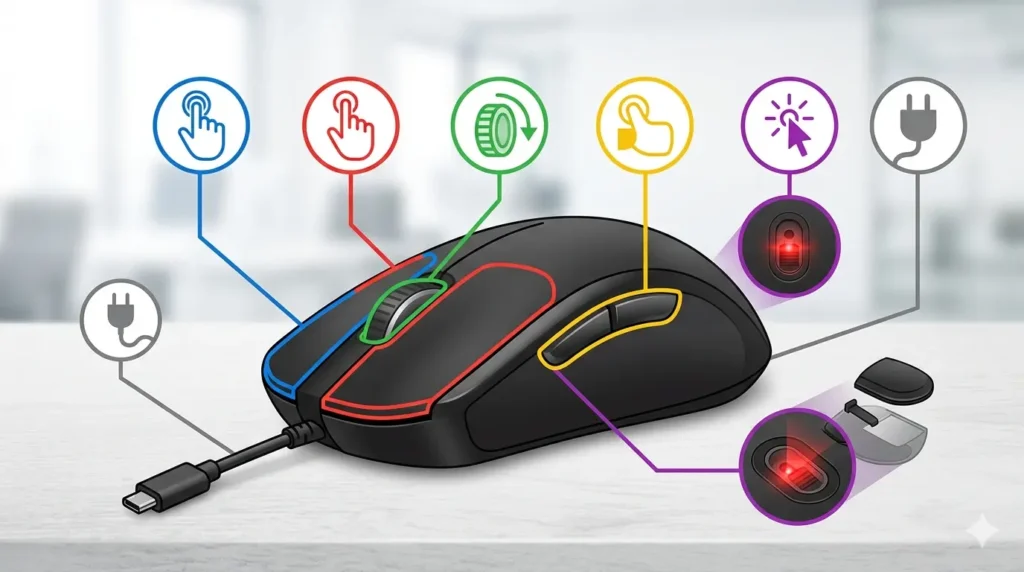
A standard computer mouse consists of several key components, each serving a distinct purpose:
a. Left Mouse Button
The left mouse button is the primary button on a mouse and the most frequently used. A single left-click selects an item or places the cursor in a text field. A double left-click opens files, launches programs, or executes other actions depending on the context. In most operating systems, left-click functions as the primary selection and activation mechanism.
b. Right Mouse Button
The right mouse button opens a context menu , a pop-up list of options relevant to the item or area currently pointed at. For example, right-clicking on the desktop opens options like “New Folder” or “Display Settings,” while right-clicking a file offers options like “Copy,” “Rename,” or “Delete.” The right-click function dramatically expands what a user can do without accessing menu bars, speeding up many common workflows.
c. Scroll Wheel
Located between the left and right buttons, the scroll wheel allows users to scroll through documents, web pages, and lists by rolling it up or down. Many scroll wheels can also be pressed like a button, registering a middle-click, which in web browsers typically opens links in a new tab. Some advanced mice feature tilt wheels that scroll horizontally as well, useful in wide spreadsheets or panoramic views.
d. Optical Sensor
The optical sensor, located on the underside of the mouse, is the component responsible for tracking movement. It emits light (LED or laser) onto the surface below and captures the reflected light with an imaging sensor. By analysing thousands of frames per second, it determines the mouse’s direction and speed of travel with high accuracy.
e. DPI Button
Many modern mice , especially gaming and productivity mice , include a dedicated DPI button, sometimes called the DPI switcher or sensitivity button. This button allows users to cycle through several preset DPI levels on the fly without accessing system settings. A gamer might switch to low DPI for precise aiming and high DPI for rapid camera movement within the same session.
f. USB Receiver or Cable
Wired mice connect to the computer through a USB cable (or the older PS/2 connector). Wireless mice include a small USB receiver , commonly called a nano receiver or dongle , that plugs into any available USB port and communicates with the mouse via RF signals. Bluetooth mice skip the dongle entirely and pair directly with the computer’s built-in Bluetooth hardware, keeping all USB ports free.
Types of Mouse
Computer mice come in many forms, each designed to meet the needs of different users, environments, and use cases.
1. Mechanical Mouse
The mechanical mouse, also called a ball mouse, was the dominant mouse type from the late 1970s through the late 1990s. It uses a rubber-coated ball on its underside that rolls against two internal rollers , one detecting horizontal movement and one vertical. As the ball rolls, the rollers turn and the resulting signals are sent to the computer as cursor movement data.
Mechanical mice were affordable and robust but had a significant drawback: the ball and rollers accumulated dust and debris over time, requiring regular cleaning to maintain smooth operation. They have been almost entirely replaced by optical mice and are now primarily of historical interest.
2. Optical Mouse
The optical mouse is the most common type of mouse found in homes and offices today. It uses an LED light source and an optical sensor to detect movement by continuously imaging the surface beneath it. Optical mice are more reliable, require no cleaning of moving parts, and work well on most non-reflective surfaces, including mouse pads, wood, and fabric.
Optical mice are available in every price range, from budget models costing just a few dollars to precision optical mice for professional graphic designers. They offer a good balance of accuracy, affordability, and durability for everyday computing tasks.
3. Laser Mouse
A laser mouse uses a laser diode instead of an LED to illuminate the tracking surface. The higher coherence and intensity of laser light allows the sensor to track movement on a far wider range of surfaces , including glass, glossy marble, and polished metal , where optical LED mice often fail.
Laser mice also typically offer higher DPI ranges than optical mice, making them popular among users who need fine cursor precision. However, they can sometimes be overly sensitive on textured surfaces, picking up micro-movements even when the mouse is at rest.
4. Wireless Mouse
A wireless mouse connects to the computer using a small USB RF receiver (dongle). It communicates via 2.4 GHz radio frequency signals, which provide a reliable, low-latency connection with a typical range of up to ten meters. Wireless mice require batteries or a built-in rechargeable battery and offer the freedom of a cable-free workspace.
Modern wireless mice have closed the performance gap with their wired counterparts significantly. Many premium wireless mice designed for gaming or professional work are virtually indistinguishable from wired mice in terms of responsiveness and accuracy.
5. Bluetooth Mouse
A Bluetooth mouse is a subset of wireless mice that connects via Bluetooth rather than a proprietary RF receiver. This means it can pair with any Bluetooth-enabled device , laptop, desktop, tablet, or smartphone , without occupying a USB port. Bluetooth mice are particularly popular with laptop users who want to minimise the number of peripherals they carry.
The trade-off is that Bluetooth mice can sometimes have slightly higher latency than RF wireless mice, though modern Bluetooth 5.0 mice have minimised this difference to imperceptible levels for most users.
6. Gaming Mouse
Gaming mice are purpose-built for the demands of competitive gaming. They feature high-DPI sensors (often ranging from 100 to 25,600 DPI or more), programmable buttons, RGB lighting, adjustable weights, and ultra-low-latency polling rates (typically 1,000 Hz or higher, meaning the mouse reports its position to the computer 1,000 times per second).
Ergonomic shaping is carefully designed to reduce fatigue during extended gaming sessions. Many gaming mice include companion software that allows players to program macros, create DPI profiles, and customise lighting effects. Leading gaming mouse brands include Logitech, Razer, SteelSeries, and Corsair.
7. Ergonomic Mouse
Ergonomic mice are designed to reduce the physical strain of prolonged mouse use. A standard mouse requires the hand to lie flat in a pronated position, which can strain the forearm muscles over hours of use. Ergonomic mice feature contoured, sculpted shapes , including vertical designs that hold the hand in a more natural handshake position , that reduce ulnar deviation and forearm twisting.
These mice are recommended for users who spend many hours daily at a computer, particularly those who have experienced or are at risk of repetitive strain injuries (RSI) such as carpal tunnel syndrome. While they have a steeper learning curve, most users adapt quickly and report significantly reduced discomfort.
Functions of a Mouse
The mouse performs a number of essential functions that make navigating graphical user interfaces efficient and intuitive:
1. Pointing
The primary function of a mouse is pointing , moving the on-screen cursor to a specific location. By physically moving the mouse across a surface, the user directs the cursor to any element on the screen: an icon, a button, a menu item, or a text field. Pointing is the foundation of all other mouse interactions.
2. Clicking
Clicking refers to pressing and releasing a mouse button. A single left-click selects an item or activates a button. A double-click opens files or launches applications. A right-click opens a context menu. Clicking translates a user’s intent , “I want to act on this item” , into a direct command the computer understands.
3. Drag and Drop
Drag and drop is the action of pressing and holding the left mouse button while moving the mouse, then releasing the button at a new location. This function allows users to move files between folders, rearrange icons on the desktop, resize windows, and reorder items in lists , all without typing a single command. Drag and drop is one of the most powerful and user-friendly features of graphical interfaces.
4. Scrolling
Using the scroll wheel, users can scroll vertically through long documents, web pages, and file lists. Scrolling eliminates the need to repeatedly click scrollbar arrows, making it far faster to move through lengthy content. Many mice also support horizontal scrolling and gesture-based scrolling on compatible surfaces.
5. Selecting Objects
Users can select multiple objects by clicking and dragging the mouse to draw a selection box around them, or by holding the Shift or Ctrl key while clicking individual items. Selection is essential for batch operations such as moving, copying, deleting, or formatting multiple files or text passages at once.
6. Executing Commands
Buttons, menu items, hyperlinks, and interactive elements on screen are all activated by mouse clicks. This function turns passive, visual interfaces into responsive, interactive environments. Without the ability to execute commands through pointing and clicking, users would need to memorise and type text commands for every action.
Uses of Mouse
The computer mouse finds application across virtually every domain where computers are used:
1. Web Browsing
Web browsing is perhaps the most common everyday use of a mouse. Clicking hyperlinks, filling out forms, scrolling through articles, navigating tabs, bookmarking pages, and interacting with multimedia content all rely on the mouse. The web as we know it , built on hyperlinks and graphical interfaces , was designed with pointing devices in mind, and the mouse remains the most natural tool for navigating it.
2. Office Work
In office environments, the mouse is used constantly for tasks such as editing documents in word processors, selecting cells and entering formulas in spreadsheets, managing emails, creating presentations, and navigating file systems. The combination of keyboard and mouse forms the backbone of office productivity, with each device handling the tasks it does best.
3. Graphic Design
For graphic designers, illustrators, photo editors, and video editors, the mouse is a precision instrument. Drawing shapes, adjusting colour sliders, selecting and transforming layers, cropping images, and placing design elements all require the fine cursor control that a mouse provides. Many professionals complement their mouse with a graphics tablet for freehand drawing, but the mouse remains essential for interface navigation and precise point-and-click operations.
4. Gaming
In PC gaming, the mouse is a critical performance tool. First-person shooters, real-time strategy games, and many other genres rely heavily on fast, accurate mouse movement. Competitive gamers invest in high-performance gaming mice with precise sensors, customisable DPI settings, and low-latency connections to gain every possible advantage. The mouse’s ability to translate subtle wrist and arm movements into precise in-game aiming and navigation is unmatched by any other standard input device.
5. Education and Learning
In educational settings, mice enable students to interact with e-learning platforms, navigate educational software, complete digital assignments, and engage with interactive simulations. Children learning to use computers for the first time typically begin with the mouse as their primary interaction tool, as its physical action directly mirrors the on-screen result in an intuitive way. Special large-button or trackball mice are available for younger children or users with fine motor difficulties.
Advantages of a Mouse
1. Easy Navigation
A mouse makes navigating complex graphical interfaces simple and intuitive. Rather than memorising keyboard shortcuts for every action, users can visually identify what they want to interact with and directly point and click on it. This lowers the learning curve for new computer users considerably and makes computers accessible to a much broader audience.
2. User-Friendly Interface
The mouse enables graphical user interfaces (GUIs) to be truly user-friendly. Menus, buttons, icons, and windows can all be designed for visual interaction, creating environments where users explore and learn by doing rather than reading manuals. The success of operating systems like Windows and macOS is largely built on the intuitive experience the mouse makes possible.
3. Faster Selection and Control
For tasks involving selecting items, navigating menus, and interacting with graphical elements, a mouse is significantly faster than keyboard-only navigation. Pointing directly at an item is faster than pressing Tab repeatedly to cycle through interface elements. In environments like design software, the speed and precision of mouse control directly translates into productivity.
4. Improved Productivity
The combination of keyboard and mouse allows users to handle a far greater variety of tasks than either device alone could support. The mouse handles spatial navigation and interaction, while the keyboard handles text entry and keyboard shortcuts , together they form a highly productive input system that has remained the gold standard for desktop computing for decades.
Disadvantages of a Mouse
1. Requires Surface Space
A mouse requires a flat, clear surface area to operate. In cramped or cluttered workspaces, finding room to move the mouse freely can be challenging. This is a particular limitation for users working on airplane tray tables, in small desks, or in other space-constrained environments, which is one reason why touchpads became standard on laptops.
2. Can Cause Wrist Strain
Extended mouse use , particularly with mice that force the wrist into a pronated, flat position , can cause repetitive strain injuries (RSI), including carpal tunnel syndrome and tendinitis. The repetitive clicking and fine movements involved in prolonged mouse use put stress on the tendons, muscles, and joints of the hand and wrist. Ergonomic mice and proper desk setup mitigate but do not entirely eliminate this risk.
3. Hardware Wear and Tear
Like all physical hardware, mice are subject to wear and tear over time. Mouse buttons may become less responsive after millions of clicks, scroll wheels can develop grinding or skipping behaviour, cables can fray, and sensors can accumulate dirt. While modern mice are generally durable, heavy users may find that they need to replace their mouse every few years.
4. Limited Portability Compared to Touchscreens
While wireless mice have improved portability, they still require a surface to operate on and add another device to carry when travelling. Touchscreen devices and touchpads are more portable because they eliminate the need for a separate pointing device entirely, which is why mobile devices and ultrabooks have largely moved away from relying on external mice.
Mouse vs Touchpad
While both a mouse and a touchpad serve as pointing devices, they differ significantly in their characteristics and suitability for various tasks:
| Feature | Mouse | Touchpad |
|---|---|---|
| Accuracy | High , precise cursor control | Moderate , less precise for detailed work |
| Gaming | Better , preferred by gamers | Limited , not suitable for competitive gaming |
| Portability | External device , needs to be carried | Built-in , no extra hardware needed |
| Comfort (Extended Use) | More comfortable , natural hand position | Less comfortable for long sessions |
| Surface Required | Needs a flat surface or mouse pad | None , fingers move on the pad |
| Click Actions | Dedicated physical buttons | Tap gestures or clickable surface |
| Cost | Additional purchase required | Included with laptop |
| Best For | Desktop work, gaming, design | On-the-go laptop use |
Common Mouse Actions
Mastering the following mouse actions enables users to interact efficiently with virtually any graphical interface:
1. Single Click
A single left-click is the most basic mouse action. It selects an item , such as a file, icon, or button , highlighting it or placing focus on it without opening or activating it. In web browsers, a single click on a hyperlink navigates to the linked page. Single-clicking a button in an application activates that button’s function.
2. Double Click
A double-click , pressing the left mouse button twice in quick succession , opens a file, launches an application, or activates a special action depending on the context. For example, double-clicking a Word document opens it in Microsoft Word, while double-clicking a folder opens it in the file explorer. The time window for a double-click to register can typically be adjusted in the operating system’s mouse settings.
3. Right Click
Right-clicking opens a context menu containing actions relevant to the item or area being clicked. The content of the context menu changes dynamically depending on what is right-clicked , a file, a folder, the desktop, text in a document, or an image all produce different sets of options. Context menus are a powerful way to access a wide range of actions without navigating through application menus.
4. Drag and Drop
To drag and drop, hold down the left mouse button on an item and move the mouse to a new location, then release the button. This action moves or copies the selected item to the new location. Drag and drop is used to move files between folders, reorder list items, resize interface elements, draw selection areas in design tools, and much more. It is one of the most versatile and frequently used mouse interactions.
5. Scroll Up and Down
Rolling the scroll wheel forward (away from the user) scrolls upward in a document or web page, while rolling it backward (toward the user) scrolls downward. Most operating systems also support pressing and holding the scroll wheel to activate a scroll mode where moving the mouse moves the content. Scrolling is essential for reading long web pages, documents, and lists without needing to use on-screen scroll bars.
Tips to Maintain a Mouse
Proper maintenance extends the useful life of a mouse and ensures it continues to track accurately and respond reliably:
1. Clean the Sensor Regularly
The optical or laser sensor on the underside of the mouse can become dirty over time, particularly if used on dusty or oily surfaces. Use a cotton swab lightly dampened with isopropyl alcohol to gently clean the sensor window. A clean sensor ensures accurate, consistent tracking. Also clean the mouse feet , the small plastic pads on the bottom , as dirt buildup can cause the mouse to drag or glide unevenly.
2. Use a Mouse Pad
A quality mouse pad provides a consistent, clean tracking surface that improves sensor accuracy and reduces wear on the mouse’s feet. Hard mouse pads offer low friction and fast cursor movement, while soft cloth pads offer more control and cushioning. Using a mouse pad also protects both the mouse and the desk surface from scratching and keeps the tracking area clean.
3. Avoid Dust and Moisture
Keep your mouse away from dusty environments and never use it near liquids. Dust can accumulate inside the mouse and around the buttons and scroll wheel, causing sluggish clicks or a grinding scroll wheel. Spills can short-circuit the electronics and permanently damage the device. If a spill occurs, unplug the mouse immediately, shake out any excess liquid, and allow it to dry completely before using it again.
4. Handle Cables Carefully
For wired mice, the cable is a common point of failure. Avoid bending the cable sharply at its connection point to the mouse body, as this can cause the internal wires to break over time, resulting in intermittent connectivity. Do not wrap the cable tightly around the mouse when storing it. Some users add a cable bungee , a small device that holds the cable off the desk , to reduce cable drag and strain on the connector.
5. Replace Batteries When Needed
For wireless mice, battery life is a key maintenance consideration. Many wireless mice include a battery indicator in their companion software or an LED on the mouse itself. Replace or recharge batteries promptly when the indicator shows low power, as using a mouse on very low battery can cause erratic tracking and connection drops. Rechargeable wireless mice should be charged regularly, as fully depleting the battery repeatedly can shorten its lifespan.
FAQs About Mouse
1. What is a mouse in a computer?
A computer mouse is a handheld input device that detects two-dimensional motion and translates that motion into cursor movement on a computer screen. It allows users to navigate graphical user interfaces, select items, open files, execute commands, and interact with on-screen elements through pointing and clicking actions.
2. Who invented the computer mouse?
The computer mouse was invented by Douglas Engelbart, an American engineer working at the Stanford Research Institute (SRI). He developed the first prototype in 1964, and the device was first publicly demonstrated on December 9, 1968. Engelbart received a patent for the mouse in 1970.
3. What are the different types of mouse?
The main types of computer mouse are: mechanical (ball) mouse, optical mouse, laser mouse, wireless mouse, Bluetooth mouse, gaming mouse, and ergonomic mouse. Each type is designed with specific characteristics that make it better suited for particular users and use cases.
4. What is the function of a mouse?
The primary functions of a mouse are pointing (moving the cursor), clicking (selecting and activating items), drag and drop (moving objects), scrolling (navigating through content), selecting objects, and executing commands. Together, these functions allow users to navigate and interact with graphical user interfaces efficiently.
5. How does a wireless mouse work?
A wireless mouse communicates with the computer either via a 2.4 GHz RF signal received through a USB dongle, or via Bluetooth. The mouse’s internal sensor detects movement and button presses, which its microcontroller converts into data packets and transmits wirelessly. The receiver or Bluetooth controller on the computer receives these signals and forwards them to the operating system, which moves the cursor and registers clicks accordingly.
6. What is the difference between an optical mouse and a laser mouse?
Both types track movement by imaging the surface beneath them, but they use different light sources. An optical mouse uses an LED (light-emitting diode) and works well on most non-reflective surfaces including mouse pads and wood. A laser mouse uses a laser diode, which produces more coherent light, allowing it to track on smooth and reflective surfaces like glass where optical LED mice fail. Laser mice also generally support higher DPI ranges, though they can be overly sensitive on some surfaces.
Conclusion
The computer mouse is far more than just a peripheral, it is a fundamental tool that has shaped the way humans interact with computers for more than five decades. From Douglas Engelbart’s wooden prototype in 1964 to today’s high-precision wireless and gaming mice, the mouse has continuously evolved to meet the demands of an ever-changing technological landscape.
As we explored in this guide, a mouse is a pointing input device that detects physical movement and translates it into on-screen cursor movement, enabling users to navigate, select, click, drag, scroll, and interact with graphical interfaces in a way that is intuitive and efficient. Its major types , optical, laser, wireless, Bluetooth, gaming, and ergonomic , cater to a wide spectrum of users and applications, from everyday office work to competitive gaming and professional design.
Understanding the parts of a mouse , from the left and right buttons and scroll wheel to the optical sensor and DPI control , helps users choose the right device for their needs and use it to its fullest potential. And by following proper maintenance practices such as regular cleaning, using a mouse pad, and careful cable handling, users can extend the life of their mouse significantly.