
Most people use an AI humanizer like a car wash. Drive the draft in, let the machine do its thing, drive out, and hope it’s clean. Then a client or an editor runs it through a detector and the whole piece comes back flagged.
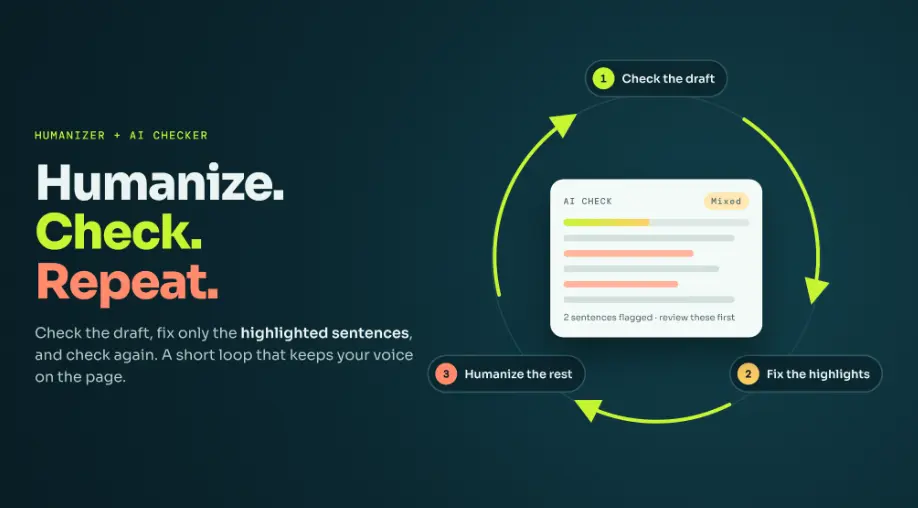
There’s a better routine, and it borrows from how good editors already work: look first, fix only what needs fixing, then look again. UnAIMyText happens to offer both halves of that routine for free, a humanizer for rewriting and an AI checker for reading the result. Used together, and used carefully, they turn humanizing from a guess into a short feedback loop.
This guide walks through that loop step by step, explains what each tool actually does, and covers the part most tutorials skip: when to stop.
Meet the Two Tools
The Unaimytext’s humanizer rewrites AI-generated text so it reads more naturally while keeping the meaning. The free Standard mode takes up to 500 words per input, with no sign-up and no total usage cap, and is aimed at blog posts, emails, social copy, and product descriptions. The paid plan raises the limit to 2,000 words and adds an Ultra mode meant for academic and long-form writing.
The AI checker is the other half. It accepts between 50 and 5,000 words per check, again with no sign-up. You can paste text, upload a PDF, Word, or plain text file, or point it at a public URL. It returns an overall AI percentage with a label (Human, Mixed, or AI) and highlights the specific sentences that push the score up. Recent checks are kept in your browser’s history, not in an account.
Notice the size mismatch: the checker reads ten times more text in one go than the free humanizer rewrites. That difference shapes the whole workflow. You check big, and you fix small.
The Loop, Step by Step
Step 1: Check before you change anything
It’s tempting to humanize first. Don’t. Run your untouched draft through a free AI checker that highlights the sentences behind the score and look at two things: the overall label and where the highlights cluster.
This baseline tells you more than any rewrite will. If the highlights bunch up in the intro and the conclusion, you’ve found the template-sounding parts. If they’re spread evenly, the problem is probably rhythm across the whole draft. And if the checker already reads the piece as Human or Mixed, you may only need a light touch.
Step 2: Read the highlights like an editor
Before you send anything to the humanizer, read each highlighted sentence and ask why it might have been flagged. Usually you’ll spot one of a few familiar patterns:
- A filler opener, such as “In today’s fast-paced world”
- A list of three vague benefits
- A closing line that restates the paragraph
- A run of sentences that are all about the same length
- Stock words like “crucial,” “seamless,” or “delve”
Some of these take ten seconds to fix by hand. Delete the filler. Cut the third item from the list. Replace the vague claim with a number you actually have. Hand edits are free, fast, and keep your voice intact, so do them first.
Step 3: Humanize only the stubborn sections
Whatever still reads stiff after your hand edits goes to the humanizer, in chunks. Work at the section level, under the 500-word free limit, and keep each chunk to a single heading where possible. That way, the rewrite stays focused, and you can compare it with the original in one glance.
When the output comes back, read it against your draft. Check every number, name, and quote. Check that qualifiers like “often” or “in most cases” didn’t disappear. Any rewrite, from any tool, can soften a claim or shift a meaning, so this read-through isn’t optional.
Step 4: Reassemble and check again
Put the full piece back together and run it through the checker again. This second check is where the loop earns its name. You’re looking for two things:
- Did the highlights move? If the flagged sentences are now different, your edits worked where you applied them, and you have a short new list to review.
- Did anything new appear? Sometimes a rewrite creates its own patterns, such as a cluster of similar sentence openers. Fix those by hand.
For most drafts, one round is enough. Two rounds are common for long or formal pieces. If you’re on a fourth or fifth round, something else is going on, which brings us to the most important step.
Step 5: Know when to stop
The checker’s own page says it plainly: the result is “an estimate, not proof,” and it can miss heavily edited AI text and flag careful human writing. That’s an honest description of every AI detector, and it should change how you use the score.
Here are three good stopping rules:
- Stop when the highlights stop being useful. If the remaining flagged sentences read fine to you and to a colleague, more rewriting will only make them worse.
- Stop when the meaning starts to slip. Each extra pass is another chance for a fact or nuance to change. Protecting accuracy matters more than shaving a few points off a score.
- Stop chasing zero. Perfectly human writing doesn’t always score 0% on detectors, so a target of 0% sets you up to over-edit good text.
Why One Score Is Never the Final Word
It helps to remember how unreliable AI detection has been from the start. OpenAI built its own AI classifier in early 2023 and then withdrew it six months later. By the company’s own numbers, it correctly identified only 26% of AI-written text and wrongly flagged human writing 9% of the time.
Detectors can also be unfair to certain writers. A Stanford study found that seven popular detectors classified more than half of TOEFL essays by non-native English speakers as AI-generated, while scoring essays by US-born students almost perfectly. The researchers traced this to perplexity, the predictability measure most detectors rely on, which tends to penalize simpler vocabulary.
So treat the checker as a reading aid that points you to sentences worth a second look. Clients, editors, and teachers may use different detectors with different results, and no single score predicts what another tool will say.
Where the Pairing Works Best (and Where It Doesn’t)
| Content | How well the loop fits | Notes |
|---|---|---|
| Blog posts and articles | Strong | Check the full draft, humanize section by section |
| Marketing emails and landing pages | Strong | Short enough for one humanizer pass per section |
| Product descriptions | Good | Watch for changed specs or measurements |
| Very short text (under 50 words) | Limited | Below the checker’s minimum, and short text is hard for any detector to judge |
| Academic or technical writing | Use with care | Formal prose is harder to humanize well, and you should follow your institution’s rules on AI tools |
Published tests back up that last row. Reviews of humanizers in general, including this one, tend to show better results on casual blog and marketing copy than on formal academic paragraphs. If your work sits in that harder category, lean more on your own edits and treat the humanizer as a light polish.
A Two-Minute Version for Busy Days
Short on time? Here’s the compressed loop:
- Check the full draft and note the three most highlighted sentences.
- Fix those three by hand.
- Run only the most stubborn paragraph through the free humanizer.
- Check once more, read the piece aloud, and publish.
It won’t catch everything, but it targets the lines readers notice first, and it keeps you in control of the final wording.
Humanize Less, Check Smarter
The real benefit of pairing an AI humanizer with an AI checker is precision. Instead of rewriting a whole article and hoping, you see which sentences sound mechanical, fix those, and confirm the change. You humanize less of the text, which means fewer accidental changes and more of your own voice left on the page.
Check first. Edit by hand where you can. Humanize the stubborn parts. Check again. Then stop, read it like a person, and hit publish.