
Quick Summary
A slow Mac during live classes, coding sessions or video lessons rarely means the machine is simply too old. More often, background apps, startup items, crowded browsers and a nearly full drive are quietly eating resources. This guide shows how to find the culprits with built-in tools, trim what launches at login, and follow a short weekly routine that keeps your Mac responsive when it matters.
When Your Laptop Becomes Your Classroom
You join a live class five minutes early. The video stutters, the fan spins up like a tiny jet engine, and the screen share freezes just as the instructor reaches the hardest part of the lesson. Sound familiar?
Many learners blame the Wi-Fi or the age of their laptop. Sometimes that’s fair. But quite often the real trouble sits quietly in the background: apps that launched at startup, tabs you forgot you opened, and helper processes you never asked for.
If you’re studying programming, data science, SEO or design online, your laptop is your classroom. A handful of small habits can make it far more dependable, and none of them need special software.
Why Online Learning Is Harder on Your Mac Than It Looks
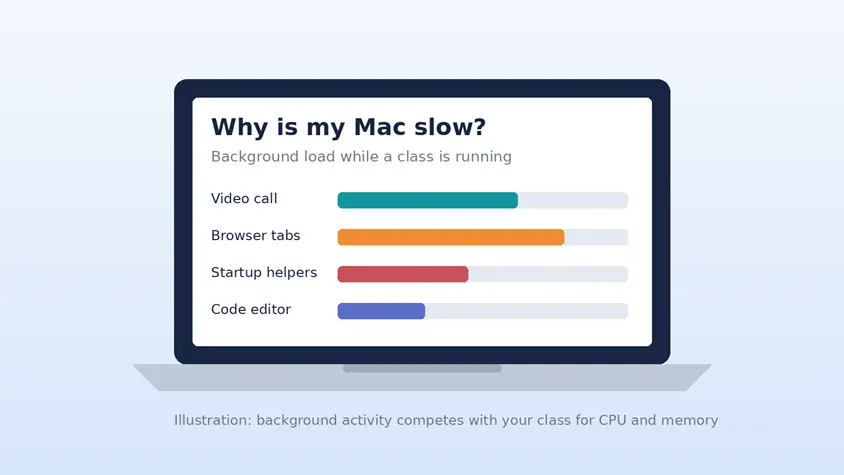
A normal study session isn’t one task. It’s a video call, a screen share, a browser with a dozen tabs, a code editor, a notes app and a chat window, all running at once. Each of them asks for processor time, memory and sometimes graphics power.
Then come the apps you didn’t open on purpose. Cloud sync tools, update checkers and chat apps often start the moment you log in and keep working silently. Each one is small. Together, they add up fast.
Here are the usual warning signs:
• A long wait after logging in before the Mac feels usable
• Fans running loudly during light work
• A battery that drains much faster than it used to
• Laggy typing, scrolling or video playback
• Apps freezing or showing the spinning beach ball
Heat matters too. When a Mac gets too hot, it deliberately slows itself down to protect its hardware, a behavior known as thermal throttling.
Step 1: Find the Real Culprit With Activity Monitor
Before you change anything, find out what’s actually happening. Open Activity Monitor from Applications > Utilities, or just search for it with Spotlight. It has tabs for CPU, Memory, Energy, Disk and Network.
• CPU: Click the % CPU column to sort. Anything that stays high while you’re doing nothing demanding deserves a closer look.
• Memory: Check the Memory Pressure graph at the bottom. Green is healthy, yellow is a warning, and red means your Mac is struggling.
• Energy: The Energy Impact column shows which apps drain your battery the most.
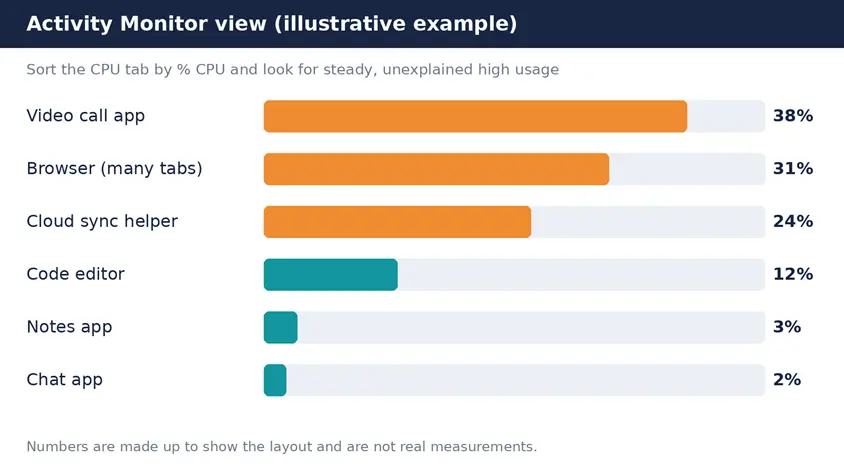
One caution: don’t force-quit unfamiliar names without checking them first. Search the process name online, and if it belongs to macOS itself, leave it alone.
Step 2: Trim What Launches at Startup
Startup items are the most overlooked cause of slow starts. Open System Settings, choose General, then Login Items & Extensions. You’ll see two lists: apps that open at login, and apps allowed to run in the background. Do you really need a music app, a game launcher and three chat tools waking up every morning?
Remove what you don’t need at login by selecting it and clicking the minus button. You can still open any of those apps by hand when you want them.
Creative software is a good example of why this check is worth doing. Adobe Creative Cloud includes a component called CCXProcess that starts with your Mac, and older versions have been reported to cause high CPU use and slower boots. Updating Creative Cloud is usually the first fix. If you want the full details, MacPaw’s guide on this process includes a walkthrough for fixing startup delays caused by it, covering the update steps, login item settings and what to do if the problem persists.
A quick rule for this step: if you don’t recognize an item, look it up before disabling it. Never switch off security software or anything that mentions your system, drivers or device management.
Step 3: Rein In Your Browser
For many students, the browser is the heaviest app on the whole machine. Online courses, documentation, video lessons and web apps all live there, and every tab costs memory.
• Close tabs you aren’t using, and save useful ones as bookmarks or a reading list instead of leaving them open.
• Use Chrome’s built-in Task Manager (under the Window menu) to see which tabs use the most memory.
• In Safari, open Settings > Extensions and switch off anything you don’t use. Extensions such as ad blockers can occasionally conflict with other software.
• Consider one browser window for class and a separate one for everything else.
Step 4: Keep Storage and Software Fresh
A Mac needs free space to work properly, because it uses part of the drive as temporary memory. When the drive is almost full, everything feels heavier. A common rule of thumb is to keep roughly 10 to 15 percent free.
Check your numbers in System Settings > General > Storage. Old screen recordings, course videos and forgotten downloads are the usual space hogs. Clear them out, or move them to an external drive or cloud storage.
Updates matter as well. Open General > Software Update and install pending macOS updates, then update your apps. Many performance bugs are fixed in later versions. Just avoid starting an update right before a class.
Step 5: Give Your Mac Room to Breathe
• Work on a hard, flat surface. Beds and sofas block the vents.
• Keep the vents clear, and clean dust from your desk area regularly.
• On supported MacBooks, try Low Power Mode in Battery settings when you only need light work.
• Restart at least once a week. Long uptimes let small problems pile up.
Your 10-Minute Weekly Tune-Up
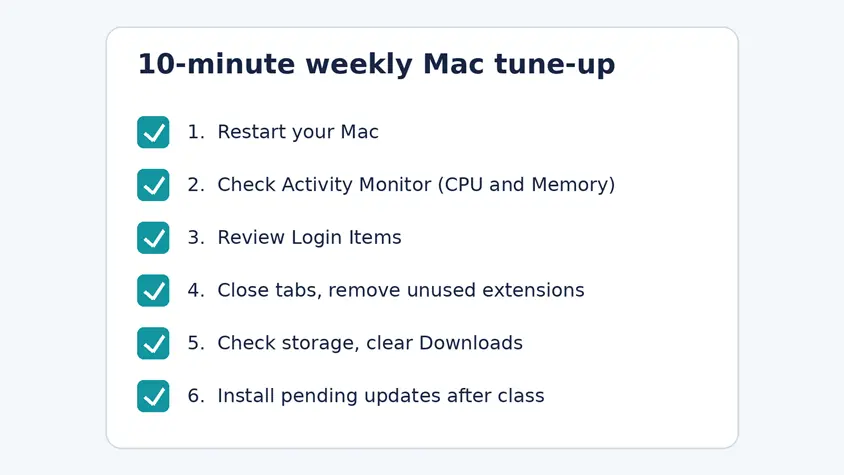
Rather than fixing things in a panic, make maintenance a routine. Pick a quiet time, like Sunday evening, and work through this list:
1. Restart your Mac.
2. Open Activity Monitor and note any app using more than its fair share.
3. Review your Login Items and remove anything unnecessary.
4. Close extra tabs and disable extensions you don’t use.
5. Check storage and clear your Downloads folder.
6. Install pending updates outside class hours.
When Slowness Might Mean Something More
If you’ve done all of the above and your Mac still runs hot with nothing open, look for other signs. Unfamiliar login items, a changed browser homepage, constant pop-ups or unknown apps can point to unwanted software.
In that case, run a scan with a reputable security tool, remove anything suspicious, and back up your important files first. Keep in mind that macOS already includes built-in protections, so most people are best served by downloading apps only from trusted sources.
And if your Mac is simply old, with very little memory, there’s a limit to what tidying can do. Knowing that is useful too, because it tells you when an upgrade is a sensible choice rather than a wasted one.
Key Takeaways
• Most slowdowns during online classes come from background load, not from a faulty laptop.
• Activity Monitor is the quickest way to see which app is using too much CPU, memory or battery.
• Trimming Login Items shortens startup time and frees resources before class even begins.
• Fewer browser tabs and extensions often give the biggest everyday improvement.
• Free storage, regular updates and good airflow keep performance steady over time.
• A 10-minute weekly routine beats an emergency clean-up before an exam.
Final Thoughts
Learning online asks a lot of your laptop, and it asks for reliability at exactly the wrong moments. You don’t need to be a technical expert to protect it. Know what’s running, decide what deserves to start with your Mac, and keep the basics in order. Do that, and your computer goes back to doing what it should: staying out of the way while you learn.