
Every photograph you have ever taken on a digital camera, every document you have written, every song you have downloaded, every video you have recorded, every email you have saved , all of it exists as data, and all of that data lives somewhere on a storage device.
Storage devices are the hardware components that allow computers to retain information over time, making it available for retrieval seconds, years, or even decades later. They are the memory of the digital world , the technology that transforms computers from transient calculating machines into lasting repositories of human knowledge and creativity.
A storage device is any hardware component capable of storing data , retaining binary information in a form that can be read back at a later time, either immediately or after the computer has been powered off. This distinguishes storage devices from the working memory of a computer (RAM), which holds data only while the machine is running.
Storage devices span an enormous range of technologies, capacities, speeds, and form factors: from the microscopic flash cells in a smartphone’s built-in storage to the multi-petabyte tape libraries in enterprise data centres, from the NVMe SSD that boots your laptop in seconds to the cloud server that backs up your files automatically.
For businesses managing storage and server infrastructure, CtrlOps, an AI-powered server management and DevOps tool, can help streamline server management and monitor infrastructure performance.
Storage devices work closely with every other major component of a computer system. The CPU retrieves program instructions from storage at boot time and loads application code as programs are launched. RAM uses storage as a backing store for the virtual memory system.
The motherboard connects storage devices to the rest of the system through SATA ports, M.2 slots, and PCIe interfaces. Without storage, a computer would lose all its software and data the moment power was removed , it would need to be completely reprogrammed from scratch every time it was turned on.
Storage is traditionally divided into primary storage (fast, temporary, closely coupled to the CPU , typically RAM and cache), secondary storage (permanent, higher-capacity, user-accessible , HDDs, SSDs, USB drives), and tertiary storage (archival, very high capacity, typically automated tape systems used in enterprise environments). Each tier has distinct characteristics suited to different aspects of the data lifecycle.
In this comprehensive guide, we will explore everything you need to know about storage devices: what they are and why they matter, how they work, the full range of types and technologies from primary to tertiary storage, their functions and real-world uses, how they relate to other hardware components, their advantages and disadvantages, emerging modern storage solutions, and how to maintain them effectively.
By the end, you will have a thorough and practical understanding of the hardware that preserves every bit of data in modern computing.
What Are Storage Devices?
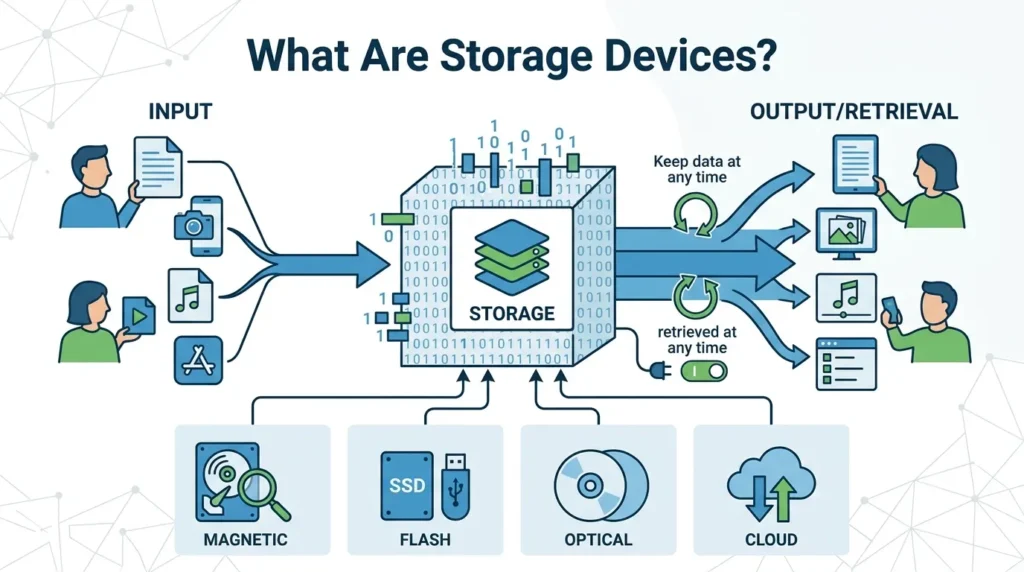
Storage devices are hardware components that store digital data , sequences of binary ones and zeros , in a form that can be retrieved at a later time. They provide the persistent memory of a computer system, retaining information across power cycles, program restarts, and the passage of time. Every piece of digital information that needs to outlast a single computing session , operating systems, application software, user files, databases, media libraries , resides on a storage device.
The fundamental operation of a storage device is encoding digital data into a physical medium that holds the encoded information stably over time, and then decoding that physical representation back into digital data when retrieval is requested. Different storage technologies achieve this through different physical mechanisms: magnetic storage uses patterns of magnetic polarity on a spinning platter or tape; flash storage uses the charge state of floating-gate transistors; optical storage uses patterns of reflectivity on a disc surface; and cloud storage distributes data across networked servers in remote data centres.
Storage devices are important for several fundamental reasons. They make software permanent , without storage, every application would need to be reloaded from an external source every time the computer starts. They make user data persistent , documents, photos, videos, and messages created by users are saved to storage rather than lost at shutdown. They enable the entire software ecosystem of modern computing , operating systems, applications, databases, and media libraries all reside on storage. And they enable the sharing and transfer of data between computers and people through portable storage media and networked storage systems.
In a complete computer system, storage devices occupy a specific architectural position: they are slower than primary memory (RAM) but far more capacious and persistent. The hierarchy from fastest/smallest/most expensive to slowest/largest/cheapest runs: CPU registers → cache memory → RAM → NVMe SSD → SATA SSD → HDD → optical disc → magnetic tape. Each level in this hierarchy serves a specific role, and modern operating systems manage data movement between levels (a process called memory hierarchy management) to deliver the best combination of speed and capacity for the system’s workloads.
Why Are Storage Devices Important?
Storage devices are not optional components , they are an absolute requirement for any functional computing system. Their importance spans every aspect of how computers are used:
Storing Operating Systems
The operating system , Windows, macOS, Linux, Android, iOS , is the foundational software that manages all of a computer’s hardware resources and provides the platform on which all applications run. The operating system is stored on a storage device (almost universally a solid-state drive or hard disk drive in modern computers) and is loaded into RAM at startup through a process called booting. Without a storage device containing the operating system, the computer has no software to run and cannot perform any useful function. The speed of the storage device containing the operating system directly determines how quickly the computer boots and how responsive system operations feel.
Saving User Files
Every document a user creates, every photograph they take, every video they record, every music track they download, every email they compose , all of it is saved to a storage device. Storage makes these files permanent and retrievable, allowing users to access their work days, months, or years after it was created. Without storage, every file would vanish the moment the application creating it was closed or the computer was powered off. The capacity of storage devices determines how many files a user can accumulate, and the reliability of the storage device determines whether those files will still be intact when the user needs them.
Running Applications
Application software , word processors, web browsers, games, design tools, development environments , is stored on secondary storage devices and loaded into RAM when launched. Storage does not just hold applications at rest; it also supports them during execution through virtual memory (when RAM is full, the operating system uses storage as an overflow area, swapping inactive memory pages to a page file or swap partition on the storage device) and through application caching (frequently accessed data is stored in temporary files on the storage device for faster subsequent access). The speed of the storage device significantly affects application launch times and the smoothness of virtual memory operations.
Backing Up Important Data
Storage devices are the medium for data backup , creating additional copies of important data to protect against loss from hardware failure, accidental deletion, ransomware, or disaster. A complete backup strategy typically involves multiple storage devices: an internal drive for the primary copy, an external drive for a local backup, and cloud storage for an off-site backup (following the 3-2-1 rule: three copies of data, on two different media types, with one off-site). Without storage devices capable of holding backup copies, data loss events , and they inevitably occur , would be unrecoverable.
How Do Storage Devices Work?
Despite the enormous variety of storage technologies, they all follow the same fundamental workflow: writing data, retaining it physically, and retrieving it on demand, all while communicating with the CPU and RAM through standardised interfaces.
Data Writing Process
When data is written to a storage device, the computer converts the digital data into a form that can be physically recorded on the storage medium. In a hard disk drive, write heads fly nanometres above rapidly spinning magnetic platters, generating magnetic fields that magnetise tiny regions of the platter surface in one of two orientations (representing binary 1 or 0). In a solid-state drive or USB flash drive, the storage controller applies electrical charges to the floating-gate transistors in NAND flash memory cells, setting each cell to represent a specific data value (one bit per cell in SLC, two bits in MLC, three bits in TLC, four bits in QLC flash).
The write process also involves error correction: storage controllers calculate and store error correction codes (ECC) alongside the data, allowing single-bit (or in some technologies, multi-bit) errors to be automatically detected and corrected when the data is later read. This error correction is transparent to the user but is critical for data integrity over the device’s lifetime.
Data Storage Process
Once written, data is retained in the storage medium through the physical properties that encode it. In magnetic storage, the magnetised regions on the platter surface retain their polarity indefinitely without power , a property called non-volatility. In flash storage, the charge trapped in the floating gate of each transistor is retained by an insulating oxide layer, maintaining the stored data without power for months to years. In optical storage, the physical deformations (pits and lands) pressed into a disc surface during manufacture, or the chemical changes induced by a recording laser, are permanent physical features of the disc material.
Data on storage devices is organised into a file system , a structured hierarchy of directories and files that the operating system uses to locate and manage stored data. Common file systems include NTFS and exFAT on Windows, APFS on macOS, and ext4 on Linux. The file system maintains a directory structure and allocation tables that map file names to the specific physical locations on the storage medium where each file’s data is stored.
Data Retrieval Process
When data is requested , by the operating system loading a file or by an application reading data , the storage controller locates the data on the medium using the address information provided, physically reads the stored representation, converts it back into digital data, applies error correction if necessary, and transfers the data to the requesting system. In an HDD, the read head moves to the correct track on the spinning platter and reads the magnetic orientations as the disc rotates beneath it. In an SSD, the controller sends a voltage to the appropriate flash memory cells and reads the resulting current to determine the stored charge state.
The speed of data retrieval is a critical performance characteristic of storage devices. HDD read speeds are limited by the mechanical movement of read heads and the rotational speed of platters, typically delivering 80–200 MB/s. SATA SSDs eliminate mechanical delays, achieving 500–550 MB/s. NVMe SSDs communicate directly over PCIe lanes, delivering sequential read speeds of 3,500 MB/s (PCIe 3.0), 7,000 MB/s (PCIe 4.0), or beyond 14,000 MB/s (PCIe 5.0).
Communication with CPU and RAM
Storage devices communicate with the CPU and RAM through standardised interfaces on the motherboard. SATA devices connect through the SATA controller in the motherboard’s chipset, which manages the SATA protocol and forwards data to the CPU via the chipset-to-CPU interconnect. NVMe devices communicate directly over PCIe lanes , either CPU-attached (for the lowest latency) or chipset-attached , using the NVMe protocol, which was designed specifically for low-latency flash storage and supports far higher queue depths and lower overhead than the legacy AHCI protocol used by SATA.
When the CPU requests data from storage (for example, when loading a program), the storage controller retrieves the data and transfers it via DMA (Direct Memory Access) directly into RAM, without burdening the CPU with the data transfer itself. The CPU is notified by an interrupt when the transfer is complete and then reads the data from RAM for processing. This DMA mechanism allows the CPU to continue other work while storage transfers occur in the background, improving overall system efficiency.
Types of Storage Devices
Storage devices are categorised into three primary tiers , primary, secondary, and tertiary , based on their speed, capacity, cost, volatility, and proximity to the CPU. Each tier serves a different role in the overall data management architecture of a computing system.
1. Primary Storage Devices
Primary storage devices are the fastest and most directly accessible storage in a computer system, located closest to the CPU in the memory hierarchy. They provide the immediate working memory that the processor uses during active computation. Primary storage is characterised by extremely high speed, low latency, and direct access by the CPU, but is typically volatile (loses data when power is removed) and has lower capacity than secondary or tertiary storage.
The key characteristics of primary storage are: direct addressability by the CPU without going through a file system; access times measured in nanoseconds (billionths of a second); bandwidth measured in tens to hundreds of gigabytes per second; and volatile data retention (in the case of RAM and cache). Primary storage is the most expensive per gigabyte of any storage tier.
a. RAM (Random Access Memory)
RAM is the main primary storage device in a computer, providing the high-speed working memory workspace where the CPU stores data and instructions it is actively processing. Modern consumer systems feature 8GB to 64GB of DDR4 or DDR5 RAM, with access speeds of 50–100+ GB/s. RAM is volatile , all contents are lost at power-off , but its exceptional speed makes it ideal for holding the operating system, running applications, and active files during a computing session. RAM communicates directly with the CPU through the memory bus at clock speeds of 3,200 to 6,400 MHz and above.
b. ROM (Read-Only Memory)
ROM is non-volatile primary storage that retains its contents without power and, in its traditional form, cannot be modified after manufacture. Modern computers use a variant called Flash ROM (or EEPROM , Electrically Erasable Programmable ROM) for the BIOS/UEFI firmware chip on the motherboard. This chip stores the system firmware that initialises hardware and begins the boot process every time the computer starts. Unlike RAM, ROM holds fixed or rarely-changed data (firmware) rather than user data, and its contents persist indefinitely without power.
c. Cache Memory
Cache memory is an extremely fast, small-capacity SRAM-based storage built directly into the CPU chip (or placed in very close proximity). It operates as a high-speed buffer between the CPU’s execution units and main RAM, storing copies of frequently accessed data to reduce the time the CPU spends waiting for memory. Modern CPUs feature multiple cache levels , L1 cache (32–128 KB per core, access in 1–4 clock cycles), L2 cache (256KB to several MB per core, 4–12 cycles), and L3 cache (a few MB to 100MB+ shared across all cores, 30–50 cycles). Cache hits (data found in cache) are dramatically faster than cache misses (requiring RAM access), making cache size and efficiency a key determinant of CPU performance.
2. Secondary Storage Devices
Secondary storage devices are the most familiar category of storage for most computer users. They provide large-capacity, non-volatile, persistent data storage that retains information indefinitely without power. Secondary storage is slower than primary storage but far more capacious and affordable per gigabyte, making it the appropriate tier for storing operating systems, applications, user files, and all other persistent data.
Secondary storage is characterised by: non-volatility (data persists without power); much larger capacities than primary storage (from hundreds of gigabytes to multiple terabytes in consumer devices); lower cost per gigabyte than primary storage; and access through standardised interfaces (SATA, PCIe/NVMe, USB) managed by device drivers and a file system.
a. HDD (Hard Disk Drive)
The hard disk drive is the most traditional secondary storage device, using rotating magnetic platters and moving read/write heads to store and retrieve data. HDDs offer very large capacities at low cost , consumer drives range from 1TB to 20TB, and enterprise drives exceed this , making them the preferred choice for bulk storage of media libraries, backups, and large datasets. However, the mechanical nature of HDDs limits their read/write speeds (typically 80–200 MB/s sequential) and makes them susceptible to physical shock and vibration. HDDs connect via SATA or SAS interfaces and are measured in rotational speed (5,400 RPM or 7,200 RPM for consumer drives, 10,000 or 15,000 RPM for enterprise).
b. SSD (Solid State Drive)
Solid-state drives use NAND flash memory instead of spinning platters, eliminating all mechanical components and delivering dramatically faster performance than HDDs. SATA SSDs reach 500–550 MB/s sequential speeds , roughly three times faster than a fast HDD. NVMe SSDs communicating over PCIe reach 3,500 MB/s (PCIe 3.0), 7,000 MB/s (PCIe 4.0), or beyond 14,000 MB/s (PCIe 5.0). Beyond sequential speed, SSDs have vastly superior random access performance , they can service many thousands of random 4KB read/write operations per second where an HDD manages only 80–200 , making them far better suited to operating system and application use. SSDs are more expensive per gigabyte than HDDs but are now the standard for primary system drives in laptops and desktops.
c. USB Flash Drive
A USB flash drive (also called a thumb drive, pen drive, or memory stick) is a small, portable flash storage device with a USB connector that plugs directly into a USB port. USB flash drives use the same NAND flash technology as SSDs but in a compact, self-contained form factor designed for portability and convenience rather than peak performance. Capacities range from a few gigabytes to 1TB or more. Transfer speeds vary widely by generation , USB 2.0 drives are limited to approximately 60 MB/s, while USB 3.2 Gen 2 drives can exceed 400 MB/s. USB flash drives are universally used for file transfer between computers, software distribution, bootable OS installers, and portable storage of documents and media.
d. Memory Card
Memory cards are compact flash storage devices in standardised form factors designed for use in cameras, smartphones, drones, and other portable electronic devices. The most common format is the SD (Secure Digital) card, available in full-size SD, miniSD, and microSD variants. Other formats include CompactFlash (CF) and CFexpress, used in professional cameras. Memory cards are rated by speed class (Class 10, UHS Speed Class, Video Speed Class) that indicates minimum write speeds for video recording. Capacities range from a few gigabytes (for basic smartphones) to 1TB (for professional cameras and high-end smartphones). In smartphones and tablets, internal storage is often built on eMMC or UFS flash technology , effectively a miniaturised version of the flash memory in memory cards.
e. Optical Disc
Optical discs store data as patterns of reflectivity on a disc surface, read and written by laser beams. The three main optical disc standards are CD (Compact Disc, up to 700 MB), DVD (Digital Versatile Disc, up to 17.08 GB for dual-layer dual-sided), and Blu-ray Disc (25 GB per layer, with dual-layer discs holding 50 GB and BDXL discs holding up to 128 GB). Read-only discs (CD-ROM, DVD-ROM, BD-ROM) are pressed in factories with permanent data. Recordable discs (CD-R, DVD-R, BD-R) use a photosensitive dye that is permanently altered by the recording laser. Rewritable discs (CD-RW, DVD-RW, BD-RE) use a phase-change material that can be repeatedly crystallised and amorphised. Optical discs are used for software distribution, movie and music media, and archival storage, though their role in everyday computing has diminished significantly with the rise of digital downloads and USB storage.
3. Tertiary Storage Devices
Tertiary storage occupies the slowest, highest-capacity, and lowest-cost-per-gigabyte tier of the storage hierarchy. It is designed for archival and long-term backup purposes where access frequency is very low, access latency is acceptable in the range of minutes to hours, and the primary requirements are maximum capacity, data longevity, and minimal cost per terabyte. Tertiary storage is predominantly found in enterprise data centres, scientific research archives, broadcast media preservation, and government records systems.
a. Magnetic Tape
Magnetic tape is the oldest and most enduring storage technology in computing, and it remains the dominant medium for enterprise archival storage due to its extraordinary combination of high capacity and low cost. Modern LTO (Linear Tape-Open) tape cartridges , the current standard , hold up to 18TB of native data per cartridge (45TB compressed) with the latest LTO-9 specification, while LTO-10 (in development) promises 36TB native capacity. Tape has negligible cost per terabyte compared to hard drives and SSDs, and properly stored tape cartridges have documented data longevity of 30 or more years. Tape is ideal for the cold storage of data that must be preserved long-term but accessed rarely: broadcast archives of decades of television content, scientific datasets from completed research projects, legal and regulatory compliance records, and disaster recovery backups.
b. Automated Backup Systems
Enterprise tertiary storage is managed through automated tape library systems , robotic systems that house hundreds or thousands of tape cartridges in a large cabinet and use robotic arms to automatically load, unload, and retrieve tapes from a set of tape drives. These systems, called tape libraries or robotic tape libraries, can manage petabytes of data across thousands of cartridges while requiring minimal human intervention. Software manages the logical organisation of data across cartridges, automatically determines which cartridge contains a requested file, directs the robotic arm to retrieve it, and loads it into a tape drive for reading. Major vendors include IBM (TS4500), Oracle (StorageTek), and Spectra Logic. Cloud storage providers including AWS, Google, and Microsoft also use tape libraries as the underlying infrastructure for their cheapest cold storage tiers (AWS Glacier, for example).
Internal Storage Devices
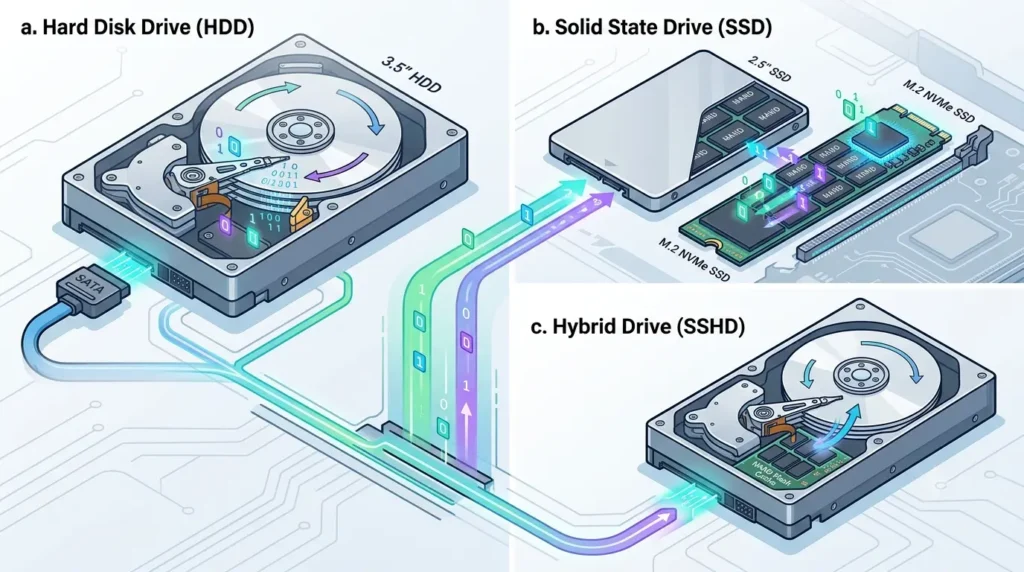
Internal storage devices are housed inside the computer case and connect directly to the motherboard through built-in interfaces. They form the primary storage layer for the operating system, applications, and user data in most computing systems:
a. Hard Disk Drive (HDD)
The hard disk drive is the traditional internal storage device, using one or more rapidly spinning magnetic platters and a moving actuator arm with read/write heads to store and retrieve data. The platters spin at 5,400 or 7,200 RPM in consumer drives, while the read/write head floats just nanometres above the platter surface on a cushion of air. Data is organised in concentric circular tracks divided into sectors, with the file system mapping file data to specific track and sector addresses. HDDs connect to the motherboard via SATA cables and power connectors, or in enterprise systems via SAS.
HDDs remain competitive for applications requiring large capacity at low cost: storing movie libraries, photo archives, game libraries, backup destinations, and network-attached storage arrays. A 4TB consumer HDD typically costs a fraction of a 1TB SSD, making HDDs the economical choice when capacity matters more than speed. Modern HDDs incorporate technologies like helium filling (allowing more platters in the same space without increased air resistance), CMR (Conventional Magnetic Recording), and SMR (Shingled Magnetic Recording) to maximise areal density.
b. Solid State Drive (SSD)
The solid-state drive has replaced the HDD as the standard internal storage device for operating systems and primary application storage in virtually all new laptops and desktops. Without moving parts, SSDs offer dramatically faster performance, lower power consumption, greater shock resistance, and quieter operation than HDDs. NVMe SSDs in M.2 form factor are the current mainstream standard, connecting directly to the motherboard’s M.2 slot and communicating over PCIe lanes at speeds that would have been unimaginable with SATA-connected storage just a decade ago.
SSDs use NAND flash memory organised into pages (the smallest writable unit) and blocks (the smallest erasable unit). The storage controller manages wear levelling (distributing writes evenly across all memory cells to prevent premature wear-out), garbage collection (consolidating and erasing blocks containing deleted data), and over-provisioning (reserving a portion of flash capacity for controller operations). These management functions maintain consistent performance and maximise the drive’s endurance (measured in TBW , terabytes written over the drive’s lifetime).
c. Hybrid Drive (SSHD)
The hybrid drive, or SSHD (Solid State Hybrid Drive), combines a traditional magnetic HDD with a small amount of NAND flash cache (typically 8–32GB) in a single device. The drive’s controller uses the flash cache to store frequently accessed data , particularly the operating system boot files and frequently launched applications , serving them at SSD-like speeds while the less-frequently accessed bulk of data continues to reside on the magnetic platters. Over time, the drive learns which data is accessed most frequently and manages the cache automatically.
SSHDs offered a cost-effective middle ground between HDD capacity/cost and SSD performance in the 2010s, but their relevance has diminished as SSD prices have fallen dramatically. Today, the preferred approach is a two-drive configuration: a small SSD (256GB or 512GB) for the operating system and frequently used applications, and a large HDD (2TB or more) for bulk storage , achieveing better performance and capacity than an SSHD at similar or lower cost. SSHDs remain an option in budget laptops with a single drive bay.
External Storage Devices
External storage devices connect to the computer through external ports (USB, Thunderbolt, eSATA) and can be easily attached and detached, making them ideal for portable storage, file sharing, additional capacity, and backup:
a. External Hard Drive
An external hard drive is a standard HDD housed in a protective enclosure with a USB (or sometimes Thunderbolt or eSATA) interface. External HDDs are available in 2.5-inch form factor (bus-powered through the USB connection, no external power adapter required) and 3.5-inch form factor (requiring an external power adapter for the additional power demand of the larger drive). Capacities range from 500GB to 20TB or more, at very low cost per terabyte.
External HDDs are widely used as backup destinations (backing up a computer’s internal drive to an external drive is a standard data protection practice), for storing large media libraries that would overwhelm a laptop’s internal SSD, for transferring large amounts of data between computers that are not networked, and for archival storage of data that is needed infrequently. The mechanical nature of the internal drive makes external HDDs sensitive to drops and impacts , the spinning platters can be damaged by shock, particularly while the drive is operating.
b. USB Flash Drive
The USB flash drive is the most portable and convenient external storage device, small enough to fit on a keychain while holding tens of gigabytes of data. Its universal USB interface makes it compatible with virtually any computer manufactured in the past two decades, and modern USB 3.x drives offer transfer speeds fast enough for practical file transfers of large documents, software, and even high-definition video files. USB flash drives require no external power source , they draw power directly from the USB port.
USB flash drives are used for transferring files between computers, distributing software and documents, creating bootable operating system installers (replacing the optical disc as the standard medium for OS installation), carrying presentations or documents for access on different computers, and providing emergency storage when a computer’s internal drive has failed. Their small size makes them easy to lose, and the physical connectors are susceptible to damage from repeated insertion and removal over hundreds or thousands of cycles.
c. Memory Card
Memory cards are primarily used as the removable storage medium for cameras, smartphones, drones, and action cameras, but they can also serve as external storage for computers when read through a card reader (built into many laptops and desktop computers, or available as an external USB accessory). The microSD card in particular has become the most widely used removable storage format in the world, present in hundreds of millions of Android smartphones, tablets, portable gaming consoles (Nintendo Switch), and cameras.
For computer use, high-capacity SD and microSD cards enable easy transfer of photos and videos from cameras and phones to computers without a USB cable. High-speed cards rated at UHS-II or UHS-III speeds support professional video workflows, allowing 4K or even 8K video to be recorded directly to the card at sustained write speeds. Memory cards are compact and durable but vulnerable to corruption if removed during a write operation or exposed to strong magnetic fields or electrostatic discharge.
d. External SSD
External SSDs bring the performance of solid-state storage to the portable storage category, offering dramatically faster transfer speeds than external HDDs or USB flash drives , particularly when connected via USB 3.2 Gen 2 (10 Gbps) or Thunderbolt 3/4 (40 Gbps) interfaces. A Thunderbolt-connected external NVMe SSD can sustain transfer speeds of over 2,500 MB/s, fast enough to edit video directly from the external drive. External SSDs are more compact, lighter, more shock-resistant, and significantly faster than external HDDs, though they cost considerably more per terabyte.
External SSDs are particularly popular among video editors and creative professionals who work on large media files and need portable storage that is both fast enough for active project work and reliable enough to carry between studio, client, and home environments. They are also used by gamers for expanding the storage of gaming consoles (PlayStation 5 and Xbox Series X both support external SSD expansion), by students who carry large datasets between university and home, and by anyone who needs the combination of portability, durability, and performance that external SSDs provide.
Common Examples of Storage Devices
The following table provides a reference overview of common storage devices, their classification, storage technology, and primary use cases:
| Storage Device | Type | Storage Method | Common Use |
|---|---|---|---|
| RAM | Primary | Volatile semiconductor memory | Running programs and OS during active use |
| ROM / UEFI Chip | Primary | Non-volatile firmware memory | Storing system startup firmware (BIOS/UEFI) |
| Cache Memory | Primary | SRAM (in CPU) | Ultra-fast CPU working buffer |
| HDD | Secondary | Magnetic platters | Long-term bulk storage at low cost per GB |
| SSD (NVMe) | Secondary | NAND flash via PCIe | Fast system and application storage |
| SSD (SATA) | Secondary | NAND flash via SATA | Mid-speed system and storage upgrade |
| USB Flash Drive | Secondary | NAND flash via USB | Portable file transfer and bootable media |
| Memory Card (SD) | Secondary | NAND flash | Camera, smartphone, and portable device storage |
| Optical Disc (Blu-ray) | Secondary | Laser-etched disc surface | Movie distribution and archival backup |
| External HDD | Secondary | Magnetic platters via USB | Backup destination and bulk portable storage |
| External SSD | Secondary | NAND flash via USB/Thunderbolt | Fast portable storage for professionals |
| Magnetic Tape (LTO) | Tertiary | Magnetic tape oxide | Long-term enterprise archival backup |
| Cloud Storage | Online / Off-site | Remote distributed servers | Backup, synchronisation, and file sharing |
Storage Technologies
Storage devices are built on several distinct underlying technologies, each with different physical mechanisms, performance characteristics, strengths, and limitations:
1. Magnetic Storage
Magnetic storage encodes data by magnetising regions of a ferromagnetic material in one of two orientations, representing binary 0 or 1. Hard disk drives use spinning platters coated with a thin magnetic oxide layer, with read/write heads that fly nanometres above the surface. The read head detects magnetic flux changes as the platter rotates, and the write head generates a magnetic field to set the polarity of individual regions. Magnetic tape uses a similar principle on a long strip of magnetic oxide-coated polyester tape.
Magnetic storage is non-volatile (retaining data without power), extremely cost-effective at scale, and capable of very high total capacities. It is the technology of choice for bulk data storage in HDDs and for long-term archival storage on tape. Its limitations are mechanical in nature , moving parts create noise, vibration sensitivity, and eventual mechanical wear , and access speeds are limited by the physical speed of the mechanical components.
2. Optical Storage
Optical storage encodes data as patterns on a reflective disc surface, read by a laser that detects the difference in reflectivity between pits (indentations or chemical changes) and lands (the unchanged surface). In read-only discs (CD-ROM, DVD-ROM, BD-ROM), the pattern of pits and lands is physically pressed into the disc surface during manufacturing. In recordable discs (CD-R, DVD-R, BD-R), a recording laser permanently alters a photosensitive dye layer. In rewritable discs (CD-RW, DVD-RW, BD-RE), a phase-change material is alternately crystallised (reflective) and amorphised (non-reflective) by laser heating.
Optical storage is non-volatile, portable, and resistant to magnetic fields. Properly stored optical discs , particularly M-DISC Blu-ray discs, which use an inorganic stone-like recording layer , have potential archival lifespans of hundreds to over a thousand years, making them attractive for truly long-term data preservation. However, optical discs have limited and fixed capacities, slow transfer speeds compared to modern flash storage, and require dedicated optical drives that are increasingly absent from modern computers.
3. Solid-State Storage
Solid-state storage uses NAND flash memory , arrays of floating-gate transistors that store data as electrical charge in an insulated floating gate. Unlike magnetic storage, solid-state storage has no moving parts, enabling dramatically faster access times (measured in microseconds rather than milliseconds), higher shock resistance, lower power consumption, and smaller form factors. The density and cost of NAND flash have improved dramatically over the past decade, driven by three-dimensional NAND stacking (3D NAND), which stacks memory cells vertically to achieve higher capacity in the same chip area.
Solid-state storage now spans a wide range of form factors and performance levels: embedded eMMC and UFS in smartphones; M.2 and 2.5-inch SATA SSDs in laptops and desktops; M.2 NVMe SSDs at PCIe 3.0, 4.0, and 5.0 speeds; U.2 NVMe SSDs in enterprise servers; and PCIe add-in card SSDs for maximum performance in workstation applications. The trade-off compared to magnetic storage is higher cost per gigabyte and a finite write endurance (NAND cells wear out after a limited number of program/erase cycles, though modern TLC and QLC flash in consumer SSDs typically outlasts the practical useful life of the host system).
4. Cloud Storage
Cloud storage is online data storage provided by remote servers operated by a third-party provider, accessible through the internet. Rather than storing data on physical devices owned by the user, cloud storage places data in the provider’s data centres , which use enormous numbers of high-capacity drives, SSDs, and tape libraries to store and redundantly replicate data. Users access their cloud-stored data through applications, web browsers, or operating system-integrated sync clients.
The primary advantages of cloud storage are: automatic off-site backup (data is safe even if local devices fail or are destroyed); access from any device with an internet connection; automatic synchronisation across multiple devices; and essentially unlimited capacity scalability. Major consumer cloud storage services include Google Drive, Apple iCloud, Microsoft OneDrive, and Dropbox.
Enterprise cloud storage services (Amazon S3, Azure Blob Storage, Google Cloud Storage) offer sophisticated tiered storage models that automatically move data between hot (fast, expensive), warm, and cold (slow, cheap) storage tiers based on access patterns. Limitations include dependence on internet connectivity, ongoing subscription costs, privacy and security considerations, and potential latency for large data transfers.
Functions of Storage Devices
Storage devices perform five core functions that together make modern computing and data management possible:
1. Data Storage
The fundamental and defining function of storage devices is storing digital data , encoding binary information in a physical medium and retaining it for later retrieval.
This includes storing the operating system (without which the computer cannot function), application software (the tools users employ for every task), user-generated content (documents, photos, videos, projects), system configuration and preferences, application data and databases, and temporary data like browser caches and application logs. Every file, every program, every byte of persistent digital information exists because a storage device is holding it.
2. Data Backup
Storage devices are the medium for data backup , creating redundant copies of data to protect against loss. A backup might be written to an external hard drive attached to the local computer, to a network-attached storage device on the local network, or to cloud storage servers in a remote data centre.
The backup function is critical for data resilience: hardware can fail, ransomware can encrypt files, users can accidentally delete important data, and natural disasters can destroy physical equipment. Storage devices that serve as backup destinations are the last line of defence against permanent data loss, making the backup function one of the most practically important roles of storage hardware.
3. Data Transfer
Removable and portable storage devices , USB flash drives, external drives, memory cards , serve the function of data transfer, allowing digital information to be moved from one computer to another without a network connection.
This “sneakernet” approach to data transfer remains valuable in environments where network connectivity is unavailable, where security policies prohibit network file transfer, or where the volume of data to be transferred would require impractically long network transfer times. A USB 3.2 Gen 2 flash drive can transfer 100GB of data in roughly four minutes , significantly faster than many internet connections for large file transfers.
4. Software Storage
All software , from the operating system kernel to the smallest utility application , is stored on secondary storage devices and loaded into RAM for execution. The storage device is the permanent home of software, holding the executable files, libraries, configuration files, and resources (images, sounds, databases) that make up modern applications.
The speed of the storage device directly affects software installation times, update download and installation speeds, and the time required to launch large applications. NVMe SSDs have transformed software loading times, making application launches that once took 30–60 seconds on HDD-equipped systems complete in 2–5 seconds.
5. Operating System Storage
The operating system , the foundational software layer that manages all hardware resources and provides the platform for applications , is stored on a dedicated partition of the primary internal storage device and loaded into RAM during the boot process. The boot drive is the single most performance-critical storage device in a computer, as its speed determines how quickly the system starts, how fast the OS performs its core functions, and how responsive the overall computing experience feels.
The industry shift from HDD boot drives to SSD boot drives, which accelerated through the 2010s, produced one of the most noticeable improvements in everyday computing experience in the history of personal computing.
Primary Storage vs Secondary Storage
Understanding the distinction between primary and secondary storage is fundamental to understanding how computers manage data:
| Feature | Primary Storage | Secondary Storage |
|---|---|---|
| Speed | Extremely fast , nanosecond access times | Slower , microseconds to milliseconds |
| Capacity | Lower , typically 8GB to 128GB (RAM) | Higher , typically 256GB to 20TB |
| Volatility | Usually volatile (RAM loses data at power-off) | Non-volatile (data persists without power) |
| Cost per GB | Much higher | Much lower |
| Access Method | Direct byte-level CPU access | File system managed block-level access |
| Purpose | Active working memory during computation | Persistent storage of all data and software |
| Examples | RAM, cache memory, CPU registers | HDD, SSD, USB flash drive, optical disc |
| Location | On motherboard (RAM) or CPU die (cache) | Inside case (HDD/SSD) or external (USB/card) |
HDD vs SSD
The choice between an HDD and an SSD is one of the most common and important storage decisions in computing today. Here is a comprehensive comparison:
| Feature | HDD (Hard Disk Drive) | SSD (Solid State Drive) |
|---|---|---|
| Storage Technology | Rotating magnetic platters | NAND flash memory chips |
| Sequential Speed | 80–200 MB/s | 500–14,000 MB/s depending on interface |
| Random Access Speed | 0.5–1 ms (mechanically limited) | 0.05–0.1 ms (no mechanical delay) |
| Moving Parts | Yes , platters, read/write heads, actuator | No , entirely electronic |
| Durability | Sensitive to shock, vibration, and drops | Highly resistant to physical shock |
| Noise | Audible , clicking and spinning sounds | Silent operation |
| Power Consumption | Higher (3–10W under load) | Lower (1–4W under load) |
| Heat Generation | Moderate to high | Low |
| Cost per GB | Very low , $0.02–$0.04/GB | Higher , $0.05–$0.15/GB (NVMe) |
| Typical Capacity | 500GB to 20TB+ | 120GB to 8TB (consumer) |
| Form Factor | 3.5-inch (desktop), 2.5-inch (laptop) | 2.5-inch SATA, M.2, PCIe add-in |
| Best For | Bulk storage, media libraries, backups | OS drive, applications, performance tasks |
| Lifespan | 3–5 years typical (mechanical wear) | 5–10 years typical (finite write endurance) |
Advantages of Storage Devices
1. Permanent Data Storage
The most fundamental advantage of secondary and tertiary storage devices is their ability to retain data permanently , without requiring continuous power. Files, applications, databases, and operating systems stored on HDDs, SSDs, and other non-volatile storage media persist through power cycles, system restarts, and indefinitely as long as the storage medium remains intact.
This permanence is the foundation of all persistent computing: without it, every piece of software and user data would need to be re-entered or re-loaded from external sources every single time the computer was turned on.
2. Large Storage Capacity
Modern storage devices offer capacities that would have seemed impossibly vast just a generation ago. Consumer HDDs now routinely hold 4TB to 8TB, with enterprise drives exceeding 20TB , enough to store millions of documents, thousands of hours of video, or billions of rows of database records. NVMe SSDs offer capacities up to 4TB or 8TB in consumer form factors.
Cloud storage services offer effectively unlimited capacity, with major providers offering petabyte-scale storage for enterprise customers. This enormous capacity enables individuals and organisations to store comprehensive digital archives, massive datasets, and extensive media libraries without artificial limits imposed by storage constraints.
3. Data Accessibility
Storage devices make data accessible , not just stored, but retrievable quickly and reliably on demand. Well-organised storage with a properly maintained file system allows users and applications to locate and open specific files from among millions stored on the same device in milliseconds. File system features like directory hierarchies, file metadata (creation dates, modification times, file types), and search indexes further enhance accessibility, turning a raw collection of binary data into an organised, navigable repository of information. NVMe SSDs can access random data across millions of small files in milliseconds, enabling the instant file access that modern applications and workflows demand.
4. Easy Data Sharing
Portable storage devices , USB flash drives, external drives, memory cards , enable easy, intuitive data sharing between people and systems without requiring a network connection. A user can copy files to a USB drive, hand it to a colleague, and the colleague can access those files on any computer with a USB port. Memory cards enable the transfer of photos from a camera to a computer.
External drives enable the delivery of large datasets, project files, or media libraries that would be impractical to transfer over typical internet connections. When the file instead needs to be shared online, Media2URL can turn a locally stored file into a browser link that can be sent to another person. Storage devices democratise data sharing, making it accessible even in environments without reliable network infrastructure.
5. Backup and Recovery
Storage devices are the infrastructure of data protection , backup drives, NAS devices, and cloud storage services all use storage hardware to maintain redundant copies of critical data. The availability of affordable, high-capacity storage devices has made comprehensive backup strategies accessible to individuals and small businesses that could not previously afford enterprise backup infrastructure.
Time Machine on macOS, Windows File History, and cloud backup services like Backblaze all depend on storage devices to continuously maintain backup copies that allow recovery from data loss events , whether hardware failure, accidental deletion, ransomware, or physical disaster.
Disadvantages of Storage Devices
1. Hardware Failures
All storage devices can and do fail, and when they fail, data loss can be catastrophic if backups are not maintained. HDDs have inherently mechanical components , spinning platters, read/write head actuators , that are subject to wear and eventual mechanical failure. Industry statistics suggest that HDDs have a meaningful probability of failure within three to five years of use.
SSDs, while more durable mechanically, are subject to flash cell wear-out after a finite number of program/erase cycles, and can fail suddenly without warning in some cases. External drives are additionally vulnerable to physical damage from drops and impact. The possibility of hardware failure makes the backup function of storage not merely convenient but essential.
2. Data Corruption Risks
Even without complete hardware failure, data stored on storage devices can become corrupted , physically intact but containing errors that make it unreadable or incorrect.
Causes of data corruption include unexpected power interruptions during write operations (which can leave files in an inconsistent state), filesystem errors from improper device ejection, software bugs in storage controllers or drivers, physical degradation of the storage medium over time (particularly in optical discs and older magnetic tape), and firmware bugs in storage device controllers. File system journaling (a feature of modern file systems like NTFS, APFS, and ext4) and error-correcting codes in storage controllers mitigate but do not eliminate corruption risks.
3. Security Threats
Storage devices are the target of numerous security threats that can compromise the confidentiality, integrity, or availability of the data they contain. Ransomware encrypts files on storage devices and demands payment for the decryption key. Data theft involves unauthorised access to storage devices , physically (a stolen laptop’s unencrypted drive) or logically (malware accessing network-connected storage).
Physical theft of portable storage devices (USB drives, external drives) can expose sensitive data if the device is not encrypted. In enterprise environments, decommissioned storage devices that are not properly wiped or physically destroyed can expose sensitive data to recovery. Full-disk encryption (BitLocker on Windows, FileVault on macOS) and physical destruction of decommissioned drives are key countermeasures.
4. Limited Lifespan
All storage devices have a finite operational lifespan. HDDs typically last three to five years under normal use, limited by the gradual wear of mechanical components and the accumulation of bad sectors on magnetic platters. SSDs have a finite write endurance measured in TBW (total terabytes written) , a 1TB consumer NVMe SSD might be rated for 600–1,200 TBW, which for typical consumer use represents many years of operation, but for write-intensive workloads may be reached much sooner.
Optical discs, while often marketed as archival media, are subject to degradation of the dye or recording layer over decades. Even magnetic tape, designed for long-term storage, has manufacturer-recommended retirement timescales of 30 years. Proactive replacement of storage devices before end-of-life , and always with backup copies in place , is essential for long-term data safety.
Modern Storage Solutions
Storage technology is advancing rapidly, with several emerging solutions transforming how organisations and individuals store and manage data:
1. NVMe SSDs
NVMe (Non-Volatile Memory Express) SSDs represent the current frontier of consumer and enterprise solid-state storage performance. Unlike SATA SSDs that communicate through the legacy AHCI protocol designed for mechanical drives, NVMe SSDs communicate over PCIe lanes using a protocol specifically designed for low-latency flash storage , supporting up to 65,535 command queues (versus AHCI’s single queue of 32 commands), dramatically reducing overhead for random I/O workloads.
PCIe 4.0 NVMe SSDs reaching 7,000 MB/s sequential read speeds are now mainstream; PCIe 5.0 drives exceeding 14,000 MB/s are available in 2024. The M.2 2280 form factor has made NVMe SSD installation trivially simple , a small card that clips into a dedicated slot on the motherboard with a single screw.
2. Cloud Storage
Cloud storage has become a fundamental component of modern data management strategies for both consumers and enterprises. Consumer services (Google Drive, iCloud, OneDrive, Dropbox) provide automatic synchronisation of files across devices, real-time collaboration on documents, and off-site backup for photos and documents.
Enterprise cloud storage platforms (Amazon S3, Azure Blob Storage, Google Cloud Storage) offer sophisticated features: lifecycle policies that automatically migrate infrequently accessed data to cheaper storage tiers, versioning that retains previous versions of modified files, cross-region replication for disaster recovery, and integration with analytics and machine learning services. The shift to cloud storage has fundamentally changed data management, making storage capacity effectively unlimited and always accessible while introducing dependencies on internet connectivity and ongoing subscription costs.
3. Network Attached Storage (NAS)
A NAS device is a dedicated storage appliance connected to a local network, allowing multiple computers and devices to share access to a centralised storage pool. NAS devices range from compact consumer units (like those from Synology and QNAP) housing two to four drives for home and small business use, to enterprise NAS arrays housing dozens of drives in rackmount chassis.
NAS provides centralised file storage accessible to all network users, automated backup with RAID (Redundant Array of Independent Disks) protection against drive failure, media server capabilities for streaming content to smart TVs and devices, and remote access over the internet. For homes with multiple computers and devices, or small businesses that need shared file storage without a full-time IT infrastructure, NAS represents an excellent combination of capacity, protection, and accessibility.
4. Storage Area Networks (SAN)
A Storage Area Network is an enterprise-grade high-performance network infrastructure dedicated to connecting servers to large pools of block-level storage. Unlike NAS (which provides file-level access over standard network protocols), a SAN provides block-level access , the storage appears to connected servers as if it were locally attached, enabling the performance and flexibility needed for databases, virtualisation infrastructure, and other latency-sensitive enterprise workloads.
SANs use high-speed fibre channel or iSCSI networking to connect servers to centralised storage arrays from vendors like NetApp, Pure Storage, Dell EMC, and HPE. SANs support sophisticated features like thin provisioning (allocating storage capacity on demand rather than up front), snapshots for point-in-time recovery, data deduplication to reduce storage consumption, and synchronous replication to secondary sites for disaster recovery with near-zero data loss.
Storage Devices in Computer Hardware
Storage devices are integrated components of the broader computer hardware system, with important relationships to every major hardware component:
1. Relationship with CPU
The CPU and storage devices interact in a fundamental way at every stage of computing. At boot time, the CPU executes firmware from the BIOS/UEFI ROM that reads the bootloader from the storage device and loads the operating system kernel into RAM. During operation, whenever an application accesses a file that is not in RAM, the CPU instructs the storage controller to read the data from the storage device , a process that can take from microseconds (NVMe SSD) to milliseconds (HDD).
When writing data, the CPU (or DMA controller) directs the storage controller to write data from RAM to the storage medium. The speed of the storage device directly affects how much time the CPU spends waiting for data, making storage performance critical to overall system responsiveness.
2. Relationship with RAM
RAM and storage devices form a complementary pair in the memory hierarchy. RAM is the fast, volatile working memory that holds actively used data; storage is the slow, persistent archive that holds all data between sessions. The operating system’s virtual memory system uses storage as an overflow area for RAM , when physical RAM fills up, the OS writes inactive memory pages to a page file or swap partition on the storage device and reads them back when they are needed again.
This swapping operation is dramatically slower than RAM access, which is why systems with insufficient RAM exhibit significant slowdowns when the page file is heavily used. The faster the storage device, the less painful this swap operation is , NVMe SSDs can make light swapping nearly imperceptible, while HDDs make it painfully slow.
3. Relationship with Motherboard
The motherboard is the physical and logical hub that connects storage devices to the rest of the computer. Internal SATA drives connect to SATA ports on the motherboard, managed by the SATA controller in the chipset. M.2 NVMe drives connect to dedicated M.2 slots on the motherboard, which may be wired to the CPU’s PCIe lanes (for lowest latency) or to the chipset (for additional connectivity).
The motherboard’s UEFI firmware manages the storage device configuration , the boot device selection, SATA mode settings, and M.2 slot bifurcation , and provides the interface through which the operating system’s storage drivers interact with the hardware. The quality and number of storage interfaces on the motherboard determine how many storage devices the system can accommodate and at what performance levels.
4. Impact on Computer Performance
Storage device performance has an outsized impact on the perceived responsiveness of a computer system, particularly for tasks involving accessing many files or loading large amounts of data. Boot times, application launch times, file save and open speeds, virtual machine performance, database query speeds, and video editing performance are all heavily influenced by storage speed.
The transition from HDD to SSD as the primary boot and system drive has produced one of the most dramatic improvements in everyday computing experience of any hardware upgrade , boot times dropping from one to two minutes to ten to twenty seconds, application launch times cut by 70–90%, and overall system responsiveness transformed from sluggish to instant. Choosing the fastest practical storage solution for the operating system and most-used applications is one of the highest-impact hardware decisions available.
Tips for Maintaining Storage Devices
Proper maintenance of storage devices protects your data and extends the life of your hardware:
a. Back Up Data Regularly
The single most important storage maintenance practice is regular data backup , and not just having a backup, but having a tested, current, reliable backup. Follow the 3-2-1 rule: maintain three copies of important data (original plus two backups), on two different types of storage media (for example, an external hard drive and cloud storage), with one copy stored off-site or in the cloud (protected against local disasters like fire or theft).
Automate backup processes wherever possible , manual backup routines are frequently neglected when life gets busy, while automated systems run reliably in the background. Periodically verify that backups are readable and complete by attempting to restore a file from the backup.
b. Protect Against Malware
Malware , particularly ransomware , poses a severe threat to data stored on storage devices. Ransomware encrypts files on all accessible storage devices (local drives, mapped network drives, and sometimes even cloud-synced folders) and demands payment for decryption.
Protect storage devices from malware by maintaining up-to-date antivirus and anti-malware software, keeping the operating system and applications patched with the latest security updates, avoiding downloading software from untrusted sources, not clicking suspicious links or email attachments, and maintaining offline or immutable backup copies that ransomware cannot reach (an external drive that is disconnected when not in use, or cloud backup with versioning that preserves previous file versions).
c. Avoid Physical Damage
Physical damage is a primary cause of storage device failure, particularly for HDDs and portable storage. Keep desktop computers in stable locations where they are unlikely to be knocked over or vibrated during operation , an HDD writing data is extremely sensitive to shock. Handle portable storage devices carefully: do not drop USB flash drives or external drives, keep them away from liquids, and protect memory cards from bending.
When transporting a laptop with an HDD (increasingly rare but still present in some budget laptops), the drive’s parking mechanism protects it during transport but does not protect against severe impact while operating. For SSDs and flash storage, physical shock resistance is far superior, but devices should still be protected from extreme temperatures, moisture, and electrostatic discharge.
d. Monitor Storage Health
Modern storage devices include S.M.A.R.T. (Self-Monitoring, Analysis and Reporting Technology) , a monitoring system that tracks key indicators of drive health and predicts potential failures. Free tools like CrystalDiskInfo (Windows) or DriveDx (macOS) read S.M.A.R.T. data and alert you to warning signs: reallocated sectors (bad sectors the drive has mapped out), increasing error counts, unusually high operating temperatures, and for SSDs, remaining write endurance.
Checking S.M.A.R.T. health periodically , especially for drives that are several years old or that have been heavily used , provides advance warning of impending failure, giving time to back up data and replace the drive before failure occurs.
e. Keep Software Updated
Storage device firmware , the software embedded in the drive’s controller , is periodically updated by manufacturers to fix bugs, improve compatibility, address security vulnerabilities, and in some cases improve performance. SSD firmware updates in particular have historically addressed significant issues including sudden performance degradation, data corruption under specific conditions, and compatibility problems with certain motherboards.
Check the manufacturer’s website or use their proprietary management software (Samsung Magician, Crucial Storage Executive, Western Digital Dashboard) to check for and apply firmware updates. Operating system and driver updates also affect storage performance and reliability , keeping the OS and storage controller drivers current ensures optimal compatibility and stability.
FAQs About Storage Devices
1. What are storage devices?
Storage devices are hardware components that store digital data , binary ones and zeros , in a physical medium that retains the data for later retrieval, either temporarily (as in RAM) or permanently (as in HDDs and SSDs). They are what allow computers to remember information between sessions, hold operating systems and applications, preserve user files, and enable data to be shared between computers and people.
2. What are the main types of storage devices?
Storage devices are classified into three main tiers: primary storage (fast, volatile, directly accessible by the CPU , includes RAM, cache memory, and ROM), secondary storage (non-volatile, high-capacity, user-accessible , includes HDDs, SSDs, USB flash drives, memory cards, and optical discs), and tertiary storage (archival, very high capacity, lowest cost per gigabyte , includes magnetic tape and automated tape library systems). Each tier serves a different role based on the balance of speed, capacity, cost, and data persistence required.
3. Is RAM a storage device?
Yes, RAM (Random Access Memory) is classified as a primary storage device , but it is fundamentally different from secondary storage devices like HDDs and SSDs. RAM is volatile, meaning it loses all stored data when power is removed, making it unsuitable for permanent data storage. It is also much faster and more expensive per gigabyte than secondary storage. RAM functions as the computer’s working memory , the fast, temporary storage where the CPU keeps data it is actively processing , rather than as a place to permanently store files and applications.
4. What is the difference between HDD and SSD?
An HDD (Hard Disk Drive) uses spinning magnetic platters and moving read/write heads to store and retrieve data mechanically, offering large capacities at low cost per gigabyte (around $0.02–$0.04/GB) but relatively slow speeds (80–200 MB/s) and vulnerability to physical shock. An SSD (Solid State Drive) uses NAND flash memory with no moving parts, delivering dramatically faster speeds (500 MB/s for SATA, up to 14,000+ MB/s for PCIe 5.0 NVMe), better shock resistance, lower power consumption, and silent operation, at a higher cost per gigabyte. SSDs are now preferred for operating system and application storage; HDDs remain competitive for large-capacity bulk storage and backups.
5. What is primary and secondary storage?
Primary storage refers to fast, volatile storage that is directly accessible by the CPU without going through a file system , primarily RAM (and cache memory). It holds the data the CPU is actively working with, with access times measured in nanoseconds and bandwidths measured in tens of gigabytes per second. Secondary storage refers to non-volatile, persistent storage accessed through a file system , HDDs, SSDs, USB drives, and optical discs. It holds all permanent data and software, with lower speed than primary storage but far greater capacity and zero data loss at power-off.
6. Which storage device is fastest?
In the current consumer market, PCIe 5.0 NVMe SSDs are the fastest available storage devices, achieving sequential read speeds exceeding 14,000 MB/s , over 70 times faster than a typical HDD and over 25 times faster than a SATA SSD. In the realm of primary storage, CPU cache memory (particularly L1 cache) is the fastest storage in a computer system, with bandwidth exceeding one terabyte per second and access latency of just one to four CPU clock cycles. In enterprise and research computing, specialised storage-class memory devices (like Intel Optane, now discontinued for consumer products) bridged the gap between DRAM and flash, offering sub-10-microsecond latency.
7. What are examples of storage devices?
Common examples of storage devices include: RAM (primary storage for active data), ROM/UEFI chip (firmware storage), CPU cache (ultra-fast primary storage), HDD or hard disk drive (traditional magnetic secondary storage), SSD or solid state drive (flash-based secondary storage), USB flash drive (portable flash storage), memory card (compact flash for cameras and phones), external hard drive (portable magnetic bulk storage), external SSD (portable high-performance flash storage), optical disc (CD, DVD, Blu-ray), magnetic tape (archival tertiary storage), and cloud storage (remote server-based online storage).
8. Is cloud storage a storage device?
Cloud storage is a storage service rather than a physical storage device , the storage hardware (drives and servers) is owned and managed by the cloud provider, not the user. However, from the user’s perspective, cloud storage functions as a storage resource for their data, making it a form of storage in the practical sense. The underlying infrastructure of cloud storage services consists of enormous numbers of physical storage devices (HDDs, SSDs, and tape) in data centres worldwide. So cloud storage is built on physical storage devices but is itself an online service rather than a device the user owns or physically accesses.
Conclusion
Storage devices are among the most essential components of modern computing , the hardware that makes data persistent, software functional, and computing experiences repeatable. From the nanosecond-speed cache memory inside your CPU to the petabyte-scale tape libraries in the world’s largest data centres, storage devices span an extraordinary range of technologies, capacities, and performance levels, each tailored to specific roles in the data lifecycle.
In this guide, we explored the complete landscape of storage devices: their definition as hardware that encodes and retains digital data; how they work through write, store, and retrieval processes; why they are essential for operating system storage, user file persistence, application execution, and data backup; and the three tiers of storage , primary (RAM, cache, ROM), secondary (HDD, SSD, USB drives, memory cards, optical discs), and tertiary (magnetic tape, automated backup systems). We examined internal storage (HDD, SSD, SSHD) and external storage (external drives, USB drives, memory cards, external SSDs) separately, and reviewed the key storage technologies: magnetic, optical, solid-state, and cloud.
We walked through the core functions of storage devices in data storage, backup, transfer, software hosting, and OS support; compared primary versus secondary storage and HDD versus SSD in detailed tables; explored the advantages of permanence, capacity, accessibility, sharing, and backup; and acknowledged the real disadvantages of hardware failure, corruption risk, security threats, and finite lifespan. We also looked at modern storage solutions , NVMe SSDs, cloud storage, NAS, and SAN , that are defining the next era of storage technology.
Storage device health and maintenance matter enormously for data safety , regular backups, malware protection, physical care, health monitoring, and firmware updates all contribute to long-term reliability. To deepen your understanding of the broader computer hardware ecosystem, explore our related guides: What Is RAM covers the primary storage that works alongside secondary storage; What Is ROM explains the firmware storage on your motherboard; What Is SSD dives deep into solid-state storage technology; and What Is Motherboard and What Is CPU explain the hardware context in which storage devices operate. Together, these guides provide a complete picture of how modern computers store, access, and process data.