
The Excel AGGREGATE function runs a calculation, such as a sum, average, or large value, on a list of numbers. It can also skip hidden rows, error values, or nested subtotals while it works. That makes it one of the most useful tools for messy, real-world data.
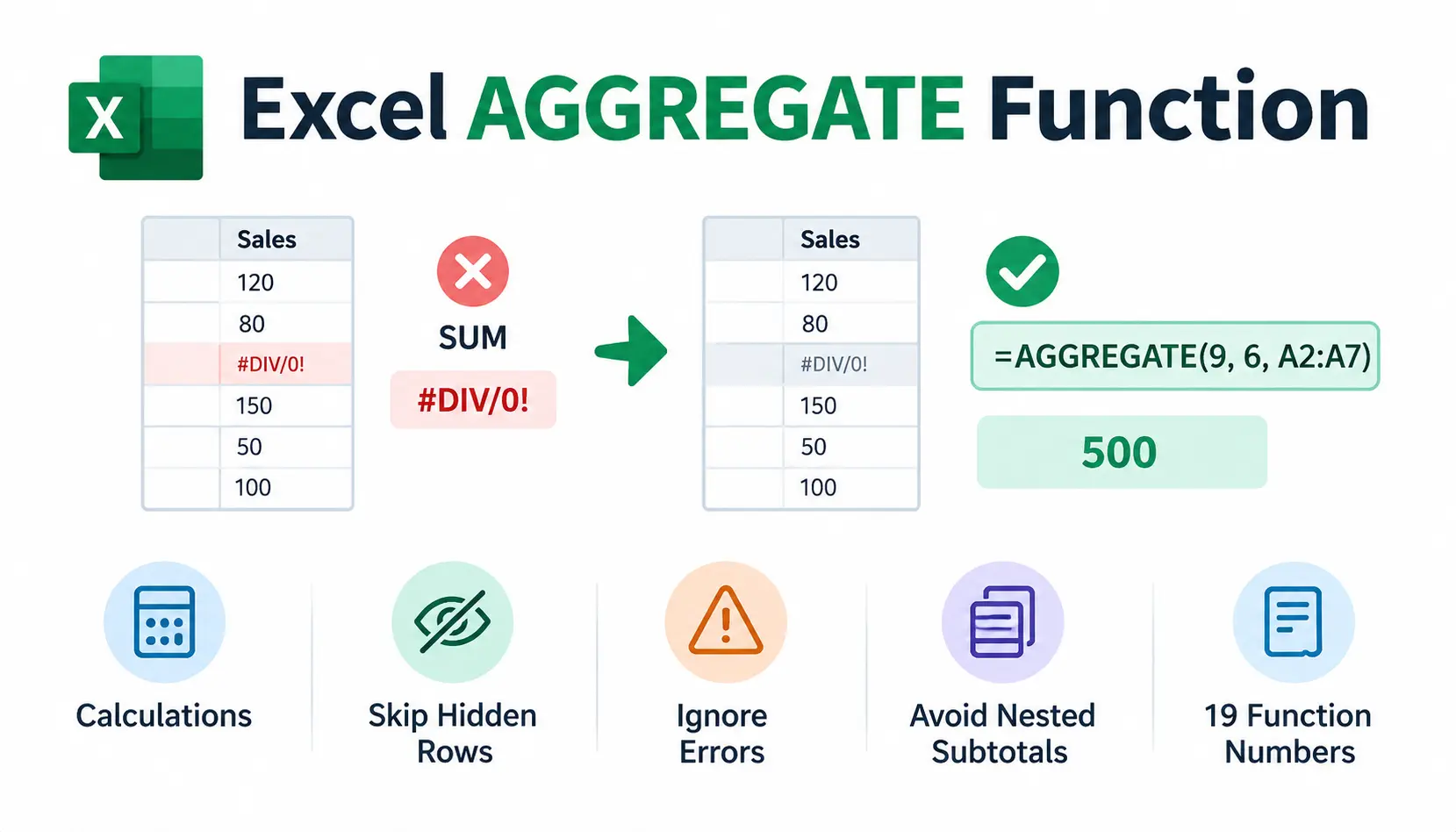
Here is the problem it solves. Say you export sales data and a few cells show #DIV/0!. A normal SUM now returns an error too. With AGGREGATE, you can ignore those cells and still get a clean total:
=AGGREGATE(9, 6, A2:A7)
That formula sums the range and skips any error values. In this guide, you’ll learn the syntax, every option code, nine worked examples, and the mistakes that trip people up most often.
What Is the AGGREGATE Function in Excel?
AGGREGATE is a built-in Excel function that applies one of 19 calculations to a range or array. You choose the calculation, then choose what Excel should ignore. It was added in Excel 2010.
What Does AGGREGATE Do?
Think of AGGREGATE as a calculator with a filter built in. You pick the math (sum, average, median, and so on). Then you pick what to leave out: hidden rows, errors, or other subtotal formulas.
Most Excel functions lack that second choice. They simply calculate everything in the range.
When Should You Use AGGREGATE?
Use it when your data is not perfectly clean. These are the common cases:
- Your range contains error values such as #N/A or #DIV/0!.
- You filter a table and want totals that match only the visible rows.
- Your sheet has subtotal rows and you need a grand total without double-counting.
- You need a large, small, or percentile value that ignores errors.
If your data is clean and nothing is hidden, plain SUM or AVERAGE is simpler. Don’t reach for AGGREGATE when you don’t need it.
How AGGREGATE Differs From Ordinary Excel Functions
Ordinary functions such as SUM stop at the first error they find. AGGREGATE can skip it.
Here is a quick test. Put 120, 80, #DIV/0!, 150, 50, and 100 in A2:A7. =SUM(A2:A7) returns #DIV/0!. But =AGGREGATE(9, 6, A2:A7) returns 500, because it ignores the error cell.
AGGREGATE Function Syntax and Arguments
AGGREGATE has two forms. The one you use depends on the calculation you pick.
Reference Form Syntax
Use this form for function numbers 1 to 13:
=AGGREGATE(function_num, options, ref1, [ref2], …)
It accepts multiple ranges. Microsoft’s documentation lists support for up to 253 reference arguments.
Array Form Syntax
Use this form for function numbers 14 to 19:
=AGGREGATE(function_num, options, array, [k])
The k argument is required for these functions. It tells Excel which ranked value or percentile you want.
What Does Each Argument Mean?
function_num
A number from 1 to 19. It picks the calculation. For example, 9 means SUM and 14 means LARGE.
options
A number from 0 to 7. It tells Excel what to ignore. You’ll find the full list in the options section below.
ref1 and ref2
These are the ranges to calculate in the reference form. Only ref1 is required. Extra ranges are optional.
array and k
In the array form, array is the range or array expression. The k argument is the position (for LARGE and SMALL), the percentile (for PERCENTILE functions), or the quartile number (for QUARTILE functions).
When Does AGGREGATE Require an Additional Argument?
Functions 14 through 19 always need k. If you leave it out, Excel returns #VALUE!. Functions 1 through 13 don’t use k.
Excel AGGREGATE Function Numbers: Complete Reference Table
AGGREGATE supports 19 calculations. Here is the full list.
| Function number | Calculation | Typical use |
| 1 | AVERAGE | Calculate a mean |
| 2 | COUNT | Count numeric values |
| 3 | COUNTA | Count nonempty values |
| 4 | MAX | Find the highest value |
| 5 | MIN | Find the lowest value |
| 6 | PRODUCT | Multiply values |
| 7 | STDEV.S | Sample standard deviation |
| 8 | STDEV.P | Population standard deviation |
| 9 | SUM | Add values |
| 10 | VAR.S | Sample variance |
| 11 | VAR.P | Population variance |
| 12 | MEDIAN | Find the middle value |
| 13 | MODE.SNGL | Find the most frequent value |
| 14 | LARGE | Find a ranked large value |
| 15 | SMALL | Find a ranked small value |
| 16 | PERCENTILE.INC | Inclusive percentile |
| 17 | QUARTILE.INC | Inclusive quartile |
| 18 | PERCENTILE.EXC | Exclusive percentile |
| 19 | QUARTILE.EXC | Exclusive quartile |
How to Choose the Right Function Number
Start with the result you want, then find that calculation in the table. Want a total? Use 9. Want an average? Use 1. Want the second-highest score? Use 14 with k set to 2.
A tip from experience: most people use only a handful of these numbers (9, 1, 4, 5, 12, and 14). Learn those first.
Which Functions Require a k or Quartile Argument?
All of functions 14 to 19 need the fourth argument:
- 14 and 15 (LARGE, SMALL): k is the rank, such as 1, 2, or 3.
- 16 and 18 (PERCENTILE): k is the percentile as a decimal, such as 0.9.
- 17 and 19 (QUARTILE): k is the quartile number. Use 0 to 4 for inclusive, and 1 to 3 for exclusive.
If you want to understand the difference between inclusive and exclusive methods, the Wikipedia articles on quartiles and percentiles explain them well. For the standard deviation and variance options (7 to 11), see Wikipedia’s standard deviation page.
Excel AGGREGATE Options Explained: 0 Through 7
The options argument is where AGGREGATE gets its power. Here is every code.
| Option | What Excel ignores |
| 0 (or omitted) | Nested SUBTOTAL and AGGREGATE formulas |
| 1 | Hidden rows, nested SUBTOTAL and AGGREGATE formulas |
| 2 | Error values, nested SUBTOTAL and AGGREGATE formulas |
| 3 | Hidden rows, error values, nested SUBTOTAL and AGGREGATE formulas |
| 4 | Nothing |
| 5 | Hidden rows |
| 6 | Error values |
| 7 | Hidden rows and error values |
Options 0–3: Ignore Nested SUBTOTAL and AGGREGATE Formulas
These four options all skip any cell in the range that contains a SUBTOTAL or AGGREGATE formula. This protects you from double-counting when your sheet has subtotal rows. Options 1, 2, and 3 add hidden-row or error handling on top.
Options 4–7: Control Hidden Rows and Errors Without Ignoring Nested Formulas
These four options leave nested subtotals alone. They only control hidden rows and errors. Use them when your range has no subtotal formulas inside it.
Which AGGREGATE Option Should You Use?
Here is a simple way to decide:
- Need to skip errors only? Use 6.
- Need visible rows only (filtered or hidden)? Use 5.
- Need both? Use 7.
- Have subtotals in the range? Use 0, 1, 2, or 3.
Difference Between Options 3, 6, and 7
These three look similar, so here is how they differ:
- Option 3: ignores hidden rows, errors, and nested subtotals or aggregates.
- Option 6: ignores errors only.
- Option 7: ignores hidden rows and errors, but does not automatically exclude nested subtotal or aggregate results.
Pick 7 when your data has no subtotal formulas. Pick 3 when it does.
How to Use the AGGREGATE Function in Excel: Practical Examples
The examples below use small datasets so you can type them in and check the results yourself.
Example 1 — Sum Values While Ignoring Errors
Data in A2:A7: 120, 80, #DIV/0!, 150, 50, 100
Formula: =AGGREGATE(9, 6, A2:A7)
Result: 500
How it works: 9 selects SUM. 6 tells Excel to ignore error values. The #DIV/0! cell is skipped.
When it’s useful: Imported or calculated data often contains stray errors. This formula gives you a total without cleaning every cell first.
Example 2 — Calculate an Average While Ignoring Errors
Data: the same range, A2:A7.
Formula: =AGGREGATE(1, 6, A2:A7)
Result: 100
How it works: 1 selects AVERAGE. Excel averages the five valid numbers (500 divided by 5). The error cell is not counted.
When it’s useful: Use it for quick averages on columns that contain division errors.
Example 3 — Sum Only Visible Rows in a Filtered Dataset
Data in B2:B8 (Sales): 200, 150, 300, 250, 100, 400, 50. The regions are East, West, East, West, East, West, East. Filter the table to show only East.
Formula: =AGGREGATE(9, 5, B2:B8)
Result: 650 (200 + 300 + 100 + 50)
How it works: Option 5 ignores hidden rows, and filtering hides the West rows. A plain SUM would still return 1,450.
When it’s useful: Put this above a filtered report so the total always matches what you see on screen. When working with large filtered reports, you can also freeze a row in Excel to keep column headers visible while reviewing your data.
Example 4 — Ignore Both Hidden Rows and Errors
Data in C2:C7: 40, 60, #N/A, 80, 20, 100. Manually hide the row containing 60.
Formula: =AGGREGATE(9, 7, C2:C7)
Result: 240 (40 + 80 + 20 + 100)
How it works: Option 7 skips the hidden row and the #N/A error together.
When it’s useful: It works well on filtered lists that also pull in lookup results, where #N/A is common.
Example 5 — Find the Largest or Second-Largest Value
Data in D2:D7: 88, 92, #N/A, 75, 95, 81
Formulas:
- =AGGREGATE(14, 6, D2:D7, 1) returns 95
- =AGGREGATE(14, 6, D2:D7, 2) returns 92
How it works: 14 selects LARGE. The last argument, k, is the rank. Option 6 skips the error.
When it’s useful: Use it for top-N lists, such as the best two scores in a class, even when some scores are missing.
Example 6 — Find the Smallest or Third-Smallest Value
Data in E2:E7: 45, 30, 60, #VALUE!, 25, 35
Formulas:
- =AGGREGATE(15, 6, E2:E7, 1) returns 25
- =AGGREGATE(15, 6, E2:E7, 3) returns 35
How it works: 15 selects SMALL. With the error skipped, the valid values sorted are 25, 30, 35, 45, 60. The third smallest is 35.
When it’s useful: Great for finding the lowest prices or fastest times in a list with gaps.
Example 7 — Calculate a Median While Ignoring Errors
Data in F2:F7: 12, 18, #N/A, 25, 30, 22
Formula: =AGGREGATE(12, 6, F2:F7)
Result: 22
How it works: 12 selects MEDIAN. The valid values are 12, 18, 22, 25, and 30, so the middle one is 22.
When it’s useful: The median resists outliers, so it suits salary, price, and response-time data.
Example 8 — Avoid Double-Counting Nested Subtotals
Data in B2:B7: B2 = 100, B3 = 200, B4 = =SUBTOTAL(9, B2:B3) (300), B5 = 150, B6 = 250, B7 = =SUBTOTAL(9, B5:B6) (400)
Formula: =AGGREGATE(9, 0, B2:B7)
Result: 700
How it works: Option 0 skips the two SUBTOTAL cells. A plain SUM would count them and return 1,400.
When it’s useful: Use it for grand totals on reports that already contain group subtotals.
Example 9 — Calculate Percentiles and Quartiles
Data in G2:G7: 10, 20, 30, 40, 50, #N/A
Formulas:
- =AGGREGATE(16, 6, G2:G7, 0.9) returns 46 (90th percentile, inclusive)
- =AGGREGATE(17, 6, G2:G7, 1) returns 20 (first quartile, inclusive)
- =AGGREGATE(19, 6, G2:G7, 1) returns 15 (first quartile, exclusive)
How it works: The k value is the percentile or quartile number. Inclusive and exclusive methods position the cut points differently, which is why Q1 differs.
When it’s useful: Use these in performance benchmarks and statistical summaries when the source data has errors.
AGGREGATE vs. SUBTOTAL vs. SUM
These three functions overlap, so it helps to see where each one fits.
| Capability | SUM | SUBTOTAL | AGGREGATE |
| Basic summation | Yes | Yes | Yes |
| Can calculate averages | No, not directly | Yes | Yes |
| Can exclude filtered rows | No | Yes | Yes, with suitable options |
| Can ignore error values by option | No | No | Yes |
| Supports LARGE and SMALL calculations | No | No | Yes |
| Can exclude nested subtotals | No | Yes (automatic) | Yes, by option |
This is a high-level comparison. Exact behavior depends on the arguments you use and the range you evaluate.
AGGREGATE vs. SUBTOTAL
SUBTOTAL covers 11 calculations. AGGREGATE covers 19 and adds error handling. SUBTOTAL always skips other SUBTOTAL cells, while AGGREGATE lets you choose.
If you only need totals on filtered lists, SUBTOTAL is fine. If errors are in the mix, switch to AGGREGATE.
AGGREGATE vs. SUM
SUM adds everything it can. It has no way to skip hidden rows or errors. Use SUM for clean, complete ranges, and AGGREGATE when the range needs filtering. If you want to learn a faster way to add numbers in a worksheet, see our guide to the Excel SUM shortcut.
Can AGGREGATE Replace SUMIFS or AVERAGEIFS?
No. AGGREGATE has no built-in criteria arguments. You can combine array expressions with the LARGE, SMALL, and percentile options (14 to 19) to build conditional results. But for conditional sums and averages, SUMIFS and AVERAGEIFS are simpler and easier to audit.
Which Function Should You Choose?
- Clean data, no filters: SUM.
- Filtered data, no errors: SUBTOTAL.
- Errors, hidden rows, or ranked values: AGGREGATE.
- Conditions like region or date: SUMIFS or AVERAGEIFS.
Common AGGREGATE Formula Errors and How to Fix Them
Most AGGREGATE problems come from a handful of causes.
| Symptom | Likely cause | Fix |
| #VALUE! | Missing k for functions 14 to 19 | Add the fourth argument |
| #VALUE! | A 3-D reference in the range | Use a normal single-sheet range |
| Wrong result | function_num and options swapped | Check the order: function first, option second |
| Hidden rows still counted | Option 0, 2, 4, or 6 used | Switch to 1, 3, 5, or 7 |
| Hidden columns still counted | Range runs across columns | Use a vertical range |
| Hidden rows ignored incorrectly in a calculated array | Array expression used | Skip the hidden-row options for calculated arrays |
| A number appears despite errors in the data | Option 6 or 7 skipped them | Expected behavior; check the source if it surprises you |
Why Does AGGREGATE Return #VALUE!?
There are two main causes. You may have left out k when using functions 14 to 19, or you may have used a 3-D reference. Fix the arguments and the error goes away.
Missing the Required k Argument
Writing =AGGREGATE(14, 6, D2:D7) fails. LARGE needs to know which rank you want, so write =AGGREGATE(14, 6, D2:D7, 1).
Mixing Up function_num and options
The order is function first, option second. Writing =AGGREGATE(6, 9, A2:A7) asks for PRODUCT with option 9, which does not exist. Say it out loud as you type: what to calculate, then what to ignore.
Why Hidden Rows Are Still Included
You probably used an option that doesn’t skip hidden rows. Options 0, 2, 4, and 6 do not. Use 1, 3, 5, or 7 instead.
Why Horizontal Ranges Behave Differently
Microsoft notes that AGGREGATE is built for vertical ranges. If you aggregate across a row and hide a column, the hidden column is still included.
Problems With 3-D References and Calculated Arrays
3-D references, such as ranges that span several sheets, are not supported in the reference form. Calculated array expressions can also change how exclusions work, especially for hidden rows. Test these formulas carefully.
Why a Formula Returns a Number Even Though the Data Contains Errors
That is AGGREGATE doing its job. With option 6 or 7, errors are skipped on purpose. Just remember that the number reflects only the valid cells.
Important Limitations of the AGGREGATE Function
AGGREGATE is powerful, but it has limits you should know about.
AGGREGATE Is Designed for Vertical Data
Row and column hiding only works as expected for vertical ranges. Keep your data in columns when you rely on the hidden-row options.
Ignoring Errors Does Not Repair the Source Data
AGGREGATE hides a problem from your result. It does not fix it. If a lookup keeps returning #N/A, find out why.
Calculated Arrays Can Change Exclusion Behavior
When you feed it a computed array instead of a plain range, the hidden-row options may not behave as you expect. Check the result against a manual calculation.
AGGREGATE Is Not a Universal Conditional Calculation Function
It has no criteria arguments. For conditions, use SUMIFS, COUNTIFS, or AVERAGEIFS. You can read Microsoft’s official AGGREGATE function documentation to confirm current behavior.
Check Excel Compatibility Before Sharing a Workbook
AGGREGATE arrived in Excel 2010. Anyone on Excel 2007 or earlier will see errors. If your team still uses very old versions, test before sharing.
Best Practices for Using AGGREGATE
These habits come from building and reviewing many reporting workbooks.
Choose the Option Based on the Desired Result
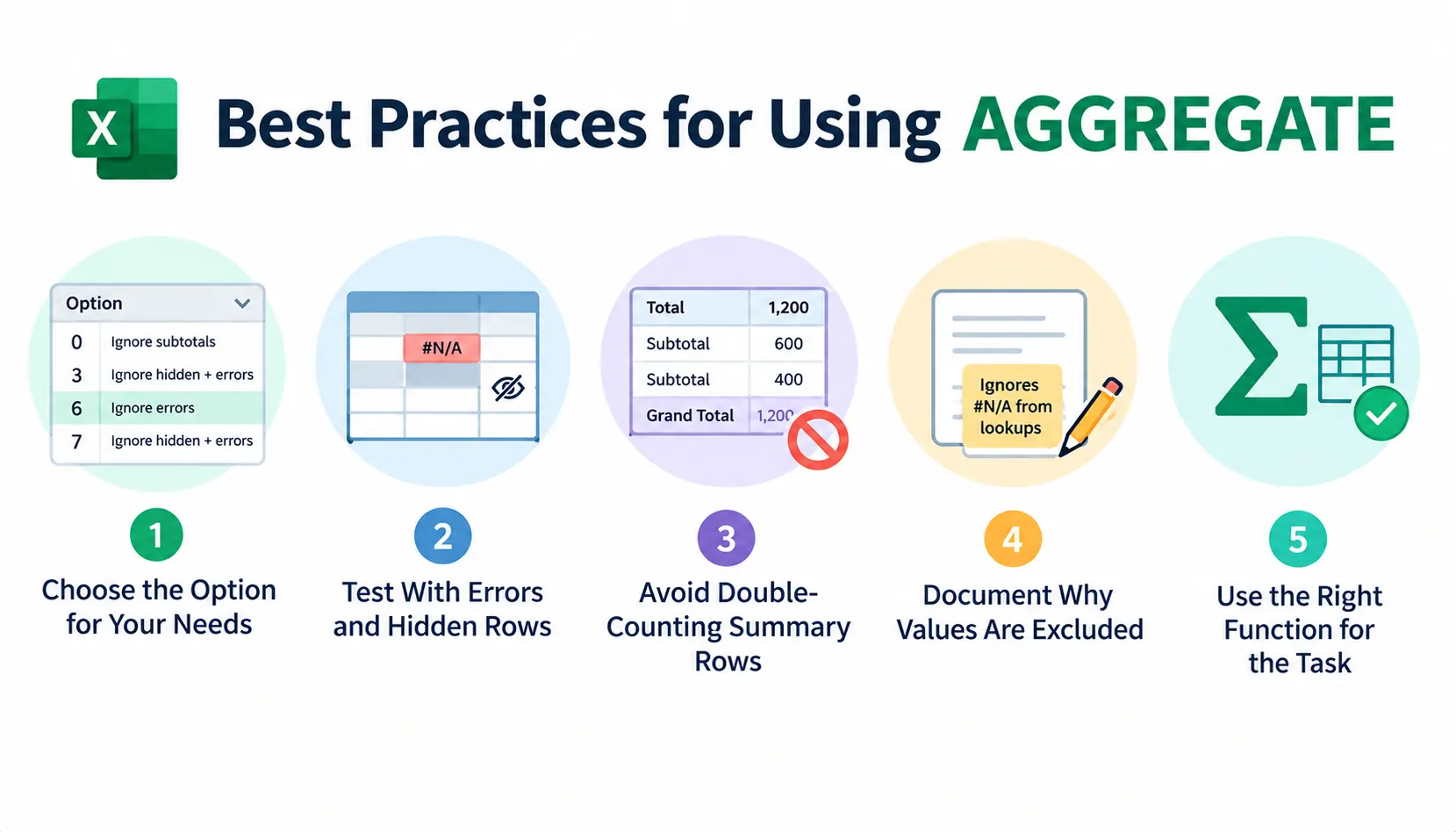
Don’t default to 6 for everything. Decide first what should be excluded: errors, hidden rows, subtotals, or all three.
Test Formulas With Errors and Hidden Rows
Type in a deliberate error and hide a row. Then check whether the total changes the way you expect. It takes under a minute.
Avoid Double-Counting Summary Rows
If your sheet mixes detail and subtotal rows, use options 0 to 3. Otherwise your grand total will be too high.
Document Why Certain Values Are Excluded
Add a note beside the formula, such as ignores #N/A from lookups. The next person who opens the file will understand why the total doesn’t match a simple SUM.
Use SUMIFS or Other Functions When They Better Match the Task
A simpler function is easier to read and audit. Use AGGREGATE only when you need its special abilities. For real-world tips and edge cases from other users, the excel community is a good place to ask questions.
Frequently Asked Questions About the AGGREGATE Function
1. What Is the AGGREGATE Function in Excel?
AGGREGATE is an Excel function that performs one of 19 calculations, such as SUM, AVERAGE, or LARGE, while optionally ignoring hidden rows, errors, or nested subtotals.
2. How Do I Ignore Errors With AGGREGATE?
Set the options argument to 6 (errors only) or 7 (errors and hidden rows). For example, =AGGREGATE(9, 6, A2:A7) sums a range and skips error values.
3. How Do I Sum Only Visible Rows?
Use =AGGREGATE(9, 5, range). Option 5 ignores hidden rows, whether they were filtered out or hidden by hand.
4. What Is the Difference Between AGGREGATE and SUBTOTAL?
AGGREGATE supports 19 functions and can ignore errors. SUBTOTAL supports 11 functions and cannot ignore errors.
5. Does AGGREGATE Ignore Manually Hidden Rows?
Yes, with options 1, 3, 5, or 7. Those options skip rows hidden by a filter or by hand.
6. Why Does AGGREGATE Return #VALUE!?
The most common causes are a missing k argument for functions 14 to 19, or a 3-D reference in the range.
7. Can AGGREGATE Replace SUMIFS?
No. AGGREGATE has no criteria arguments, so SUMIFS is the better choice for conditional totals.
8. Does AGGREGATE Work in Older Excel Versions?
It works in Excel 2010 and later, including Microsoft 365. It is not available in Excel 2007 or earlier.
Conclusion
The Excel AGGREGATE function earns its place when your data is messy. It lets you total, average, rank, and summarize while skipping errors, hidden rows, or nested subtotals.
Start with the three patterns you’ll use most: AGGREGATE(9, 6, range) to sum without errors, AGGREGATE(9, 5, range) to sum visible rows, and AGGREGATE(14, 6, range, k) for ranked values. Then explore the other function numbers as your needs grow.
Finally, test every formula on a small sample first. Check Microsoft’s official AGGREGATE documentation whenever you’re unsure.