
If you manage Instagram for clients, you know the problem. Instagram is built for phones, your clients are many, and you can’t carry ten handsets around. For a more organized approach, learn about managing multiple Instagram accounts for different brands and clients. That is why the best Android cloud phones for Instagram have become a normal part of agency toolkits.
GeeLark is a strong first look for social media workflows, DuoPlus suits larger multi-device setups, and VMOS Cloud or LDCloud are worth testing if budget matters most. Multilogin and BitCloudPhone fit teams that also work in browsers. No cloud phone protects an account from Instagram enforcement, and I will explain why below.
What is an Android cloud phone?
An Android cloud phone is a remotely hosted Android device that you access over the internet. It lets you install mobile apps, change settings, and do smartphone tasks without buying or maintaining a separate physical phone.
This guide compares seven services, explains how to choose, breaks down the real costs, and covers safety honestly. I have not run hands-on tests of every product for this article. So I describe each service from its published positioning and flag what you should check in a free trial or on the provider’s own pricing page.
Best Android Cloud Phones for Instagram at a Glance
This table shows fit, not a universal ranking. A tool that is perfect for a five-client agency may be wrong for a solo creator.
| Cloud phone | Best for | Instagram fit | Multi-device management | Pricing model (verify) | Main limitation |
| GeeLark | Social media workflows | Built around social apps | Yes, check plan limits | Device rental plus usage | Costs add up at scale |
| DuoPlus | Multi-device operations | Runs Android apps | Yes | Device fees plus startup-time charges | Billing is more complex |
| VMOS Cloud | Flexible Android environments | Runs Android apps | Plan-dependent | Subscription and usage | Features vary by plan |
| Redfinger | Simple remote Android access | Runs Android apps | Check business features | Subscription | Less agency-focused |
| LDCloud | General cloud Android access | Runs Android apps | Plan-dependent | Subscription | Less specialized |
| Multilogin | Browser plus mobile workflows | Via cloud phones | Yes | Plan-based | Broader, pricier toolset |
| BitCloudPhone | Browser plus cloud phone workflows | Via Android cloud phones | Yes | Plan-based | Check Android vs iOS offerings |
Android versions, device counts, and plan limits change. Confirm each one on the provider’s site before you buy.
7 Best Android Cloud Phones for Instagram Marketers
1. GeeLark: Best for Social Media Workflows
GeeLark markets itself directly at social media teams. It offers cloud Android devices, profile-style device management, proxy configuration, team features, and built-in automation tools.
For pricing, GeeLark has listed a monthly device rental of $29.90 per device on its pricing page. Check the page for today’s number, because usage and extras can change the total.
Instagram use cases
- Opening client-approved Instagram accounts remotely from any computer.
- Keeping each client in a separate mobile workspace.
- Handing a workspace to a teammate without handing over a phone.
- Using automation for admin tasks such as organizing routine steps.
Advantages: Social media focus, team tools, and proxy settings in one place.
Disadvantages: Per-device pricing grows quickly. Automation features need careful use, since Instagram restricts unauthorized automated engagement.
Who should choose it? Small to mid-size agencies and freelancers who want a tool designed around social media rather than general Android access.
2. DuoPlus: Best for Multi-Device Management
DuoPlus focuses on running many cloud phones at once. It lets you configure devices, manage them in bulk, and keep storage separate between devices.
Its billing is worth understanding. DuoPlus has separated device charges from startup-time charges, so your cost depends on how you use the phones, not only on how many you own.
Instagram use cases: An agency can give every client a dedicated cloud phone, then group devices by team or campaign. That makes handovers and audits easier.
Advantages: Good for scale, bulk controls, and separated storage.
Disadvantages: The split billing is harder to predict. Run a trial month before you commit a whole roster of devices.
3. VMOS Cloud: Best for Flexible Android Environments
VMOS Cloud provides virtual Android devices that run on the provider’s servers. You choose a plan, pick a device setup, and use apps remotely. Offerings differ by plan, including Android versions and resources.
How is that different from a traditional emulator? An emulator runs on your own computer and uses your own hardware. A cloud phone runs on the provider’s infrastructure, so your laptop only streams the screen.
Advantages: Flexible plans, remote app access, and apps that can keep running in the background according to your plan.
Disadvantages: Features depend heavily on the tier. Confirm the Android version and resource allocation before you pay, since Instagram can behave differently on older versions.
Best for: Budget-conscious marketers who are happy to test a few configurations.
4. Redfinger: Best for Remote Android Access
Redfinger is a long-running cloud Android service. You get a remote device that stays online, with your apps and files kept on it according to your plan.
It works for general use, and Instagram can run on it like any Android app. But it is less focused on agency features. Check whether the plan you want offers team sharing and bulk management before you rely on it for client work.
Advantages: Simple to understand, easy to start, and a good fit for one or two accounts.
Disadvantages: Fewer agency-specific workflow tools. Performance depends on your plan and server location.
Best for: Freelancers who need straightforward remote Android access.
5. LDCloud: Best for General Cloud Android Access
LDCloud comes from the team behind the LDPlayer emulator. It provides cloud Android devices you reach remotely, and you can install apps like Instagram.
Compared with GeeLark or DuoPlus, it is more general-purpose. That can mean a simpler product and a lower price, but fewer social-media-specific controls.
Advantages: Familiar brand in the Android space, easy remote use.
Disadvantages: Fewer team and workflow features. Verify plan limits and device specs.
Best for: Marketers who want basic cloud Android access without a social media toolset.
6. Multilogin: Best for Combining Mobile and Browser Workflows
Multilogin started as a browser-profile tool and now also offers cloud phones. That matters if your team uses Instagram on mobile, but also works in browser dashboards for ads, analytics, or other platforms.
Keeping both in one place helps with team permissions and consistent access control. It also means you may pay for features you do not need if you only want a phone.
Advantages: Mobile and browser workflows under one roof, team collaboration, and proxy options.
Disadvantages: A broader product with a broader price. Check how its cloud phone offering compares with phone-first tools.
7. BitCloudPhone: Best for Integrated Browser and Cloud Phone Workflows
BitCloudPhone comes from the BitBrowser team and pairs cloud phones with its browser product. Like Multilogin, it suits teams that switch between mobile and desktop tasks.
If you are comparing options, confirm which operating systems are covered. The company has offered both Android and other mobile options, and only the Android offering matters for this guide.
Advantages: Integrated workflow, device management, and network configuration.
Disadvantages: Less specialized for Instagram than social-first tools. Check current plan details.
Are Android Cloud Phones Safe for Instagram Accounts?
They can be a safe part of your setup, but they are not automatically safer than a physical phone. Your habits matter more than your device.
Can Instagram Detect Cloud Phones?
Instagram can look at many signals, such as login location, behavior, and device information like device fingerprints. Providers may change identifiers like the Android ID, but no one can promise you are undetectable. Be wary of any site that does.
Do Cloud Phones Prevent Instagram Account Bans?
No. Cloud phones do not remove the risk of account restrictions. Breaking Instagram’s rules is the main trigger, and a different device will not fix that.
Common Security Risks
- Unauthorized access to a shared device
- Passwords shared in chat or spreadsheets
- Untrusted APK installs
- Weak account recovery details
- Loose team permissions
- Unreliable providers that may hold your data
Best Practices for Secure Instagram Account Management
- Turn on two-factor authentication for every account.
- Use a password manager.
- Give access only to people you authorize.
- Install only the official Instagram app.
- Review account activity and logged-in devices regularly.
- Follow Instagram’s policies, always.
For real-world opinions, the Instagram Marketing community is a useful place to see what agencies run into. Treat it as anecdotes, not proof.
How Does an Android Cloud Phone Work?
- The provider hosts an Android environment on remote servers, often using cloud computing infrastructure.
- You connect through an app or a web browser.
- The device runs Android apps, including Instagram, on the provider’s hardware.
- You control it remotely, and your screen shows a live stream.
- Apps and data may stay on the device between sessions, depending on your plan.
What Makes Cloud Phones Useful for Instagram Marketing?
The value is in workflow, not magic. Understanding the advantages and disadvantages of social media can also help marketers build more effective social media strategies. You get remote access from anywhere, a separate mobile workspace per client, easier team handovers, and one dashboard to see every device. You also avoid buying and charging a pile of phones.
Here is a simple scenario. A five-person agency manages ten client accounts. Without cloud phones, handsets get lost, staff leave with devices, and nobody knows who was logged in where. With cloud phones, access is tied to a dashboard that the account owner controls.
Cloud Phones vs Android Emulators vs Physical Smartphones
An emulator imitates a phone on your own computer. A physical phone is the real thing. A cloud phone sits between them, because you rent a device that runs elsewhere.
| Feature | Cloud phone | Android emulator | Physical smartphone |
| Remote access | Yes | Depends on setup | Needs a remote-access setup |
| Hardware | Provider-dependent | None, uses your PC | Yes |
| Needs internet | Yes | Not always | Not always |
| Maintenance | Provider manages infrastructure | You manage it | You manage it |
| Mobile app support | Depends on the environment | Depends on compatibility | Native |
| Upfront cost | Usually low | Needs a capable computer | Higher |
None of these is always best. A physical phone is the most “normal” device. A cloud phone is the most convenient for remote teams. An emulator is the cheapest to try.
How to Choose the Best Cloud Phone for Instagram
Use these seven checks when you compare services.
1. Instagram Application Compatibility
Instagram should run as its native Android app. Ask whether you can install it from Google Play, or whether you must sideload an APK. Official sources are safer than random APK sites.
2. Device Performance and Android Version
Look at RAM, CPU, storage, screen resolution, and Android version. Weak specs cause laggy scrolling and failed uploads. A low resolution can also make it hard to judge how a Reel or Story will look.
3. Multi-Account Management
Separate devices help you organize clients. They do not protect accounts from Instagram’s rules. Treat device separation as tidy housekeeping, not as a shield.
4. Team Collaboration and Permissions
Check for admin access, editor roles, shared device access, and easy onboarding and offboarding. Also decide who owns each client account, and keep that clear in your contracts.
5. Proxy and Network Configuration
A proxy server routes your traffic through another IP address. Many providers support SOCKS5 or HTTP/HTTPS proxies. A steady, consistent connection is generally better than one that jumps around, but a proxy never guarantees account safety.
6. Automation and API Integration
Automation can be fine for admin work, like repeating a routine setup step. It becomes risky when it is used for mass following, fake engagement, or scraping. Instagram’s Community Guidelines and platform terms still apply to you.
7. Pricing and Usage Limits
Compare monthly rental, pay-as-you-go charges, concurrent device fees, extras, and cancellation terms. Also ask what happens to your data when a plan expires.
How Much Does an Android Cloud Phone Cost?
The honest answer is “it depends on how you use it.” The sticker price is only part of the bill.
Monthly Subscription vs Pay-As-You-Go Pricing
A monthly plan gives you a device for a fixed fee. Pay-as-you-go charges you for usage, such as running time. Some services mix both, so read the billing page carefully.
Additional Costs to Consider
- Proxy subscriptions
- Extra device resources such as RAM or storage
- Usage minutes or startup-time charges
- Team member seats
- Automation features
The formula is simple:
Monthly cost = device charges + usage charges + proxy costs + team or storage extras.
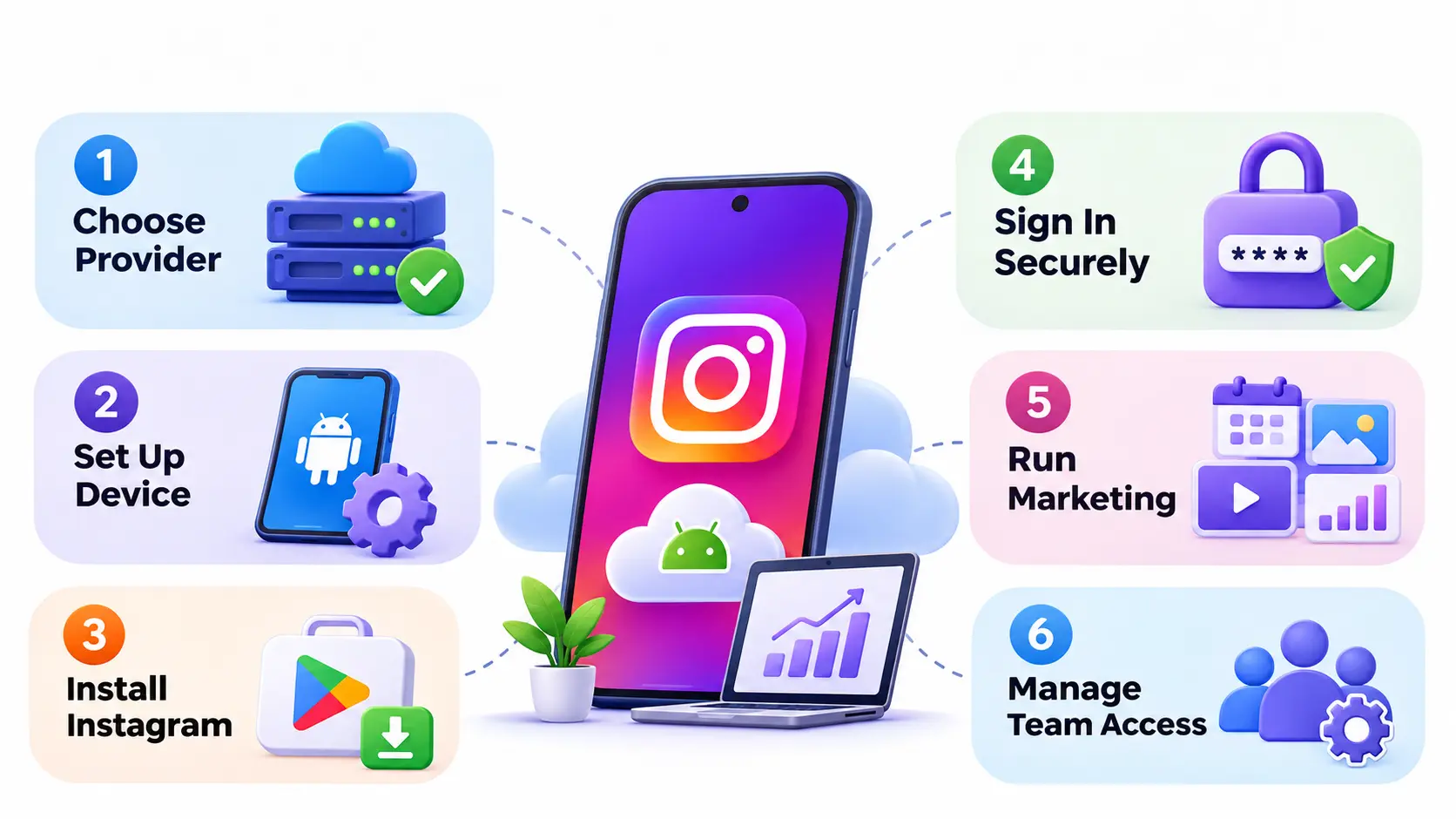
How to Use an Android Cloud Phone for Instagram Marketing
Step 1: Choose a Suitable Cloud Phone Provider
Shortlist two or three providers from the table above. Use free trials or short plans to test them with your real workflow.
Step 2: Create and Configure Your Cloud Device
Pick the device type and Android version. Set the region and screen options your plan allows, and name each device by client so your team can find it.
Step 3: Install Instagram
Use Google Play if it is available. If you must install an APK, use only the official file from a source you trust.
Step 4: Sign In Securely
Log in only to accounts you are authorized to manage. Turn on two-factor authentication and use a password manager rather than sharing passwords in chat.
Step 5: Organize Your Marketing Workflow
A tidy routine saves hours. Here is a simple one:
- Upload images and videos to the device in client-named folders.
- Publish posts and Reels, and set up Stories.
- Reply to comments and Direct messages.
- Check Instagram Insights weekly.
If an account is a Business or Creator account, you can also use Meta Business Suite for scheduling and inbox tasks, which may reduce how much you need the phone at all. “Learning practical campaign planning, content creation, and social media strategies through a digital marketing internship can help marketers build these skills.
Step 6: Configure Team Access
Give each person the lowest level of access that lets them do their job. Remove access the day someone leaves the team.
Common Problems When Using Cloud Phones for Instagram
Instagram App Installation Problems
Causes include an old Android version or a missing Google Play. Try a newer device image, or ask the provider’s support which install method they recommend.
Slow Screen Streaming or Connection Issues
This usually comes from distance to the server or a weak connection. Try a closer region, a wired connection, and a lower stream quality.
Login Verification and Authentication Challenges
Instagram may ask for extra checks when it sees a new device or location. Use the account owner’s verified contact details, and avoid repeated failed attempts.
Photo and Video Upload Problems
Check file size and format, storage space on the device, and your transfer method. Re-upload a smaller test file to find where it breaks.
Device Disconnections and Session Loss
This can come from network drops or a plan that restarts devices. Ask how long sessions persist, and keep backups of your content and login recovery options.
Unexpected Subscription or Usage Charges
Most surprises come from usage billing and auto-renewal. Read the billing page, set reminders, and check the cancellation terms before you start.
Which Android Cloud Phone Is Best for Different Instagram Marketing Needs?
Use this as a starting point for your trials, not as a verdict.
| User type | Shortlist |
| Freelance Instagram marketers | GeeLark, Redfinger |
| Small marketing agencies | GeeLark, DuoPlus |
| Large social media teams | DuoPlus, Multilogin |
| Budget-conscious marketers | VMOS Cloud, LDCloud |
| Teams using browser and mobile workflows | Multilogin, BitCloudPhone |
Frequently Asked Questions
1. What is the best Android cloud phone for Instagram?
There is no single best. GeeLark is a common starting point for social media teams, and DuoPlus fits larger multi-device setups. Test two or three before choosing.
2. Can I run Instagram on a cloud phone?
Yes. Instagram is an Android app, so it can run on a cloud Android device if the Android version is supported. You are still bound by Instagram’s rules.
3. Can I manage multiple Instagram accounts using cloud phones?
Yes, you can organize accounts across separate devices. Only manage accounts you own or have permission to manage.
4. Are cloud phones better than Android emulators?
Not always. Cloud phones are easier for remote teams, and emulators are cheaper to try. Choose by workflow and budget.
5. Can I upload Instagram Reels using a cloud phone?
Usually yes, once the video file is on the device. Test a real upload during your trial.
6. Do Android cloud phones require proxies?
Not always. Some plans include network options, and others expect you to add a proxy. A proxy does not guarantee account safety.
7. Can multiple team members access one cloud phone?
Many services support shared access or permissions. Check the role options on your plan.
8. How much does an Android cloud phone cost?
Prices vary by provider, plan, and usage. GeeLark has listed $29.90 per device monthly, and others use different models. Add proxy and extra costs to get the real total.
9. Can Instagram detect virtual Android devices?
It may. Instagram uses many signals, and no provider can guarantee otherwise.
10. Are cloud phones suitable for Instagram agencies?
Yes, for many agencies. They help with remote access, separate workspaces, and team control, provided you use them within Instagram’s rules.
Conclusion
The best Android cloud phones for Instagram are the ones that match your workflow, team size, and budget. GeeLark and DuoPlus are strong places to start for agencies, VMOS Cloud and LDCloud suit tighter budgets, and Multilogin or BitCloudPhone help if you also work in browsers.
Here is my advice. Shortlist two services, run a short trial with a real client workflow, and compare the true monthly cost. Most of all, remember that account safety comes from good habits, not from any device.