
Managing ten client accounts is a different job from switching between two accounts you own. You need to know who has access, where each post is in review, and which account a teammate is about to open. Multilogin is a cloud Android phone platform for multi-account management. Its cloud phones support mobile app work, while included browser profiles support web work. The practical question is where each type of tool fits into an Instagram workflow you already run.
Key takeaways
- Instagram lets you add up to five accounts in one app and switch between them without logging out.
- For Business and Creator accounts, Meta Business Suite lets you give people access without sharing the password.
- An account inventory (owner, access, content status, environment, handoff notes) keeps a growing team out of the wrong account.
- Schedulers organize content. A Multilogin cloud phone gives each account its own Android environment for app work, and browser profiles handle web tasks.
- No tool, device, or proxy setting guarantees that Instagram won’t restrict an account. Original content and Instagram’s rules still decide the outcome.
How to add and switch between multiple Instagram accounts in the app
Instagram lets you add up to five accounts in one app and switch between them without logging out and back in. The steps below follow the Instagram Help Center.
To add an account:
- Tap your profile picture in the bottom right to open your profile.
- Tap your username at the top of the screen.
- Tap the option to log into an existing account.
- Enter the username and password of the account you want to add.
- Tap Log in.
To switch accounts, open your profile, tap your username at the top, and pick the account you need. Once several accounts are added, check the profile photo in the app before you post, so you always know which account is active.
Where native switching stops working
Native switching solves access for one person on one device. It doesn’t record who approved a post, who takes over tomorrow, or where each account should connect from.
| Situation | What native switching does | What to add |
| More than five accounts | Caps you at five accounts per app | More devices, or one working environment per account |
| Several teammates on one account | Works only on the device where the account is logged in | Meta Business Suite access or a shared, assigned environment |
| Client approvals | Has no approval step | A shared calendar or scheduler with approvals |
| Accounts for different regions | Every account uses the same device and network | A separate environment with its own location per account |
| Shift handoffs | Keeps no record of who did what | An account inventory with handoff notes |
Build an account inventory before the list grows
An account inventory is a shared record of every Instagram account your team runs: who owns it, who can open it, and where the work happens. It should be short enough to keep current and detailed enough that a teammate can take over a shift without guessing.
| Field | Question it answers | Example entry |
| Brand, client, or region | Which account is this? | Client A, main brand account |
| Account owner | Who is accountable for access and decisions? | Agency account lead |
| Assigned team members | Who works on it day to day? | Content editor, community manager |
| Approver | Who signs off on posts? | Client marketing manager |
| Content status | What is drafted, waiting for approval, scheduled, or live? | 2 drafts, 1 waiting for approval |
| Working environment | Where do app and web tasks happen? | Cloud phone “ClientA-IG” for app tasks, browser profile “ClientA-Web” for Meta Business Suite |
| Location | Which country should the account connect from? | Germany |
| Handoff notes | What does the next person need to know? | Reply to open DMs from yesterday’s giveaway |
The inventory is an operational practice, not an Instagram requirement. A shared spreadsheet is enough for most teams. Review it whenever a client, teammate, or workflow changes, and remove access the same day someone leaves a project.
How to give teammates access without sharing passwords
For Business and Creator accounts, add the Instagram account to a Meta business portfolio and give each person their own access in Meta Business Suite. Each teammate gets permissions for the assets they need, and you can remove that access without changing the account password.
Agencies can also be added as partners, so the client grants access once and the agency assigns its own people internally. This route requires a professional account connected to a business portfolio, so personal accounts need a different setup.
Passing passwords around in chat creates two problems. You lose track of who can open the account, and every new login from a different phone or location is one more thing to explain if the account gets a security check.
Run approvals and handoffs in one place
A clear approval flow keeps the right post on the right account. For most agencies, it follows the same five steps:
- The editor drafts the post in the shared calendar or scheduler and marks it ready for review.
- The account lead checks it against the client’s brief.
- The client approver signs off in the same tool, so the approval is on record.
- The assigned teammate opens the account’s recorded environment, confirms the account name, and publishes.
- The teammate updates the content status and leaves a handoff note for the next shift.
For example, a community manager starting a Monday shift opens the inventory, sees two approved posts and three open DMs for Client A, and opens that account’s cloud phone. Nobody needs to piece together last week’s messages.
Where Multilogin team features fit
Multilogin adds the access layer for the working environments themselves. Workspace admins invite teammates, assign team seats and permissions, and share or assign individual profiles, so each person sees only the accounts they work on.
Notes, colour tags, and custom columns let you mirror the account inventory inside the dashboard, and a live dashboard shows which profiles are running. Because each Multilogin cloud phone keeps its app data and login history between sessions, an assigned teammate opens the same environment instead of logging the account into their own phone. Business plans include unlimited team seats.
Which tool fits which job
No single tool covers every part of multi-account work. Match each job to the tool built for it, then record the choice in the account inventory.
| Job | Tool | Good for | Not built for |
| Switching between a few accounts | Instagram app account switcher | Up to five accounts on one device | Team access, approvals, more than five accounts |
| Team access to professional accounts | Meta Business Suite | Per-person permissions without sharing passwords | Personal accounts, accounts outside a business portfolio |
| Planning and approvals | Schedulers such as Hootsuite, Buffer, or Planable | Content calendars, approval flows, scheduled posts | Tasks that need the Instagram mobile app |
| In-app work per account | Multilogin cloud phone | A real Android device in the cloud per account, with the native Instagram app and saved logins | Receiving SMS or calls; work without a stable internet connection |
| Web work per account | Multilogin browser profile | Separate cookies, session, and IP per account for web tasks | Native app features such as posting from the mobile app |
Most agencies combine two or three of these. A scheduler holds the calendar and approvals. A cloud phone covers the work that lives in the app, such as replies, Stories, and DMs. A browser profile handles web dashboards like Meta Business Suite.
How to set up Multilogin cloud phones for Instagram accounts
The simplest rule is one Multilogin cloud phone per Instagram account. Each cloud phone is a real Android device in the cloud with its own device model, app data, location, and IP, and it keeps logins and history between sessions.
You can choose from 30+ device models across 12 brands, including Samsung, Google, and Xiaomi, running Android 10 to 16. Multilogin cloud phones open from the desktop app, so the whole team works from laptops instead of a drawer of handsets.
- Create a free Multilogin account. No credit card is needed.
- Create a cloud phone. Open Mobile in the dashboard and create a phone. Pick a device model, an Android version, and a proxy location that matches where the account normally operates.
- Install Instagram. Use the built-in app store or upload an APK.
- Log in to one account. Keep one Instagram account per cloud phone. If Instagram asks for phone verification, receive the code on a separate number the app accepts and enter it in the app on the cloud phone.
- Label it to match your inventory. Use the same name as in your account inventory, then add notes, colour tags, or custom columns for the client and approver.
- Assign it. Share the cloud phone with the teammate who runs the account and set their permissions.
- Add a browser profile for web tasks. Create a browser profile for the same account and sync its location with the cloud phone.
- Stop the phone when you finish. Stopping saves the phone’s state and stops the mobile minute counter.
Cloud phone or browser profile?
A browser profile is not an Android phone. Use the cloud phone for anything that needs the Instagram app, and a browser profile for web work, which doesn’t use mobile minutes.
| Task | Use |
| Reply to DMs and comments in the app | Cloud phone |
| Post Reels and Stories from the app | Cloud phone |
| Check notifications that only show in the app | Cloud phone |
| Manage inbox and permissions in Meta Business Suite | Browser profile |
| Work in ad accounts and web dashboards | Browser profile |
Proxies and locations for client accounts
Every Multilogin plan includes built-in residential proxies, and each profile gets its own IP with matched geolocation. Pick the country an account normally operates from, and Multilogin handles the connection, with locations in 150+ countries.
Keep each account on a consistent location that fits its audience, and record it in the inventory. A brand account for a German client connects from Germany every day, not from whichever office a teammate sits in. Change a location only when there is a clear business reason, such as the client moving its market.
Multilogin also supports HTTP, HTTPS, ISP, and SOCKS5 proxies, including third-party proxies. Extra traffic costs from $2.275 per GB, and unused traffic rolls over each month.
There is no IP rotation schedule that guarantees Instagram won’t restrict an account. Consistency and genuine activity matter more than any proxy pattern.
Limits to know before you scale
Cloud phones solve the device and environment side of multi-account work. These are the limits teams run into most often.
| Limit | What it means for Instagram work |
| No SMS or calls | Multilogin cloud phones can’t receive SMS or calls. Receive verification codes on your own phone or an SMS provider, then enter them in the app on the cloud phone. |
| Stable internet needed | The phone streams from the cloud, so a slow connection causes lag. |
| Mobile minutes | Cloud phone time is counted in mobile minutes. Extra minutes cost from $0.0067 each, and unused minutes roll over. |
| Free plan resources | Free plan minutes and proxy traffic don’t renew, and free profiles are deleted after 7 days of inactivity. |
| Setup takes time | First-time users may need the Learning Center videos to get comfortable. |
| Content still matters | Separate cloud phones don’t solve content problems. Posting the same content across accounts can still cause issues. |
If an account receives a warning or restriction, respond through Instagram’s own process and fix the underlying cause. A different device, profile, or proxy is not a substitute for that.
Which Multilogin plan fits your team
Multilogin offers a free plan with no time limit and no credit card needed. Paid plans start from $7.08 per month. Cloud phones count toward each plan’s profile limit, and every plan includes mobile minutes and built-in proxy traffic.
| Plan | Profiles | Mobile minutes | Proxy traffic | Team seats | Fits |
| Free | 5, including 1 cloud phone | 30, one-time | 200 MB, one-time | Not included | Testing your Instagram workflow on one account |
| Pro 10 | 10 | 60 per month | 1 GB per month | 1 | A freelancer with a handful of client accounts |
| Larger Pro tiers | More profiles | More minutes | More traffic | 2 | Small teams with a growing client list |
| Business | 100 and up | 150+ per month | 5 GB+ per month | Unlimited | Agencies with several people per client |
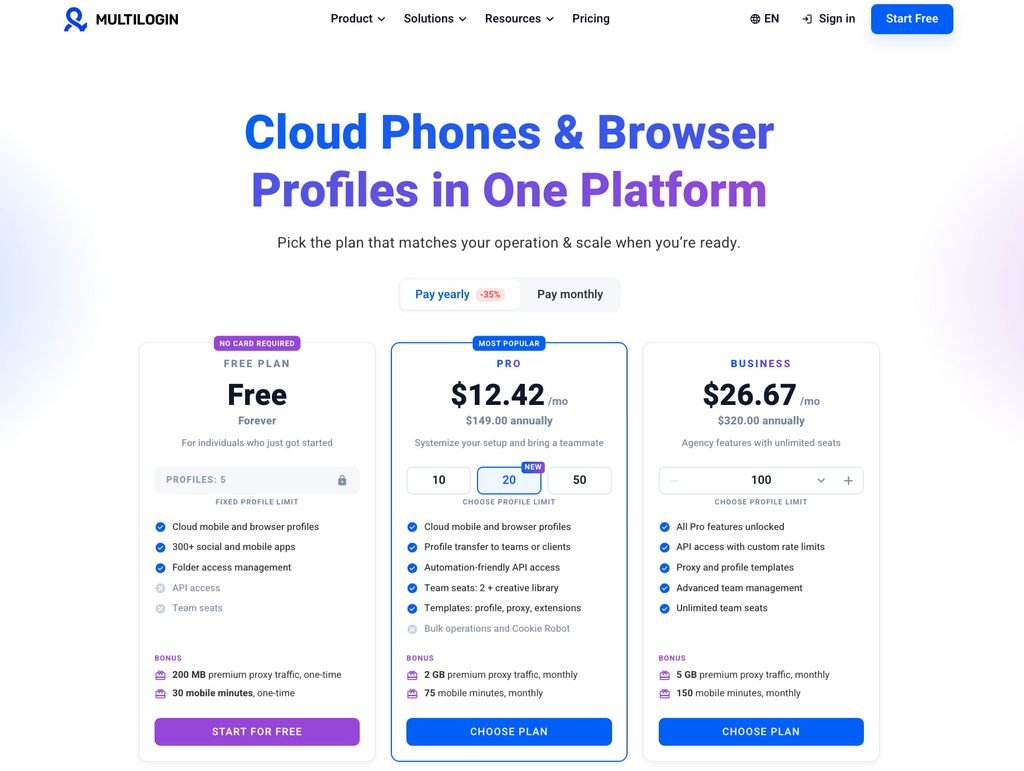
See the Multilogin pricing page for current prices and tier limits. The easiest way to size a plan is to run your normal routine on the free plan for a week, note the minutes and traffic it uses, then pick the tier that covers your accounts and the people who need their own seat.
A five-point check before every post
Most multi-account mistakes happen in the last minute before publishing. Run this check every time, whatever tools you use:
- Confirm the account name and profile photo on screen match the account in the inventory.
- Confirm the approval is on record in the shared calendar or scheduler.
- Confirm you opened the account’s recorded environment and location.
- Confirm the content was written for this account, not copied from another one.
- Update the content status and leave a handoff note when you finish.
Start with the inventory, then add the environment
Fill in the account inventory for the accounts you run today. It shows you where access is unclear, where approvals get lost, and which accounts still share one phone. Then give those accounts their own working environment.
Multilogin offers a free plan with no time limit and no credit card needed, with one cloud phone included. Move one client’s Instagram account onto it, run a normal week, and see how the handoffs feel.
Frequently asked questions
How many Instagram accounts can you add to one app?
You can add up to five accounts to one Instagram app and switch between them without logging out. Teams with more accounts usually move to more devices or one working environment per account.
Can I manage multiple Instagram accounts from a computer?
Yes, for Business and Creator accounts connected to a Meta business portfolio, through Meta Business Suite. For tasks that need the mobile app, a Multilogin cloud phone runs the Instagram app on a real Android device in the cloud and opens on your computer.
How do I give my team access to a client’s account without the password?
Ask the client to add your agency as a partner in their Meta business portfolio, or to add each teammate as a person with the right permissions. The account needs to be a professional account connected to the business portfolio.
Does an Instagram scheduler replace a cloud phone?
No. A scheduler plans and publishes content, while a cloud phone is the environment where in-app work like replies, Stories, and DMs happens. Many teams use both.
Can Multilogin cloud phones receive Instagram verification codes?
No. Multilogin cloud phones can’t receive SMS or calls. If Instagram asks for phone verification, use a separate number the app accepts, such as your own phone or an SMS provider, then enter the code in the app on the cloud phone.
Can a cloud phone prevent Instagram restrictions?
No. A cloud phone gives each account its own environment, but Instagram’s decisions depend on account activity and content. Original content and following Instagram’s rules still matter.
Is a browser profile the same as a cloud phone?
No. A Multilogin cloud phone runs native Android apps like Instagram on a real Android device in the cloud. A browser profile is an isolated browser environment for web tasks, with its own cookies, session, and IP.
Should I rotate IPs for multiple Instagram accounts?
There is no rotation schedule that guarantees fewer restrictions. Keep each account on a consistent location that matches where it normally operates, and change it only for a clear business reason.