
If you have ever pasted numbers from one spreadsheet into another, then repeated the whole job next week, you already know the pain. IMPORTRANGE Google Sheets formulas solve that problem. You write one formula, approve access once, and the data in your report stays linked to the source file.
This guide shows you how to use IMPORTRANGE from the first formula to advanced setups with QUERY, FILTER, and multiple files. You will also find fixes for the errors people hit most often, plus a cheat sheet at the end.
Quick answer: IMPORTRANGE is a Google Sheets function that pulls a range of cells from one spreadsheet into another. The formula is =IMPORTRANGE(spreadsheet_url, range_string). You must allow access the first time you connect two files.
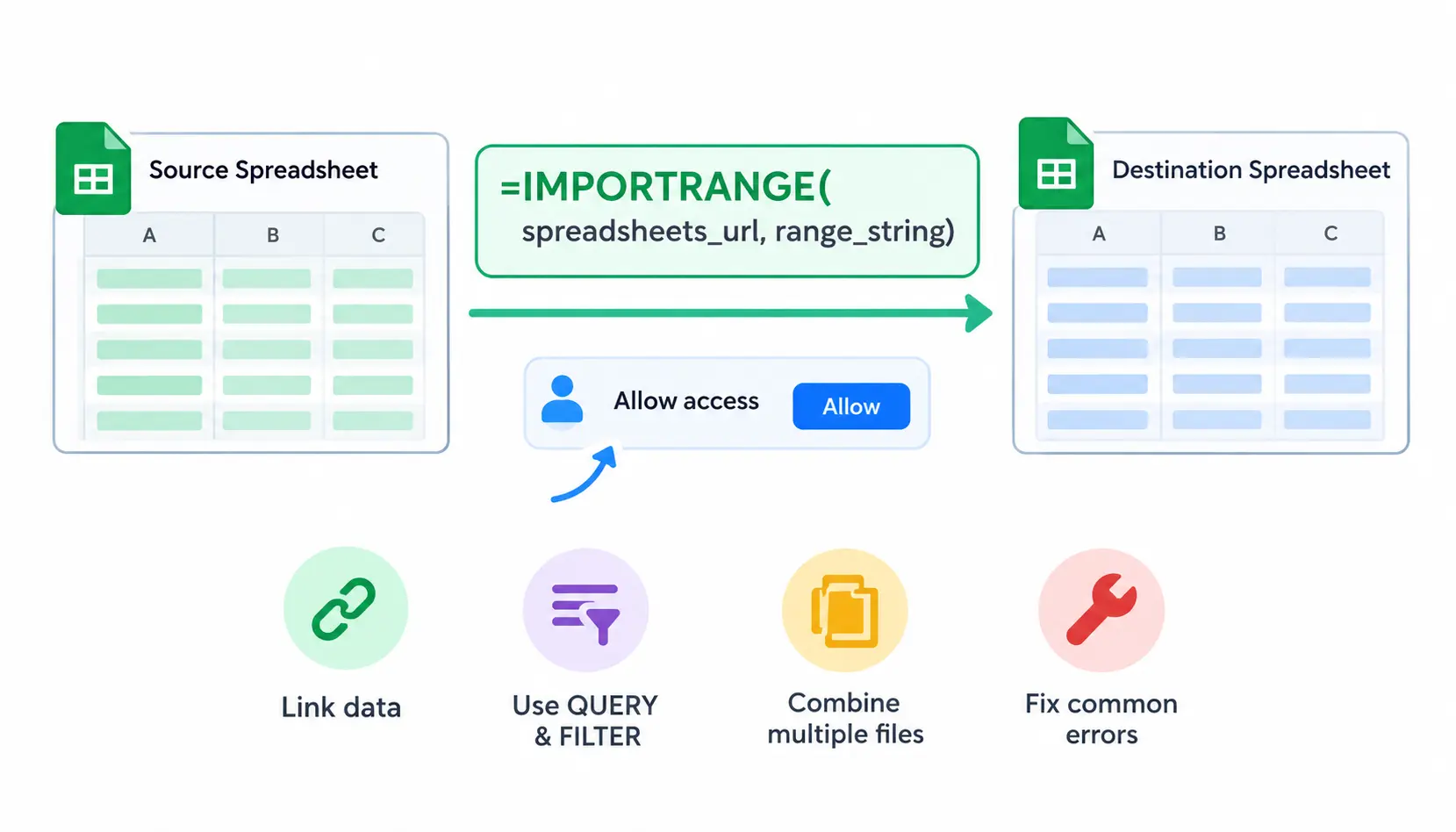
What Is IMPORTRANGE in Google Sheets?
IMPORTRANGE is a function that brings data from a source spreadsheet into a destination spreadsheet. The source is the file that holds the original data. The destination is the file where you write the formula.
The key word is linked. When you copy and paste values, you get a frozen snapshot. When you use IMPORTRANGE, the destination reads from the source, so changes in the source show up in your report after Google refreshes the connection.
Here is a simple use case. Imagine your company keeps one sales spreadsheet per region: North, South, East, and West. Each regional manager updates their own file. With IMPORTRANGE, you can build one master file that reads all four, without anyone emailing you updates.
Google documents the function in its official IMPORTRANGE help page. It is worth bookmarking, because limits and behavior can change over time.
When Should You Use IMPORTRANGE?
IMPORTRANGE works best when data lives in separate files and you want one place to see it. Common situations include:
- Consolidating reports. Combine several team or regional files into one summary.
- Sharing selected data. Let people see a slice of your data without giving them the full source file.
- Building dashboards. Feed charts and pivot tables from files that other people maintain.
- Keeping a central report connected. Avoid the weekly copy-and-paste routine.
One caution on the second point: IMPORTRANGE does not hide data in a secure way. Anyone with edit access to the destination can see the formula and the source URL. Access to the actual data still depends on their permission to the source file.
When Should You Avoid IMPORTRANGE?
IMPORTRANGE is not always the right tool. Skip it in these cases:
- The data is on another tab in the same file. A direct reference such as =Sheet2!A1:C10 is simpler and faster.
- You need a one-time static copy. Copy and paste is enough, and it will not break later.
- Your imports are huge or deeply chained. Large ranges and long chains of linked files slow everything down.
IMPORTRANGE Formula Syntax and Arguments
Here is the formula:
=IMPORTRANGE(spreadsheet_url, range_string)
It has two arguments. Both are text, so both usually sit inside quotation marks unless you point to a cell that holds the text.
Understanding the Spreadsheet URL Argument
The first argument tells Google Sheets which file to read. You have three options:
- The full URL. Copy it from your browser’s address bar.
- The spreadsheet ID only. This is the long string between /d/ and the next slash in the URL.
- A cell reference. Store the URL in a cell, such as A1, and write =IMPORTRANGE(A1,”Sheet1!A1:C10″).
The cell reference method is my favorite for real projects. When the source file changes, you update one cell instead of editing every formula.
Understanding the Range String Argument
The second argument tells Google Sheets which cells to bring in. It is a text string, so it needs quotation marks.
These formats work:
- A cell range: “A1:C10”. If you leave out the sheet name, Google reads from the first tab of the source file.
- A sheet-specific range: “Sales!A1:C10”.
- A sheet name with spaces: “‘Monthly Sales’!A1:C10”. Wrap the tab name in single quotes.
- A named range: “SalesData”, if the source file has a named range with that name.
I would not rely on table references working the same way across every setup. If you use tables in the source file, test the formula first, or create a named range over the table instead.
A Simple IMPORTRANGE Example
Suppose your source file has a tab called Sales, with headers in row 1 and data down to row 10 in columns A to C. Your formula looks like this:
=IMPORTRANGE(“https://docs.google.com/spreadsheets/d/YOUR_ID/edit”,”Sales!A1:C10″)
The first argument points to the source file. The second says to read cells A1 through C10 on the Sales tab.
The result is a 10-row, 3-column block that starts in the cell where you typed the formula. Google fills the neighboring cells automatically, so those cells must be empty. If they are not, you will see a #REF! error about overwriting data.
How to Use IMPORTRANGE in Google Sheets Step by Step
Follow these five steps the first time you connect two files.
Step 1: Open the Source Spreadsheet
Open the file that holds the data you want. Find the tab and the exact cell range you need. Write them down: for example, tab “Sales”, range A1:C10.
Step 2: Copy the Spreadsheet URL
Click the browser’s address bar and copy the full URL. It looks like https://docs.google.com/spreadsheets/d/1AbC…/edit.
The spreadsheet ID is the part between /d/ and /edit. You can paste either the full URL or just the ID into the formula.
Step 3: Enter the IMPORTRANGE Formula
Open your destination spreadsheet and click an empty cell. Type the formula, replace the example URL and range with your own, and press Enter.
Make sure the area to the right and below the cell is empty. IMPORTRANGE needs room to spill the results.
Step 4: Click Allow Access
The first time you connect two files, the cell shows #REF! with a message that you need to connect the sheets. Click the cell, then click Allow access. The data should load within a moment.
You only need to do this once per source file for the destination. If you do not have permission to open the source file, the button will not fix it. Ask the file owner to share the file with you, at least with view access.
Step 5: Verify the Imported Data
Do not trust the first result blindly. Check three things:
- The values match what you see in the source.
- The correct tab and range came through.
- A change in the source shows up in the destination. Edit one value in the source, wait a short while, and look again.
This 30-second test saves a lot of trouble later, especially if the file feeds a dashboard other people rely on.
Common IMPORTRANGE Examples and Formulas
Import a Specific Cell Range
=IMPORTRANGE(“spreadsheet_url”,”Sheet1!A1:C10″)
This pulls a fixed block of cells. It is the safest choice when you know exactly how much data you need.
Import an Entire Set of Columns
=IMPORTRANGE(“spreadsheet_url”,”Sheet1!A:C”)
This imports columns A to C for every row, including rows added later. It is convenient for growing lists.
The trade-off is size. Import only the rows and columns you actually need, because smaller imports load faster and are less likely to hit Google’s limits.
Import Data from a Specific Tab
=IMPORTRANGE(“spreadsheet_url”,”Inventory!A2:D100″)
Here the tab name comes first, then an exclamation mark, then the range. This example skips the header row by starting at row 2, which is handy when you want to add your own headers.
Import Data Using a Named Range
A named range gives a block of cells a readable name. It also survives layout changes better than a fixed address.
To set one up in the source file:
- Select the cells.
- Click Data, then Named ranges.
- Type a name such as SalesData and save.
Then reference it in the destination:
=IMPORTRANGE(“spreadsheet_url”,”SalesData”)
If the source owner inserts rows or columns, the named range usually adjusts with them. A hard-coded address does not.
Import Data from Multiple Spreadsheets
To combine several source files into one report, stack the imports inside curly brackets. A semicolon stacks them vertically:
={IMPORTRANGE(“north_url”,”Sales!A2:E”);IMPORTRANGE(“south_url”,”Sales!A2:E”);IMPORTRANGE(“east_url”,”Sales!A2:E”)}
This works well for regional reports that share the same layout. Each source file needs its own access approval.
Stacked array formulas are the right choice when the files have identical column structures. If the column counts differ, Google returns an error, so fix the ranges first.
Reference Another Tab in the Same Spreadsheet
If the data is in the same file, skip IMPORTRANGE:
=Sheet2!A1:C10
It needs no permissions, no URL, and no extra loading time.
How to Combine IMPORTRANGE with Other Google Sheets Functions
IMPORTRANGE becomes far more useful when you pair it with other functions. It returns an array, so most functions treat it like any other range.
Combine QUERY and IMPORTRANGE
QUERY lets you filter, sort, and summarize imported data using a SQL-like language. See Google’s QUERY function guide for the full syntax.
=QUERY(IMPORTRANGE(“spreadsheet_url”,”Sales!A1:E100″),”SELECT * WHERE Col3 = ‘East'”,1)
Three things to notice:
- Column names. Imported data has no column letters, so you refer to columns as Col1, Col2, Col3, and so on.
- The header argument. The final 1 tells QUERY the first row is a header. Set it to 0 if there is no header row.
- Text criteria. Wrap text values in single quotes inside the query, and keep the whole query in double quotes.
When this formula misbehaves, test the IMPORTRANGE part alone first. That one habit solves most QUERY problems.
Combine FILTER and IMPORTRANGE
FILTER returns only the rows that meet a condition. The simplest reliable pattern is to import the data into a helper tab, then filter that tab:
=FILTER(Imported!A2:E, Imported!C2:C=”East”)
The filter range and the condition range must have the same number of rows. If one is longer than the other, you will get an error.
You can nest IMPORTRANGE directly inside FILTER, but you would need to import the same range twice. A helper tab avoids that extra work.
Combine IFERROR and IMPORTRANGE
IFERROR can show a friendly message when an import fails:
=IFERROR(IMPORTRANGE(“spreadsheet_url”,”Sales!A1:C10″),”Data unavailable”)
Use this carefully. IFERROR also hides the #REF! message that asks you to allow access, so you may never see the real problem. Build and test the formula without IFERROR first, and add it only once the import works.
Combine IMPORTRANGE with VLOOKUP or XLOOKUP
You can look up a product, employee, or order in imported data:
=VLOOKUP(A2,IMPORTRANGE(“spreadsheet_url”,”Products!A:C”),3,FALSE)
This works, but copying it down 2,000 rows means 2,000 separate imports. That is slow and wasteful. A better approach is to import the product table once into a helper tab, then point VLOOKUP or XLOOKUP at that tab.
Combine Multiple IMPORTRANGE Formulas
Stacking datasets is only safe when they match. Check these three things before you combine files:
- Same column order. Column B must mean the same thing in every file.
- Matching headers. Import headers from one file only, so they do not repeat in the middle of your data.
- Consistent data types. Dates should be dates and numbers should be numbers in every source.
If one file stores dates as text, your sorting and totals will go wrong without warning.
How to Fix Common IMPORTRANGE Errors
Start with this table to narrow things down quickly.
| Error or problem | Likely cause | First fix |
| #REF! | Access not authorized or reference issue | Read the message and grant access where prompted |
| #ERROR! | Formula syntax or parsing issue | Check quotation marks, commas, and parentheses |
| Loading delay | Large imports or dependencies | Reduce the range and simplify the formula |
| Invalid range | Incorrect tab name or cell reference | Verify the range string |
| Permission denied | Source file is inaccessible | Request access from its owner |
| Import request limit | Too many or repeated external requests | Reduce repeated calls and consolidate data |
| QUERY returns #N/A | Query criteria or column reference mismatch | Test the import separately, then validate the query |
Treat this table as a starting point. The exact error message and your formula decide the right fix.
Fix the #REF! Allow Access Error
This is the most common first-time error. Click the cell and look at the message. If it says you need to connect the sheets, click Allow access.
If the button does not appear or the error returns, check that you can open the source file with the same Google account. Also confirm the URL is correct and the file has not been deleted or moved to a restricted folder.
A #REF! can also appear when the imported data would overwrite cells that already hold values. Clear the cells to the right and below the formula.
Fix Incorrect Sheet Names and Range References
A typo in the tab name causes an invalid range error. Check for these problems:
- Extra spaces or different capitalization in the tab name.
- Missing single quotes around tab names that contain spaces.
- A tab that was renamed in the source file after you wrote the formula.
- A range that starts or ends outside the sheet’s size.
The quickest check is to open the source, copy the tab name exactly, and paste it into your formula.
Fix IMPORTRANGE Not Updating
IMPORTRANGE does not refresh instantly. Google updates linked data on its own schedule, and the delay can vary. Wait a few minutes before assuming something is broken.
If data still looks stale, try these steps in order:
- Reload the destination spreadsheet.
- Confirm the source cell actually changed and the edit was saved.
- Check that the range includes the cell you edited.
- Look for volatile functions such as NOW or RAND in the source, which can cause unreliable behavior when imports depend on them.
Fix Slow or Stuck Imports
A stuck “Loading…” message usually points to size or complexity. Reduce the range, remove unneeded columns, and cut down on repeated IMPORTRANGE calls. Long chains, where file A reads file B, which reads file C, are another common cause.
Fix QUERY and IMPORTRANGE Errors
Test the IMPORTRANGE part by itself in an empty tab. If it returns data, the problem is in the query.
Then check the usual suspects. Use Col1, Col2, and so on instead of column letters. Put text criteria in single quotes. Confirm the header number matches your data. Make sure the column you filter on contains the type of value you expect.
How to Make IMPORTRANGE Faster and More Reliable
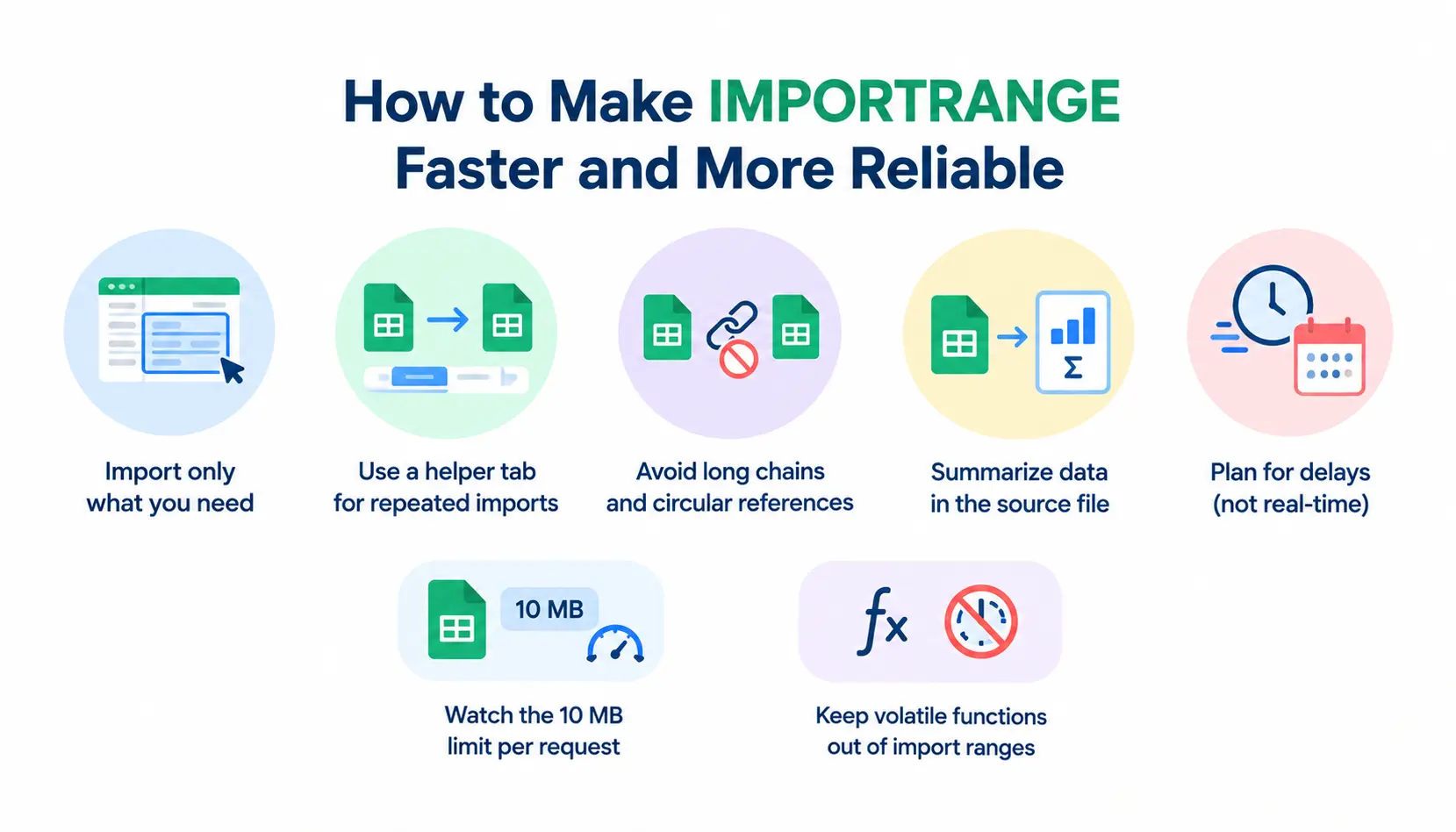
Import Only the Data You Need
Choose specific columns and sensible row limits. Importing A2:D500 is lighter than importing every column of a 50-column sheet.
Reduce Repeated Imports
Import each source range once into a helper tab. Then build your lookups, filters, and charts from that tab. One import used ten times beats ten imports of the same data.
Avoid Long Chains and Circular References
Keep the path short: source, then destination. Avoid setups where files feed each other in a loop, since circular references break results. Deep chains also make errors hard to trace.
Summarize Data in the Source Spreadsheet
If your report only needs monthly totals, calculate them in the source file and import the totals. This sends far less data across the connection than importing every transaction.
Understand Refresh Behavior and Data Delays
Google does not promise instant synchronization, so do not use IMPORTRANGE for anything that needs real-time accuracy. Plan for small delays, especially with large or heavily linked files.
Google’s help page documents a 10 MB limit on data received per request. If your import is close to that size, split it into smaller ranges or summarize it at the source.
Volatile functions such as NOW and RAND recalculate constantly. When an imported range depends on them, you can see unstable results or extra load. Keep them out of ranges you plan to import.
IMPORTRANGE vs. QUERY vs. Other Data-Import Methods
Each method fits a different job.
| Method | Best use | Main consideration |
| IMPORTRANGE | Importing a range from another spreadsheet | Requires access and has import limits |
| QUERY | Filtering, sorting, and summarizing data | Not a replacement for connecting separate files on its own |
| Direct sheet reference | Referencing another tab in the same spreadsheet | Works within the same spreadsheet file |
| Copy and paste | Creating a one-time copy | Does not keep the copy automatically linked |
| Google Apps Script | Custom automation and scheduled workflows | Requires script setup and maintenance |
| Connected Sheets | Working with supported large-scale data sources | Availability and setup depend on the data source |
Which Method Should You Choose?
Use this short guide:
- Same file? Use a direct reference.
- Different files, modest data, live link wanted? Use IMPORTRANGE, often with QUERY.
- One-time need? Copy and paste.
- Custom schedules, logging, or complex rules? Use Google Apps Script.
- Very large datasets from a supported source such as a data warehouse? Look at Connected Sheets.
When preparing totals before importing data, you can also use the Excel SUM shortcut to calculate figures quickly in Excel.
Practical IMPORTRANGE Use Cases
Consolidate Monthly Sales Reports
Problem: Each regional manager keeps a separate monthly sales file, and you need one company-wide view.
Approach: Stack one IMPORTRANGE per region inside curly brackets, then wrap the result in QUERY to total sales by product.
Limitation: Every region must use the same column layout, and every source file needs access approval.
Build a Central Inventory Dashboard
Problem: Warehouse teams update stock levels in their own sheets, and managers want one page showing what is low.
Approach: Import each warehouse’s stock range into a helper tab. Then use FILTER to show items below a reorder level and build charts from that. You can also use Google Sheets SPARKLINE formulas to display compact inventory and sales trends directly inside your dashboard.
Limitation: Updates are not instant, so this view suits daily planning, not live counts.
Combine Project or Team Trackers
Problem: Several teams track tasks in different files, and a project lead needs one overdue-task list.
Approach: Import each tracker’s task range, stack them, and use QUERY to select tasks where the due date has passed.
Limitation: If one team changes its columns, the whole combined view can break. Agree on a fixed layout.
Create a Cross-Sheet Reporting Workflow
Problem: Finance wants a monthly report built from files owned by sales, operations, and support.
Approach: Create a “Data” tab for each source using IMPORTRANGE, then build the report tab from those tabs with SUMIFS, QUERY, or pivot tables.
Limitation: Loss of access in any source file breaks that part of the report, so keep a list of file owners.
If you get stuck on odd edge cases, the googlesheets community is a useful place to see how other people solve similar problems. For background on the product itself, see the Google Sheets overview on Wikipedia.
Frequently Asked Questions About IMPORTRANGE
1. Does IMPORTRANGE Update Automatically?
Yes, but not instantly. Google refreshes the imported data on its own schedule, so changes in the source can take a short while to appear. Do not use it where you need real-time numbers.
2. Can IMPORTRANGE Import Data from Multiple Sheets?
Yes. You can import from several tabs or several files by stacking formulas in curly brackets, such as ={IMPORTRANGE(…);IMPORTRANGE(…)}. The ranges must have the same number of columns.
3. Why Does IMPORTRANGE Show #REF!?
The most common reason is that you have not allowed access between the two files yet. Click the cell and choose Allow access. Other causes include a wrong URL, no permission to the source file, or existing data blocking the output area.
4. Can I Use IMPORTRANGE Without Allowing Access?
No. Each destination file must be approved to read from each source file, and you need permission to open the source. Without that, the formula will not return data.
5. Can IMPORTRANGE Import Only Certain Columns?
Yes. Set the range string to the columns you want, such as “Sheet1!A:C”. For non-adjacent columns, wrap IMPORTRANGE in QUERY and select them, for example “SELECT Col1, Col4”.
6. Can I Use IMPORTRANGE Within the Same Spreadsheet?
You can, but you should not need to. A direct reference like =Sheet2!A1:C10 is simpler, faster, and needs no permissions.
7. What Is the Data Limit for IMPORTRANGE?
Google’s documentation lists a limit of 10 MB of data received per request. Very large or heavily linked imports can also slow down or fail, so keep ranges focused.
8. What Is the Best Alternative to IMPORTRANGE?
It depends on the job. Direct references suit same-file data, Google Apps Script suits custom automation, and Connected Sheets suits large supported data sources. For most small to mid-size reports, IMPORTRANGE is still the simplest option.
Conclusion
IMPORTRANGE Google Sheets formulas turn scattered files into one connected report. Start simple: copy the URL, write the formula, allow access, and check your results. Then add QUERY or FILTER when you need to shape the data.
Keep imports small, avoid long chains, and import each range only once where you can. Do that, and your linked reports will stay fast, readable, and easy to fix when something goes wrong.