
If you want to know how to insert a PDF into a Google Doc, there are several simple methods you can use. Although Google Docs does not support direct PDF embedding, you can still add PDF files easily using a few workarounds.
One option is to insert the PDF as a shareable Google Drive link. You can also convert the PDF into editable Google Docs text if you need to make changes to the content. Another method is inserting PDF pages as images to keep the original formatting and design.
Each method works best for different situations, such as collaboration, editing, or preserving layouts. Choosing the right option can help you save time and avoid formatting problems later.
In this guide, you’ll learn step-by-step how to insert a PDF into a Google Doc and fix common issues during the process.
What This Guide Covers
Trying to add a PDF to Google Docs can feel confusing at first, especially when the formatting suddenly breaks or the file refuses to convert properly. The good news is that there are a few simple ways to do it, you just need to choose the one that fits what you’re trying to accomplish.
In this guide, you’ll learn the easiest and most practical ways to work with PDFs in Google Docs. Whether you simply want to share a file with your team, turn a PDF into editable text, or keep the original design exactly the way it looks, there’s a method for that.
We’ll walk through:
- The best ways to add PDFs to Google Docs
- How to insert PDFs as links, editable text, or images
- Simple formatting tips to avoid messy layouts
- Common PDF problems and how to fix them
- How scanned PDFs work with OCR
- Mobile instructions for Android and iPhone users
- The pros and cons of each method
- Best practices for keeping your documents clean and readable
Along the way, you’ll also learn a few small tricks that can save a lot of time — especially when dealing with large PDFs, scanned documents, or formatting-heavy files.
By the end of this guide, you’ll know exactly which method to use without wasting time testing random workarounds or struggling with broken formatting later.
Can You Insert a PDF Into Google Docs?
Yes, you can insert a PDF into Google Docs, although the process works a little differently compared to websites or presentation tools. Google Docs doesn’t currently have a built-in option to fully embed and display an entire PDF directly inside a document.
Instead, most people use a few practical alternatives depending on what they need. For example, you can add a shareable Google Drive link if you simply want others to access the file. If you need to edit the content, you can convert the PDF into editable text using Google Docs’ OCR feature. Another option is to insert pages from the PDF as images when you want to keep the original appearance or formatting.
The best method really depends on your goal — whether you want to edit the document, preserve its layout, or just share it quickly with others.
What Google Docs Supports and Doesn’t Support
While Google Docs is excellent for collaboration and cloud-based editing, it has a few limitations when it comes to PDF handling.
1. No Native PDF Embedding
Google Docs does not support true PDF embedding. This means you cannot directly place a fully interactive PDF viewer inside a document the way you can in some website builders or presentation software.
Instead, PDFs must be added using workaround methods such as:
- Uploading the PDF to Google Drive and inserting a link
- Converting the PDF into editable Google Docs text
- Turning PDF pages into images and inserting them manually
These methods allow you to display or access PDF content, but each comes with different capabilities and limitations.
2. Workaround Methods
Most users rely on one of three practical solutions:
- Insert a shareable PDF link — Best for quick access and collaboration
- Convert the PDF into editable text — Best for editing and content extraction
- Insert PDF pages as images — Best for preserving layout and design
Each method works differently depending on your goal, file type, and formatting needs.
3. Editable vs Non-Editable Limitations
One of the biggest differences between PDF insertion methods is whether the content becomes editable.
- Converted PDFs can usually be edited inside Google Docs, but formatting may change during conversion.
- Image-based PDFs preserve appearance better, but the text cannot be edited directly.
- Shareable links keep the original PDF intact, but users must open the file separately to view or edit it.
Understanding these limitations helps you choose the right approach and avoid common formatting or usability issues later.
4. Best Method Depends on Your Goal
The best way to insert a PDF into Google Docs depends on what you actually need to do with the file. Some methods are better for editing, while others work better for sharing or preserving the original layout.
Here’s a quick breakdown to help you choose the right approach.
| Goal | Best Method | Why It Works Best |
| Edit PDF content | Convert PDF into Google Docs text | Allows direct editing and collaboration |
| Preserve original design | Insert PDF pages as images | Maintains layout, fonts, and visuals |
| Quickly share a document | Add a Google Drive shareable link | Fastest and easiest option |
| Keep formatting intact | Share PDF link or use images | Prevents conversion-related formatting issues |
5. Editable Content
If you need to modify text, update information, or collaborate with others, converting the PDF into editable Google Docs text is usually the best option. Google Docs can automatically extract text from many PDFs, including scanned files with OCR support.
This method works well for:
- Assignments
- Reports
- Contracts
- Research documents
- Team editing
However, complex formatting, tables, and graphics may not convert perfectly.
6. Visual Display
If maintaining the exact appearance of the PDF is more important than editing, inserting PDF pages as images is a better choice. This keeps the original layout, fonts, charts, and branding intact.
This method is ideal for:
- Brochures
- Flyers
- Certificates
- Presentation pages
- Design-heavy documents
The downside is that image-based content cannot be edited directly inside the document.
7. Simple Sharing
For fast document access, uploading the PDF to Google Drive and inserting a shareable link is the easiest solution.
This approach works best when:
- You only need readers to view the file
- The PDF is too large to convert
- You want to avoid formatting problems
- Multiple people need access to the same file
It also helps keep your Google Doc cleaner and more organized.
8. Preserving Formatting
PDF conversions can sometimes break layouts, distort tables, or misplace images. If formatting accuracy is your top priority, avoid converting the file unless editing is necessary.
To preserve formatting:
- Use a shareable PDF link
- Insert pages as images
- Keep the original PDF stored in Google Drive as a backup
Choosing the right method from the start can save time and prevent frustrating formatting issues later.
Different Methods to insert in google
Method 1 – Insert a PDF Into Google Docs as a Link
One of the easiest ways to add a PDF to Google Docs is by uploading the file to Google Drive and inserting a shareable link into your document. This method is quick, simple, and works well when you don’t need to edit the PDF directly inside Google Docs.
It’s also the best option for preserving the original PDF formatting since the file remains unchanged.
Upload the PDF to Google Drive
Start by uploading your PDF file to Google Drive.
Follow these steps:
- Open Google Drive
- Click the New button
- Select File Upload
- Choose the PDF from your computer or mobile device
- Wait for the upload to finish
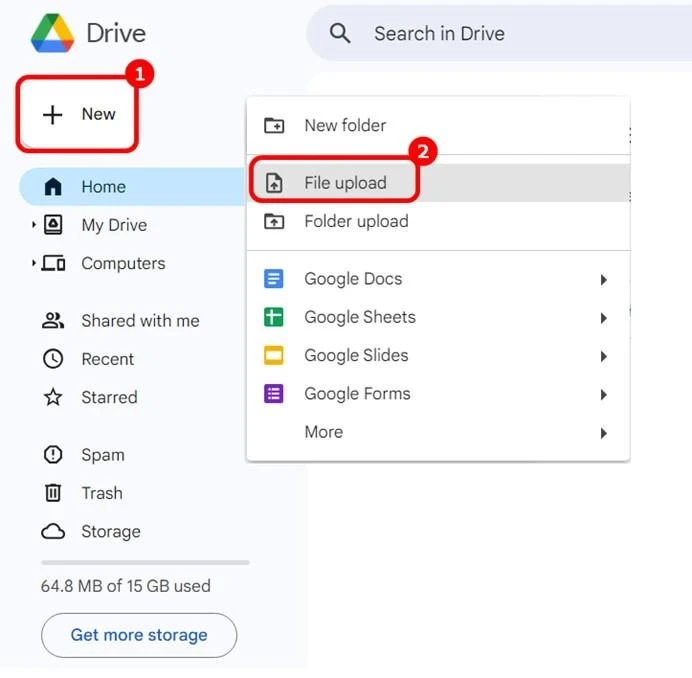
Once uploaded, the PDF will be stored in your Drive account and ready to share or link inside Google Docs.
Create a Shareable Link
After uploading the PDF, you’ll need to generate a shareable link.
Here’s how:
- Right-click the PDF file in Google Drive
- Select Get link
- Change access permissions if needed
- Copy the generated link
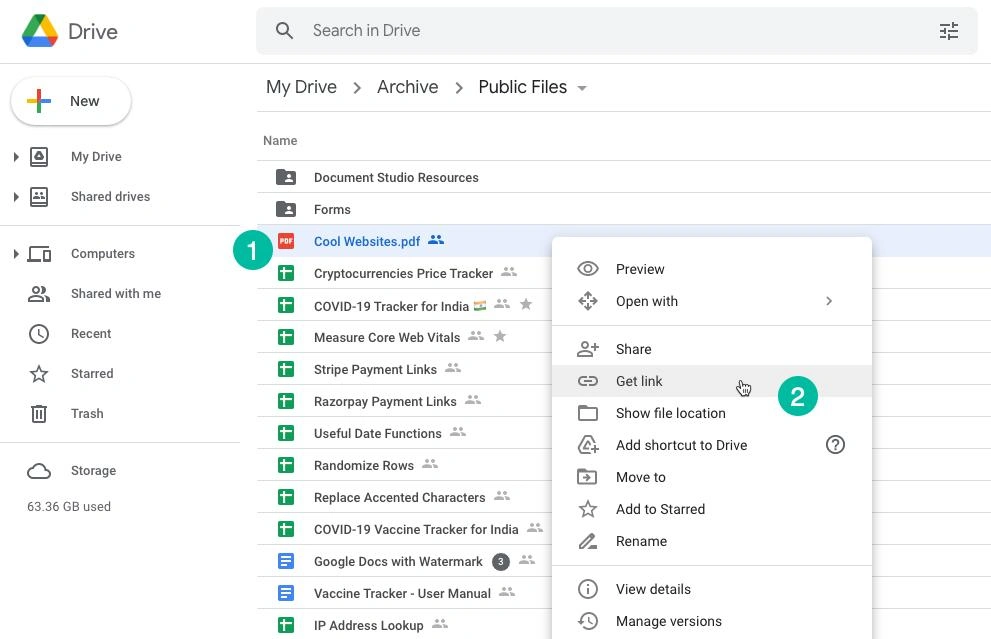
You can choose whether viewers can:
- View only
- Comment
- Edit the file
For most situations, “Anyone with the link can view” is the safest option for sharing PDFs.
Insert the Link Into Google Docs
Now you can place the PDF link inside your Google Docs file.
To do this:
- Open your Google Doc
- Highlight the text where you want the link
- Click Insert → Link
- Paste the Google Drive PDF link
- Press Apply
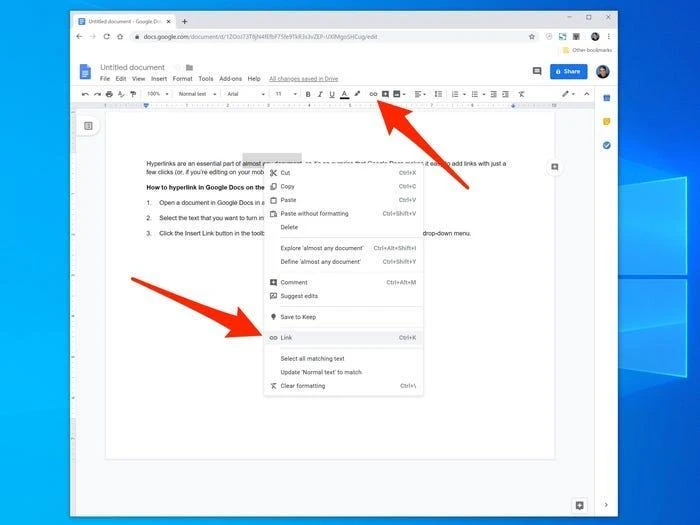
Your PDF is now accessible directly from the document.
You can also paste the raw link directly into the document and Google Docs will automatically turn it into a clickable URL.
Best Use Cases for This Method
Adding PDFs as links works especially well when you want simple access without changing the original file.
Team Collaboration
This method makes collaboration easier because multiple users can access the same PDF from a single shared document. Team members can review files, leave comments, or reference supporting materials without downloading attachments repeatedly.
Large PDFs
Large PDF files can cause formatting issues during conversion. Linking the file instead of converting it keeps the document lightweight and avoids performance problems.
Quick Sharing
If your goal is simply to provide access to a PDF, inserting a link is the fastest and easiest solution. It only takes a few seconds and keeps your Google Doc clean and organized.
Pros and Cons
| Pros | Cons |
| Fast and easy setup | PDF is not displayed directly inside the document |
| Preserves original formatting | Users must open the file separately |
| Great for collaboration | Content is not editable inside Google Docs |
| Works well for large files | Requires sharing permissions |
| Keeps document size smaller | Internet access may be needed to view the file |
Method 2 – Convert a PDF Into Editable Google Docs Text
If you need to modify the content inside a PDF, converting it into editable text in Google Docs is usually the best option. This method allows you to edit paragraphs, update information, copy text, and collaborate with others directly inside the document.
Google Docs can automatically convert many PDF files into editable text, including some scanned documents using OCR (Optical Character Recognition).
Open the PDF With Google Docs
To convert a PDF into editable Google Docs text, follow these steps:
- Upload the PDF to Google Drive
- Right-click the uploaded PDF
- Select Open with → Google Docs
- Wait for the conversion process to finish
- A new editable Google Docs file will automatically be created
The original PDF file will remain unchanged in Google Drive, while the converted version becomes editable inside Google Docs.
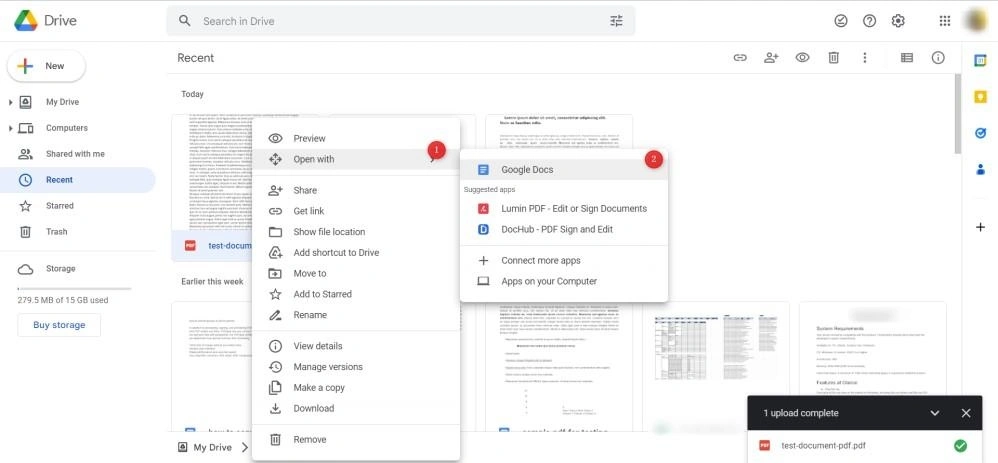
This is the easiest way to turn a PDF into editable content using Google Docs.
How Google Converts PDF Files
When you open a PDF with Google Docs, the system attempts to extract:
- Text
- Headings
- Basic formatting
- Images
- Tables
If the PDF contains selectable text, conversion is usually more accurate. For scanned PDFs, Google uses OCR technology to recognize characters from images and convert them into editable text.
Simple documents typically convert well, while complex layouts may experience formatting problems.
Editing Text After Conversion
Once the PDF has been converted, you can edit it like any regular Google Doc.
You can:
- Change text
- Fix formatting
- Add comments
- Collaborate with team members
- Insert images or tables
- Share the document online
This makes the method especially useful for collaborative workflows and document revisions.
Formatting Issues You May Encounter
Although conversion is convenient, formatting is not always perfect. Complex PDFs often lose parts of their original structure during the process.
Broken Tables
Tables may shift, split incorrectly, or lose alignment after conversion. This is common in PDFs with complex table formatting or merged cells.
Misaligned Images
Images sometimes move to incorrect positions or appear resized after the file is converted into editable text.
Font Changes
Google Docs may replace unsupported fonts with similar alternatives, which can slightly change the appearance of the document.
OCR Errors in Scanned PDFs
Scanned PDFs rely on OCR technology, and text recognition is not always accurate. Poor scan quality, handwriting, blurry text, or unusual fonts can lead to spelling mistakes and missing characters.
Tips to Preserve Formatting
To reduce formatting problems during conversion:
- Use high-quality PDF files
- Avoid low-resolution scanned documents
- Keep layouts simple when possible
- Review tables and images after conversion
- Reinsert complex graphics manually if needed
- Use the original PDF as a formatting reference
- Convert only the pages you actually need
For highly designed documents, inserting PDF pages as images may preserve formatting better than editable conversion.
Best Use Cases for Editable PDFs
Converting PDFs into editable Google Docs works best when collaboration and text editing are more important than preserving exact formatting.
This method is ideal for:
- Assignments
- Reports
- Research papers
- Contracts
- Meeting notes
- Content revisions
- Collaborative editing
- Extracting text from scanned documents
If your main goal is editing and updating content, this is usually the most practical method available in Google Docs.
Method 3 – Insert PDF Pages as Images
If you want to preserve the exact appearance of a PDF, inserting PDF pages as images is often the best solution. Unlike editable conversion, this method keeps the original layout, fonts, graphics, charts, and formatting intact inside Google Docs.
This approach is especially useful for design-heavy documents where formatting accuracy matters more than text editing.
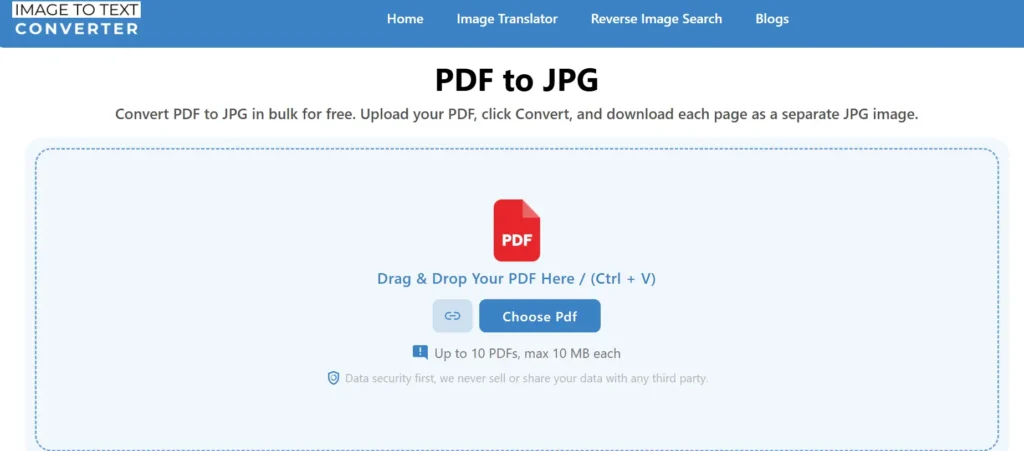
Convert PDF Pages Into Images
Before inserting PDF pages into Google Docs, you first need to convert the PDF pages into image files.
You can do this using:
- PDF-to-image converters
- Screenshot tools
- Online PDF conversion platforms
- Adobe Acrobat export features
Most tools allow you to export PDF pages as:
- PNG
- JPG/JPEG
- WEBP
For better clarity and readability, high-resolution PNG files usually work best.
If your PDF contains multiple pages, you can either:
- Convert all pages into separate images
- Extract only the specific pages you need
Insert Images Into Google Docs
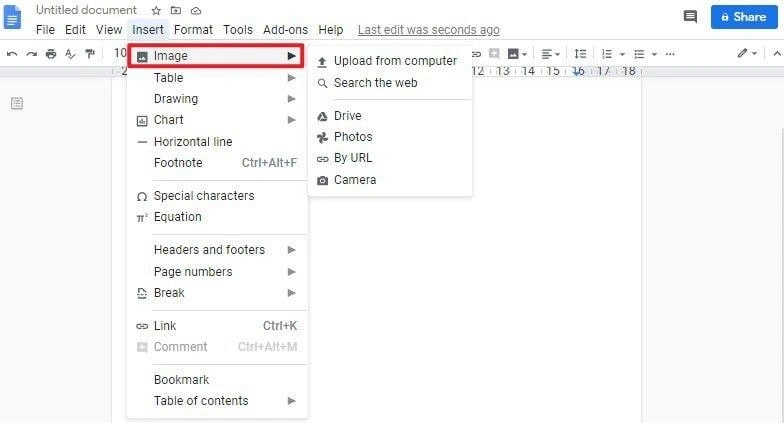
Once the PDF pages have been converted into images, you can add them to Google Docs.
Follow these steps:
- Open your Google Doc
- Click Insert → Image
- Choose where to upload the image from
- Select the converted PDF image file
- Resize or reposition the image as needed
You can insert multiple PDF pages in sequence to recreate the original document visually inside Google Docs.
When This Method Works Best
Using images instead of editable text works best when preserving the original visual appearance is important.
This method is ideal for:
- Brochures
- Flyers
- Certificates
- Infographics
- Design mockups
- Presentation pages
- Marketing materials
- Forms with complex layouts
It’s also helpful when PDF conversion causes severe formatting problems.
Pros and Cons
| Pros | Cons |
| Preserves original formatting | Text cannot be edited directly |
| Maintains fonts and graphics accurately | Larger document size |
| Great for visual documents | Images may reduce readability if low quality |
| Avoids OCR and conversion errors | Manual image conversion required |
| Works well for complex layouts | Less searchable text content |
Best File Types for High-Quality Results
Choosing the right image format can improve readability and visual quality inside Google Docs.
| File Type | Best For | Quality |
| PNG | Text-heavy pages and graphics | High |
| JPG/JPEG | Smaller file sizes | Medium |
| WEBP | Web optimization | Medium to High |
For most users, PNG is the best option because it preserves sharp text and detailed graphics without noticeable quality loss.
Tools That Make PDF-to-Google Docs Work Easier
Several tools can make it easier to insert, convert, edit, and manage PDFs in Google Docs. Some tools are better for collaboration, while others help preserve formatting, improve OCR accuracy, compress files, or split PDFs into smaller sections. Using the right tool can save time and reduce common formatting and conversion problems.
1. Google Drive
Google Drive is one of the easiest and most useful tools for working with PDFs in Google Docs because it integrates directly with Google Workspace. It allows users to upload PDFs, create shareable links, use built-in OCR for scanned files, and quickly convert PDFs into editable Google Docs documents.
Google Drive works especially well for students, teams, and anyone who needs simple document sharing and collaboration. Since it connects seamlessly with Google Docs, it is usually the first tool most users should try.
2. Adobe Acrobat
Adobe Acrobat is one of the most advanced PDF management tools available. It provides professional PDF editing, accurate OCR conversion, PDF compression, page extraction, splitting tools, and better formatting preservation during conversions.
Adobe Acrobat is ideal for business documents, professional reports, complex layouts, and graphic-heavy PDFs where maintaining formatting is important. It is especially helpful when Google Docs conversion creates layout or formatting issues.
3. Smallpdf
Smallpdf is a popular online tool designed for quick and simple PDF workflows. It offers features such as PDF-to-Word conversion, PDF compression, PDF splitting, PDF-to-image export, and browser-based editing. Smallpdf is best for quick projects, simple conversions, and users who want fast PDF processing without installing software. Its clean interface also makes it beginner-friendly.
4. ILovePDF
ILovePDF provides a wide range of PDF management tools in one place. Users can merge PDFs, split documents, compress large files, convert PDFs into editable formats, and process multiple files in batches. It is especially useful for handling multiple PDFs at once or preparing selected pages before uploading files into Google Docs.
5. PDFescape
PDFescape is a browser-based PDF editor that works without requiring software downloads. It includes basic editing tools, form filling, annotations, and PDF page management features. PDFescape is a good option for quick edits, lightweight PDF tasks, and users who prefer simple online tools instead of installing desktop software.
PDF Tool Comparison Table
| Tool | Best For | Free Version | OCR Support |
| Google Drive | Sharing and basic conversion | Yes | Yes |
| Adobe Acrobat | Professional PDF editing | Limited | Yes |
| Smallpdf | Quick online conversion | Yes | Limited |
| ILovePDF | Splitting and batch processing | Yes | Limited |
| PDFescape | Basic browser-based editing | Yes | No |
Choosing the right tool depends on whether your priority is editing, collaboration, formatting preservation, OCR accuracy, or simple document sharing.
How to Insert Only Specific Pages From a PDF
Sometimes, you don’t actually need the whole PDF inside your Google Docs file. Maybe you only need one important page — like a certificate, a graph, a form, a report section, or even a single reference page.
Instead of uploading the entire document, it’s usually easier to extract only the pages you need. This keeps your Google Doc cleaner and much easier to manage.
It also helps:
- Keep the document organized
- Reduce unnecessary pages
- Make the file easier to read
- Avoid large file sizes
- Save time while editing
For example, if you have a 50-page PDF but only need one chart from page 12, there’s no reason to insert the whole file.
The good news is that separating specific PDF pages is pretty simple. You can split the PDF first, then add only those selected pages as editable text, images, or shareable links inside Google Docs.
This approach works especially well for:
- School assignments
- Reports
- Project documentation
- Client presentations
- Research notes
It’s a small step, but it makes your document look much cleaner and more professional.
- Extract Selected Pages First
Before inserting specific pages, you’ll need to separate them from the original PDF.
You can do this using:
- Online PDF splitters
- Built-in PDF editing tools
- Adobe Acrobat
- Browser-based PDF tools
Most PDF split tools allow you to:
- Extract single pages
- Save page ranges
- Create a smaller PDF file containing only selected pages
For example, if your PDF contains 20 pages but you only need pages 3 and 7, you can export those pages separately before adding them to your Google Doc.
This approach keeps your workflow cleaner and avoids cluttering the document with unnecessary pages.
- Add Individual Pages as Images or Text
Once the required pages have been extracted, you can insert them into Google Docs using either of these methods:
Option 1: Convert Pages Into Images
This works best when preserving formatting is important.
Steps:
- Convert the extracted PDF pages into PNG or JPG images
- Open Google Docs
- Click Insert → Image
- Upload the converted page images
This method keeps the original appearance intact.
Option 2: Convert Pages Into Editable Text
This works best when you need to edit the content.
Steps:
- Upload the extracted PDF pages to Google Drive
- Open the file with Google Docs
- Edit the converted text as needed
This option is useful for reports, assignments, or collaborative editing.
Tools That Help Split PDFs
Several tools make it easy to extract specific pages from a PDF before inserting them into Google Docs.
| Tool | Best For | Key Feature |
| Adobe Acrobat | Professional editing | Advanced PDF page extraction |
| Smallpdf | Quick online splitting | Simple drag-and-drop interface |
| ILovePDF | Free PDF page extraction | Batch page splitting |
| PDFescape | Browser-based editing | No installation required |
These tools can save time when working with large PDFs or documents that only require a few important pages.
Best Method Comparison Table
Choosing the right way to insert a PDF into Google Docs depends on your priorities. Some methods are better for editing, while others work better for preserving formatting or sharing files quickly.
The comparison below helps you decide which option is best for your workflow.
1. Editable vs Non-Editable Methods
Some PDF insertion methods allow full editing, while others only display the content visually.
- Editable methods are best for collaboration, document updates, and text extraction.
- Non-editable methods are better for preserving layouts, graphics, and original formatting.
If editing is important, converting the PDF into Google Docs text is usually the best choice. If appearance matters more, image insertion or shareable links work better.
2. Formatting Accuracy Comparison
Formatting quality can vary significantly depending on the method you choose.
- Shareable links preserve the original PDF perfectly because the file remains unchanged.
- Image insertion keeps layouts visually accurate but removes editability.
- Editable conversion may alter fonts, spacing, tables, or image alignment during conversion.
Complex PDFs with charts, columns, or custom fonts are more likely to experience formatting issues after conversion.
3. Collaboration and Sharing Comparison
For team workflows and online collaboration, linking PDFs through Google Drive is often the easiest solution.
- Shareable links are ideal for quick access
- Editable conversion works best for collaborative editing
- Image insertion is less practical for teamwork because the content cannot be edited directly
The best collaboration method depends on whether users need viewing access or editing capabilities.
4. Which Method Is Fastest?
If speed is your top priority:
- Adding a shareable link is the fastest method
- Editable conversion takes slightly longer due to processing
- Image insertion usually requires extra conversion steps
For quick sharing, links are typically the most efficient option.
Method Comparison Table
| Method | Editable | Formatting Accuracy | Best For | Difficulty |
| Shareable Google Drive Link | No | Excellent | Quick sharing and collaboration | Easy |
| Convert PDF to Google Docs Text | Yes | Moderate | Editing and teamwork | Easy to Medium |
| Insert PDF Pages as Images | No | High | Preserving visual layout | Medium |
| OCR Conversion for Scanned PDFs | Yes | Moderate to Low | Extracting scanned text | Medium |
This comparison makes it easier to choose the right PDF insertion method based on your specific needs.
How to Insert a Scanned PDF Into Google Docs
Scanned PDFs work differently from regular PDFs because they are usually image-based rather than text-based. This means Google Docs cannot edit the content directly unless the text is first recognized using OCR technology.
Fortunately, Google Docs includes built-in OCR support that can convert many scanned PDFs into editable text automatically.
1. What OCR Does
OCR stands for Optical Character Recognition. It is a technology that detects text inside images or scanned documents and converts it into editable digital text.
When OCR is applied to a scanned PDF, it attempts to:
- Recognize letters and numbers
- Detect words and paragraphs
- Convert image-based text into editable content
- Preserve basic formatting when possible
OCR is especially useful for:
- Printed documents
- Scanned assignments
- Receipts
- Contracts
- Old paper records
- Research materials
Without OCR, scanned PDFs behave like static images and cannot be edited normally.
2. How Google Docs Handles Scanned PDFs
Google Docs uses OCR automatically when you open a scanned PDF through Google Drive.
Here’s how the process works:
- Upload the scanned PDF to Google Drive
- Right-click the file
- Select Open with → Google Docs
- Google Docs scans the document using OCR
- A new editable version is created
The converted file will usually contain:
- Extracted editable text
- Basic paragraph formatting
- Some preserved spacing
- Original scanned image pages (in certain cases)
The accuracy of the conversion depends heavily on scan quality and document complexity.
3. Common OCR Problems
Although OCR is useful, it is not always perfect. Some scanned PDFs convert better than others.
Common OCR issues include:
- Misspelled or incorrect words
- Missing characters
- Broken paragraph spacing
- Incorrect line breaks
- Poor table recognition
- Symbols or numbers converted incorrectly
- Handwriting recognition failures
Low-quality scans, blurry text, unusual fonts, and tilted pages can reduce OCR accuracy significantly.
4. Best Practices for Better OCR Accuracy
To improve OCR results when converting scanned PDFs into Google Docs, follow these best practices:
- Use high-resolution scans whenever possible
- Make sure text is clear and readable
- Avoid blurry or tilted pages
- Use standard fonts and clean layouts
- Improve image brightness and contrast before uploading
- Split large PDFs into smaller sections if needed
- Review and manually correct OCR mistakes after conversion
For highly important documents, it’s a good idea to compare the converted text against the original scanned PDF to catch any recognition errors.
How to Insert a PDF Into Google Docs on Mobile
You can also insert PDFs into Google Docs using a smartphone or tablet. While mobile devices support many of the same features as desktop computers, the process can be slightly different depending on whether you use Android or iPhone/iPad.
Most mobile users either:
- Insert a PDF as a shareable link
- Upload and convert PDFs through Google Drive
- Insert PDF pages as images
a. Using Android
On Android devices, Google apps work together smoothly, making PDF insertion relatively simple.
Follow these steps:
- Open the Google Drive app
- Tap the + New button
- Upload your PDF file
- Once uploaded, tap the three-dot menu next to the file
- Select Copy link or Open with Google Docs
- Open your Google Doc
- Paste the shareable link or insert converted content
To insert PDF pages as images:
- Convert PDF pages into image files
- Open Google Docs
- Tap the + Insert button
- Choose Image
- Upload the converted page image
This method works well for quick sharing and mobile collaboration.
2. Using iPhone/iPad
The process on iPhone and iPad is similar, although some interface options may appear slightly different.
Steps for iOS devices:
- Install the Google Drive and Google Docs apps
- Upload the PDF to Google Drive
- Tap the file menu
- Choose Open with Google Docs or copy the shareable link
- Open your Google Doc
- Paste the link or edit the converted file
To add PDF pages visually:
- Convert PDF pages into PNG or JPG images
- Insert the images into your Google Doc using the mobile app
Using image insertion on iOS can help preserve formatting more effectively than direct PDF conversion.
3. Mobile Limitations to Know
Although mobile devices support basic PDF workflows, they still have some limitations compared to desktop editing.
Common mobile limitations include:
- Fewer formatting controls
- Slower handling of large PDFs
- Limited OCR editing features
- Reduced table editing accuracy
- Harder image positioning and resizing
- Occasional app performance issues with complex files
For large documents or advanced formatting adjustments, using a desktop version of Google Docs is usually more efficient. However, mobile apps still work well for quick edits, sharing, and simple PDF insertion tasks.
Common Problems and Fixes
When inserting PDFs into Google Docs, users often encounter formatting errors, missing content, or conversion problems. Most of these issues are caused by complex layouts, scan quality, unsupported fonts, or sharing settings.
The good news is that many of these problems can be fixed quickly with the right troubleshooting steps.
PDF Troubleshooting Checklist for Google Docs
- Use high-quality PDF files
- Upload PDFs through Google Drive
- Convert scanned PDFs using OCR
- Compress large PDF files before uploading
- Recheck Google Drive sharing permissions
- Use PNG images for better visual quality
- Review formatting after PDF conversion
- Keep the original PDF as a backup reference
PDF Formatting Looks Broken
One of the most common issues is broken formatting after converting a PDF into editable Google Docs text.
You may notice:
- Misaligned paragraphs
- Shifted tables
- Incorrect spacing
- Missing page breaks
- Layout distortions
Fixes
- Use simpler PDF layouts when possible
- Reformat tables manually after conversion
- Use image insertion for design-heavy documents
- Convert only the pages you need
- Compare the converted file with the original PDF
Complex PDFs with multiple columns, graphics, or custom fonts are more likely to experience formatting problems.
Images Are Missing
Sometimes images disappear or appear in incorrect positions after conversion.
This usually happens because:
- The PDF uses unsupported image formatting
- The file contains layered graphics
- Conversion fails to detect embedded images correctly
Fixes
- Reinsert missing images manually
- Convert PDF pages into images instead
- Use higher-quality source PDFs
- Save the original PDF separately for reference
If preserving visuals is important, inserting PDF pages as PNG images often produces better results.
PDF Won’t Convert Properly
Certain PDFs fail to convert correctly in Google Docs.
This can happen when:
- The file is corrupted
- The PDF is password-protected
- The document contains complex formatting
- The file size is too large
Fixes
- Re-download or recreate the PDF
- Remove password protection before uploading
- Split large PDFs into smaller files
- Use an alternative PDF converter before importing
- Try opening the file in Adobe Acrobat first
Text Appears Garbled
OCR conversion errors can cause strange characters, incorrect words, or unreadable text.
This often occurs with:
- Blurry scans
- Low-resolution PDFs
- Handwritten text
- Decorative fonts
Fixes
- Upload clearer, higher-resolution scans
- Improve image brightness and contrast
- Rotate tilted pages before conversion
- Manually proofread OCR-generated text
- Use professional OCR tools for difficult files
Clean scans produce significantly better OCR accuracy.
File Size Is Too Large
Large PDFs can slow down uploads, conversions, and document performance.
This is especially common with:
- High-resolution scans
- Multi-page reports
- Graphic-heavy documents
Fixes
- Compress the PDF before uploading
- Extract only required pages
- Use shareable links instead of full conversions
- Convert pages individually if needed
Smaller files are easier to manage and less likely to cause performance issues.
Permissions Prevent Access
Sometimes users cannot open linked PDFs because of incorrect sharing settings in Google Drive.
Fixes
- Open the PDF in Google Drive
- Click Share or Get link
- Change permissions to:
- Anyone with the link can view
- Comment access if collaboration is needed
- Double-check organization sharing restrictions
Incorrect permissions are one of the most common reasons shared PDFs fail to open for others.
Best Practices When Working With PDFs in Google Docs
1. Keep Original PDFs Backed Up
Always keep a copy of the original PDF before converting or editing it. Sometimes formatting, images, tables, or spacing can change during conversion, so having the original file saved in Google Drive makes it easier to compare documents or restore the original version if needed.
2. Use Links for Large Documents
For large PDFs, adding a shareable Google Drive link is often the best option. Large files can slow down Google Docs and create formatting issues during conversion, while links keep the document cleaner and preserve the original PDF perfectly.
3. Convert Only When Editing Is Necessary
Not every PDF needs to be converted into editable text. If you only need to share or display the document, using links or images is usually easier and helps avoid unnecessary formatting problems. Convert the PDF only when you need to edit or collaborate on the content.
4. Compress Large PDFs Before Uploading
Large PDFs can take longer to upload and may lag during conversion. Compressing the file before uploading can improve performance and make sharing easier, especially for scanned or image-heavy documents. Just avoid over-compressing, as it can reduce image quality and OCR accuracy.
5. Review Formatting After Conversion
After converting a PDF into Google Docs text, always review the formatting carefully. Headings, tables, fonts, images, and spacing can sometimes shift during conversion. A quick comparison with the original PDF can help you catch mistakes and keep the document looking professional.
Conclusion
Adding a PDF into Google Docs may seem difficult at first, especially when formatting issues appear after conversion. However, once you understand the available methods, the process becomes much easier and more manageable.
The best method depends on what you need. You can use a Google Drive shareable link for quick access, convert the PDF into editable text for collaboration, or insert PDF pages as images to preserve the original formatting and design.
If you are working with scanned or design-heavy PDFs, some formatting problems are normal. Issues like broken tables, font changes, or misplaced images can happen during conversion, but simple fixes or using image insertion can often solve these problems quickly.
To avoid common issues, it’s always a good idea to keep a backup of the original PDF, use high-quality files, and review the document after conversion. Large or complex PDFs may need a little cleanup before they look perfect in Google Docs.
Once you become familiar with these methods, inserting and managing PDFs in Google Docs becomes much faster and less frustrating. Choosing the right method from the beginning can save time and help you avoid unnecessary formatting problems later.
Frequently Asked Questions (FAQs)
Can you directly embed a PDF into Google Docs?
No, Google Docs does not support true PDF embedding. However, you can still add PDFs by inserting a shareable Google Drive link, converting the PDF into editable text, or inserting PDF pages as images.
What is the best way to insert a PDF into Google Docs?
The best method depends on your needs. Using a Google Drive link is best for quick sharing, converting the PDF works well for editing and collaboration, and inserting PDF pages as images helps preserve the original formatting and design.
How do I convert a PDF to editable Google Docs text?
Upload the PDF to Google Drive, right-click the file, and select “Open with Google Docs.” Google will automatically convert the PDF into editable text. This method works best with text-based PDFs and clear scanned documents.
Why does formatting break after conversion?
Formatting issues happen because Google Docs may not perfectly interpret complex PDF layouts. Common problems include broken tables, font replacements, incorrect spacing, misaligned images, and OCR recognition errors. Design-heavy PDFs are more likely to lose formatting during conversion.
Can I insert only one page of a PDF?
Yes, you can insert specific pages from a PDF by using a PDF splitting tool first. After extracting the page, you can insert it into Google Docs as an image or editable text. This is useful for reports, certificates, charts, assignments, and reference pages.
How do I insert a scanned PDF into Google Docs?
Upload the scanned PDF to Google Drive and open it with Google Docs. Google uses OCR (Optical Character Recognition) to detect and convert image-based text into editable content. The accuracy depends on the quality and clarity of the scanned document.
Can I insert PDFs on mobile devices?
Yes, you can insert PDFs into Google Docs using Android, iPhone, or iPad devices. Mobile users can upload PDFs to Google Drive, insert shareable links, convert PDFs into editable text, and add PDF pages as images. However, desktop devices usually offer better formatting and editing controls.
What’s the easiest method for sharing PDFs?
The easiest method is uploading the PDF to Google Drive and inserting a shareable link into Google Docs. This option preserves formatting, supports collaboration, avoids conversion issues, and works well for large files.