
If your computer feels slow, you’re not alone. Many people face this issue daily, whether it’s a laptop taking forever to start, apps freezing in the middle of work, or a browser that keeps lagging. A slow computer can waste your time and make even simple tasks frustrating.
The good part? Most of the time, the problem is easy to understand, and even easier to fix.
In this guide, you’ll learn:
- Why your computer is running slow
- The most common causes behind it
- Simple step-by-step fixes you can apply right away
- Tips to prevent your system from slowing down again
Think about situations like:
- Your computer takes 5–10 minutes just to start
- Opening a single app feels slow
- Switching between tabs causes lag
- Your system freezes or hangs randomly
If you’ve seen any of these, this guide will help you fix them without needing expert help.
Top Reasons Why Your Computer Is Slow
Understanding the exact reason behind a slow computer helps you fix it faster. Below are the most common causes explained in a simple way.
1. Too Many Programs Running in Background
Many apps continue running even when you’re not using them.
- They consume CPU and RAM, which slows down active tasks
- Background processes increase system load
- Apps like browsers, updates, and tools often run silently
Result: Your computer feels slow even when doing simple work
2. Low Storage Space (Full Hard Drive)
Your system needs free space to run smoothly.
- The operating system uses space for temporary files
- When storage is full, performance drops
- File access becomes slower
Effects:
- Slow file opening
- Lag while saving or copying files
3. Not Enough RAM (Memory Issues)
RAM is what your computer uses to handle tasks in real time.
- Too many apps → RAM gets full
- System starts using disk space instead (much slower)
Result:
- Lag during multitasking
- Apps freezing or crashing
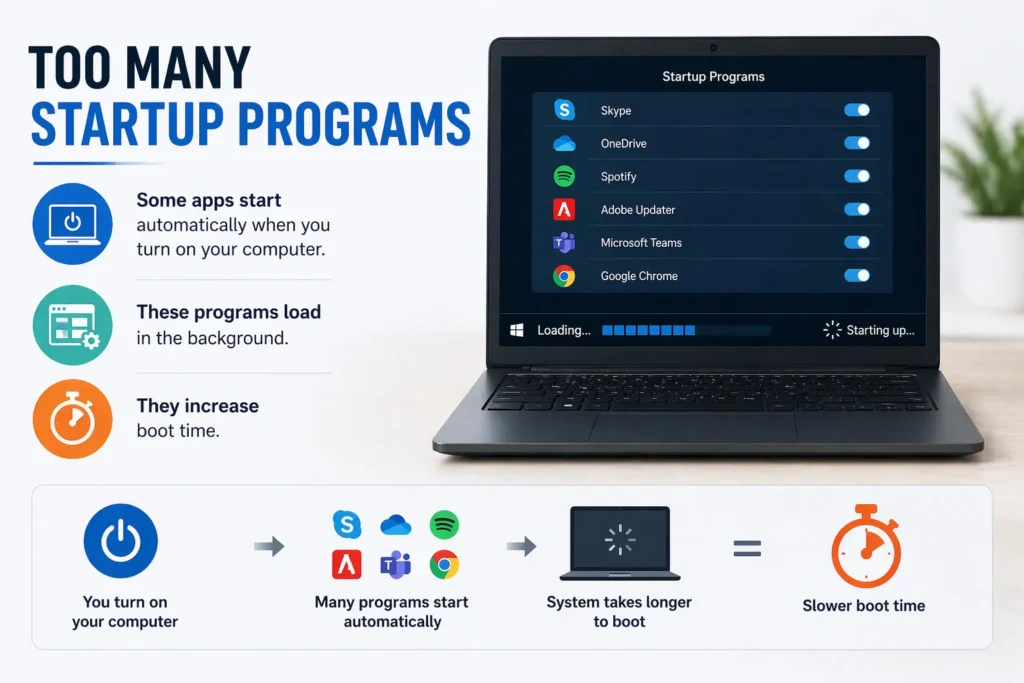
4. Too Many Startup Programs
Some apps start automatically when you turn on your computer.
- These programs load in the background
- They increase boot time
Result:
- Slow startup
- System feels heavy right after turning on
5. Malware or Viruses
Malicious software can run without your knowledge.
- Uses system resources in the background
- May track data or run unwanted tasks
Result:
- Sudden slowdown
- High CPU usage without clear reason
6. Outdated Software or OS
Running old versions of software can affect performance.
- Updates often fix bugs and improve speed
- Old systems may not support new apps properly
Result:
- Slower performance
- Compatibility issues
7. Too Many Browser Tabs
Each browser tab uses memory and processing power.
- More tabs = more RAM usage
- Heavy websites increase load further
Result:
- Browser lag
- Slow switching between tabs
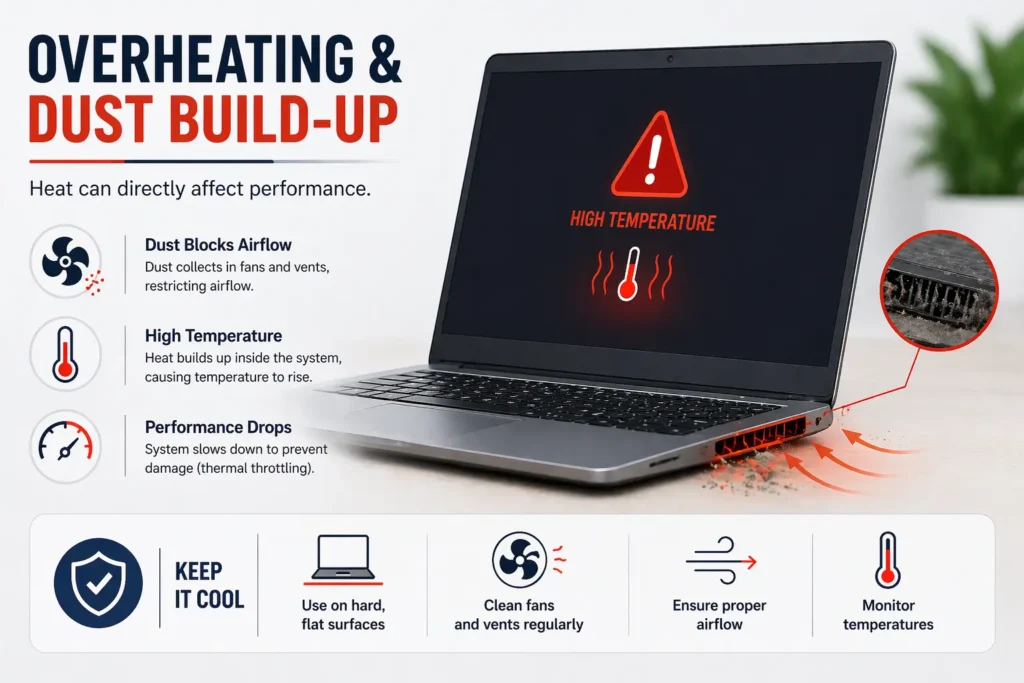
8. Overheating & Dust Build-Up
Heat can directly affect performance.
- Dust blocks airflow inside your system
- High temperature forces the CPU to slow down (thermal throttling)
Result:
- Sudden lag
- Loud fan noise
9. Old or Failing Hardware
Hardware gets slower with time.
- Old CPUs struggle with modern apps
- HDDs are slower compared to SSDs
- Aging components may fail
Result:
- Overall slow performance
- Long loading times
10. High CPU Usage
Sometimes one or more processes use too much CPU.
- Heavy apps like video editing or gaming
- Background tasks or system updates
Result:
- System lag
- Slow response time
Once you identify which of these issues is affecting your computer, fixing it becomes much easier—and in many cases, you can see instant improvement.
Signs Your Computer Is Slow
Not sure if your computer is actually slow or just having a temporary issue? These clear signs can help you identify the problem quickly.
1. Takes Long to Boot
If your computer takes several minutes to start:
- Startup programs may be overloaded
- System resources are being used before you even begin
A healthy system should boot within seconds to a minute (depending on hardware)
2. Apps Freeze or Crash
When apps stop responding or close suddenly:
- Your RAM or CPU may be overloaded
- Background processes could be interfering
This usually happens during multitasking or when using heavy apps
3. Slow File Opening
If files take too long to open:
- Storage may be nearly full
- Hard drive performance may be low
You may notice delays when opening documents, videos, or folders
4. Browser Lag
When browsing feels slow:
- Too many tabs are open
- Heavy websites are consuming memory
Signs include:
- Pages loading slowly
- Tabs freezing
- Delay when switching tabs
5. Fan Running Loudly
A constantly loud fan is a warning sign.
- Your system may be overheating
- CPU is working harder than normal
This often leads to slower performance and possible system lag
If you’re experiencing more than one of these signs, your computer likely needs immediate optimization or cleanup.
How to Fix a Slow Computer (Step-by-Step)
Now that you know the causes, let’s fix them. Follow these steps one by one, you’ll often see a speed boost after just a few changes.
1. Restart Your Computer
This is the simplest and most effective fix.
- Clears temporary files and memory (RAM)
- Stops unnecessary background processes
If your system hasn’t been restarted in days, this alone can improve speed
2. Close Unnecessary Programs
Too many running apps slow everything down.
- Open Task Manager (Windows) or Activity Monitor (Mac)
- Check which apps are using the most CPU or memory
- Close apps you don’t need
Focus on heavy apps like browsers, editing tools, or games
3. Disable Startup Programs
Reduce the load during boot.
On Windows:
- Press
Ctrl + Shift + Esc→ Go to Startup tab - Disable unnecessary apps
On Mac:
- Go to System Settings → Login Items
- Remove unwanted apps
This can significantly improve startup speed
4. Free Up Disk Space
A full drive slows down your system.
- Delete unused files and apps
- Empty Recycle Bin / Trash
- Use built-in cleanup tools
Aim to keep at least 20–30% free space
5. Scan for Malware
Hidden threats can slow your computer.
- Use trusted antivirus software
- Run a full system scan
- Remove any detected threats
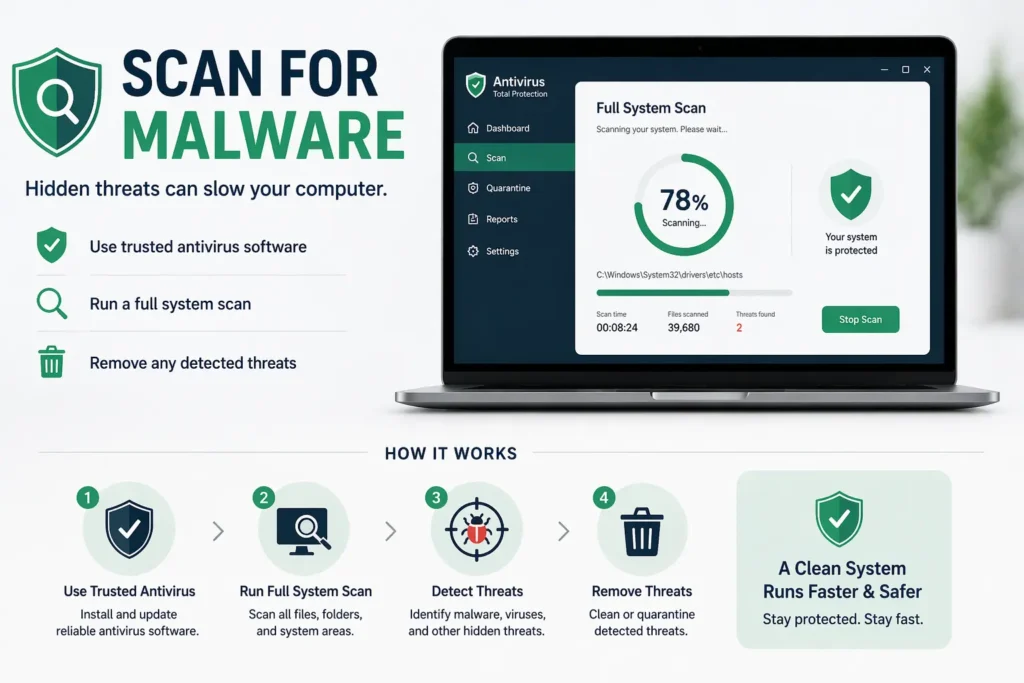
This helps remove background processes you didn’t install
6. Update Software & Drivers
Updates often improve performance.
- Update your operating system
- Install latest drivers (especially graphics and system drivers)
Updates fix bugs and improve system efficiency
7. Upgrade RAM (If Needed)
If your system slows down during multitasking:
- Add more RAM
- Especially useful for browsing, editing, or development work
Recommended:
- 8GB for basic use
- 16GB+ for smooth multitasking
8. Switch to SSD
One of the biggest upgrades you can make.
- SSDs are much faster than HDDs
- Faster boot time and app loading
This alone can make your computer feel like new
9. Clean Your Computer (Physically)
Dust can reduce performance by causing overheating.
- Use compressed air to clean fans and vents
- Ensure proper airflow
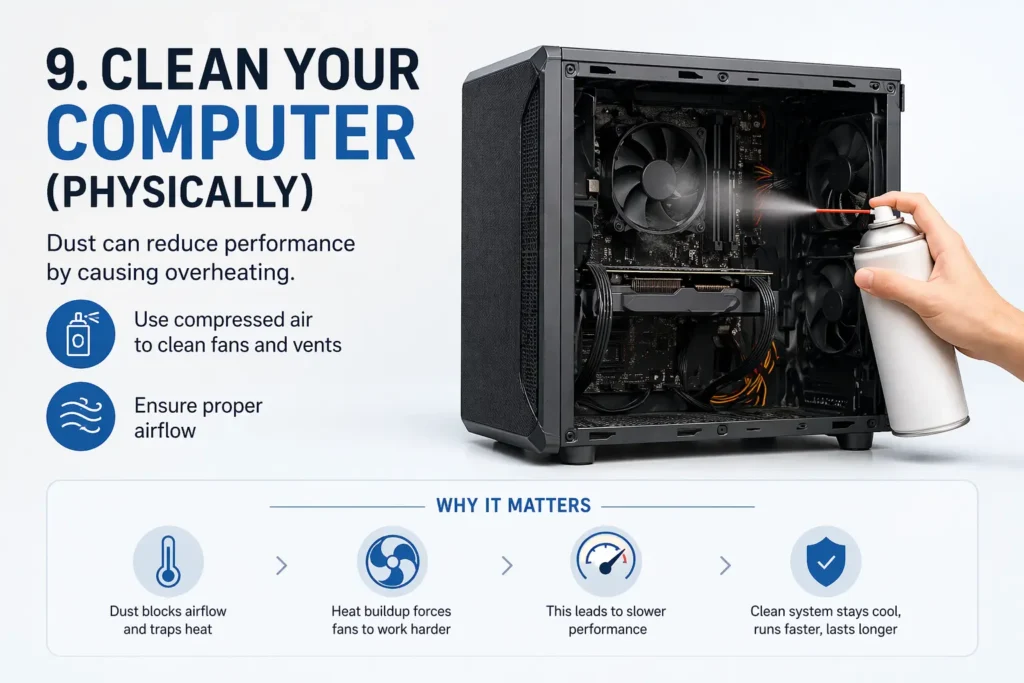
This prevents overheating and improves speed
10. Reduce Visual Effects
Animations can slow down low-end systems.
- Turn off unnecessary animations
- Use performance mode settings
Helps improve speed on older or low-spec computers
Follow these steps in order. In most cases, you’ll notice a clear improvement without needing to replace your computer.
Advanced Fixes (For Power Users)
If basic fixes didn’t solve the issue, these advanced steps can help you get deeper control over your system performance. Follow them carefully.
1. Reset or Reinstall OS
This is one of the most effective ways to fix a slow computer.
- Removes unnecessary files, apps, and hidden issues
- Fixes deep system errors
- Gives your system a fresh start
On Windows:
- Go to Settings → System → Recovery → Reset this PC
On Mac:
- Use macOS Recovery Mode to reinstall the system
Tip: Always back up your data before doing this
2. Fix Corrupted System Files (SFC Scan)
System files can sometimes get damaged, causing slow performance.
On Windows:
- Open Command Prompt as Administrator
- Run this command: sfc /scannow
- Wait for the scan to complete
- It will automatically fix corrupted files
This is useful if your system feels slow without any clear reason
3. Optimize Disk / Defragment HDD
If you’re using an HDD (not SSD), this step helps improve speed.
- Files get scattered over time
- Defragmentation reorganizes them for faster access
On Windows:
- Search Defragment and Optimize Drives
- Select your drive → Click Optimize
Note: Do NOT defragment SSDs (they don’t need it)
4. Check Hardware Health
Sometimes the issue is hardware-related.
- Check disk health (bad sectors or failing drive)
- Monitor CPU and GPU temperatures
- Look for RAM errors
Tools you can use:
- Built-in diagnostics
- Third-party monitoring tools
These advanced fixes are helpful when basic solutions don’t work. If your system is still slow after this, it may be time for a hardware upgrade.
When You Should Upgrade Your Computer
Sometimes, no matter how many fixes you try, your computer still feels slow. That’s usually a sign that the hardware itself is no longer enough for today’s needs.
1. Very Old System
If your computer is 5–7+ years old, it may struggle with modern tasks.
- Older processors are slower
- Limited support for new software updates
- Outdated components reduce overall performance
Even basic tasks like browsing or opening files may feel slow
2. Cannot Handle Modern Apps
Today’s apps and software require more power.
- Browsers use more memory
- Design, editing, and development tools need higher performance
- New updates demand better hardware
If apps take too long to open or crash often, your system may be underpowered
3. Constant Lag Even After Fixes
If you’ve already tried:
- Cleaning storage
- Closing apps
- Updating software
- Scanning for malware
…and your system is still slow:
It likely means the hardware is the limitation
If performance still doesn’t improve, investing in a new system may save you time and frustration in the long run.
How to Prevent Your Computer from Slowing Down
Fixing a slow computer is one thing, keeping it fast is even more important. Follow these simple habits to avoid performance issues in the future.
1. Keep Storage Clean
Your system needs free space to run smoothly.
- Delete unused files and apps regularly
- Empty Recycle Bin / Trash
- Remove temporary and junk files
Try to keep at least 20–30% of your storage free
2. Limit Startup Apps
Too many startup programs slow down boot time.
- Disable apps you don’t need at startup
- Only keep essential programs enabled
This helps your computer start faster and run smoother
3. Regular Updates
Updates are important for both speed and security.
- Keep your operating system updated
- Update drivers and apps regularly
Updates fix bugs and improve performance
4. Avoid Unnecessary Software
Installing too many programs can slow down your system.
- Only install what you actually use
- Remove unused or duplicate software
Fewer apps = better performance
5. Clean Hardware Regularly
Dust buildup can cause overheating and slow performance.
- Clean fans and vents every few months
- Ensure proper airflow around your device
This prevents overheating and keeps your system running efficiently
By following these simple steps, you can keep your computer fast, stable, and problem-free for a long time.
Laptop vs Desktop – Why One Feels Slower
Many people notice that laptops often feel slower than desktops—even with similar specs. The difference usually comes down to heat and upgrade options.
Thermal Limits in Laptops
Laptops are compact, which limits airflow and cooling.
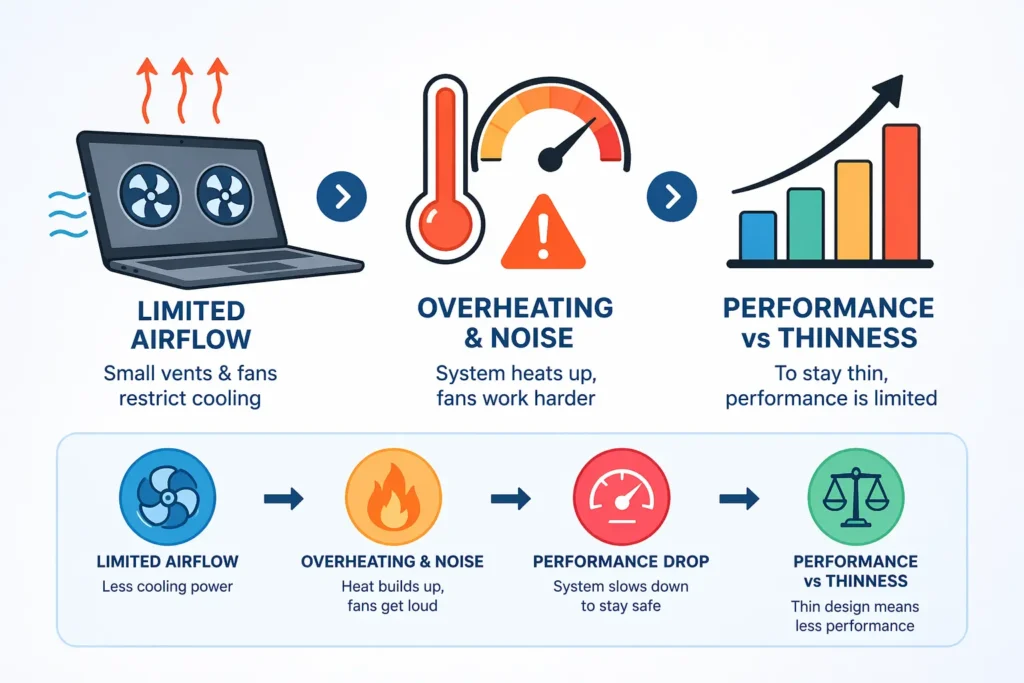
- Limited space means smaller fans and cooling systems
- Heat builds up quickly during heavy tasks
- To protect itself, the CPU slows down (thermal throttling)
Result:
- Performance drops during gaming, editing, or multitasking
- System may feel fast at first, then slow down after some time
Upgrade Flexibility in Desktops
Desktops are built for performance and easy upgrades.
- Better airflow with larger fans
- Easy to upgrade RAM, storage, and graphics card
- More powerful components can be added over time
Result:
- Stable performance even under heavy load
- Longer lifespan due to upgrade options
Final Comparison
| Factor | Laptop | Desktop |
|---|---|---|
| Cooling | Limited | Strong airflow |
| Performance | Can drop under load | Stable and consistent |
| Upgradability | Very limited | Easy and flexible |
| Portability | High | None |
If you need portability, a laptop is the right choice. But if performance and long-term speed matter more, a desktop usually performs better and stays faster over time.
Internet vs Computer – What’s Actually Slow?
Sometimes the problem isn’t your computer, it’s your internet. Knowing the difference helps you fix the right issue instead of guessing.
How to Identify the Real Problem
Slow Websites = Internet Issue
If only online tasks feel slow, your internet is likely the cause.
Common signs:
- Websites take too long to load
- Videos keep buffering
- Downloads are slow
Your computer may be fine, your connection is the bottleneck
Slow Apps = System Issue
If everything feels slow, including offline tasks, your computer is the issue.
Common signs:
- Apps take time to open
- Files load slowly
- System freezes or lags
This points to hardware or software problems inside your system
Quick Test You Can Try
- Open a file or app offline
- If it’s slow → computer issue
- Open a website or video online
- If it’s slow → internet issue
Final Tip
- Slow internet affects browsing, streaming, and downloads
- Slow computer affects everything, apps, files, and overall performance
Once you know the difference, fixing the problem becomes much easier and faster.
FAQs
1. Why is my computer so slow all of a sudden?
A sudden slowdown usually happens due to:
- Background updates running
- Too many apps opening at once
- Malware or unwanted programs
- Low storage or RAM overload
Restart your system first. If the issue continues, check Task Manager to find what’s using your resources.
2. Does restarting make your computer faster?
Yes, in many cases it does.
- Clears RAM
- Stops unnecessary background processes
- Fixes temporary glitches
It’s one of the quickest ways to improve performance, especially if your system has been running for a long time.
3. How do I clean up a slow computer?
You can clean up your system by following these steps:
- Delete unused files and apps
- Empty Recycle Bin / Trash
- Disable startup programs
- Run a malware scan
- Update your system
These steps can give an instant speed boost without any technical skills.
4. Can viruses slow down a computer?
Yes, viruses and malware are a common cause of slow performance.
- They run hidden processes in the background
- Consume CPU, RAM, and storage
- May cause system instability
Running a full antivirus scan can help detect and remove them.
5. How much RAM do I need for smooth performance?
It depends on your usage:
- 4GB RAM → Basic tasks (not recommended today)
- 8GB RAM → Normal use (browsing, office work)
- 16GB RAM or more → Multitasking, editing, development
More RAM means smoother performance, especially with multiple apps open.
6. Why is my new computer slow?
A new computer can feel slow due to:
- Too many pre-installed apps (bloatware)
- Background setup updates running
- Startup programs enabled by default
Remove unnecessary apps and let updates finish. Performance usually improves after initial setup.
Tools to Fix a Slow Computer
Using the right tools can make troubleshooting much easier. You don’t always need advanced software—your system already comes with helpful built-in options.
Built-in Tools (Free & Effective)
These tools are already available on your computer and work well for most issues.
- Task Manager (Windows)
- Shows which apps are using CPU, RAM, and disk
- Helps you close heavy or unnecessary processes
- Disk Cleanup (Windows)
- Removes temporary files and junk data
- Frees up storage space quickly
- Activity Monitor (Mac)
- Similar to Task Manager
- Tracks CPU, memory, and energy usage
- Storage Management (Mac)
- Helps identify large and unused files
- Suggests ways to free up space
These tools are enough for basic cleanup and performance improvement
Third-Party Tools (Optional)
If you want deeper cleaning or automation, you can use trusted third-party tools.
- CCleaner
- Cleans junk files and browser data
- Manages startup programs
- Malwarebytes
- Detects and removes malware
- Useful when antivirus misses threats
- Advanced SystemCare
- One-click optimization
- Includes cleanup and performance tools
Use third-party tools carefully, install only trusted software and avoid unnecessary apps
Conclusion
A slow computer can be frustrating, but the good news is that most problems are fixable. In many cases, the issue isn’t serious, it’s usually caused by software, background apps, or lack of maintenance.
By following simple steps like:
- Restarting your system
- Closing unnecessary programs
- Freeing up storage
- Scanning for malware
You can often see an instant improvement in speed
Also remember:
- Most slowdowns are software-related, not hardware failures
- Regular maintenance can keep your system running smoothly
- Upgrading should be your last option, not the first
Start with the basic fixes, and only consider upgrading if your computer still struggles after trying everything.