What does “types of computer” mean?
“Types of computer” means the different kinds of computers we use today.
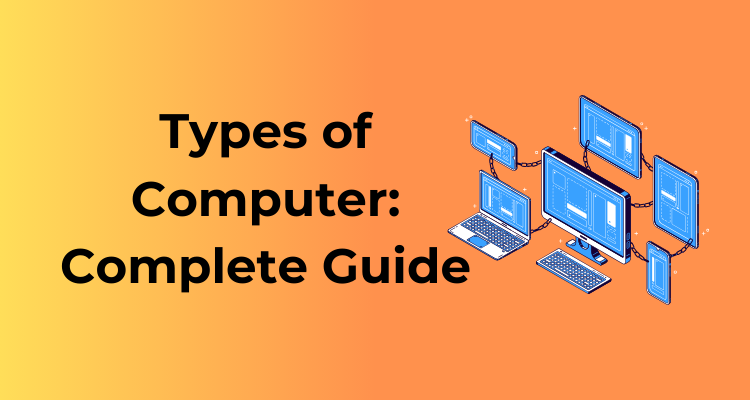
The main types of computers are:
- Desktop computer – used at home or in offices
- Laptop computer – portable and easy to carry
- Tablet – touch-based and lightweight
- Workstation – powerful computer for design and heavy work
- Server – used to store data and run websites or apps
- Supercomputer – extremely powerful, used for research
- Embedded computer – built into devices like TVs, cars, and machines
- AI-powered computer – modern computers designed to handle AI tasks
These computer types exist because each one is designed for a different need. Some are built for daily office work, some for portability, some for heavy tasks like data processing or research, and others for running websites, apps, or smart devices.
Why computer “types” matter
Understanding computer types helps you:
- Spend the right budget (not overpay for power you don’t need)
- Get the right speed for your work or study
- Choose portability wisely (desktop vs laptop vs tablet)
- Avoid buying the wrong computer for gaming, design, AI tasks, or business use
Even two computers with similar specs can perform very differently if they belong to different types.
What this guide covers
This guide explains all types of computers used in 2026, clearly and with real examples:
- Types of computers by size (from personal computers to supercomputers)
- Types of computers by purpose (home, office, gaming, servers, and more)
- Special computer types like AI PCs, cloud-based computers, and quantum computers
By reading this guide, you’ll quickly understand which type of computer fits your exact need and why.
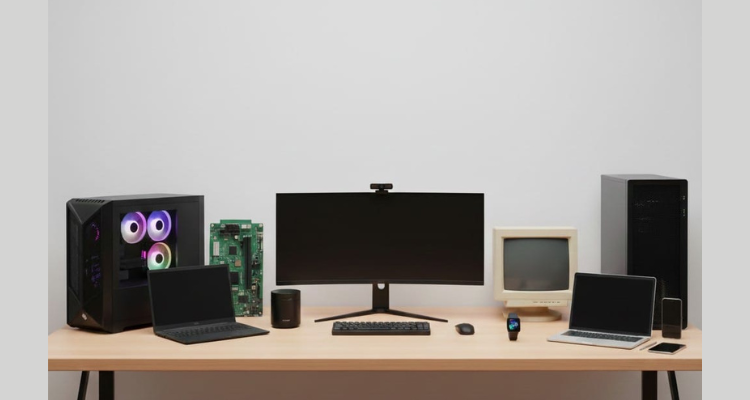
Types of Computer by Size and Power (Classic Classification)
2.1 Microcomputers (Personal Computers)
Microcomputers are the most common type of computer people use today. When someone says “computer” in daily life, they are usually talking about a microcomputer.
They are designed for one user at a time and are affordable, compact, and powerful enough for most personal and professional tasks in 2026.
What They Are
A microcomputer is a small-sized computer built around a single processor. It can perform all basic computing tasks such as:
- Writing documents
- Browsing the internet
- Running business software
- Coding and development
- Design, editing, and gaming (depending on specs)
Modern microcomputers are far more powerful than older large systems and can easily handle advanced workloads.
Who They’re For
Microcomputers are ideal for:
- Students
- Office employees
- Freelancers
- Business owners
- Developers
- Designers
- Home users
In short, anyone who needs a general-purpose computer uses a microcomputer.
Examples of Microcomputers (2026)
Below are the main microcomputer types you will find today.
1) Desktop PCs
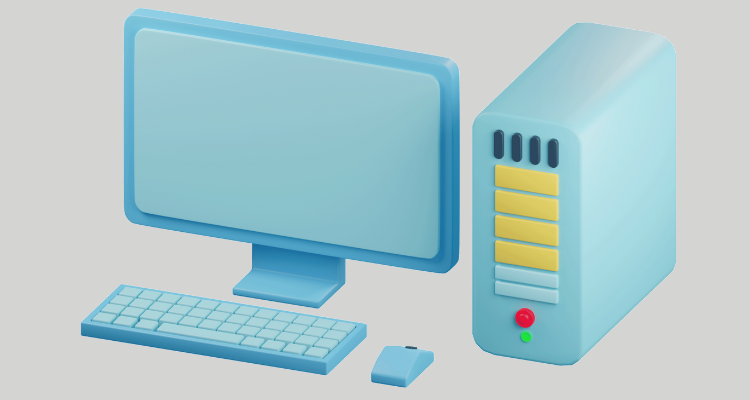
Desktop computers are fixed systems designed to stay on a desk.
Key points:
- Separate monitor, keyboard, and CPU cabinet
- Easy to upgrade and repair
- Better performance for the price
Common uses:
- Office work
- Programming
- Video editing
- Gaming
- Design and 3D work
Why people still use them in 2026:
They offer strong performance, better cooling, and long-term value.
2) Laptops / Notebooks
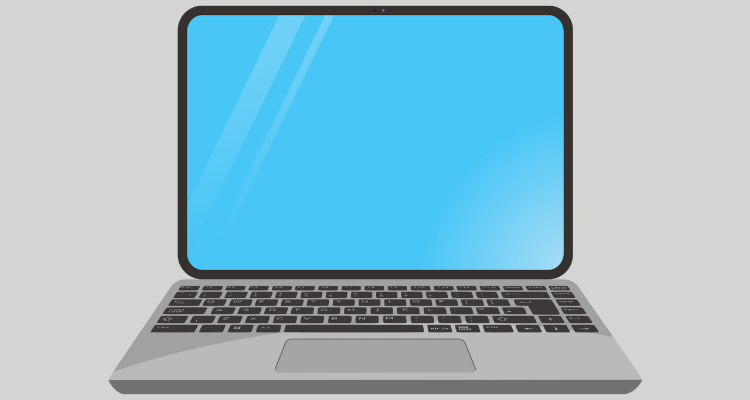
Laptops are portable microcomputers with built-in screens and batteries.
Key points:
- Easy to carry
- All-in-one design
- Works without constant power supply
Common uses:
- Students and teachers
- Remote workers
- Business travel
- Freelancers
Popular laptop categories in 2026:
- Thin-and-light laptops
- Business laptops
- Gaming laptops
- AI-enabled laptops (with built-in AI processing units)
3) 2-in-1 Convertible Computers
2-in-1 computers can work as both laptops and tablets.
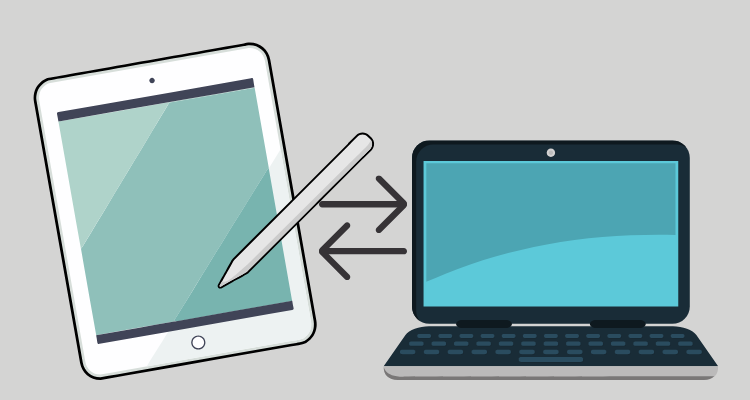
Two main types:
- Detachable keyboard models
- Foldable (360-degree hinge) models
Common uses:
- Note-taking
- Online classes
- Presentations
- Light design work
They are popular among students and professionals who want flexibility.
4) Mini PCs
Mini PCs are small desktop computers that save space.
Key points:
- Very compact size
- Low power usage
- Quiet operation
Common uses:
- Office desks
- Digital signage
- Home servers
- Media centers
In 2026, many mini PCs also support local AI tasks, making them useful for modern workflows.
5) Single-Board Computers Used Like PCs
Single-board computers place all main parts on one small board.
Examples include:
- Keyboard-style single-board systems
- Educational and lab-focused boards
Common uses:
- Learning computing
- Coding practice
- Robotics
- Home labs
- Testing and automation
While not as powerful as desktops or laptops, they are still fully functional computers for basic tasks.
Quick Summary Table
| Microcomputer Type | Portable | Upgrade Friendly | Common Users |
| Desktop PC | No | Yes | Offices, gamers, designers |
| Laptop | Yes | Limited | Students, professionals |
| 2-in-1 Convertible | Yes | Limited | Students, presenters |
| Mini PC | No | Limited | Offices, home setups |
| Single-Board Computer | Yes | Very limited | Learners, hobby users |
Types of Computer by Purpose (How People Actually Buy or Choose)
This section explains types of computers based on real buying decisions. Instead of technical labels, it focuses on how people use computers in daily life, work, study, and business.
3.1 Desktop Computer
Best for
- Best price-to-performance
- Easy upgrades (RAM, storage, GPU)
- Stable long-hour work setup
Common variants
- Tower PC – Separate CPU cabinet, monitor, keyboard, mouse
- All-in-One PC – Computer built into the monitor
Key advantages
- Strong performance for the price
- Long lifespan due to upgrade options
- Better cooling than laptops
Limitations
- Not portable
- Needs dedicated desk space
Who should buy
- Office workers
- Developers
- Designers
- Home users needing long working hours
3.2 Laptop Computer
Best for
- Portability with full PC features
- Work, study, and travel
Common variants
- Ultrabooks – Thin, light, long battery life
- Gaming laptops – High-performance GPU and cooling
- Business laptops – Security, durability, professional support
Key advantages
- Portable and compact
- Built-in battery, keyboard, and screen
- Works anywhere
Limitations
- Limited upgrade options
- Higher cost for same performance as desktops
Who should buy
- Students
- Remote workers
- Professionals who travel
3.3 2-in-1 / Convertible Computer
Best for
- Students
- Note-taking + laptop work
- Flexible usage styles
Form factors
- Detachable – Keyboard can be removed (tablet-style use)
- 360° hinge – Screen rotates fully into tablet mode
Key advantages
- Combines laptop + tablet
- Touchscreen and pen support
- Saves cost of buying two devices
Limitations
- Less powerful than full laptops
- Keyboard may feel smaller
Who should buy
- College students
- Teachers
- Light office users
3.4 Tablet Computers (Including iPad-like Devices)
Best for
- Reading and media consumption
- Meetings and presentations
- Creative work (drawing, note-taking)
When a tablet replaces a laptop
- Browsing, emails, meetings
- Notes with stylus
- Content consumption
When it doesn’t
- Heavy multitasking
- Programming
- Advanced design or editing
Key advantages
- Very portable
- Touch-first experience
- Long battery life
Limitations
- Limited desktop software support
- External keyboard often needed
Who should buy
- Casual users
- Creators (sketching, notes)
- Executives for meetings
3.5 Workstations
Best for
- CAD and engineering work
- Video editing and 3D rendering
- Data science and simulations
Key traits
- Professional GPUs
- High-core CPUs
- ECC RAM (optional)
- Built for sustained heavy loads
Key advantages
- Reliable under long workloads
- Certified hardware for pro software
- Higher accuracy and stability
Limitations
- Expensive
- Overkill for normal users
Who should buy
- Architects
- Engineers
- VFX artists
- Data analysts
3.6 Servers
Best for
- Hosting websites and applications
- Databases
- File sharing and backups
Common subtypes
- Rack servers – Used in data centers
- Tower servers – Office-friendly form
- Blade servers – High-density environments
- Home server / NAS – Personal or small business use
Key advantages
- Runs 24/7
- Handles multiple users
- Built for reliability
Limitations
- Needs technical setup
- Higher power usage
Who should buy
- Businesses
- Hosting providers
- IT teams
3.7 Gaming Computers
What matters most
- Powerful GPU
- Advanced cooling
- High refresh-rate display
- Strong power supply
Key advantages
- Excellent graphics performance
- Also good for editing and streaming
Limitations
- High cost
- Power consumption
Who should buy
- Gamers
- Streamers
- Creators needing GPU power
3.8 Mini PCs
Why they’re popular
- Very small size
- Quiet operation
- Low power usage
Modern examples
- Office mini PCs
- Home media PCs
- AI-focused mini PCs for running local AI models
Key advantages
- Space-saving
- Energy-efficient
- Easy to deploy in offices
Limitations
- Limited upgrades
- Not for heavy gaming
Who should buy
- Office teams
- Home users
- Kiosks and POS setups
3.9 Single-Board Computers (SBC)
What they are
- Complete computer on a single circuit board
Common use-cases
- Learning computing
- Robotics projects
- Kiosks
- Home labs
Popular example
- Raspberry Pi keyboard-style computers
Key advantages
- Low cost
- Educational
- Highly flexible
Limitations
- Limited performance
- Not ideal for daily office work
Who should buy
- Students
- Hobbyists
- Engineers and learners
3.10 Embedded Computers
What they are
- Computers hidden inside devices
Common examples
- Routers
- Smart TVs
- Cars
- Medical machines
- POS systems
Why embedded is different
- Low power usage
- Built for a single task
- Long life cycle
Who should buy
- Manufacturers
- Industrial users
3.11 Wearable Computers
What they include
- Smartwatches
- AR headsets
- VR headsets
Main purpose
- Health tracking
- Immersive experiences
- Hands-free computing
Limitations
- Not general-purpose computers
Purpose-Based Comparison Table
| Type | Best For | Main Advantages | Limitations | Typical Price Band | Buy If You… |
| Desktop | Office, home work | Best value, upgrades | No portability | Low–Medium | Work from one place |
| Laptop | Travel, study | Portable, all-in-one | Limited upgrades | Medium | Need mobility |
| 2-in-1 | Students | Flexible use | Lower power | Medium | Want tablet + laptop |
| Tablet | Reading, notes | Lightweight, touch | Limited software | Medium | Do light work |
| Workstation | Pro workloads | Stable, powerful | Expensive | High | Do heavy creative work |
| Server | Hosting, data | Multi-user support | Complex setup | High | Run services |
| Gaming PC | Gaming, GPU tasks | Strong graphics | Power hungry | High | Need GPU power |
| Mini PC | Office, kiosks | Small, quiet | Limited upgrades | Low–Medium | Want compact setup |
| SBC | Learning | Low cost | Low performance | Low | Want to experiment |
| Embedded | Devices | Efficient | Single-purpose | Varies | Build products |
| Wearable | Health, AR/VR | Hands-free | Limited tasks | Medium | Need wearable tech |
The “AI PC” Category (Important in 2025–2026)
AI PCs are becoming a new, clear category of computers, not just a marketing label. From 2025 onward, many buyers will actively choose between a regular laptop, an AI PC, or a workstation, depending on how much on-device AI work they expect to do.
4.1 What an AI PC Is (in Plain Words)
An AI PC is a computer designed to run AI tasks directly on the device, instead of sending everything to the cloud.
The key difference is the presence of a dedicated NPU (Neural Processing Unit) alongside the CPU and GPU.
The idea of CPU + GPU + NPU
- CPU → general tasks (apps, system operations)
- GPU → graphics and parallel workloads
- NPU → AI-specific tasks (very power-efficient)
This allows the computer to handle AI features locally, without constant internet use.
Examples of on-device AI tasks
- Real-time transcription
- Image and video enhancement
- Background removal and blur
- AI-powered search inside files
- Text rewriting and summarization
- Voice commands processed locally
Why AI PCs matter
Speed
- On-device AI runs instantly
- No waiting for cloud responses
Privacy
- Sensitive data stays on the device
- Less need to upload files, audio, or images
Offline features
- Many AI tools still work without internet
- Useful for travel, meetings, and restricted networks
Battery efficiency
- NPUs use far less power than CPU or GPU for AI tasks
4.2 Copilot+ PCs (Example of Modern AI PCs)
Copilot+ PCs are a named category introduced to clearly define what qualifies as an AI PC.
They are not just “AI-ready”, they meet specific hardware requirements.
What makes Copilot+ PCs a named category
- Built-in high-performance NPU
- Optimized operating system for AI workloads
- AI features deeply integrated at system level
- Long battery life even with AI tasks running
This is similar to how “Ultrabook” once defined thin-and-light laptops, Copilot+ PCs define AI-first computers.
Who benefits most from Copilot+ PCs
Office teams
- Meeting summaries
- Document drafting
- Search across emails and files
- Productivity without cloud dependence
Students
- Note summarization
- Research help
- Offline AI assistance during travel or exams
Creators
- Image cleanup
- Video enhancements
- Audio processing
- Faster creative workflows without heavy GPUs
These systems are positioned between regular laptops and workstations, smarter than traditional laptops, but more efficient than heavy pro machines.
Comparison Chart: Regular Laptop vs AI PC vs Workstation
Checklist-Style Comparison Table
| Feature | Regular Laptop | AI PC | Workstation |
| Battery Life | Good | Very High | Low–Medium |
| Portability | High | High | Low |
| On-device AI Features | Limited | Strong | Medium |
| AI Task Efficiency | Low | High (NPU-based) | High (GPU-based) |
| Upgradeability | Limited | Limited | High |
| Sustained Heavy Loads | Medium | Medium | Very High |
| Power Consumption | Low | Very Low for AI tasks | High |
| Best For | General users | Productivity + AI | Pro workloads |
How to Read This Chart (Quick Guidance)
- Choose a regular laptop if you only need basic computing.
- Choose an AI PC if you want smart features, long battery life, and privacy-focused AI.
- Choose a workstation if you run heavy software, large datasets, or long rendering tasks.
Types of Computers by Data Handling (Academic Classification)
This classification is commonly used in computer fundamentals, engineering courses, and exams. It groups computers based on how they process and represent data, not on size or usage.
5.1 Analog Computers
What they are
Analog computers process continuous data. Instead of working with exact numbers like 0 and 1, they operate on physical quantities such as voltage, pressure, temperature, or speed that change smoothly over time.
In simple terms, analog computers measure rather than calculate.
Key characteristics
- Works with continuous values
- Produces approximate results
- Real-time response
- Very fast for specific tasks
Where you still see them today
Analog computers are rare in daily life but still exist in niche and specialized systems, such as:
- Scientific and laboratory instruments
- Flight simulators (older or hybrid designs)
- Speedometers and fuel gauges (mechanical/electrical analog systems)
- Industrial process control instruments
Limitations
- Low accuracy compared to digital computers
- Difficult to reprogram
- Not suitable for general-purpose tasks
5.2 Digital Computers
What they are
Digital computers process data in discrete form, using binary digits (0 and 1). Almost every modern computing device falls into this category.
They perform calculations using logical operations and store data in digital memory.
Key characteristics
- Works with binary data
- Highly accurate
- Easy to program and modify
- Can store large amounts of data
Common examples
- Desktop computers
- Laptops
- Smartphones
- Tablets
- Servers
- Workstations
- Supercomputers
Why digital computers dominate
- High accuracy
- Easy data storage
- Supports complex software
- Scales from small devices to massive systems
Limitations
- Slight delay compared to pure analog response in some real-time scenarios
5.3 Hybrid Computers
What they are
Hybrid computers combine analog and digital computing. They use analog components to handle continuous data and digital components to perform calculations, storage, and control.
This approach gives speed from analog systems and accuracy from digital systems.
Where they fit
Hybrid computers are used where:
- Real-time data measurement is critical
- High accuracy calculations are required
- Both speed and precision matter
Common use-cases
- Medical equipment (ECG, CT scanners, MRI systems)
- Scientific research instruments
- Industrial automation systems
- Weather and environmental monitoring systems
Why hybrid computers are important
- Handle real-world signals efficiently
- Provide reliable digital outputs
- Ideal for complex, real-time environments
Quick Comparison Table: Data Handling Types
| Type | Data Form | Accuracy | Speed | Common Usage Today |
| Analog | Continuous | Low–Medium | Very High | Niche instrumentation |
| Digital | Binary (0/1) | Very High | High | Almost all modern devices |
| Hybrid | Both | High | High | Medical and industrial systems |
Modern “Cloud Computers” and Virtual Computers
Modern computing is no longer limited to physical machines sitting on a desk. Today, many people use a computer that lives in the cloud and access it through the internet. These are commonly called cloud computers, virtual computers, or virtual desktops.
What Is a Virtual Machine (VM)? (In Simple Terms)
A virtual machine (VM) is a software-based computer that runs inside another computer or on a cloud server.
You can think of it like this:
- One powerful physical computer
- Split into many virtual computers
- Each virtual computer acts like a real one
Each VM has its own:
- Operating system
- Apps
- Storage
- Settings
Even though it is not a physical device, a VM can:
- Install software
- Run programs
- Store files
- Be restarted or copied easily
Simple example
- Your laptop opens a remote desktop
- You log in
- You are working on a computer that actually runs in a data center
Cloud Desktop / Virtual Desktop (VDI) Basics
A cloud desktop or Virtual Desktop Infrastructure (VDI) provides a full desktop experience over the internet.
Instead of buying a high-powered PC:
- The computer runs on cloud servers
- You access it using a browser or remote app
- Your device becomes just a screen, keyboard, and mouse
How cloud desktops work (step-by-step)
- User logs in from a laptop, tablet, or thin client
- A virtual desktop starts in the cloud
- Apps and files load from the cloud system
- User works as if on a normal PC
Common use-cases
- Remote work setups
- Call centers
- Software testing
- Training labs
- Secure office environments
Pros and Cons: Cloud Computers vs Buying Hardware
Below is a clear, buyer-focused comparison to help decide when cloud computers make sense.
Comparison Table: Cloud Computer vs Physical Computer
| Factor | Cloud Computer / VM | Physical Computer |
| Upfront Cost | Low | High |
| Ongoing Cost | Monthly fee | One-time purchase |
| Hardware Upgrades | Instant (change plan) | Manual, costly |
| Portability | Access from anywhere | Tied to device |
| Performance Control | Provider-dependent | Full control |
| Internet Dependence | Required | Optional |
| Data Security | Centralized, controlled | Depends on user setup |
| Maintenance | Handled by provider | User responsibility |
| Offline Use | Not possible | Fully possible |
Advantages of Cloud Computers
- No need to buy expensive hardware
- Easy to scale up or down
- Centralized data and security
- Ideal for remote teams
- Quick setup and deployment
Limitations of Cloud Computers
- Requires stable internet connection
- Monthly or hourly cost adds up
- Less hardware-level control
- Performance depends on provider and network
When Cloud Computers Make Sense
- Short-term projects
- Remote or distributed teams
- Training environments
- Testing multiple operating systems
- Secure work setups
When Buying Hardware Is Better
- Poor or unreliable internet
- Heavy offline work
- Gaming and real-time graphics
- Long-term personal use
Quantum Computers (Special Computing Model, Not a PC Replacement)
Quantum computers are often misunderstood as faster versions of normal computers. In reality, they are a completely different computing model, built for very specific problems. They do not replace PCs, laptops, or servers and are not meant for everyday tasks.
7.1 What Quantum Computers Are Good For (and Not Good For)
What quantum computers are good for
Quantum computers excel at problems where many possibilities must be evaluated at the same time.
Best-suited problem areas
- Molecular and material simulation
- Drug discovery
- Battery materials
- Chemical reactions
- Drug discovery
- Optimization problems
- Supply chain routing
- Traffic flow optimization
- Portfolio optimization
- Supply chain routing
- Cryptography research
- Studying future encryption methods
- Studying future encryption methods
- Advanced scientific research
- Physics and climate modeling
- Physics and climate modeling
These problems are extremely slow or impractical for classical computers at scale.
What quantum computers are not good for
Quantum computers are not useful for:
- Web browsing
- Word processing
- Gaming
- Office software
- Running standard apps
- Replacing servers or workstations
For most everyday tasks, classical computers are faster, cheaper, and more reliable.
Why Quantum Computers Are Different from Normal Computers
| Classical Computers | Quantum Computers |
| Use bits (0 or 1) | Use qubits (0 and 1 at once) |
| Deterministic results | Probabilistic outcomes |
| Stable at room temperature | Often need extreme cooling |
| Easy to scale | Very hard to scale |
| General-purpose | Highly specialized |
Key differences explained simply
- Superposition: Qubits can represent multiple states at once
- Entanglement: Qubits can be linked, so one affects another
- Measurement sensitivity: Results collapse when observed
These properties allow new types of calculations — but also make systems fragile.
7.2 Common Quantum Approaches People Mention Today
Quantum computing is not a single technology. Multiple approaches exist, each with different strengths.
1) Gate-Based Quantum Computers
What they are
- Most widely discussed model
- Similar in concept to logic gates in classical computing
- Programs are built using quantum gates
Where they’re used
- Research institutions
- Cloud-based quantum platforms
- Algorithm development and testing
Why they matter
- Most flexible and general-purpose quantum approach
- Focus of long-term quantum roadmaps
2) Quantum Annealing
What it focuses on
- Solving optimization problems
- Finds the best solution among many options
Where it fits
- Scheduling
- Logistics
- Route optimization
Limitations
- Not suitable for general quantum algorithms
- Narrow use-case scope
3) Photonic Quantum Computing
What it uses
- Light particles (photons)
Why it’s interesting
- Can operate at or near room temperature
- Promising for networking and scalability
Current status
- Still largely experimental
- Strong research interest
4) Trapped-Ion Quantum Computing
What it uses
- Individual ions held in electromagnetic fields
Strengths
- High accuracy
- Stable qubits
Challenges
- Scaling to large systems is difficult
5) Neutral Atom Quantum Computing
What it uses
- Neutral atoms arranged in grids
Why it’s promising
- Better scalability potential
- Growing interest in research labs
Real-World Industry Roadmap (High-Level)
While quantum computers are not consumer devices, industry progress follows a clear pattern:
Near term
- Cloud access to small quantum systems
- Research and education use
Mid term
- Better error correction
- More stable and scalable qubits
- Practical use in narrow problem areas
Long term
- Fault-tolerant quantum computers
- Real-world impact in chemistry, materials, and cryptography
Most companies today focus on hybrid models, where:
- Classical computers do most work
- Quantum systems handle specific sub-problems
How to Choose the Right Computer (Step-by-Step)
This section helps buyers make a clear decision without getting lost in specs. Follow the steps in order. Most bad purchases happen when people skip Step 2 and jump straight to specs.
Step 1: Decide Your Main Use-Case
Start by identifying what you will actually do most of the time.
Common use-cases
- Study & learning – online classes, notes, assignments
- Office work – emails, documents, meetings, spreadsheets
- Coding & development – programming, testing, local servers
- Design – graphics, UI, CAD
- Video editing – short videos, long-form editing, rendering
- Gaming – casual or high-end gaming
- Server use – hosting apps, websites, storage
- AI work – on-device AI tools, local models, data processing
Pick one primary use-case and one secondary use-case. That’s enough.
Step 2: Pick the Computer Type First (Before Specs)
Choosing the wrong type cannot be fixed with better specs.
Main computer types to choose from
- Laptop – portability, all-in-one
- Desktop – best performance for price
- Mini PC – compact, low power
- Workstation – heavy professional workloads
- Server – multi-user, 24/7 tasks
Quick guidance
- Need mobility → Laptop
- Fixed desk, best value → Desktop
- Small space, office use → Mini PC
- Heavy creative or data work → Workstation
- Hosting or shared access → Server
Step 3: Choose Specs That Match Your Type
Once the type is fixed, only then choose specifications.
Key components explained simply
CPU
- Office & study → mid-range CPU
- Coding & editing → higher core count
- Servers & workstations → multi-core focus
RAM
- 8 GB → basic use
- 16 GB → office, coding, light editing
- 32 GB+ → video, design, AI, servers
Storage (SSD)
- 256 GB → minimum
- 512 GB → comfortable
- 1 TB+ → video, design, data work
GPU
- Not needed → office, study
- Needed → gaming, design, video, AI
- Professional GPU → workstation tasks
Battery (for laptops)
- 6–8 hours → average
- 10+ hours → travel and students
Ports
- USB-A, USB-C, HDMI, SD card (as needed)
- Don’t assume adapters will solve everything
Upgrade options
- Desktop/workstation → easy upgrades
- Laptop/mini PC → limited upgrades
Step 4: Quick Buying Rules (Simple & Practical)
Use these rules to avoid common mistakes:
- Choose type before specs
- Don’t overbuy power you won’t use
- RAM matters more than CPU for most users
- Always choose SSD, never HDD as main storage
- Gaming specs ≠ work specs
- Battery life matters more than thinness
- Upgrade options extend lifespan
- Stable cooling beats peak performance
- Internet-dependent work favors laptops/AI PCs
- Servers are not personal computers
Mini Decision Table: “If You Do X → Choose Y”
| If You Mostly Do… | Choose This Type |
| Online classes, notes | Laptop / 2-in-1 |
| Office work, meetings | Laptop or Mini PC |
| Coding at a desk | Desktop |
| Design or video editing | Workstation |
| Casual gaming | Gaming laptop or desktop |
| Serious gaming | Gaming desktop |
| Hosting websites/apps | Server |
| AI tools & smart features | AI PC |
| Small office setup | Mini PC |
| Long-term home use | Desktop |
FAQs (People-Also-Ask Style)
These answers are written in simple language, clear enough for beginners and suitable for search snippets.
What is the main difference between a desktop and a laptop?
The main difference is portability.
- A desktop computer stays in one place. It offers better performance for the price and can be upgraded easily.
- A laptop is portable. It includes a screen, keyboard, and battery in one device, but usually costs more for the same performance.
Short answer:
Choose a desktop for power and upgrades. Choose a laptop for mobility.
Is a tablet a computer?
Yes, a tablet is a type of computer, but it is designed for light tasks.
Tablets can:
- Browse the internet
- Run apps
- Handle emails and notes
However, they are not ideal for:
- Heavy multitasking
- Programming
- Advanced design or editing
In simple terms:
A tablet works like a computer, but with limits.
What is a workstation computer?
A workstation is a high-performance computer built for professional workloads.
It is commonly used for:
- CAD and engineering
- Video editing and 3D rendering
- Data science and simulations
Workstations focus on:
- Stability
- Accuracy
- Long working hours
They are more powerful and reliable than normal desktops, but also more expensive.
What is a server vs a normal computer?
A server is designed to serve many users at the same time, while a normal computer is designed for one user.
Key differences
- Servers run 24/7
- Servers handle network requests, data, and storage
- Normal computers focus on personal tasks
Example:
A server hosts a website. A normal computer opens that website.
What is an AI PC and do I need one?
An AI PC is a computer with a built-in NPU (Neural Processing Unit) that runs AI tasks directly on the device.
AI PCs are useful if you:
- Use AI tools daily
- Want faster on-device AI features
- Care about privacy and offline AI use
You do not need an AI PC if:
- You only do basic browsing and office work
Are Raspberry Pi or single-board devices “real computers”?
Yes, they are real computers.
Single-board computers:
- Have a processor, memory, storage, and operating system
- Can run software and connect to displays and keyboards
They are mainly used for:
- Learning
- Robotics
- Home labs
- Small projects
They are real computers, just not built for daily office work.
What is a supercomputer used for?
A supercomputer is used for extremely complex calculations.
Common uses include:
- Weather forecasting
- Climate modeling
- Scientific research
- Space and defense simulations
Supercomputers are not personal computers and are used by governments, research centers, and large institutions.
Are quantum computers available for normal users?
No, quantum computers are not available for everyday users.
Today, they are:
- Used mainly for research
- Accessed through cloud platforms
- Designed for specific scientific problems
Quantum computers do not replace laptops or desktops and are not meant for normal tasks.
Conclusion
Computers are no longer a single, one-size-fits-all device. Today, the type of computer you choose matters more than raw specifications. From desktops and laptops to AI PCs, servers, cloud computers, and even quantum systems, each type exists to solve a specific kind of problem.
For most people, the right choice comes down to how the computer will be used. Students and office users benefit from portable laptops or 2-in-1 devices. Professionals working with design, video, or data need workstations built for sustained performance. Businesses rely on servers and cloud computers to support multiple users and remote work. Newer AI PCs bring smarter, on-device features, while supercomputers and quantum computers remain specialized tools for research, not everyday use.
Understanding computer types by purpose, data handling, and modern computing models makes buying decisions simpler and smarter. Instead of chasing the highest specs or newest buzzwords, choosing the right category first ensures better performance, longer lifespan, and better value.