
Preparing for a front-end developer role? Mastering HTML CSS interview questions is one of the most important steps in clearing your interview successfully. No matter how advanced the company’s tech stack is, recruiters almost always start by testing your understanding of HTML and CSS fundamentals.
These two core technologies form the backbone of every website, and interviewers want to ensure you have a strong grasp of structure, styling, layout, responsiveness, and best practices.
If you’re wondering what kind of questions are actually asked and how you should answer them, you’re in the right place. This guide covers the most commonly asked HTML CSS interview questions, ranging from basic concepts like the box model and semantic elements to advanced topics like Flexbox, Grid, and responsive design.
By the end of this article, you’ll clearly understand what interviewers expect and how to confidently answer both theoretical and practical questions.
HTML Interview Questions
Basic HTML Questions
1. What is HTML and why is it important?
HTML (HyperText Markup Language) is the standard markup language used to create the structure of web pages. It defines how content such as headings, paragraphs, images, links, tables, and forms are displayed in a browser. Think of HTML as the skeleton of a website, it organizes content so browsers can understand and render it properly.
HTML is important because every website on the internet relies on it. Even the most advanced web applications built with modern frameworks still use HTML as their foundation. Interviewers ask this question to test whether you understand that HTML is responsible for structure, accessibility, and content organization.
Understanding the advantages of HTML can also strengthen your answer. For example, HTML is easy to learn, platform-independent, SEO-friendly, and works seamlessly with CSS and JavaScript. Mentioning these benefits shows conceptual clarity rather than just giving a textbook definition.
2. Difference between HTML elements and tags
This is one of the most common HTML CSS interview questions.
An HTML tag is the keyword enclosed in angle brackets, such as <p> or <div>. Tags usually come in pairs: an opening tag and a closing tag.
An HTML element, on the other hand, includes the entire structure — the opening tag, the content inside it, and the closing tag.
For example:
<p>This is a paragraph.</p>
Here:
<p> and </p> are tags.
The complete structure including the content is the element.
Interviewers ask this to check whether you clearly understand HTML structure.
3. What are meta tags and what do they do?
Meta tags provide metadata about a web page. They are placed inside the <head> section of an HTML document and are not visible on the page itself. Instead, they give information to search engines and browsers.
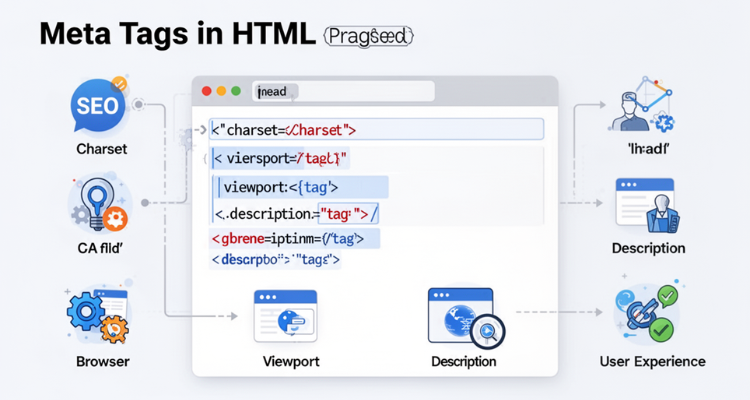
Common examples include:
The charset meta tag that defines character encoding
The viewport meta tag that controls responsive design
The description meta tag used for SEO
Meta tags are important because they improve search engine visibility, control page behavior, and enhance user experience. A strong answer here should connect meta tags with SEO and browser optimization.
4. Role of the alt attribute in images
The alt attribute provides alternative text for an image. It describes the image content and appears if the image fails to load.
More importantly, it improves accessibility. Screen readers use the alt attribute to describe images to visually impaired users. It also helps search engines understand what the image represents, contributing to image SEO.
Interviewers often ask this question to assess your understanding of accessibility and best practices. A complete answer should mention usability, accessibility, and SEO benefits.
5. Difference between block-level and inline elements
Block-level elements take up the full width available and start on a new line. Examples include <div>, <p>, <h1> to <h6>, and <section>.
Inline elements only take up as much width as necessary and do not start on a new line. Examples include <span>, <a>, <strong>, and <em>.
For example, if you place two <div> elements, they will appear one below the other. But if you use two <span> elements, they will appear side by side unless styled differently with CSS.
This question checks your understanding of layout behavior, which becomes especially important when combining HTML structure with CSS styling.
Intermediate HTML Questions
1. Explain semantic HTML elements and their benefits
Semantic HTML elements clearly describe the meaning of the content they contain. Instead of using generic <div> or <span> tags everywhere, semantic tags like <header>, <nav>, <section>, <article>, <aside>, and <footer> define the purpose of different parts of a webpage.
For example, <header> represents introductory content, while <article> is used for self-contained content like blog posts.
The benefits of semantic HTML include:
Better readability and cleaner code structure
Improved SEO because search engines understand content hierarchy
Enhanced accessibility for screen readers
Easier maintenance and collaboration
When answering this in an interview, you can connect it to the advantages of HTML, especially how semantic structure improves search engine visibility and accessibility. This shows deeper conceptual understanding rather than just naming tags.
2. What is the difference between HTML4 and HTML5?
HTML5 is the latest version of HTML and introduced several improvements over HTML4.
HTML4 relied heavily on <div> elements and external plugins like Flash for multimedia content. HTML5 introduced built-in support for audio and video using <audio> and <video> tags, eliminating the need for third-party plugins.
HTML5 also introduced:
New semantic elements such as <article>, <section>, and <nav>
Canvas and SVG support for graphics
Improved form controls like email, date, and number input types
Better APIs for web applications
In interviews, highlighting HTML5’s support for modern web development and improved performance will strengthen your answer.
3.What are data-* attributes and how are they used?
Data attributes in HTML are custom attributes that allow developers to store extra information directly within HTML elements. They always begin with data-.
Example:
<div data-user-id=”12345″>User Profile</div>
These attributes are commonly used to store additional information that can later be accessed using JavaScript or CSS.
They are useful for:
Storing custom data without affecting standard attributes
Passing data between HTML and JavaScript
Keeping code clean and organized
Interviewers ask this question to check whether you understand how HTML integrates with scripting and dynamic behavior.
4. Differences between HTML and XHTML
HTML (HyperText Markup Language) is more flexible and forgiving. Browsers can often render pages even if there are minor syntax errors.
XHTML (Extensible HyperText Markup Language) is stricter because it follows XML rules. In XHTML:
All tags must be properly closed
Elements must be properly nested
Tag names must be in lowercase
Attributes must always have values
For example, in XHTML, <br /> must be self-closed, while HTML may allow <br>.
This question evaluates your understanding of syntax standards and markup discipline.
5. Common HTML form elements interview question
Forms are a critical part of web development, so interviewers frequently ask about them.
Common form elements include:
<input> (text, email, password, radio, checkbox, number, date, etc.)
<textarea> for multi-line input
<select> and <option> for dropdown lists
<label> for accessibility
<button> for submission
Modern HTML5 also provides built-in validation features such as required fields, pattern matching, and specific input types like email, email verification and number.
A strong interview answer should mention both structure and validation features, along with usability and accessibility best practices.
CSS Interview Questions
CSS Essentials
1. What is CSS, and why is it used?
CSS (Cascading Style Sheets) is a stylesheet language used to control the presentation and layout of HTML elements. While HTML provides the structure of a webpage, CSS is responsible for its design, including colors, fonts, spacing, positioning, responsiveness, and animations.
CSS is used to separate content from design, which makes websites easier to maintain and scale. Instead of styling elements individually inside HTML, developers can control the appearance of multiple pages using a single CSS file.
In interviews, you can explain that CSS improves user experience, ensures consistent design, supports responsive layouts, and makes websites visually appealing. A strong answer should also mention that CSS works together with HTML, leveraging the structural and semantic foundation that highlights the advantages of HTML in organizing content effectively.
2. Explain the CSS box model.
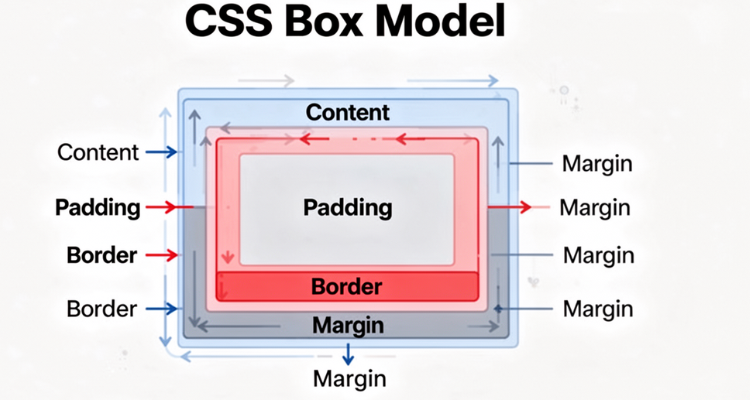
The CSS box model is a fundamental concept that describes how elements are structured and spaced on a webpage. Every HTML element is treated as a rectangular box consisting of four parts:
Content: The actual text or image inside the element
Padding: Space between the content and the border
Border: The edge surrounding the padding
Margin: Space outside the border that separates elements from each other
Understanding the box model is crucial because it directly affects layout and spacing. Many layout issues in web development happen due to misunderstanding margins, padding, or width calculations.
You can also mention the box-sizing property. By default, width and height apply only to the content area, but when box-sizing: border-box; is used, padding and border are included in the total width and height. This demonstrates practical knowledge in interviews.
3. How do you center a div element in CSS?
Centering a div is one of the most frequently asked CSS interview questions. There are multiple ways to do it depending on the situation.
To horizontally center a block-level element with a fixed width:
Use margin: 0 auto;
To center using Flexbox (both horizontally and vertically):
Set the parent container to display: flex;
Use justify-content: center; for horizontal centering
Use align-items: center; for vertical centering
Flexbox is the modern and preferred approach because it is flexible and works well for responsive layouts.
In interviews, mentioning more than one method shows practical understanding rather than memorization.
4. Difference between inline, internal, and external CSS
There are three ways to apply CSS to HTML elements.
Inline CSS is written directly inside an HTML element using the style attribute.
Example: <p style=”color: blue;”>Text</p>
It has high specificity but is not recommended for large projects because it reduces maintainability.
Internal CSS is written inside a <style> tag within the <head> section of an HTML file. It is useful for single-page styling.
External CSS is written in a separate .css file and linked using the <link> tag. This is the most recommended approach because it improves maintainability, reusability, and performance.
In interviews, it’s best to mention that external CSS is preferred in professional development environments due to scalability and cleaner code structure
Selectors & Styling
1. Difference between id and class selectors in CSS
The main difference between id and class selectors lies in uniqueness and reusability.
An id selector is used to target a single unique element on a page. It is defined using the # symbol in CSS.
Example:
#header { background-color: blue; }
In HTML:
<div id=”header”></div>
An element should only have one unique id, and the same id should not be reused elsewhere on the page.
A class selector, on the other hand, is reusable and can be applied to multiple elements. It is defined using the . symbol in CSS.
Example:
.btn { color: white; }
In HTML:
<button class=”btn”></button>
From an interview perspective, you should also mention that id selectors have higher specificity than class selectors, which means they override class styles if both are applied. However, in modern development, classes are preferred because they promote reusable and scalable styling.
2. What are pseudo-classes and pseudo-elements?
Pseudo-classes and pseudo-elements allow developers to style elements based on state or specific parts of an element.
A pseudo-class targets an element in a specific state. It uses a single colon :.
Examples include:
:hover when a user moves the mouse over an element
:focus when an input field is active
:nth-child() to target a specific child element
Example:
button:hover { background-color: green; }
A pseudo-element targets a specific part of an element. It uses a double colon ::.
Examples include:
::before
::after
::first-letter
::first-line
Example:
p::first-letter { font-size: 2em; }
Interviewers ask this question to test whether you understand interactive styling and advanced CSS targeting techniques.
3. CSS selector specificity basics
Specificity determines which CSS rule is applied when multiple rules target the same element. It follows a priority hierarchy.
Inline styles have the highest specificity.
Id selectors have higher specificity than class selectors.
Class selectors, attributes, and pseudo-classes have higher specificity than element selectors.
Element selectors have the lowest specificity.
For example, if a paragraph has both a class and an id applied, the id style will override the class style because it carries more weight.
Understanding specificity is important in interviews because many styling conflicts occur due to incorrect assumptions about priority. A strong answer should show that you understand the hierarchy and how to avoid overusing ids to maintain clean, manageable stylesheets.
Layout & Positioning
1.How does Flexbox work in CSS?
Flexbox (Flexible Box Layout) is a one-dimensional layout system used to arrange elements in rows or columns. It is designed to distribute space efficiently and align items dynamically within a container.
To use Flexbox, you set the parent element to:
display: flex;
Once enabled, the container becomes a flex container and its children become flex items.
Key properties include:
flex-direction to define row or column layout
justify-content to align items horizontally
align-items to align items vertically
flex-wrap to control wrapping behavior
Flexbox is widely used for navigation bars, card layouts, and centering elements. Interviewers often expect you to mention that Flexbox simplifies alignment problems that were previously difficult with older layout techniques like floats.
2. Explain CSS positioning (relative, absolute, fixed, sticky).
CSS positioning controls how elements are placed on a page.
position: relative;
The element is positioned relative to its normal position. It can be shifted using top, right, bottom, or left properties, but it still occupies its original space.
position: absolute;
The element is positioned relative to its nearest positioned ancestor (an ancestor with relative, absolute, or fixed positioning). It is removed from the normal document flow.
position: fixed;
The element is positioned relative to the viewport and stays fixed even when the page scrolls. Commonly used for fixed headers or navigation bars.
position: sticky;
The element behaves like relative until it reaches a defined scroll position, then it behaves like fixed. It is often used for sticky headers.
Interviewers ask this question to assess your understanding of layout behavior and document flow. A strong answer should clearly explain how absolute and fixed positioning remove elements from the normal flow.
3. Differences between display properties (block, inline, flex, grid).
The display property defines how an element behaves in the layout.
display: block;
The element takes up the full width available and starts on a new line. Examples include div and paragraph elements.
display: inline;
The element only takes up as much width as necessary and does not start on a new line. Examples include span and anchor elements.
display: flex;
Turns the element into a flex container, enabling flexible alignment and distribution of child elements in one dimension.
display: grid;
Turns the element into a grid container, allowing two-dimensional layouts with rows and columns. Grid is powerful for complex page structures.
In interviews, it’s helpful to mention that Flexbox is ideal for one-dimensional layouts, while Grid is better suited for two-dimensional layouts.
4. Differences between visibility: hidden vs. display: none.
Both properties are used to hide elements, but they behave differently.
visibility: hidden;
The element becomes invisible, but it still occupies space in the layout. The structure of the page remains unaffected.
display: none;
The element is completely removed from the document flow and does not take up any space. Other elements shift to fill its place.
Interviewers ask this to test your understanding of layout flow. A complete answer should clearly explain the difference in space occupation and document flow behavior.
Advanced CSS Topics
1.CSS units and measurement (px, em, rem, vh/vw)
CSS provides different units to define sizes, spacing, and layouts. Understanding when to use each unit is important for responsive and scalable design.
px (pixels) is an absolute unit. It provides fixed sizing and does not scale relative to other elements.
em is a relative unit based on the font size of the parent element. It is useful for scalable layouts but can compound if nested deeply.
rem (root em) is relative to the root <html> font size. It is more predictable than em and commonly used in modern responsive designs.
vh (viewport height) and vw (viewport width) are relative to the size of the browser window. For example, 100vh equals 100% of the viewport height.
In interviews, mentioning that rem and viewport units are preferred for responsive design shows practical knowledge.
2. What are media queries (responsive design)?
Media queries are a key feature in CSS that allow developers to apply styles based on device characteristics such as screen width, height, resolution, or orientation.
They are commonly used to create responsive websites that adapt to desktops, tablets, and mobile devices.
Example:
@media (max-width: 768px) { body { background-color: lightgray; } }
This means the styles inside the media query will apply only when the screen width is 768px or less.
Interviewers expect you to explain that media queries are essential for mobile-friendly design and improving user experience across devices.
3. CSS variables (custom properties)
CSS variables, also called custom properties, allow developers to store reusable values in CSS. They are defined using — and accessed using the var() function.
Example:
:root { –primary-color: blue; }
button { background-color: var(–primary-color); }
CSS variables improve maintainability and consistency, especially in large projects. If the primary color changes, it only needs to be updated in one place.
In interviews, highlighting how variables make styling scalable and easier to manage demonstrates advanced understanding.
4. CSS Grid vs. Flexbox comparison
CSS Grid and Flexbox are both modern layout systems, but they serve different purposes.
Flexbox is a one-dimensional layout system. It works either in a row or a column and is ideal for aligning items along a single axis. It is commonly used for navigation bars, cards, and smaller components.
CSS Grid is a two-dimensional layout system. It allows control over both rows and columns simultaneously. It is ideal for building complex page layouts such as full website structures.
In interviews, a strong answer should mention that Flexbox is best for component-level layouts, while Grid is better for overall page structure.
5. CSS box-sizing property
The box-sizing property defines how the width and height of elements are calculated.
By default, CSS uses content-box. This means width and height apply only to the content area, and padding and border are added outside of it.
When you use box-sizing: border-box;, the width and height include content, padding, and border. This makes layout calculations more predictable and easier to manage.
Most modern projects apply box-sizing: border-box; globally because it simplifies layout management and prevents unexpected overflow issues.
Practical Coding Examples
Interviewers don’t just test theory — they often ask you to write small code snippets during technical rounds. Practicing real examples helps you confidently answer HTML CSS interview questions in live coding or whiteboard sessions. Below are some common practical examples.
Centering Elements with Flexbox
One of the most frequently asked tasks is centering a div both horizontally and vertically.
.parent {
display: flex;
justify-content: center; /* Horizontal centering */
align-items: center; /* Vertical centering */
height: 100vh;
}
.child {
width: 200px;
height: 100px;
background-color: lightblue;
}
This method is modern, responsive, and widely preferred in real projects. Mentioning Flexbox in interviews shows that you understand current layout standards rather than outdated techniques like floats.
Using Pseudo-Elements
Pseudo-elements are commonly used to add decorative content without extra HTML.
button::after {
content: ” →”;
font-weight: bold;
}
This example adds an arrow after every button text without modifying the HTML structure.
Interviewers may ask why this is useful. A good answer would be that it keeps HTML clean while allowing advanced styling through CSS.
Responsive Media Queries
Responsive design is a must-have skill for front-end roles. Here’s a simple example:
.container {
display: flex;
gap: 20px;
}
@media (max-width: 768px) {
.container {
flex-direction: column;
}
}
In this example, items are displayed in a row on larger screens and stack vertically on smaller screens.
Explaining this in an interview demonstrates your understanding of mobile-first design and adaptability across devices.
Including small coding examples like these in your preparation strengthens both conceptual clarity and practical implementation skills, which is exactly what recruiters look for in front-end interviews.
Tips for Answering Interview Questions
Clearing HTML CSS interview questions is not just about knowing definitions, it’s about demonstrating understanding, logic, and practical thinking. Here are some important strategies to help you stand out during interviews.
Focus on concept clarity over memorization
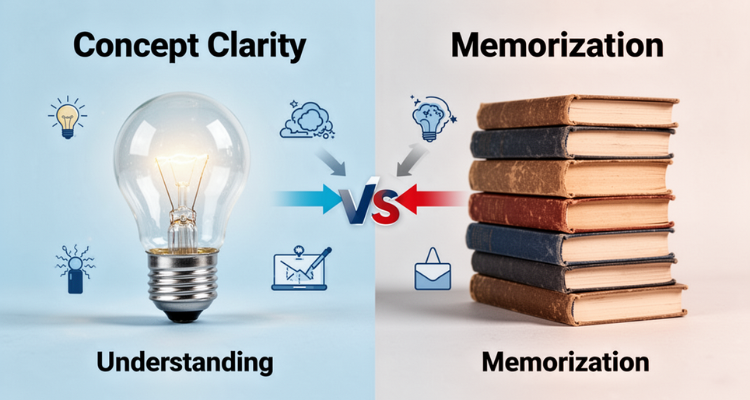
Interviewers can easily tell when a candidate is reciting memorized answers. Instead of giving textbook definitions, focus on explaining concepts in your own words.
For example, if asked about semantic elements, don’t just list <header>, <section>, and <article>. Explain why they matter for structure, SEO, and accessibility. Connecting your answers to real-world benefits, such as how semantic structure supports search engines and highlights the advantages of HTML, shows deeper understanding.
When you understand the “why” behind a concept, you can confidently handle follow-up questions as well.
Use real examples to illustrate answers
Whenever possible, support your explanation with a short example. Even a small HTML or CSS snippet can strengthen your answer.
For example, instead of just explaining the box model, briefly mention margin, padding, and border with a quick scenario.
Practical examples show that you’ve worked on real projects and not just studied theory. Many technical rounds include live coding tasks, so practicing examples in advance gives you an edge.
Ask for clarification if a question is ambiguous
Sometimes interview questions are intentionally broad or unclear. Instead of guessing, ask a clarifying question.
For example, if asked, “How would you center an element?”, you can respond with, “Do you mean horizontally, vertically, or both?”
This approach demonstrates problem-solving ability and critical thinking, qualities that companies value highly in front-end developers. It also ensures that your answer is accurate and relevant to what the interviewer expects.
Mastering content is important, but communicating it clearly and confidently is what truly helps you succeed in interviews.
Conclusion
Mastering HTML and CSS is essential for anyone preparing for front-end developer roles. Almost every technical interview begins with foundational HTML CSS interview questions because these technologies form the backbone of web development. A strong understanding of structure, layout, responsiveness, and styling principles demonstrates that you can build clean, accessible, and scalable user interfaces.
Beyond clearing interviews, solid HTML and CSS knowledge directly impacts your real-world development skills. Understanding semantic structure, layout systems like Flexbox and Grid, and core concepts such as the box model not only improves your coding ability but also reinforces the long-term advantages of HTML in building organized, SEO-friendly, and accessible websites.
To truly master these concepts, don’t rely on theory alone. Build small projects, recreate website layouts, experiment with responsive designs, and regularly revisit core fundamentals. Consistent practice combined with conceptual clarity will not only help you ace interviews but also grow into a confident and capable front-end developer.